How do I set up two RAID 1 groups in TR-004?


最后修订日期: 2025-12-02

Applicable Products

  • TR-004
  • QNAP External RAID Manager

Overview

The QNAP TR-004 is a 4-bay RAID expansion enclosure that supports multiple RAID configurations. When connected directly to a Windows PC or Mac OS, you can use the QNAP External RAID Manager utility to configure RAID groups. To set up two RAID 1 arrays, you must configure the device so that each pair of disks operates as a separate RAID 1 group.

Each RAID 1 array requires two disks. All data on the selected disks will be deleted during setup. The TR-004 must be set to Software Control mode to use the External RAID Manager.


Procedure

Important: Back up all important data before configuring or deleting RAID groups, as this process will erase all data on the selected disks.

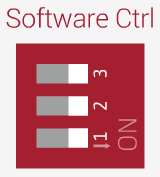
  1. Set the TR-004 to Software Control mode.
    • Ensure the mode switch on the rear of the TR-004 is set to Software Control before connecting it to your PC.
  2. Connect the TR-004 to your Windows PC using the USB cable and power it on.
  3. Download and install QNAP External RAID Manager from the QNAP website.
  4. Launch QNAP External RAID Manager.
  5. Select the TR-004 device in the application interface.
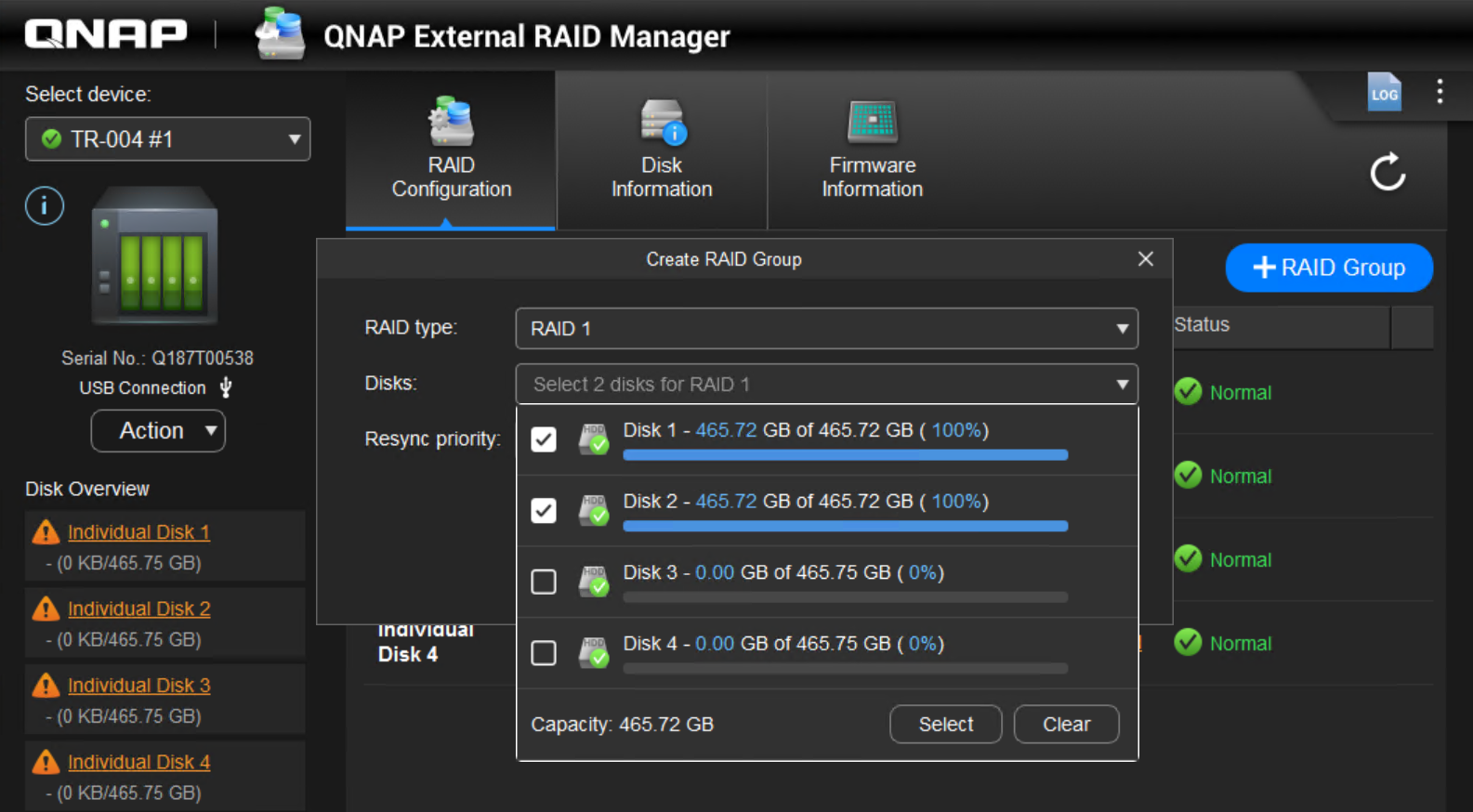
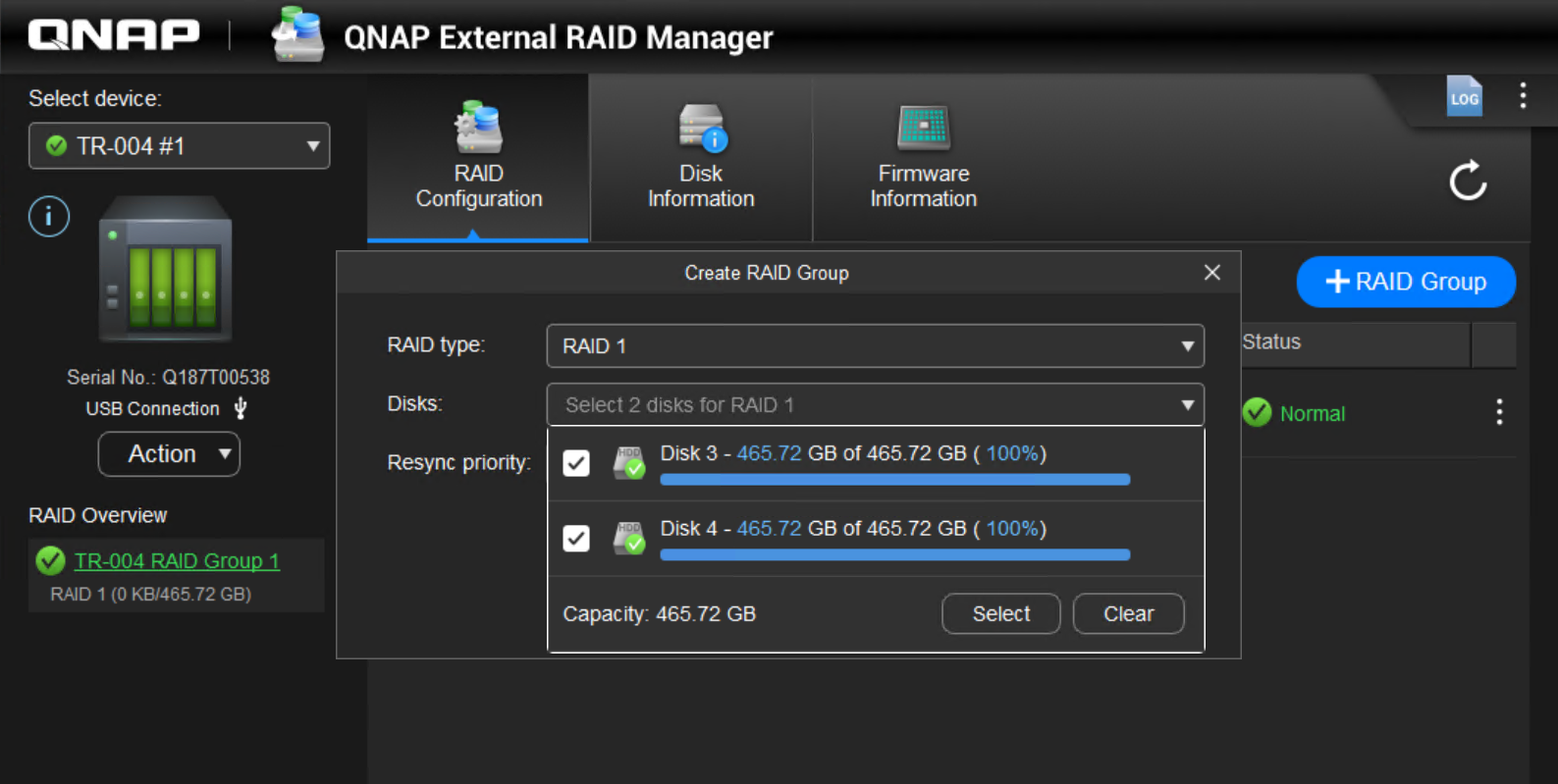
  6. To create the first RAID 1 group:
    1. Click Configure RAID Group.
    2. Select two disks for the first RAID 1 array.
      Warning: All data on the selected disks will be deleted. Unselected disks will be assigned as spare disks and cannot be used until the RAID group is deleted.
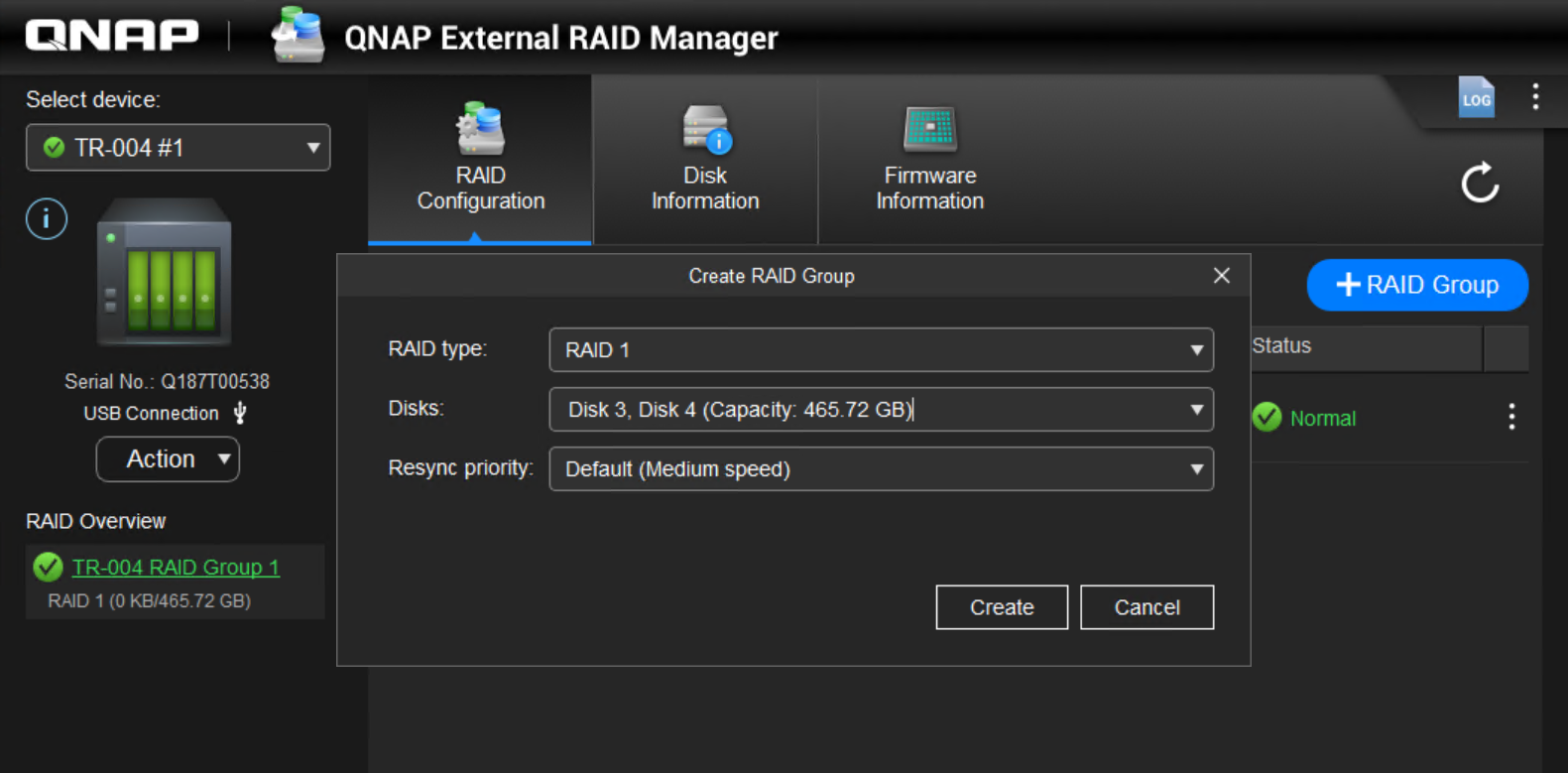
    3. Select RAID 1 as the RAID type.
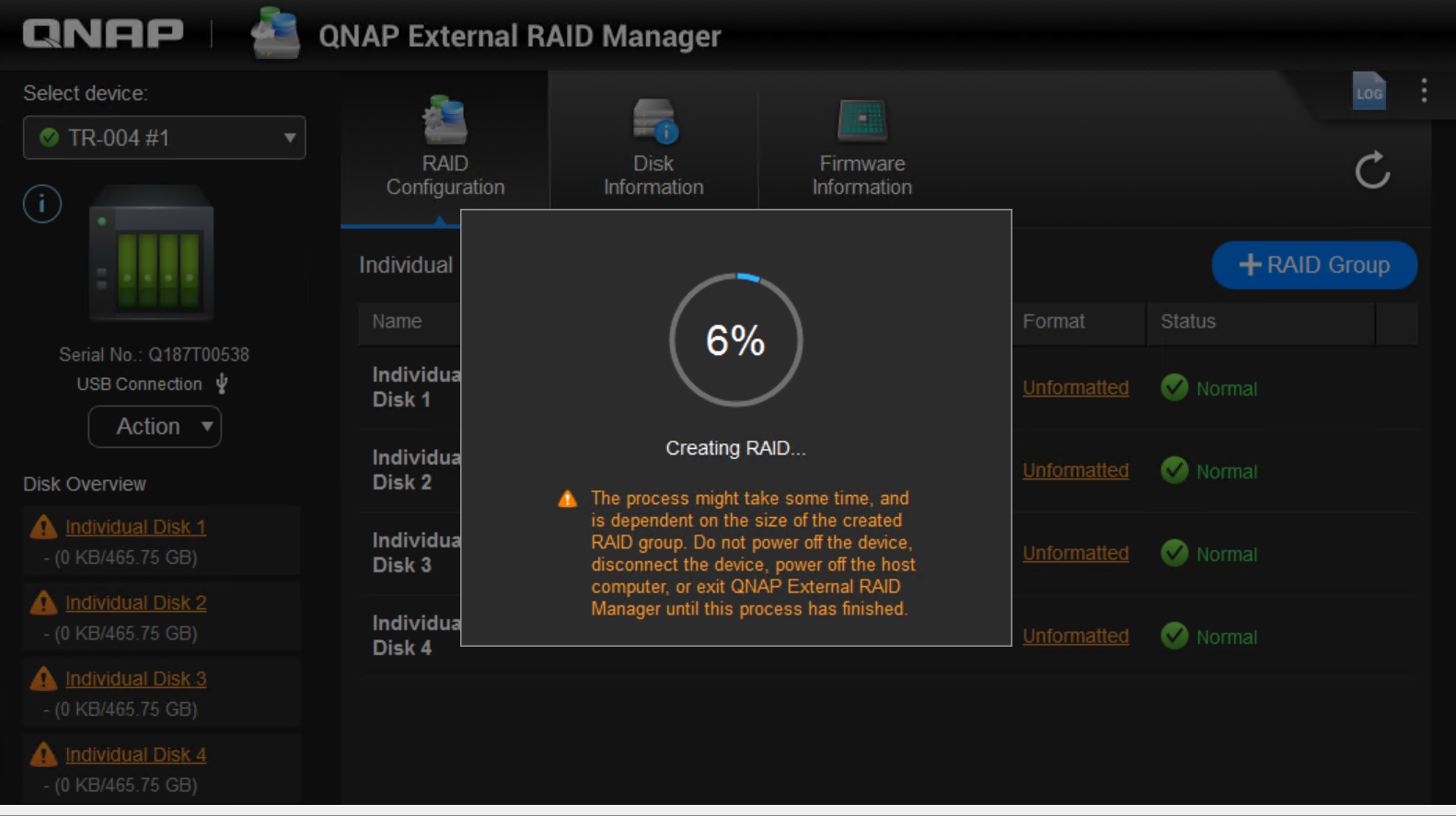
    4. Click Create to start the RAID creation.

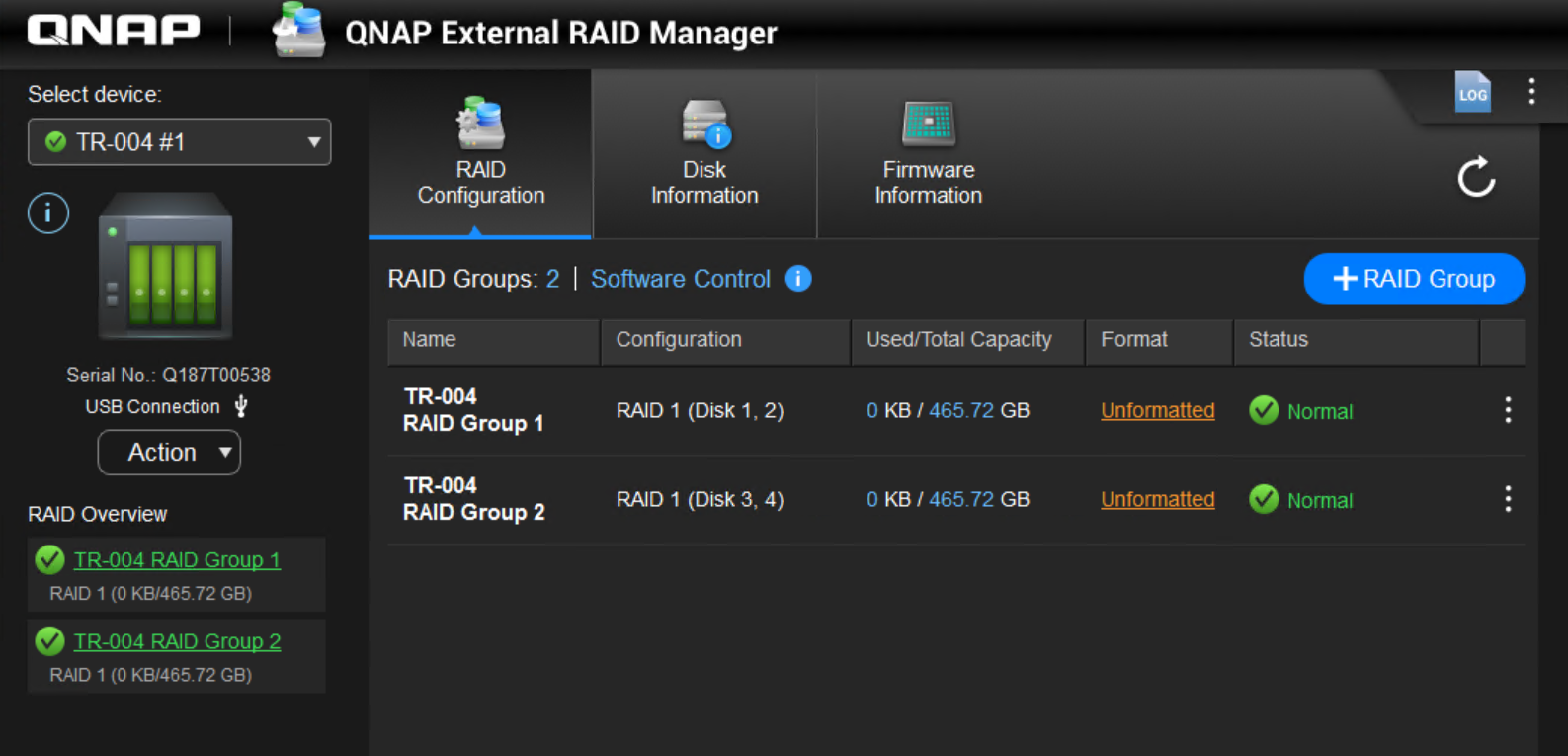
  7. To create the second RAID 1 group:
    1. Repeat above steps and select remaining two disks to create second RAID 1 group.
    2. Click Create to start the 2nd RAID creation.
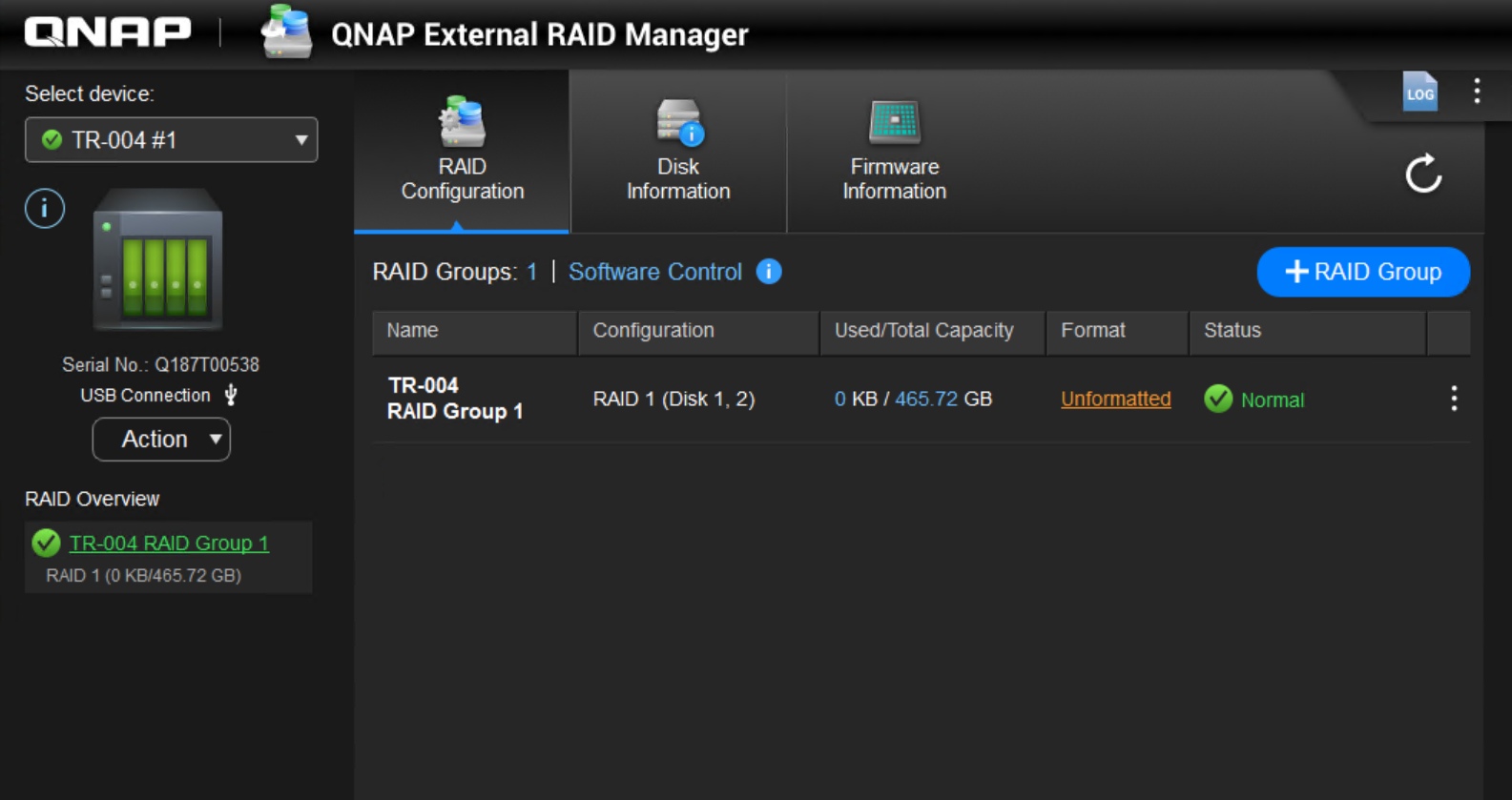
    3. Two RAID 1 groups are created.
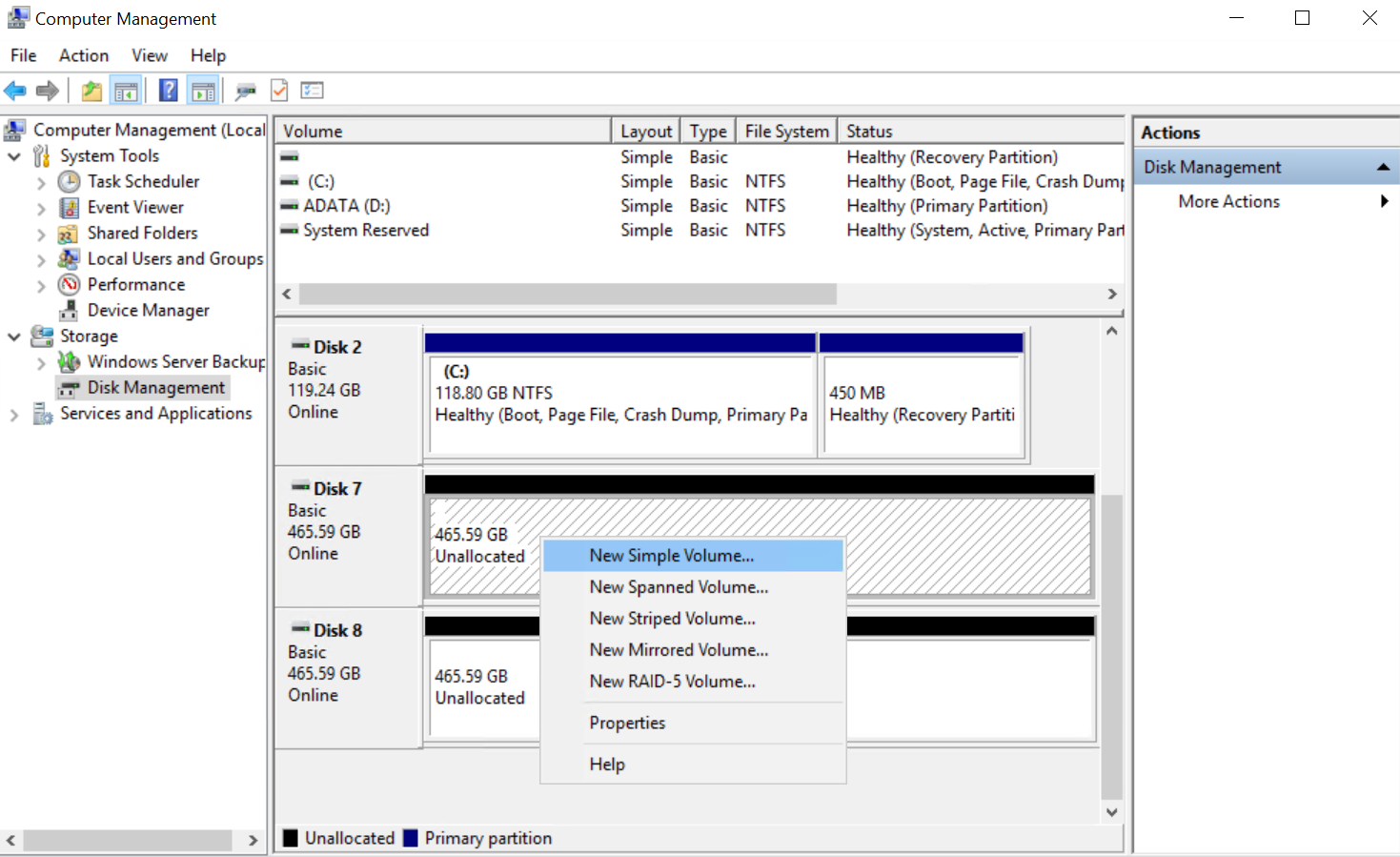
  8. Open Disk Management(on Windows):
    • Right-click the Start button and select Disk Management.
  9. Locate the TR-004 volume in the list of disks. It may appear as unallocated if it hasn't been formatted yet.
  10. Right-click the unallocated space and select New Simple Volume.
  11. Follow the on-screen instructions to create and format a new partition. Choose your preferred file system (for example, NTFS or exFAT) and assign a drive letter.
  12. Click Finish to complete the formatting process.

For macOS or Linux computers, use the built-in Disk Utility or disk management tools to format the TR-004.


Further Reading

这篇文章有帮助吗?

谢谢您,我们已经收到您的意见。

请告诉我们如何改进这篇文章:

如果您想提供其他意见,请于下方输入。

选择规格

      显示更多 隐藏更多
      open menu
      back to top