Applicable Products
- All NAS series running QTS
Root Cause
In some cases, after performing a reset, the default admin credentials may not work due to persistent configuration files or compatibility issues, such as incomplete resets or system file corruption.
Solution
If you have tried to reset your NAS but are still unable to log in, please follow these steps to reset your admin password.
Important: Removing or reinserting drives incorrectly can risk data loss. Note the drive order and do not initialize the NAS during this process.
- Power off your NAS and remove all drives. Important: Note the drive order for reinstallation.
- Power on the NAS without any disks inserted. Wait until you hear a short beep, then a long beep, before proceeding.
- Download and install Qfinder Pro.
- Run Qfinder Pro to locate your NAS and note its IP address.
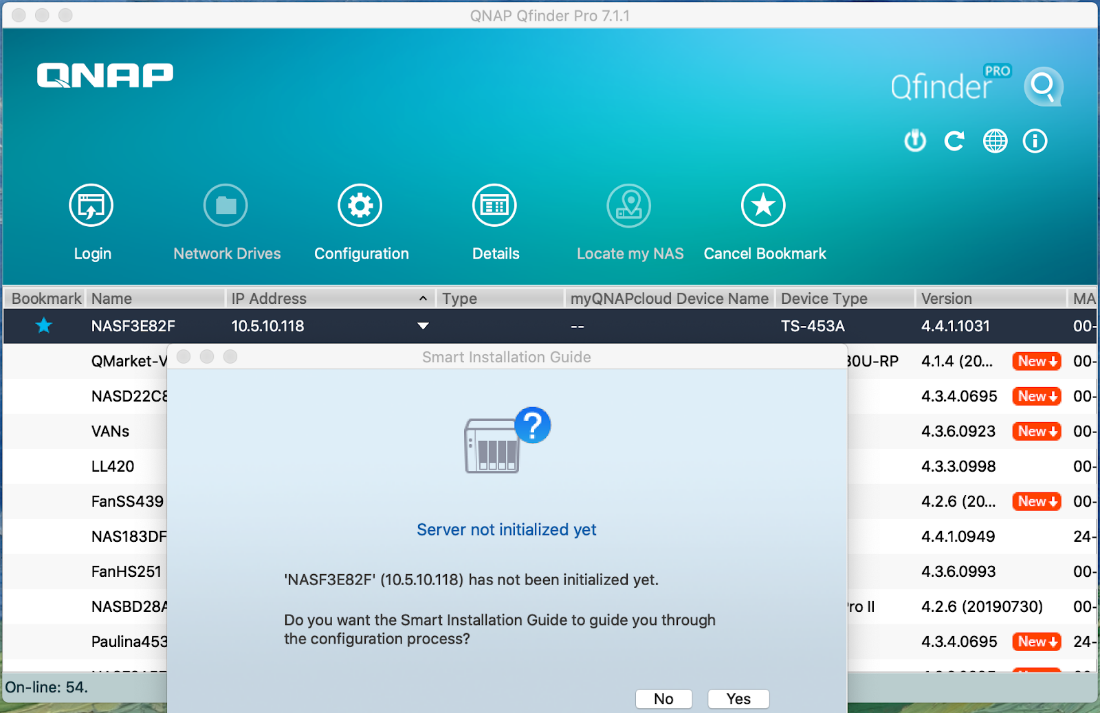
Important: If prompted to initialize the NAS, click No.
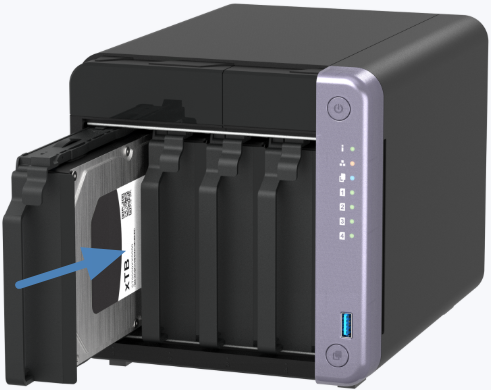
- Without powering off, re-insert the drives in their original order.
- Use SSH to access the NAS and log in using the default admin credentials.
Determine your NAS model:
To check which type of NAS model you have, run:
ls /sbin/hal_app
Observe the output:
- If you see:
ls: /sbin/hal_app: No such file or directoryYour NAS is a Legacy model. Use the steps under Legacy model below. - If there is no error message and the command completes silently, your NAS is a HAL model. Use the steps under HAL model below.
Legacy model
Enter the following commands, pressing Enter after each:
config_util 1
storage_boot_init 1
cd /mnt/HDA_ROOT/.config/
cp /etc/default_config/passwd ./
cp /etc/default_config/shadow ./
cp /etc/default_config/group ./
reboot
HAL model
Enter the following commands, pressing Enter after each:
storage_util --sys_startup
passwd (Follow the prompts to set a new admin password.)
reboot
After rebooting, your admin password will be updated.
Further Reading
适用产品
- All NAS series running QTS
根本原因
在某些情况下,执行重置后,由于持久化配置文件或兼容性问题(如重置不完整或系统文件损坏),默认的 admin 凭据可能无法使用。
解决方案
如果您尝试重置 NAS 但仍无法登录,请按照以下步骤重置您的 admin 密码。
重要提示: 不正确地移除或重新插入硬盘可能会导致数据丢失。请注意硬盘顺序,并在此过程中不要初始化 NAS。
- 关闭 NAS 电源并移除所有硬盘。重要提示: 请注意硬盘的重新安装顺序。
- 在没有插入任何硬盘的情况下启动 NAS。等待听到一声短鸣和一声长鸣后再继续。
- 下载并安装 Qfinder Pro。
- 运行 Qfinder Pro 以定位您的 NAS 并记录其 IP 地址。
重要提示:如果提示初始化 NAS,请点击否。
- 在不关闭电源的情况下,重新插入硬盘,按照原始顺序。
- 使用 SSH 访问 NAS并使用默认管理员凭证登录。
确定您的 NAS 型号:
要检查您拥有哪种类型的 NAS 型号,请运行:
ls /sbin/hal_app
观察输出:
- 如果您看到:
ls: /sbin/hal_app: No such file or directory您的 NAS 是Legacy 型号。请使用下面Legacy 型号的步骤。 - 如果没有错误信息并且命令静默完成,您的 NAS 是HAL 型号。请使用下面的步骤HAL 型号如下。
旧型号
输入以下命令,每次按下回车键:
config_util 1
存储_boot_init 1
cd /mnt/HDA_ROOT/.config/
cp /etc/default_config/passwd ./
cp /etc/default_config/shadow ./
cp /etc/default_config/group ./
重启
HAL 型号
输入以下命令,每次按下回车键:
存储_util --sys_startup
passwd (按照提示设置新的 admin 密码。)
重启
重启后,您的 admin 密码将被更新。
进一步阅读


