Security & Risk Considerations
Hermes Agent is a powerful automation tool that can access local files, execute commands, and use credentials such as API keys or tokens, depending on configuration. Users must therefore configure it with caution and assume full responsibility for its use.
- Access control: Do not expose the Hermes Agent or service port directly to the public Internet. If remote access is required, use a VPN, IP allowlist, or strong authentication mechanisms.
- Third-party extensions: Only install skills or extensions from trusted sources. Security research has shown that malicious extensions may attempt to steal data or credentials.
- Isolation and permissions: Run Hermes Agent in an isolated environment (such as Container Station) and avoid granting unnecessary system or root privileges.
- Credential protection: Protect API keys and tokens carefully and rotate them if exposure is suspected.
Applicable Products
This guide applies to QNAP x86 NAS devices (INTEL / AMD Platform) running Container Station 3.x or later with Docker support enabled.
Scenario
Hermes Agent is an open-source, self-hosted AI agent developed by Nous Research. It runs persistently, retains memory across sessions, supports scheduling, and integrates with messaging platforms such as Telegram and Discord. This guide covers deploying Hermes Agent on a QNAP NAS via Container Station using Docker Compose, and configuring it for ongoing use.
Prerequisites
- QNAP x86 NAS devices (such as INTEL / AMD CPU Platform)
- Container Station 3.x or later installed and running
- At least one LLM API key (Anthropic, OpenAI, or OpenAI Codex)
- Optional: A Telegram Bot Token if using the Telegram messaging gateway
Procedure
Initial Deployment & Setup
Follow these steps to launch the Hermes Agent container and configure your essential API keys and messaging integrations for the first time.
Step 1: Deploy via Docker Compose in Container Station
Container Station will automatically create the hermes-data folder on first run when the volume path is declared in the Compose file. No prior folder creation or SSH access is required. Alternatively, the folder can be created in advance via File Station.
- Open Container Station in the QNAP web interface.
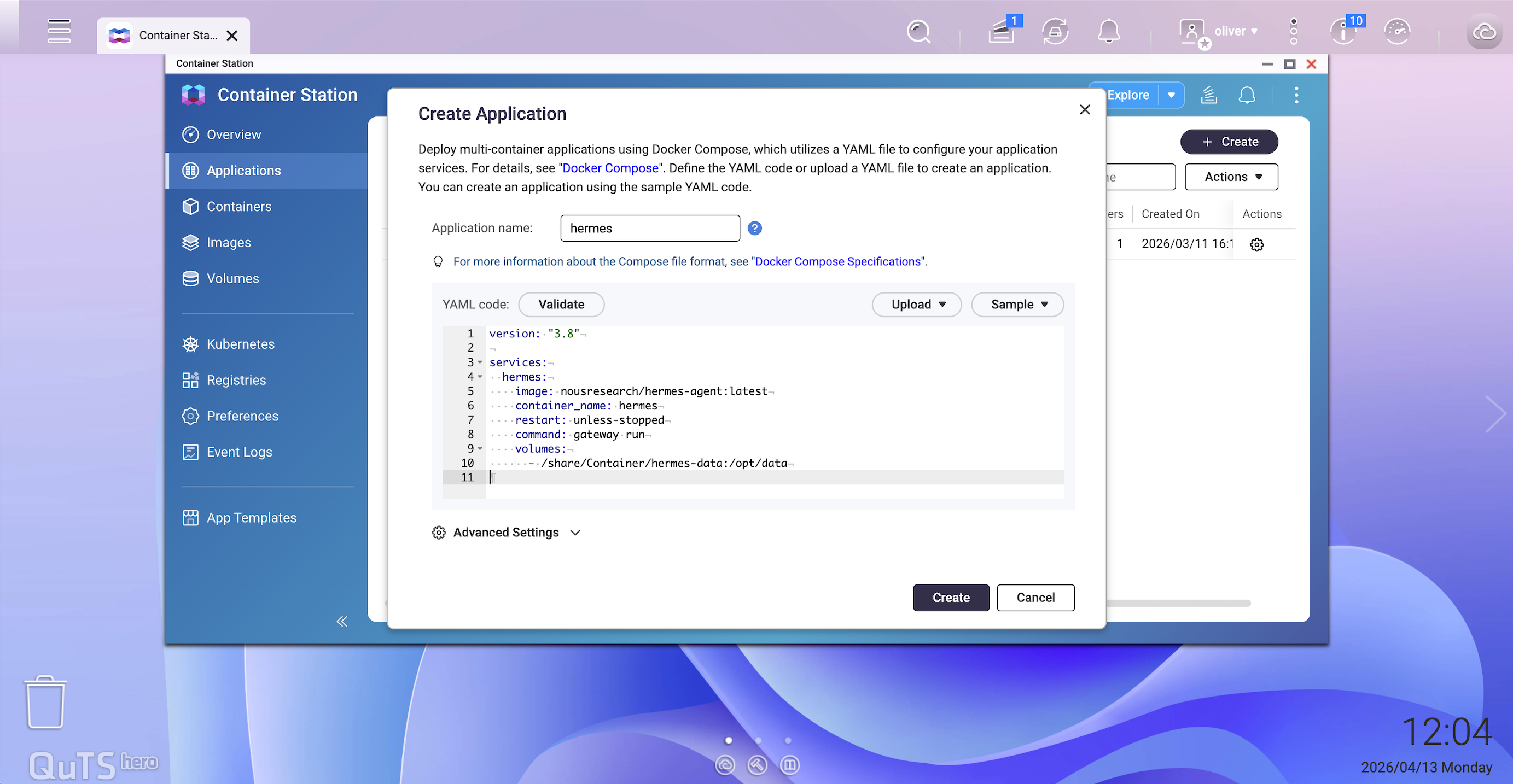
- Navigate to Applications and click Create.
- Select Create Application and paste the following Docker Compose YAML:
version: "3.8"

services:
  hermes:
    image: nousresearch/hermes-agent:latest
    container_name: hermes
    restart: unless-stopped
    command: gateway run
    volumes:
      - /share/Container/hermes-data:/opt/data
- Click Create. Container Station will pull the image and start the container. The
hermes-data folder will be created automatically at /share/Container/hermes-data. - Verify the container is running by checking the Containers list. The status should show Running.
Note: All credentials are managed by the setup wizard in Step 2 and stored in the data volume.
Step 2: Run the Initial Setup Wizard
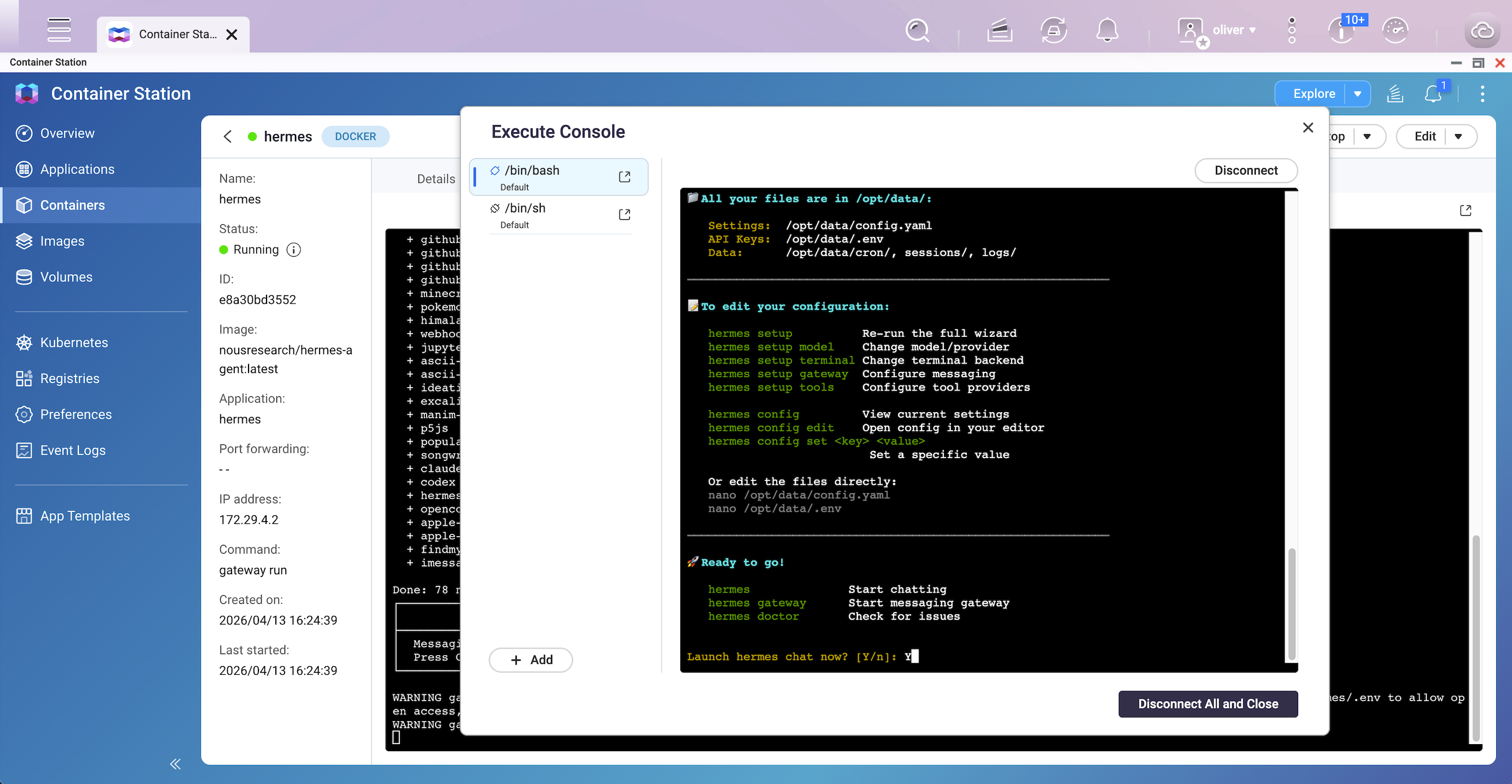
After the container is running, open an interactive shell session to complete first-time configuration. The setup wizard configures your LLM provider, API keys, and messaging platform tokens, writing all settings to the persistent data volume.
- In Container Station, select the hermes container.
- Click Execute and select /bin/bash (or /bin/sh if bash is unavailable) to open an interactive shell.
- In the shell, run:
hermes setup 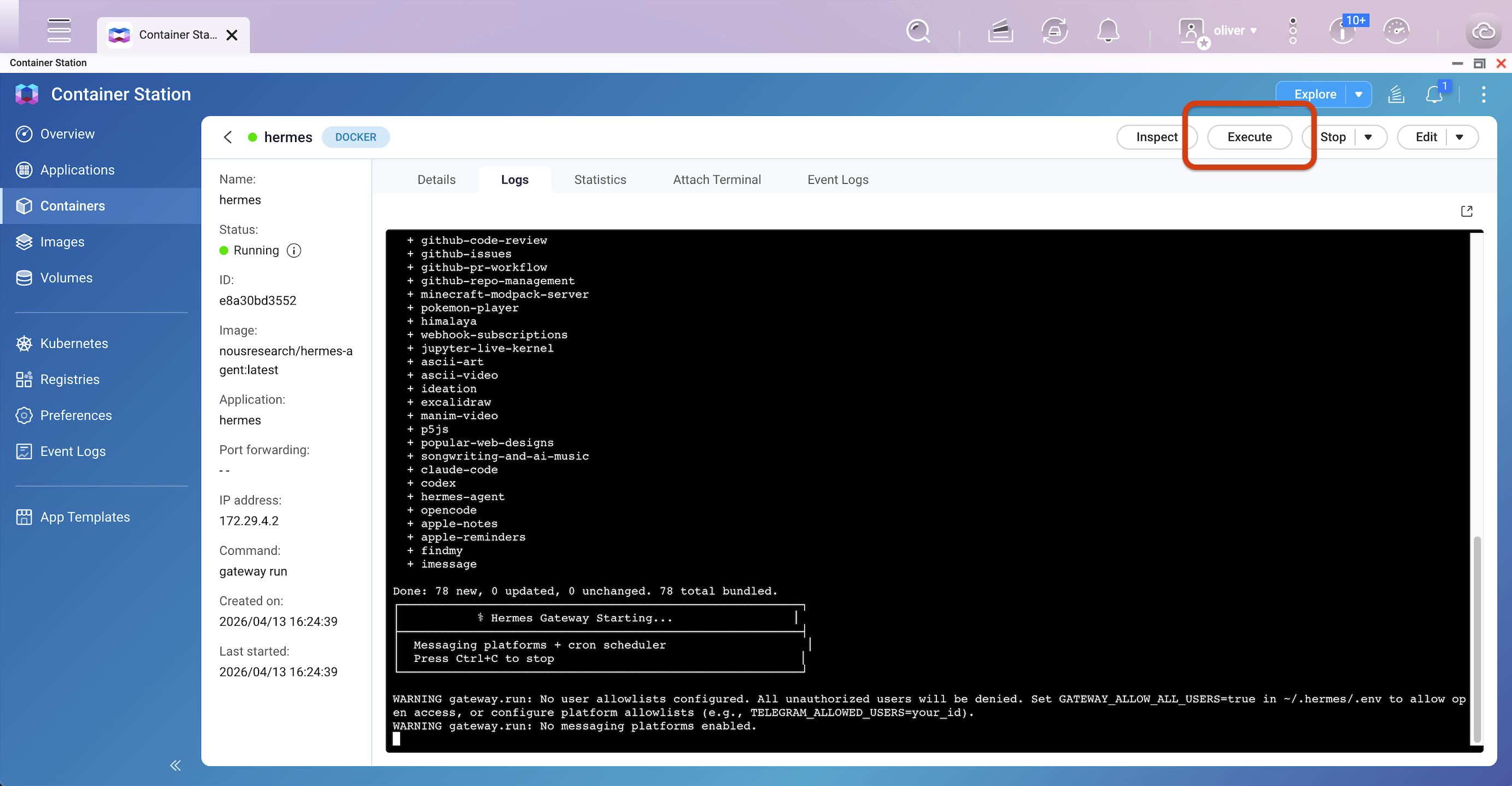
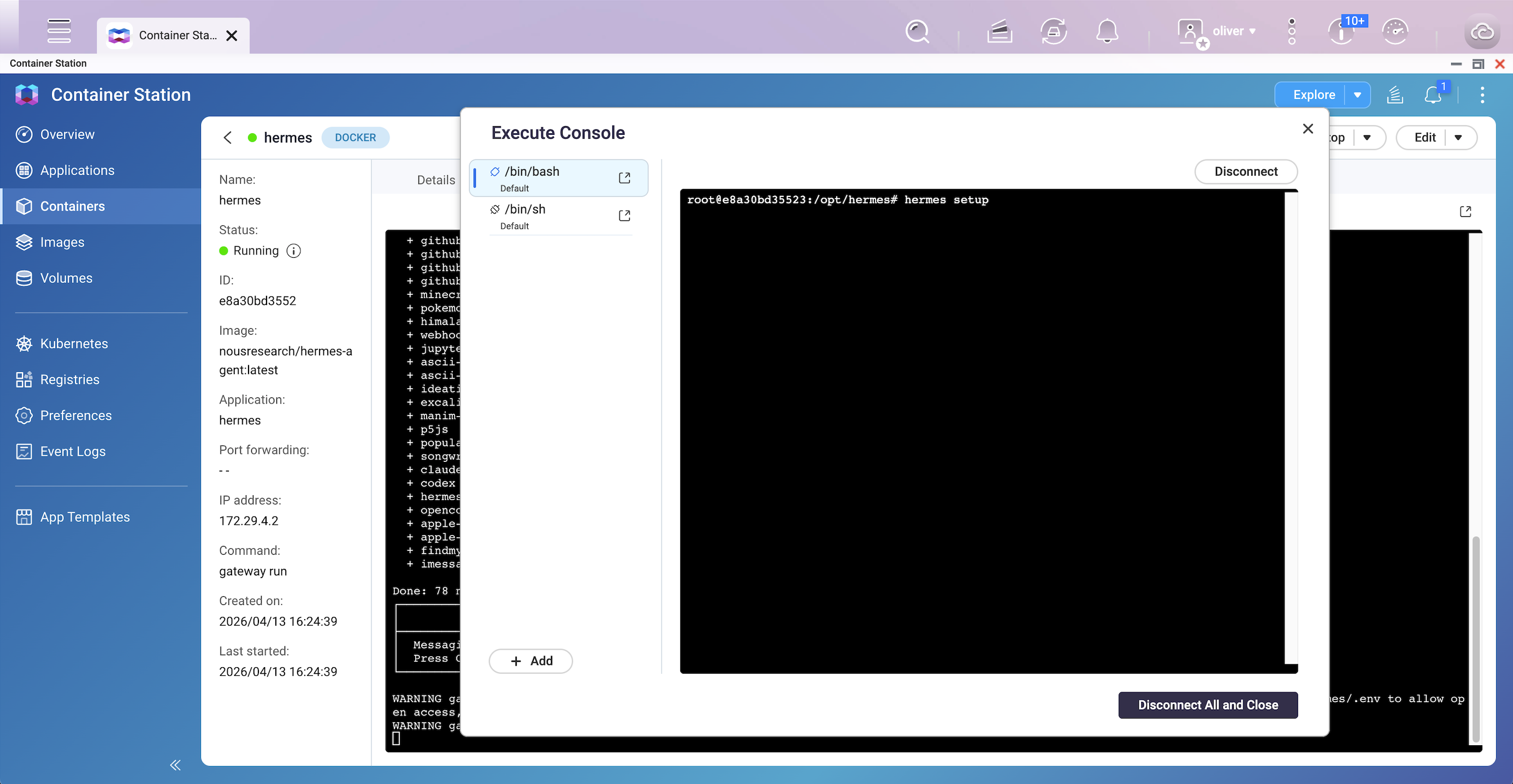
- Follow the on-screen prompts to configure:
- LLM provider and model (e.g., OpenAI, Anthropic, OpenAI Codex)
- API keys
- Messaging platform (e.g., Telegram bot token) — recommended at this stage
- The wizard writes your settings to
/opt/data/config.yaml and /opt/data/.env. This step only needs to be performed once. - After the wizard completes, type
exit to close the shell, then restart the container via Container Station to apply the configuration.
Step 3: Verify Gateway is Running
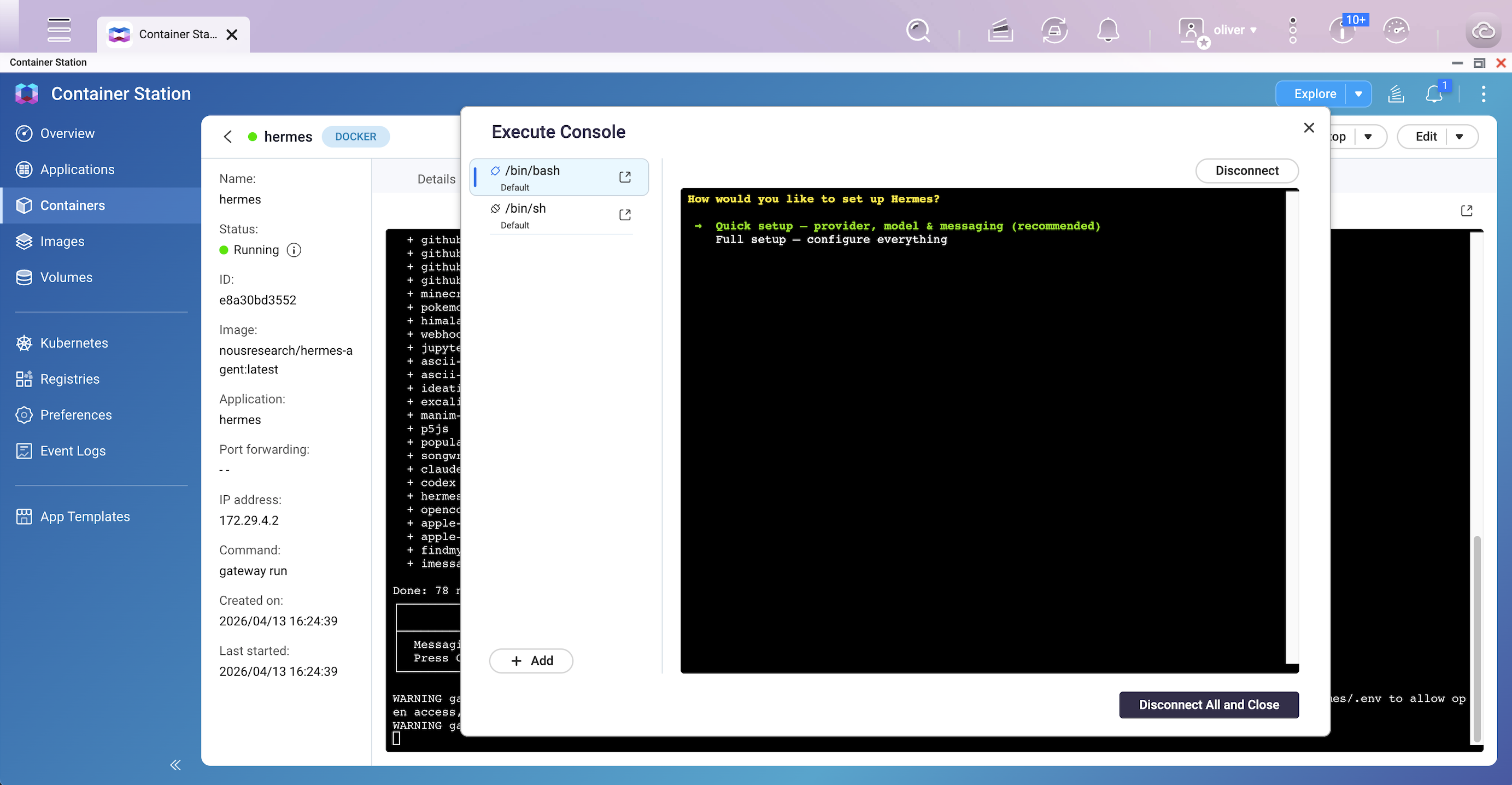
- In Container Station, select the hermes container and click Logs.
- Confirm the following lines appear in the output:
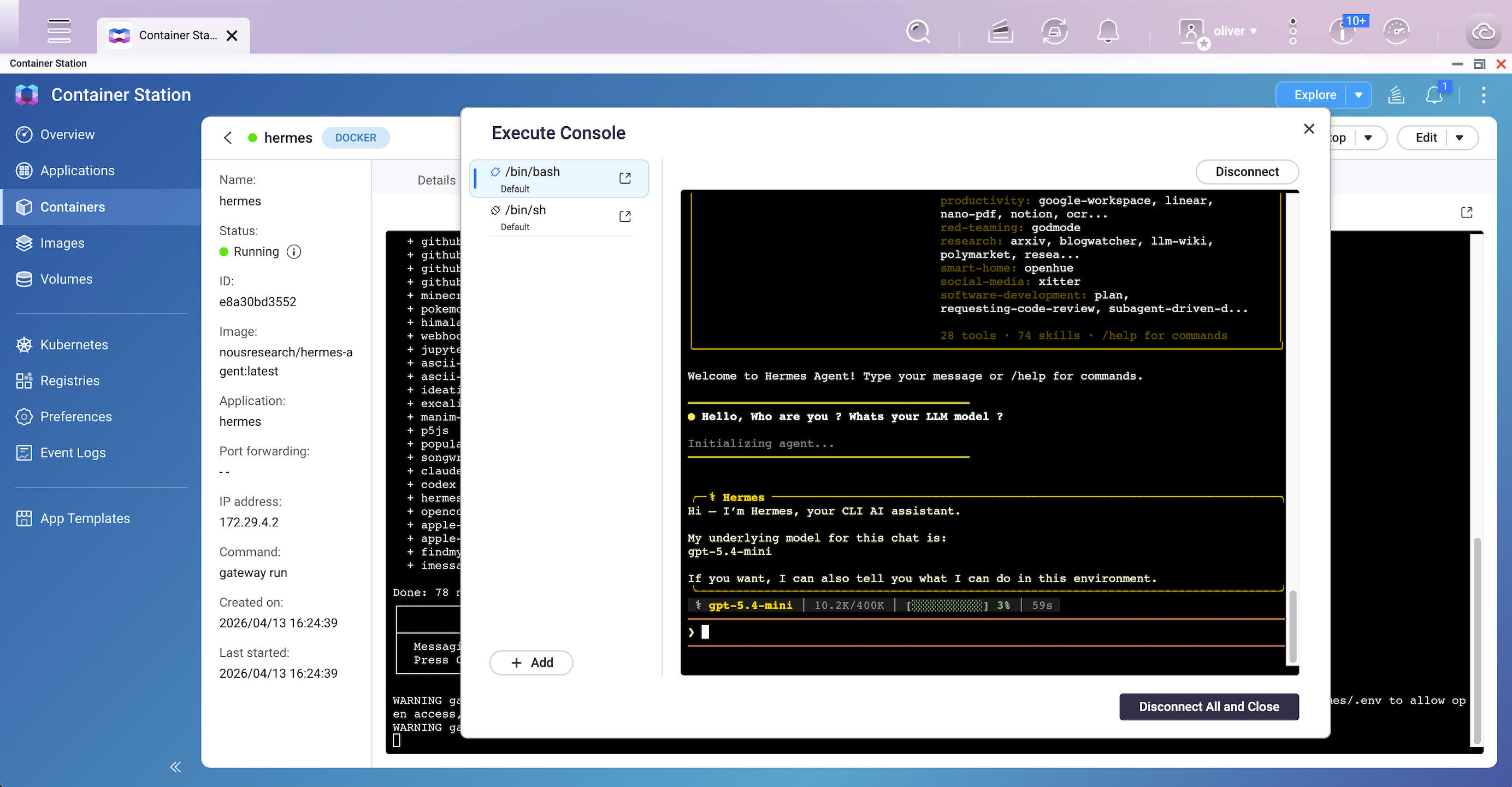
Hermes Gateway Starting... - Click Execute and select /bin/bash (or /bin/sh if bash is unavailable) to open an interactive shell.
- In the shell, run:
hermes - Then you can talk to it.
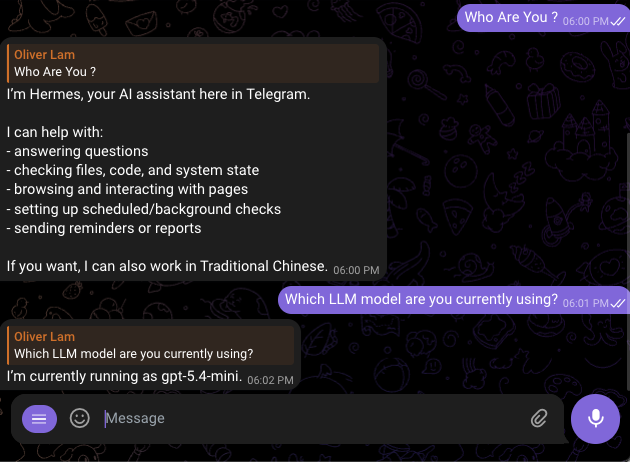
- If using Telegram, send a message to your configured bot to verify the connection.
Post-Deployment Configuration
Once your agent is running, use these methods to swap LLM providers, add new messaging platforms, or adjust agent settings for ongoing maintenance.
Method 1: Changing the LLM Provider or Model
Use the hermes model command to interactively switch providers or models at any time.
- In Container Station, select the hermes container.
- Click Execute and select /bin/bash (or /bin/sh ).
- In the terminal session, run:
hermes model - Follow the interactive prompts to select a new provider and model. The selection is saved to
config.yaml automatically.
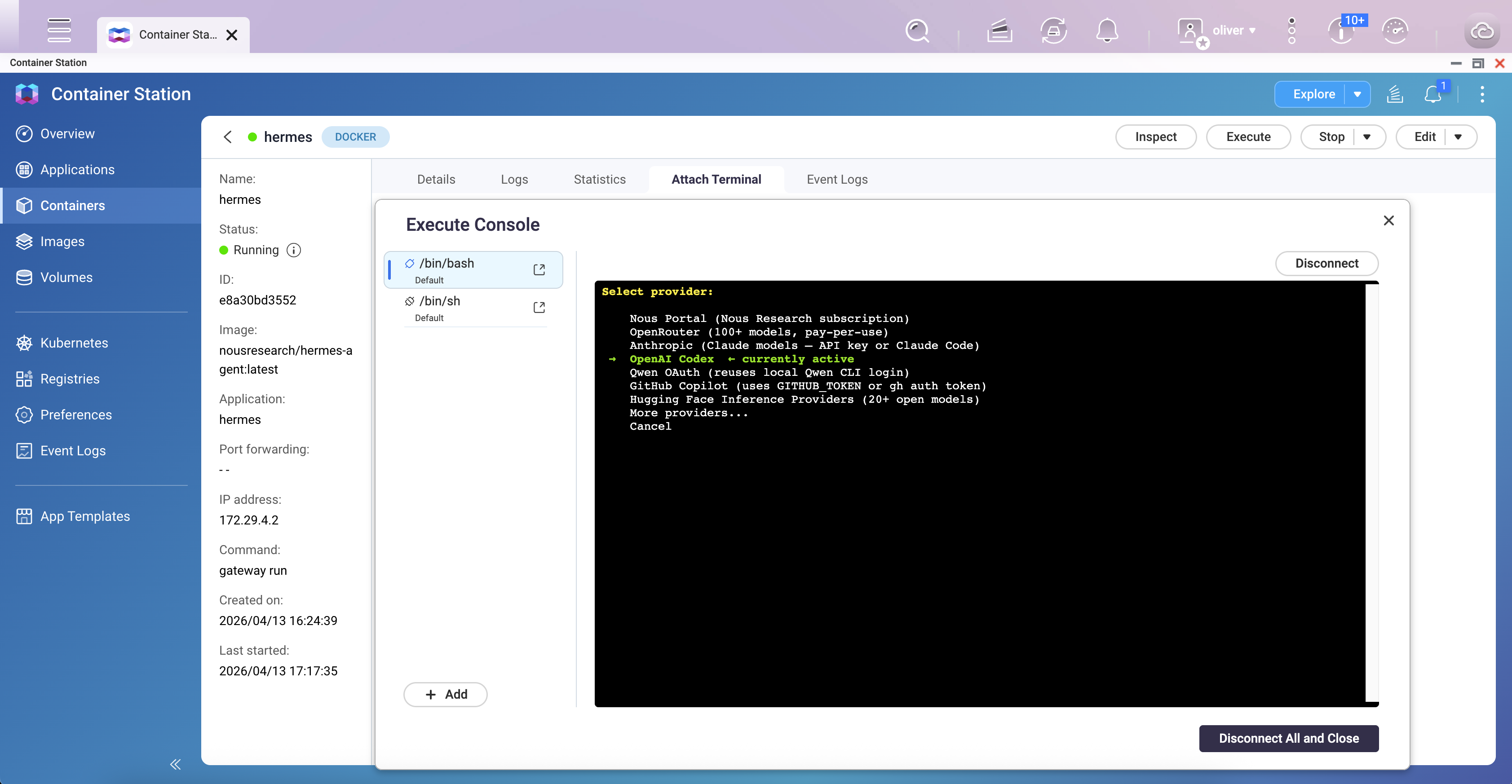
Supported providers include: anthropic, openai-codex, openai, openrouter, nous, deepseek, minimax, and others. For a full list, refer to the official CLI reference.
Method 2: Adding or Reconfiguring a Messaging Platform
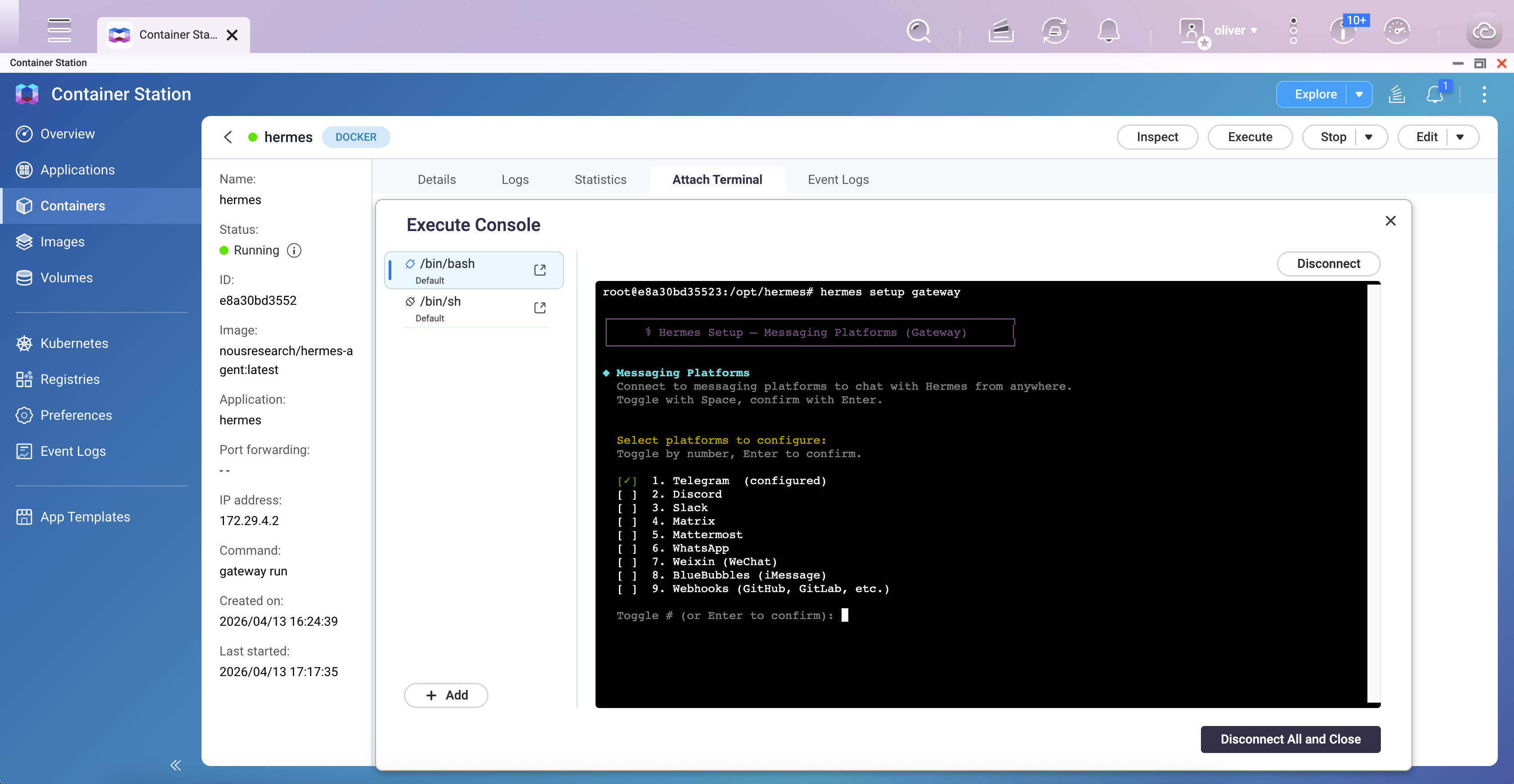
Use hermes setup gateway to add or update messaging integrations (Telegram, Discord, Slack, WhatsApp, Signal, etc.) without re-running the full setup wizard.
- In Container Station, select the hermes container.
- Click Execute and select /bin/bash.
- Run:
hermes setup gateway - Follow the prompts to add or update your messaging platform credentials.
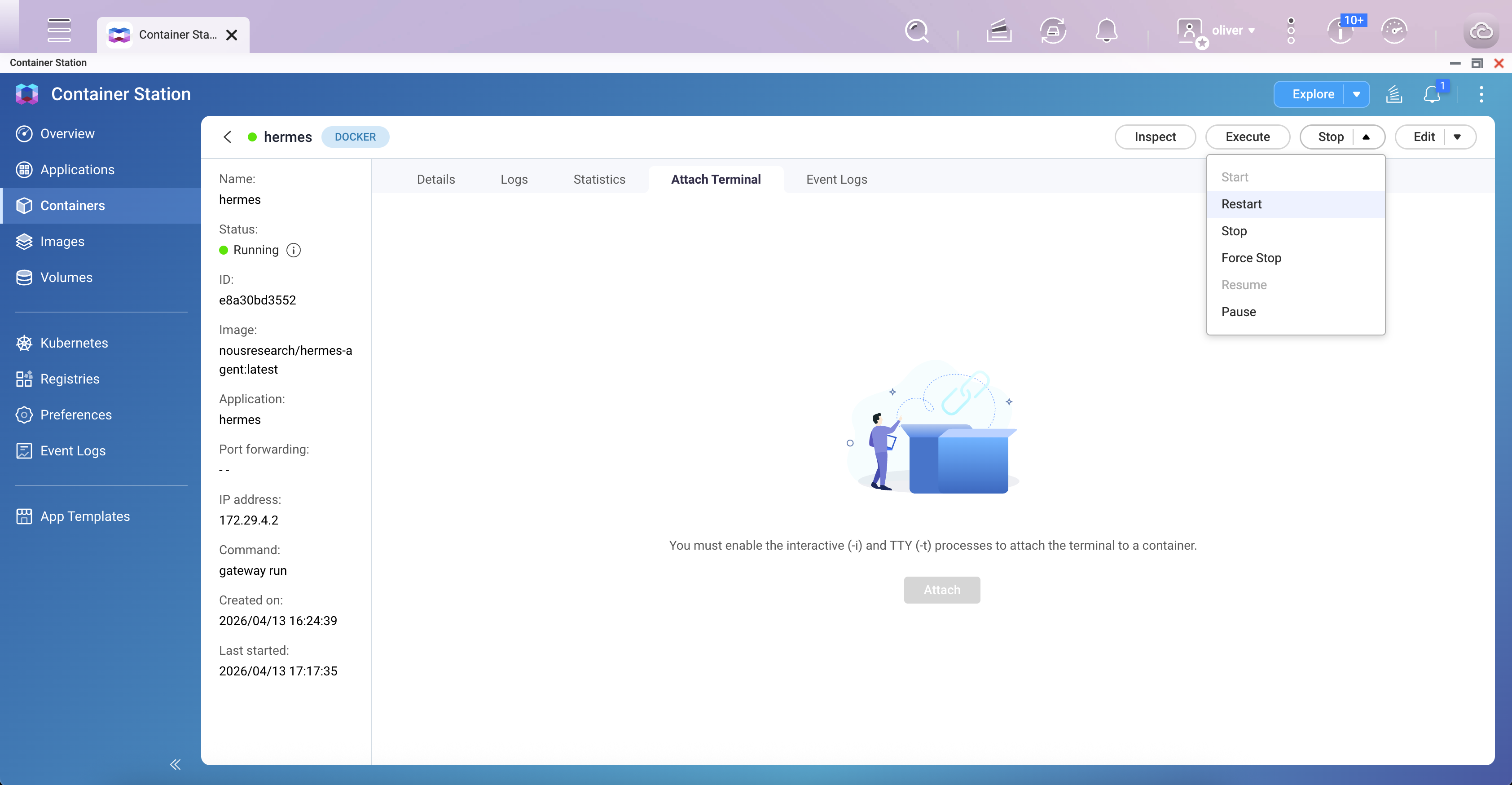
- Restart the container after completing the wizard:
exit
Then restart via Container Station — select the container and click Restart.
Method 3: Re-running the Full Setup Wizard
To reconfigure any part of the setup (model, terminal backend, tools, gateway, agent personality), run the full wizard or a specific section:
- Open a shell in the container via Container Station Execute.
- Run the full wizard:
hermes setup - Or run a specific section only:
hermes setup model — LLM provider and modelhermes setup gateway — Messaging platform configurationhermes setup tools — Enable or disable toolshermes setup terminal — Terminal backend (local, Docker sandbox, SSH)hermes setup agent — Agent identity and personality (SOUL.md)
- Restart the container after making changes.
Result
After completing this guide, Hermes Agent will be running as a persistent gateway on your QNAP NAS. It will be accessible via your configured messaging platform (e.g., Telegram), retain memory across sessions, and be configurable at any time through Container Station's Execute shell without modifying the Docker Compose file.
安全与风险考量
Hermes Agent 是一个功能强大的自动化工具,可以访问本地文件、执行命令,并根据配置使用 API 密钥或令牌等凭据。因此,用户必须谨慎配置并对其使用承担全部责任。
- 访问控制:不要将 Hermes Agent 或服务端口直接暴露在公共互联网。如果需要远程访问,请使用 VPN、IP 白名单或强身份验证机制。
- 第三方扩展:仅从可信来源安装技能或扩展。安全研究表明,恶意扩展可能试图窃取数据或凭据。
- 隔离和权限:在隔离环境中运行 Hermes Agent(例如 Container Station),并避免授予不必要的系统或 root 权限。
- 凭据保护:仔细保护 API 密钥和令牌,如果怀疑泄露,请及时更换。
适用产品
本指南适用于运行 Container Station 3.x 或更高版本并启用 Docker 支持的 QNAP x86 NAS 设备(INTEL / AMD 平台)。
场景
Hermes Agent 是由 Nous Research 开发的开源自托管 AI 代理。它可以持续运行,跨会话保留内存,支持调度,并与 Telegram 和 Discord 等消息平台集成。本指南涵盖通过 Container Station 在 QNAP NAS 上部署 Hermes Agent,使用 Docker Compose,并配置其以供持续使用。
先决条件
- QNAP x86 NAS 设备(如 INTEL / AMD CPU 平台)
- 安装并运行 Container Station 3.x 或更高版本
- 至少一个 LLM API 密钥(Anthropic、OpenAI 或 OpenAI Codex)
- 可选:如果使用 Telegram 消息网关,则需要 Telegram Bot Token
步骤
初始部署与设置
按照以下步骤启动 Hermes Agent 容器,并配置您的基本 API 密钥和消息集成。
步骤 1:通过 Docker Compose 在 Container Station 中部署
Container Station 将在运行时自动创建hermes-data文件夹,当在 Compose 文件中声明了卷路径时。无需提前创建文件夹或 SSH 访问。或者,可以通过 File Station 提前创建文件夹。
- 在 QNAP 网页界面中打开 Container Station。
- 导航到应用程序并点击创建。
- 选择创建应用程序 并粘贴以下 Docker Compose YAML:
version: "3.8"

services:
  hermes:
    image: nousresearch/hermes-agent:latest
    container_name: hermes
    restart: unless-stopped
    command: gateway run
    volumes:
      - /share/Container/hermes-data:/opt/data
- 点击创建。Container Station 将拉取镜像并启动容器。
hermes-data文件夹将在/share/Container/hermes-data自动创建。 - 通过检查容器列表来验证容器是否正在运行。状态应显示运行中。
注意:所有凭据由步骤 2 中的设置向导管理,并存储在数据卷中。
步骤 2:运行初始设置向导
容器运行后,打开一个交互式 shell 会话以完成配置。设置向导配置您的 LLM 提供商、API 密钥和消息平台令牌,并将所有设置写入持久数据卷。
- 在 Container Station 中,选择hermes容器。
- 点击执行并选择/bin/bash(或/bin/sh如果 bash 不可用)以打开交互式 shell。
- 在 shell 中运行:
hermes setup
- 按照屏幕上的提示进行配置:
- LLM 提供商和模型(例如,OpenAI,Anthropic,OpenAI Codex)
- API 密钥
- 消息平台(例如,Telegram 机器人令牌)——此阶段推荐
- 向导将您的设置写入
/opt/data/config.yaml和/opt/data/.env。此步骤只需执行一次。 - 向导完成后,输入
exit关闭 shell,然后通过 Container Station 重启容器以应用配置。
步骤 3:验证网关是否正在运行
- 在 Container Station 中,选择hermes容器并点击Logs。
- 确认输出中出现以下行:
Hermes Gateway Starting... - 点击Execute并选择/bin/bash(如果 bash 不可用,则选择/bin/sh)以打开交互式 shell。
- 在 shell 中运行:
hermes - 然后您可以与其对话。
- 如果使用 Telegram,向您配置的机器人发送消息以验证连接。
部署后配置
一旦您的代理运行,使用这些方法更换 LLM 提供商,添加新的消息平台,或调整代理设置以进行持续维护。
方法 1:更改 LLM 提供商或模型
使用hermes model命令随时交互式切换提供商或模型。
- 在 Container Station 中,选择hermes容器。
- 点击Execute并选择/bin/bash(或/bin/sh )。
- 在终端会话中运行:
hermes model - 按照交互提示选择新的提供商和模型。选择将自动保存到
config.yaml。
支持的提供商包括:anthropic、openai-codex、openai、openrouter、nous、deepseek、minimax等。完整列表请参阅官方 CLI 参考。
方法二:添加或重新配置消息平台
使用hermes setup gateway添加或更新消息集成(Telegram、Discord、Slack、WhatsApp、Signal 等),无需重新运行完整的设置向导。
- 在 Container Station 中,选择hermes容器。
- 点击Execute并选择/bin/bash。
- 运行:
hermes setup gateway - 按照提示添加或更新您的消息平台凭据。
- 完成向导后重启容器:
exit
然后通过 Container Station 重启——选择容器并点击Restart。
方法三:重新运行完整的设置向导
要重新配置设置的任何部分(模型、终端后端、工具、网关、代理个性),请运行完整的向导或特定部分:
- 通过 Container Station Execute 在容器中打开一个 shell。
- 运行完整的向导:
hermes setup - 或仅运行特定部分:
hermes setup model — LLM 提供商和模型hermes setup gateway — 消息平台配置hermes setup tools — 启用或禁用工具hermes setup terminal — 终端后端(本地,Docker 沙箱,SSH)hermes setup agent — 代理身份和个性(SOUL.md)
- 更改后重启容器。
结果
完成本指南后,Hermes Agent 将在您的 QNAP NAS 上作为持久网关运行。它将通过您配置的消息平台(例如 Telegram)进行访问,跨会话保留记忆,并可随时通过 Container Station 的 Execute shell 进行配置,而无需修改 Docker Compose 文件。


