How to Update Firmware of TL-R series JBOD Expansion
Applied models:
-
All TL-R JBOD Expansion Series
Download the firmware image file for the model of expansion device from QNAP download site.
For TL-R1220Sep-RP and TL-R1620Sep-RP:
https://www.qnap.com/en/download?model=tl-r1620sep-rp&category=firmware
1. Login NAS web interface as admin.
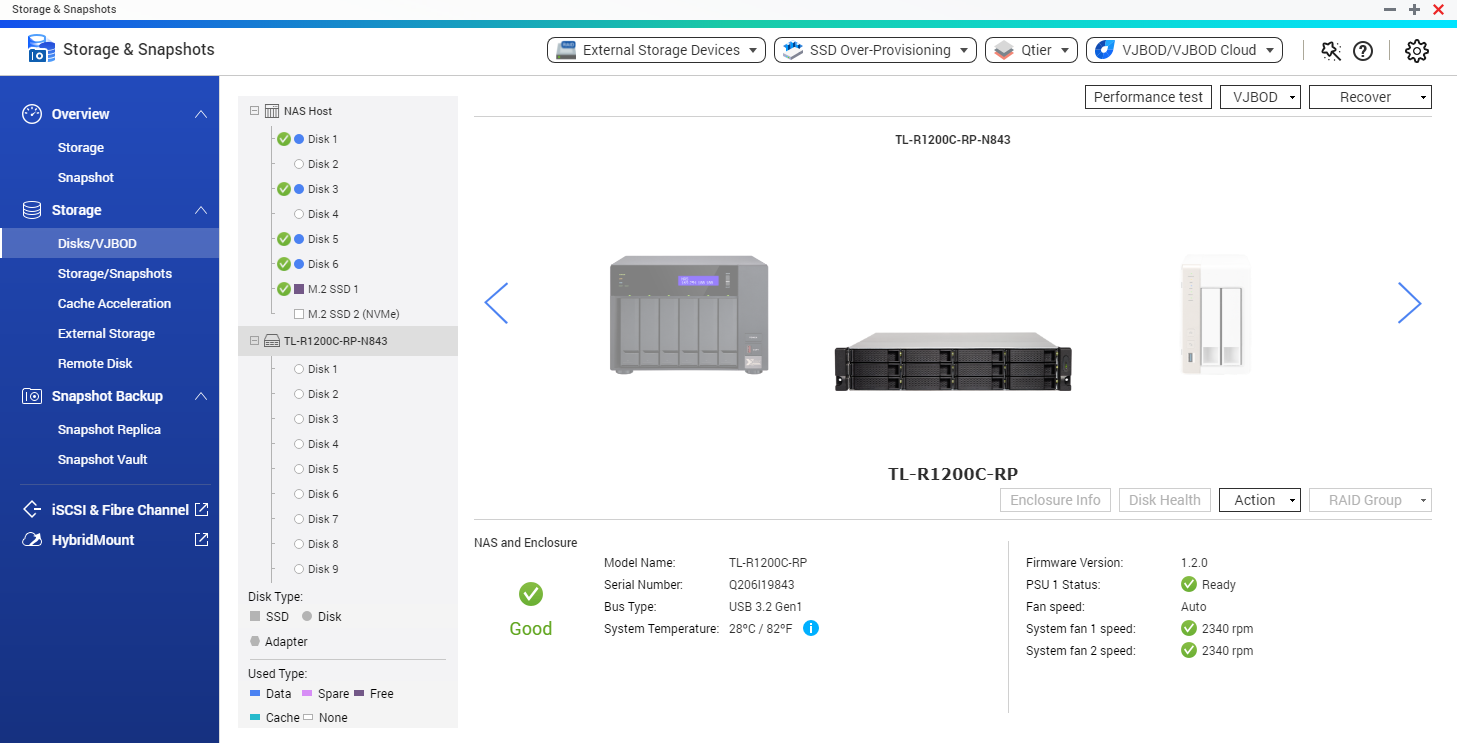
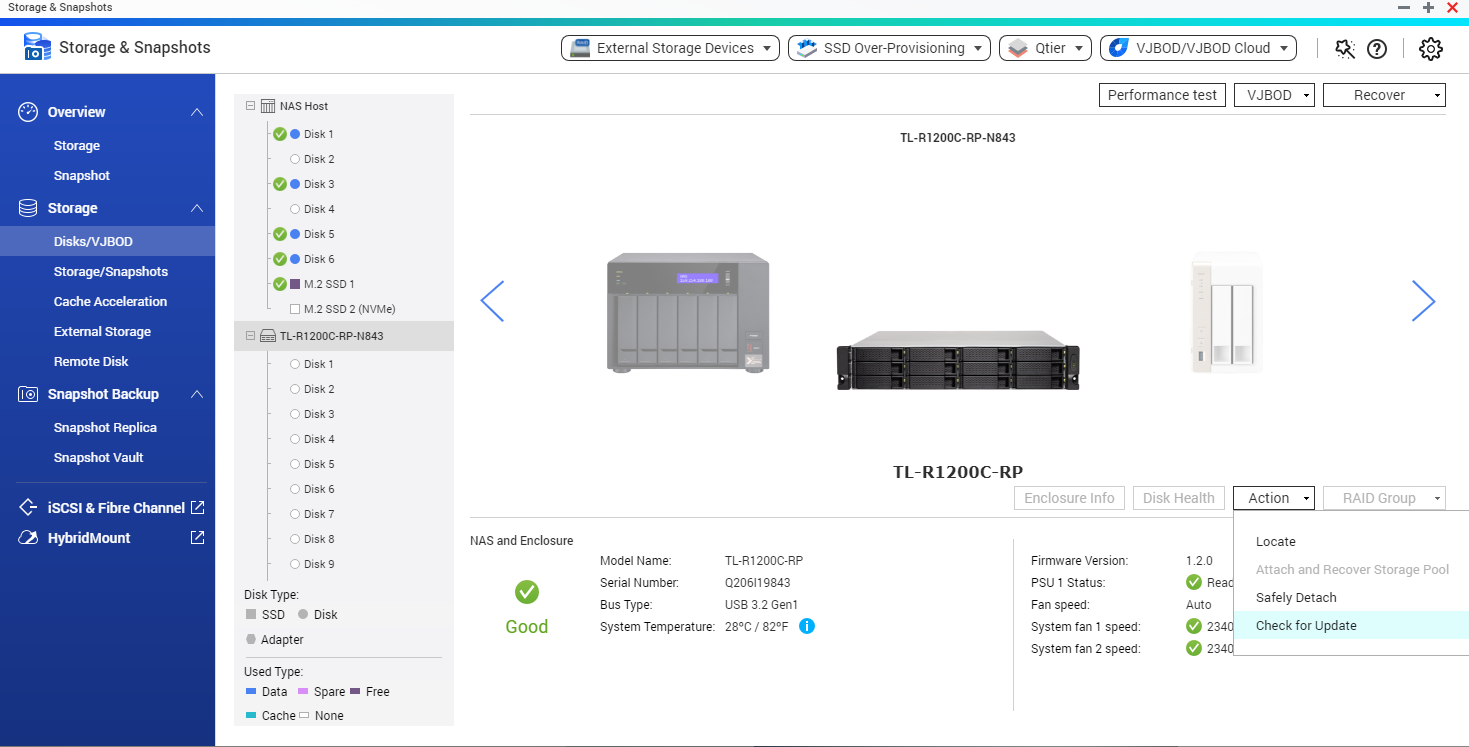
Open Storage & Snapshots, go to Disks/VJBOD, select the expansion device. Click Action, select "Check for Update".
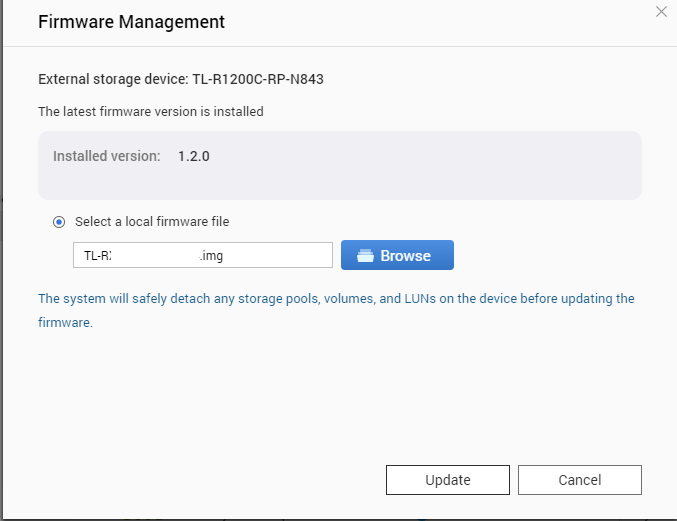
2. In Firmware Management, click "Browse" and select the firmware image file (previously downloaded).
3. Click "Update" to update the firmware of the expansion device.
4. After the update is successful, please shutdown the NAS, power off the expansion device TL-R1620Sep-RP. Remove power cable from expansion device. Wait for about 20 seconds and reconnect the power cable to the expansion device. Then power on the expansion device, and power on the NAS unit.
Verify the expansion unit Firmware Version in Storage & Snapshots > Disks/VJBOD, > expansion device.