Applicable Products
- QNAP NAS running QTS or QuTS hero
- QNAP mobile apps for iOS / iPadOS
- iPhone and iPad devices running iOS 14 / iPadOS 14 or later
Explanation
Starting with iOS 14 and iPadOS 14, Apple introduced a privacy requirement that apps must obtain explicit user permission before they can communicate with devices on the same Wi-Fi network, such as a NAS device.
QNAP mobile apps use local network protocols (for example, device scanning) to automatically discover your NAS. If you deny the Local Network permission request when a QNAP mobile app first launches, iOS blocks all local network communication for this app. As a result, our mobile app cannot find any devices on your local network.
Solution
Enable the Local Network permission for QNAP mobile apps
- Open the Settings app on your iPhone or iPad.
- Locate Apps from the menu.
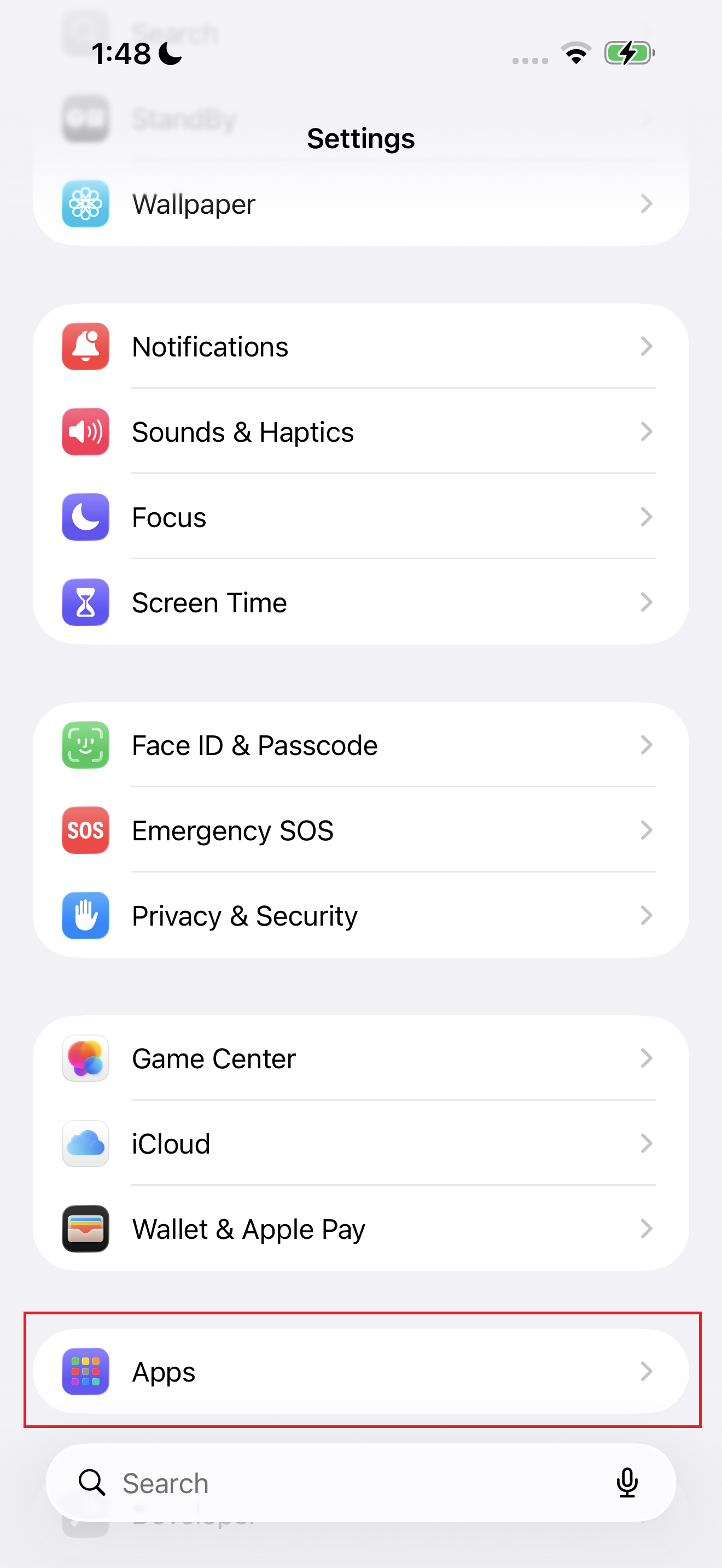
- Scroll down and find QNAP mobile apps from the app list.
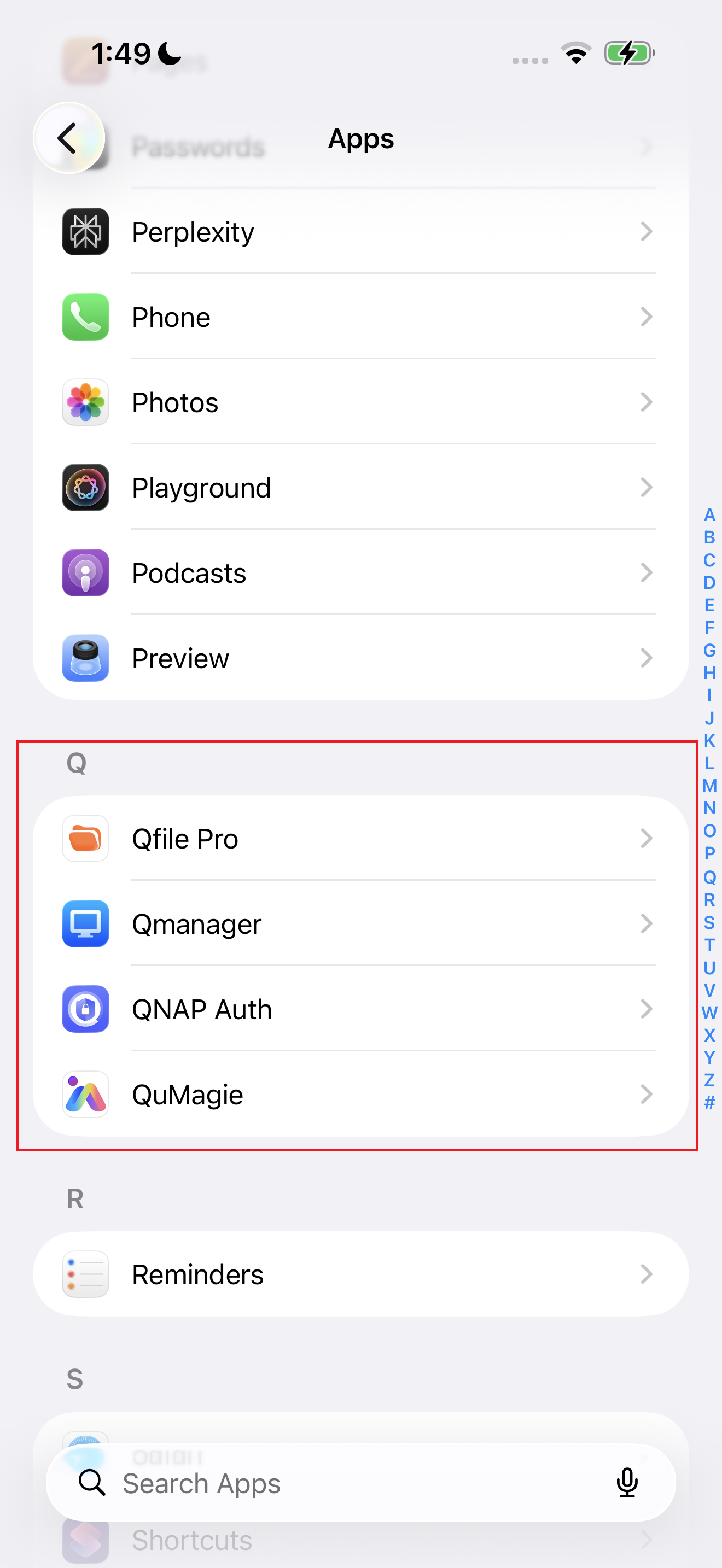
- Select a QNAP mobile app.
- Ensure that Local Network is enabled (the toggle should be green).
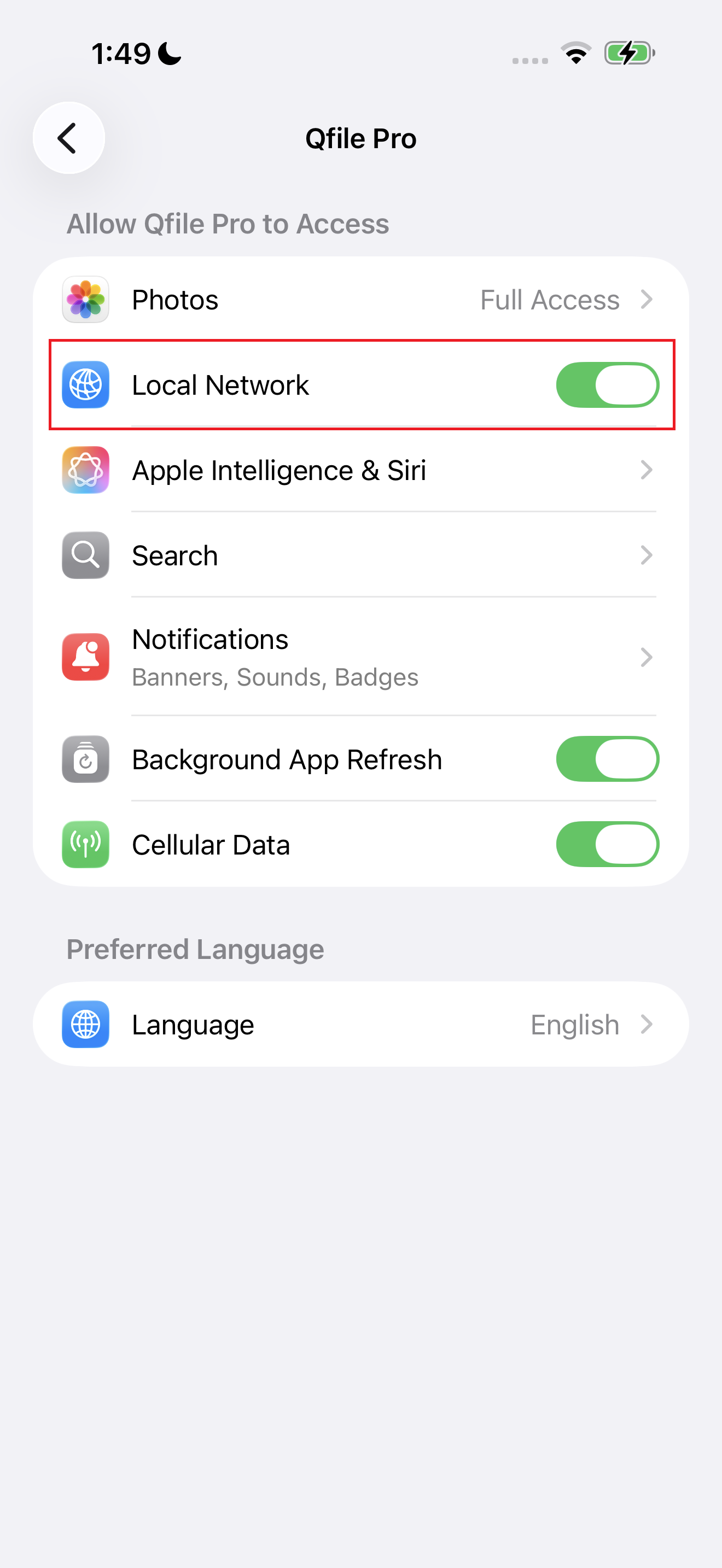
- Restart the QNAP mobile app.
- Try to discover your QNAP NAS again.
Tip
If you do not see a Local Network toggle in QNAP mobile app settings, verify that your device is running iOS 14 or later, and ensure that your QNAP mobile app has attempted at least one NAS discovery scan. The permission prompt usually appears at the first discovery attempt.
If you still cannot find your NAS
- Ensure that your iPhone or iPad is connected to the same Wi-Fi network as your NAS. For example, verify that your phone is not using cellular data (5G/LTE) while your NAS is connected to your home Wi-Fi.
- On your NAS, check the firewall settings to ensure that local network discovery and file service ports (such as SMB, AFP, or NFS, depending on your configuration) are allowed.
Further Reading
适用产品
- QNAP NAS running QTS or QuTS hero
- QNAP mobile apps for iOS / iPadOS
- iPhone and iPad devices running iOS 14 / iPadOS 14 or later
说明
从 iOS 14 和 iPadOS 14 开始,Apple 引入了一项隐私要求,应用程序必须在与同一 Wi-Fi 网络上的设备(如 NAS 设备)通信之前获得用户的明确许可。
QNAP 移动应用程序使用本地网络协议(例如,设备扫描)自动发现您的 NAS。如果您在启动 QNAP 移动应用程序时拒绝本地网络权限请求,iOS 将阻止该应用程序的所有本地网络通信。因此,我们的移动应用程序无法找到您本地网络上的任何设备。
解决方案
为 QNAP 移动应用程序启用本地网络权限
- 在您的 iPhone 或 iPad 上打开设置应用程序。
- 从菜单中找到应用程序。
- 向下滚动并从应用程序列表中找到 QNAP 移动应用程序。
- 选择一个 QNAP 移动应用程序。
- 确保本地网络已启用(开关应为绿色)。
- 重新启动 QNAP 移动应用程序。
- 再次尝试发现您的 QNAP NAS。
提示
如果您在 QNAP 移动应用程序设置中没有看到本地网络开关,请确认您的设备运行的是 iOS 14 或更高版本,并确保您的 QNAP 移动应用程序至少尝试过一次 NAS 发现扫描。权限提示通常会在发现尝试时出现。
如果您仍然找不到您的 NAS
- 确保您的 iPhone 或 iPad 连接到与您的 NAS 相同的 Wi-Fi 网络。例如,确认您的手机没有使用蜂窝数据(5G/LTE),而您的 NAS 连接到家庭 Wi-Fi。
- 在您的 NAS 上,检查防火墙设置以确保允许本地网络发现和文件服务端口(如 SMB、AFP 或 NFS,具体取决于您的配置)。
进一步阅读


