Applicable Products
- QVR Surveillance or QVR Pro
- TP-Link Tapo C260 (and other TP-Link Tapo series cameras)
Overview
The TP-Link Tapo C260 is not currently listed on the official QVR supported camera list. However, you can typically add it to QVR Surveillance using ONVIF and use most core surveillance functions, such as live view and recording. ONVIF is a standard protocol commonly used to integrate third-party IP cameras with QVR.
Details
What can I expect when using ONVIF?
- Basic stream onboarding and recording should work normally.
- Most core surveillance features are available (actual behavior depends on the camera model and firmware).
- Compared with native support, you may encounter some limitations:
- Some vendor-specific features may not be fully mapped into QVR.
- Certain advanced controls (for example, specific PTZ behavior) may depend on the camera-side implementation.
- Some settings may still need to be configured in the Tapo app rather than entirely in QVR.
When should I choose a different camera?
- If you require the lowest integration risk and the most complete feature mapping, we recommend selecting a camera model that is already listed on the official QVR supported camera list.
- If minor feature differences are acceptable, using the Tapo C260 via ONVIF is typically a practical option.
Procedure
- Complete the initial camera setup in the Tapo app and update the camera firmware to the latest version.
- Enable ONVIF and/or RTSP on the camera, if these options are provided by your model and firmware.
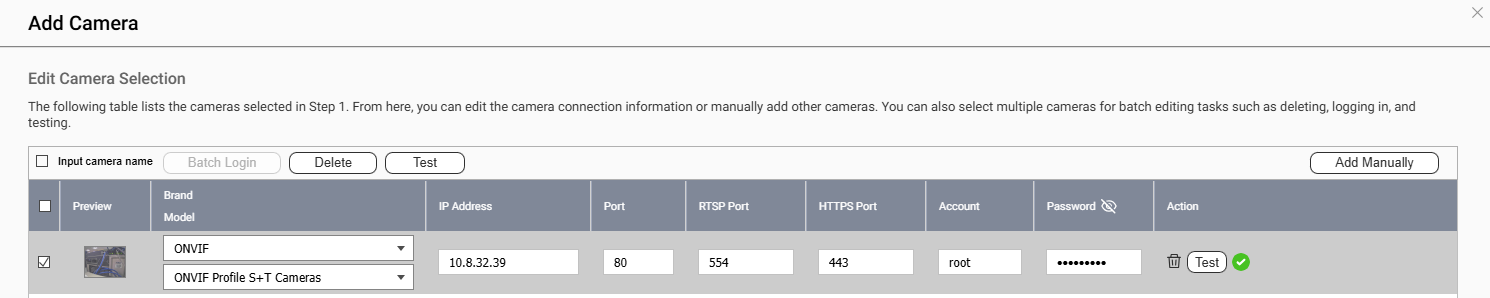
- In QVR Surveillance or QVR Pro, add the camera using ONVIF and enter the correct:
- IP address
- Port
- Username
- Password
- After onboarding, validate core functions:
- Live view stability
- Recording operation
- Event detection and PTZ (if applicable)
- If the required functions are not met, consider:
- Switching to a camera model on the official QVR supported camera list, or
- Waiting for future native Tapo support updates.
If the camera cannot be added via ONVIF or core functions do not work as expected, we recommend checking the latest QVR camera compatibility list and contacting QNAP technical support with your camera model, firmware version, and QVR version.
Further Reading
适用产品
- QVR Surveillance or QVR Pro
- TP-Link Tapo C260 (and other TP-Link Tapo series cameras)
概述
TP-Link Tapo C260 目前未列入官方 QVR 支持的摄像机列表。然而,您通常可以通过ONVIF将其添加到 QVR 监控中,并使用大多数核心监控功能,如实时查看和录制。ONVIF 是一种常用的标准协议,用于将第三方 IP 摄像机集成到 QVR 中。
详细信息
使用 ONVIF 时我可以期待什么?
- 基本的流媒体接入和录制应能正常工作。
- 大多数核心监控功能可用(实际行为取决于摄像机型号和固件)。
- 与原生支持相比,您可能会遇到一些限制:
- 某些厂商特定功能可能无法映射到 QVR 中。
- 某些优异控制(例如,特定的 PTZ 行为)可能依赖于摄像机端的实现。
- 某些设置可能仍需在 Tapo 应用中配置,而不是在 QVR 中。
什么时候应该选择不同的摄像机?
- 如果您需要较低的集成风险和较完整的功能映射,我们建议选择已列入官方 QVR 支持摄像机列表的型号。
- 如果可以接受小的功能差异,通过 ONVIF 使用 Tapo C260 通常是一个实用的选择。
步骤
- 在 Tapo 应用中完成初始摄像机设置,并将摄像机固件更新到全新版本。
- 在摄像机上启用 ONVIF 和 / 或 RTSP,如果您的型号和固件提供这些选项。
- 在 QVR 监控或 QVR Pro 中,使用 ONVIF 添加摄像机,并输入正确的:
- IP 地址
- 端口
- 用户名
- 密码
- 接入后,验证核心功能:
- 实时查看稳定性
- 录制操作
- 事件检测和 PTZ(如果适用)
- 如果未满足所需功能,请考虑:
- 切换到官方 QVR 支持摄像机列表中的型号,或
- 等待未来的原生 Tapo 支持更新。
如果无法通过 ONVIF 添加摄像机或核心功能无法按预期工作,我们建议检查全新的 QVR 摄像机兼容性列表并联系QNAP 技术支持,提供您的摄像机型号、固件版本和 QVR 版本。
进一步阅读


