Applicable Products
Details
This tutorial explains how to create a firmware update schedule in AMIZcloud. A schedule lets you automatically deploy firmware updates to selected devices, either in batches or sequentially. You can specify the update type, timing, and frequency, skip updates when devices report alerts or warnings, and configure notifications to maintain secure and consistent firmware management across your organization.
Procedure
Create a firmware update schedule
- Log in to AMIZcloud.
- Select one of the device management modes:
 : QNAP ID device management mode
Note
In this mode, you can only manage QNAP devices that you have registered with your QNAP ID.
 : QNAP organization device management mode
- Go to Scheduled Tasks > Firmware Updates.
- Click Create.
The Site Selection window opens.Note
If you have not selected an organization after logging in to AMIZcloud, clicking Create opens the organization and site selection window.
- Select a site.
- Click OK.
The Create Firmware Update Schedule window opens. - Select one or more devices.
- Click Next.
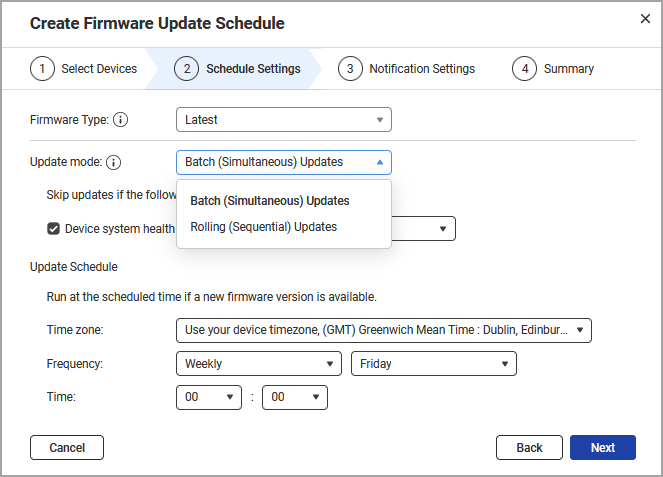
- Configure the schedule settings:
- Select a firmware type:
- Critical: Fixes critical vulnerabilities and system issues. Recommended for high-security needs.
- Quality: Includes features, enhancements, bug fixes, and security updates, tested for maximum stability.
- Latest: Provides the newest features, enhancements, bug fixes, and security updates for early adopters.
- Select an update mode:
- Batch (Simultaneous) Updates: Updates all selected devices at once.
- Rolling (Sequential) Updates: Updates devices one by one to minimize downtime.
- Optional: Configure the update priority for the selected devices.
- Click Set Update Priority.
The Set Update Priority window opens. - Choose how device priority is determined for rolling updates:
- Reset device priority order: Click Restore Default to reset the device priority order to the system-defined default for rolling updates, discarding any manual changes.
- Manually assign device priority order: Manually define the sequence in which devices are updated during rolling updates.
To manually adjust device priority, you can either click and drag the priority control, or select a device and, under Action, click  > Move to Top or Move to Bottom, then click Apply.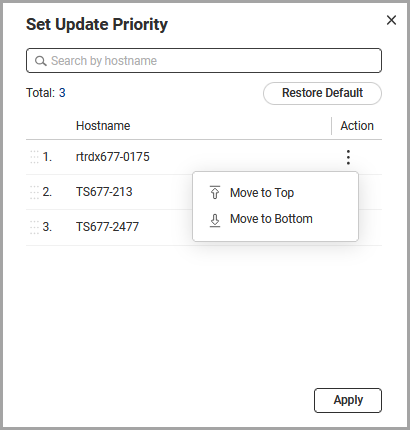
- Optional: Enable Device system health status is as follows to skip updates if a device reports the following conditions:
- Optional: Enable If a device update fails, skip the remaining devices in the schedule.
Note
This option appears only if you select Rolling (Sequential) Updates as the update mode. When enabled, if an update fails on a device, the schedule will skip updating the remaining devices in the sequence.
This helps prevent potential issues from affecting other devices and allows you to investigate the failure before continuing.
- Enable Pause updates if a device's health status degrades after updating.
Note
This option appears only if you select Rolling (Sequential) Updates as the update mode. When enabled, AMIZcloud pauses the firmware update schedule if a device shows degraded health after updating.
Devices continue to update one by one at the predefined interval set in the schedule.
- Schedule the update to run at a specific time only when a new firmware version is available:
- Select a time zone for the update schedule.
- Choose the frequency of the updates.
- Specify the time when the update should run.
- Click Next.
The Notification Settings page appears. - Configure notification recipients.
- Select one or more email recipients.
- Click Next.
- Specify a name for the schedule.
- Optional: Add a description.
- Review the schedule settings.
- Click Create.
The Create Firmware Update Schedule window appears. - Enter your QNAP ID password to confirm the schedule settings.
- Click Verify.
AMIZcloud verifies the account password, and creates the firmware update schedule.
Manage firmware update schedules
After creating a firmware update schedule, you can view and manage all schedules from the Firmware Updates page, including enabling or disabling schedules, removing schedules, and reviewing update history.
The following table describes the available schedule management tasks.
| Task | User Action |
|---|
| Remove one or more schedules | - Next to the schedule name, click
 . . - Click Action, and then click Remove schedule.
The Remove schedule window appears. - Click OK.
Note You can also delete individual schedules by clicking Action > > Remove.
|
| Disable a schedule | - Identify a schedule.
- Under Status, click
 . .
|
| View firmware update schedule history | - Identify a schedule.
- Under Action, click
 . .
AMIZcloud displays the schedule history.
|
| Run a scheduled firmware update immediately | - Identify a schedule.
- Under Action, click Update Now.
AMIZcloud immediately starts updating the firmware for all devices in the schedule.
|
| Edit an existing schedule | - Identify a schedule.
- Under Action, click Edit.
The Edit Firmware Update Schedule window appears. - Configure the schedule settings.
- Click Apply.
|
适用产品
详细信息
本教程解释了如何在 AMIZcloud 中创建固件更新计划。计划允许您自动将固件更新部署到选定的设备上,可以批量或顺序进行。您可以指定更新类型、时间和频率,当设备报告警报或警告时跳过更新,并配置通知以在整个组织中保持安全和一致的固件管理。
步骤
创建固件更新计划
- 登录 AMIZcloud。
- 选择一种设备管理模式:
- :QNAP ID 设备管理模式
注意
在此模式下,您只能管理已使用您的 QNAP ID 注册的 QNAP 设备。
- :QNAP 组织设备管理模式
- 转到计划任务 > 固件更新。
- 点击创建。
将打开站点选择 窗口。注意
如果您在登录 AMIZcloud 后未选择组织,点击创建将打开组织和站点选择窗口。
- 选择一个站点。
- 点击确定。
将打开创建固件更新计划窗口。 - 选择一个或多个设备。
- 点击下一步。
- 配置计划设置:
- 选择一个固件类型:
- 关键:修复关键漏洞和系统问题。推荐用于高安全需求。
- 质量:包括功能、增强、错误修复和安全更新,经过测试以确保稳定性。
- 全新:为早期采用者提供全新功能、增强、错误修复和安全更新。
- 选择更新模式:
- 批量(同时)更新:同时更新所有选定设备。
- 滚动(顺序)更新:逐个更新设备以减少停机时间。
- 可选:配置选定设备的更新优先级。
- 点击设置更新优先级。
将打开设置更新优先级窗口。 - 选择如何确定设备在滚动更新中的优先级:
- 重置设备优先级顺序:点击恢复默认以将设备优先级顺序重置为系统定义的滚动更新默认值,放弃任何手动更改。
- 手动分配设备优先级顺序:手动定义设备在滚动更新中的更新顺序。
要手动调整设备优先级,可以点击并拖动优先级控制,或选择设备后,在操作下,点击> 移至顶部或移至底部,然后点击应用。
- 可选:启用设备系统健康状态如下 以在设备报告以下情况时跳过更新:
- 可选:启用如果设备更新失败,跳过计划中的剩余设备。
注意
此选项仅在您选择滚动(顺序)更新作为更新模式时出现。启用后,如果某个设备的更新失败,计划将跳过序列中剩余设备的更新。
这有助于防止潜在问题影响其他设备,并允许您在继续之前调查失败原因。
- 启用如果设备的健康状态在更新后下降,则暂停更新。
注意
此选项仅在您选择滚动(顺序)更新作为更新模式时出现。启用后,如果设备在更新后显示健康状态下降,AMIZcloud 将暂停固件更新计划。
设备将按照计划中设定的预定义间隔逐一更新。
- 仅在有新固件版本可用时,安排更新在特定时间运行:
- 选择更新计划的时区。
- 选择更新的频率。
- 指定更新运行的时间。
- 点击下一步。
出现通知设置页面。 - 配置通知接收者。
- 选择一个或多个电子邮件接收者。
- 点击下一步。
- 为计划指定一个名称。
- 可选:添加描述。
- 查看计划设置。
- 点击创建。
出现创建固件更新 计划窗口。 - 输入您的 QNAP ID 密码以确认计划设置。
- 点击验证。
AMIZcloud 验证账户密码,并创建固件更新计划。
管理固件更新计划
创建固件更新计划后,您可以从固件更新页面查看和管理所有计划,包括启用或禁用计划、移除计划以及查看更新历史。
下表描述了可用的计划管理任务。
| 任务 | 用户操作 |
|---|
| 移除一个或多个计划 | - 在计划名称旁边,点击。
- 点击操作,然后点击移除计划。
移除计划窗口出现。 - 点击确定。
注意 您也可以通过点击 操作 > > 移除。
|
| 禁用计划 | - 识别一个计划。
- 在状态下,点击。
|
| 查看固件更新计划历史 | - 识别一个计划。
- 在操作下,点击。
AMIZcloud 显示计划历史。
|
| 立即运行计划的固件更新 | - 识别一个计划。
- 在操作下,点击立即更新。
AMIZcloud 立即开始更新计划中所有设备的固件。
|
| 编辑现有计划 | - 识别一个计划。
- 在操作下,点击编辑。
编辑固件更新计划窗口出现。 - 配置计划设置。
- 点击应用。
|


