Applicable Products
myQNAPcloud Link
Scenario
You try to connect to your QNAP NAS remotely from your mobile device via myQNAPcloud Link. Your NAS is running, but you cannot establish a connection between the NAS and your mobile device. You want to troubleshoot the connection issue.
Procedure
myQNAPcloud Link is required for remote access to your QNAP NAS. If your myQNAPcloud Link is not working as expected, you can first try to update QNAP apps and then enable myQNAPcloud Link again. If this does not fix your connection issue, we recommend running a diagnostic test to identify potential issues.
Update Apps & Enable myQNAPcloud Link Again
- Update your QNAP mobile apps.
- Go to the App Store on iOS or Google Play on Android.
- Update your QNAP mobile apps to the latest versions.
- Update myQNAPcloud Link.
- On the QNAP NAS, go to the App Center.
- Find myQNAPcloud Link.
- Update myQNAPcloud Link to the latest version.
- Enable myQNAPcloud Link again.
- On the QNAP NAS, go to myQNAPcloud > myQNAPcloud Link.
- Disable myQNAPcloud Link.
- Enable myQNAPcloud Link again.

- Check myQNAPcloud Link status.

Tip
myQNAPcloud Link displays Normal if the service is working correctly. You can now try to connect to the NAS from your mobile device via myQNAPcloud Link again.
If your myQNAPcloud Link status is Abnormal, or if your myQNAPcloud Link status is Normal but you still cannot connect to the NAS remotely, we recommend running a diagnostic test.
Run a Diagnostic Test
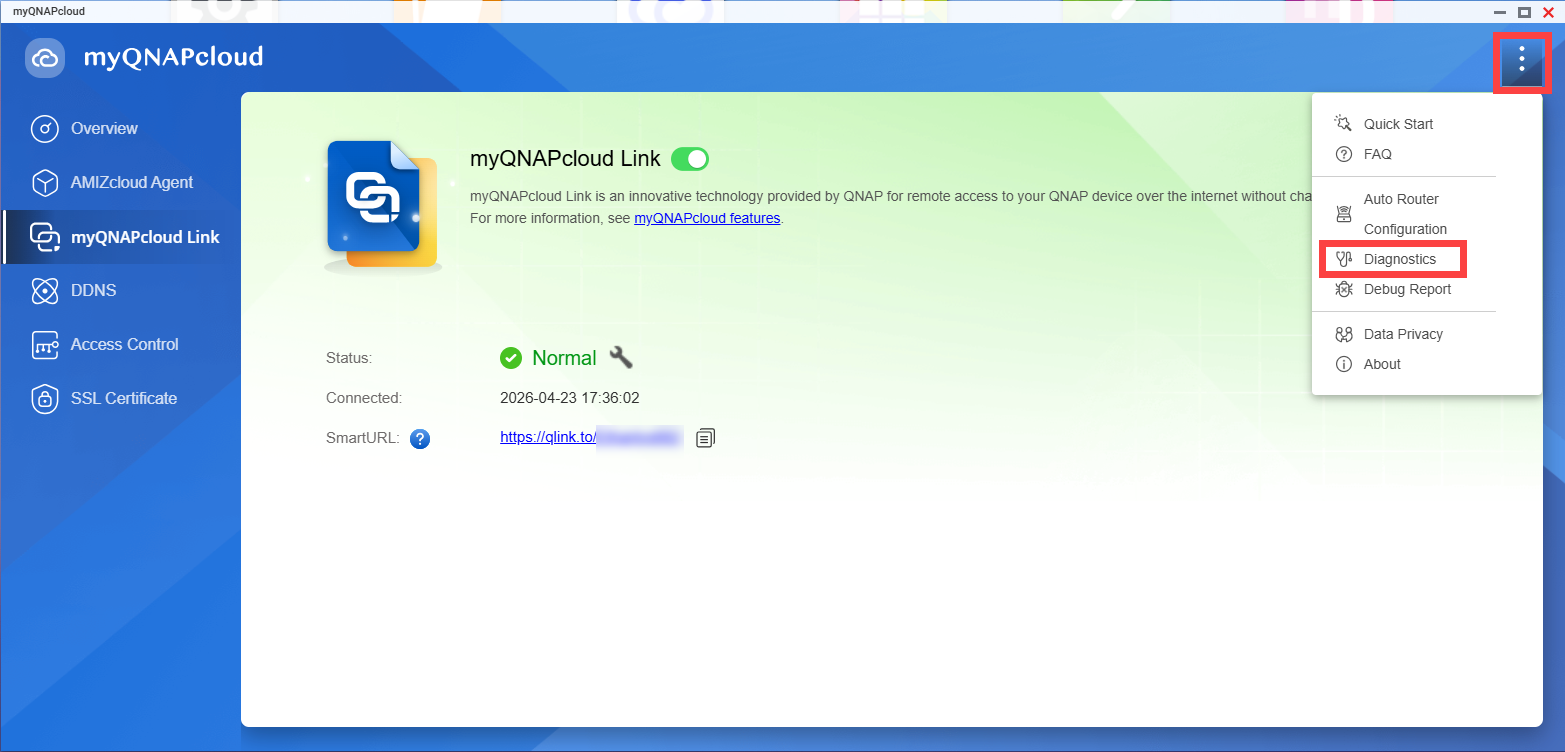
- In myQNAPcloud, open the option menu at the upper-right corner.
- Select Diagnostics.

- The Diagnostics tool appears. Click Run.

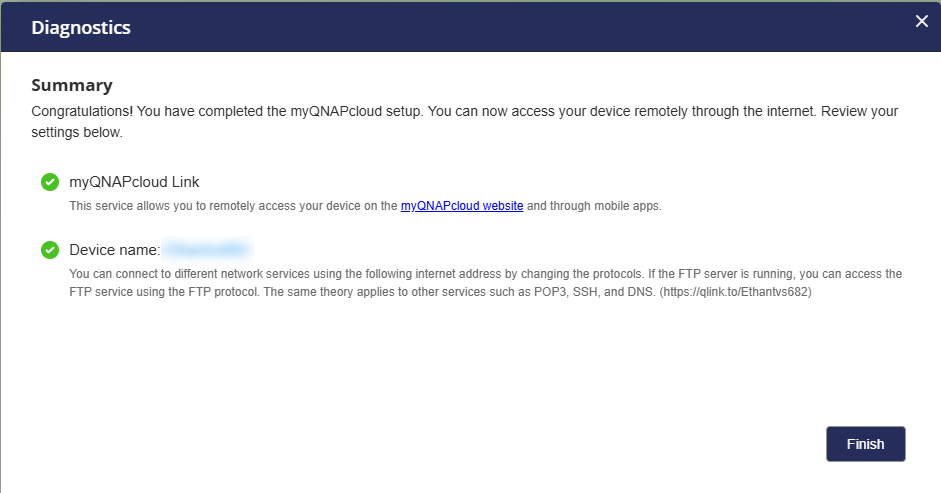
- The Diagnostics tool scans your system and checks requirements for myQNAPcloud Link. Follow the on-screen instructions to troubleshoot issues.

Note
If you still cannot fix myQNAPcloud Link connection issues even after following the instructions of diagnostics, please contact QNAP Technical Support for further assistance.
适用产品
myQNAPcloud Link
场景
您尝试通过 myQNAPcloud Link 从移动设备远程连接到您的 QNAP NAS。您的 NAS 正在运行,但无法在 NAS 和移动设备之间建立连接。您希望排查连接问题。
步骤
myQNAPcloud Link 是远程访问 QNAP NAS 所需的。如果您的 myQNAPcloud Link 未按预期工作,您可以先尝试更新 QNAP 应用程序,然后再次启用 myQNAPcloud Link。如果这不能解决您的连接问题,我们建议运行诊断测试以识别潜在问题。
更新应用程序并再次启用 myQNAPcloud Link
- 更新您的 QNAP 移动应用程序。
- 在 iOS 上前往 App Store 或在 Android 上前往 Google Play。
- 将您的 QNAP 移动应用程序更新到全新版本。
- 更新 myQNAPcloud Link。
- 在 QNAP NAS 上,进入 App Center。
- 找到 myQNAPcloud Link。
- 将 myQNAPcloud Link 更新到全新版本。
- 再次启用 myQNAPcloud Link。
- 在 QNAP NAS 上,前往myQNAPcloud > myQNAPcloud Link。
- 禁用myQNAPcloud Link。
- 再次启用myQNAPcloud Link。
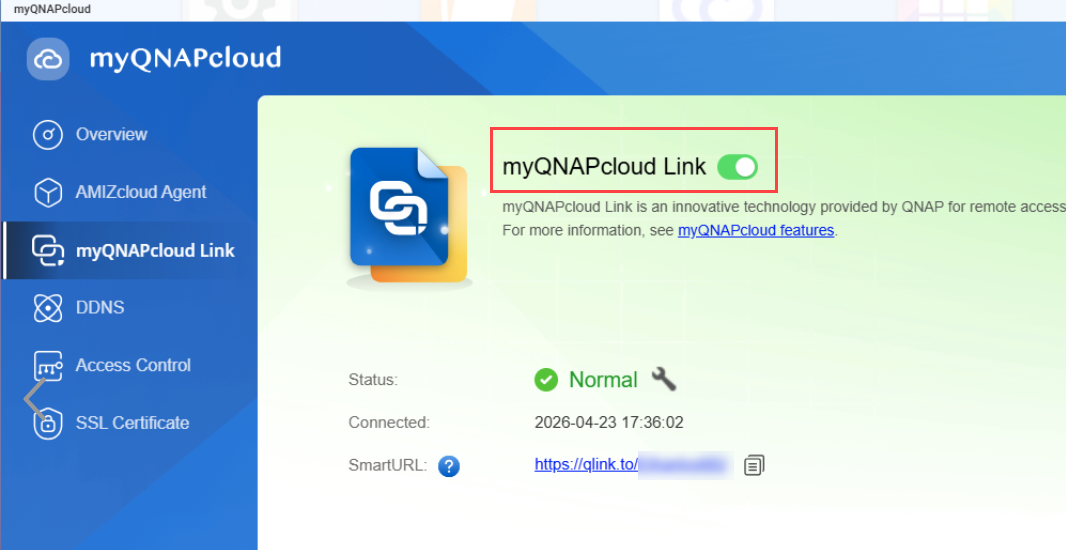
- 检查 myQNAPcloud Link 状态。
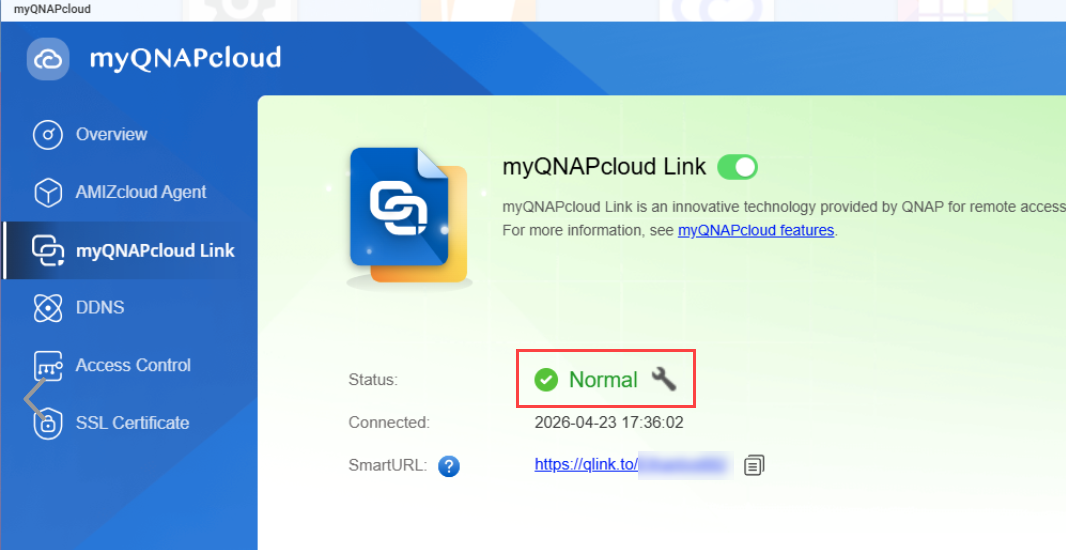
提示
myQNAPcloud Link 显示正常,如果服务正常工作。您现在可以尝试通过 myQNAPcloud Link 再次连接到 NAS。
如果您的 myQNAPcloud Link 状态为异常,或者您的 myQNAPcloud Link 状态为正常但仍无法远程连接到 NAS,我们建议运行诊断测试。
运行诊断测试
- 在 myQNAPcloud 中,打开右上角的选项菜单。
- 选择诊断。
- 诊断工具出现。点击运行。
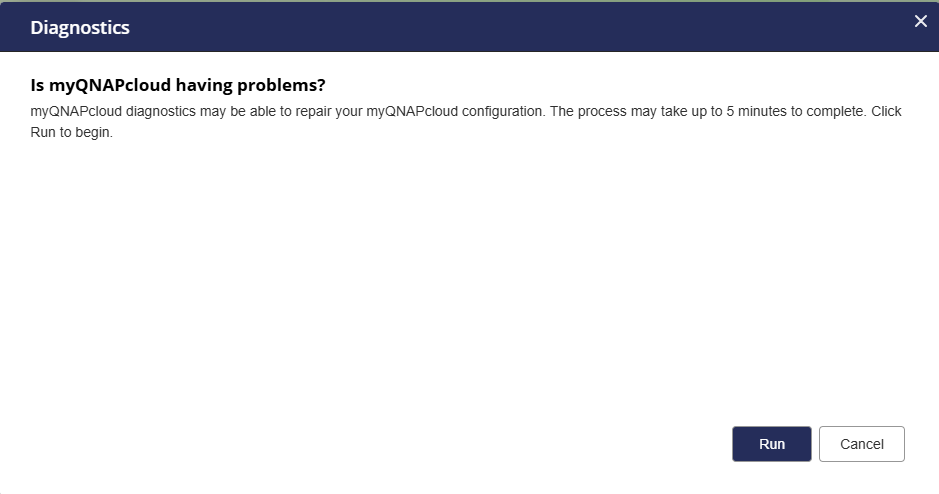
- 诊断工具扫描您的系统并检查 myQNAPcloud Link 的要求。按照屏幕上的说明进行故障排除。
注意
如果您在遵循诊断说明后仍无法解决 myQNAPcloud Link 连接问题,请联系 QNAP 技术支持以获得进一步帮助。