Applicable Products
Ubuntu Linux Station
Overview
QNAP NAS is designed not only as a storage platform but also as a secure foundation for running virtualized and experimental tasks. Ubuntu Linux Station is a key component of this design, providing a Linux desktop environment while enforcing clear security boundaries to protect user data stored on the NAS.
Ubuntu Linux Station's file exchange mechanism provides a balanced approach between usability and security. It enables developers to safely experiment with advanced workloads while maintaining strong isolation between experimental environments and critical NAS data.
Explanation
Security-by-Design Approach
Unlike traditional container-based deployments where NAS folders can be freely mounted as writable volumes, Ubuntu Linux Station adopts a security-by-design approach. The system intentionally limits how and where data can be exchanged between the Linux environment and the NAS.
This design reduces the risk of accidental data exposure, misconfiguration, or unintended file access, especially when users run experimental or autonomous applications.
Controlled Data Access Model
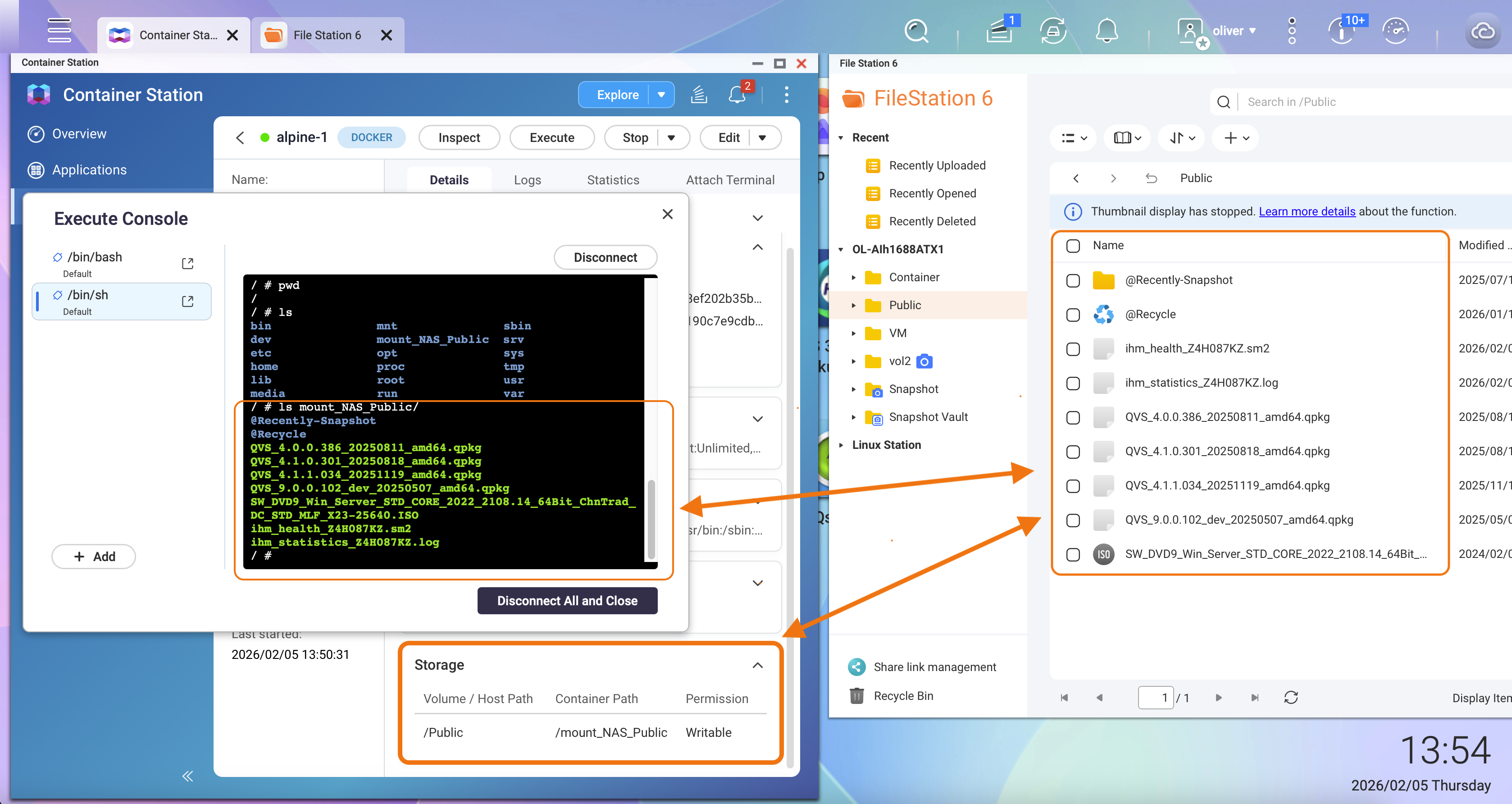
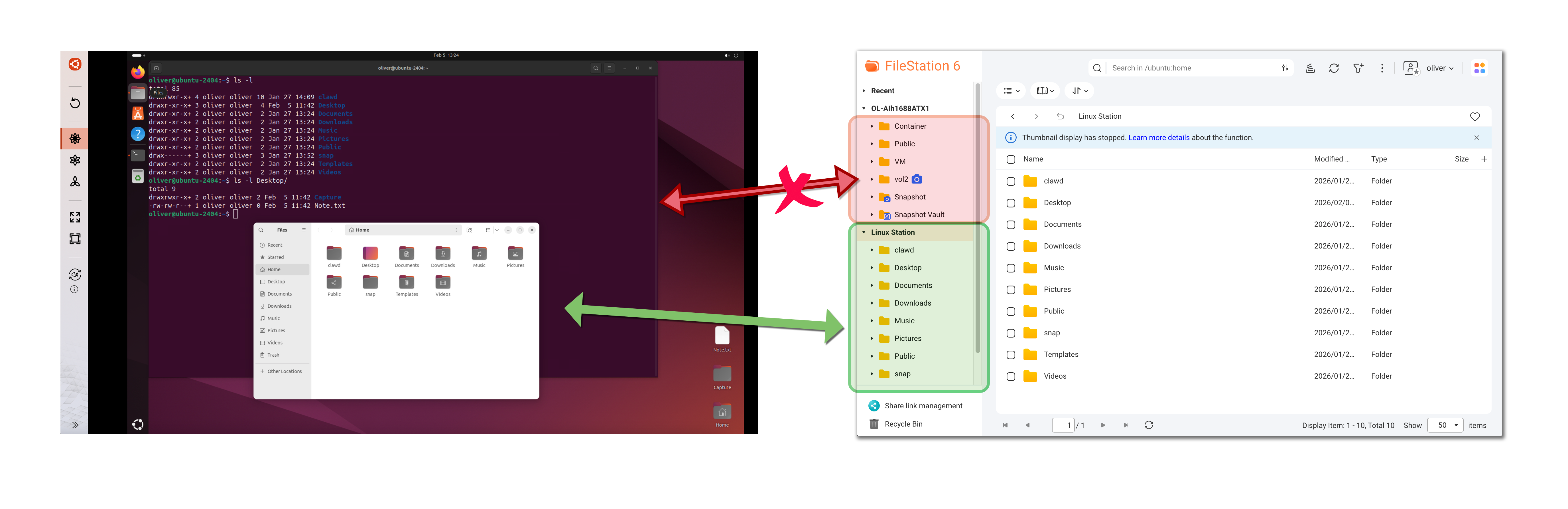
Applications running inside Ubuntu Linux Station do not have direct access to NAS shared folders such as Public, Container, or user home directories.
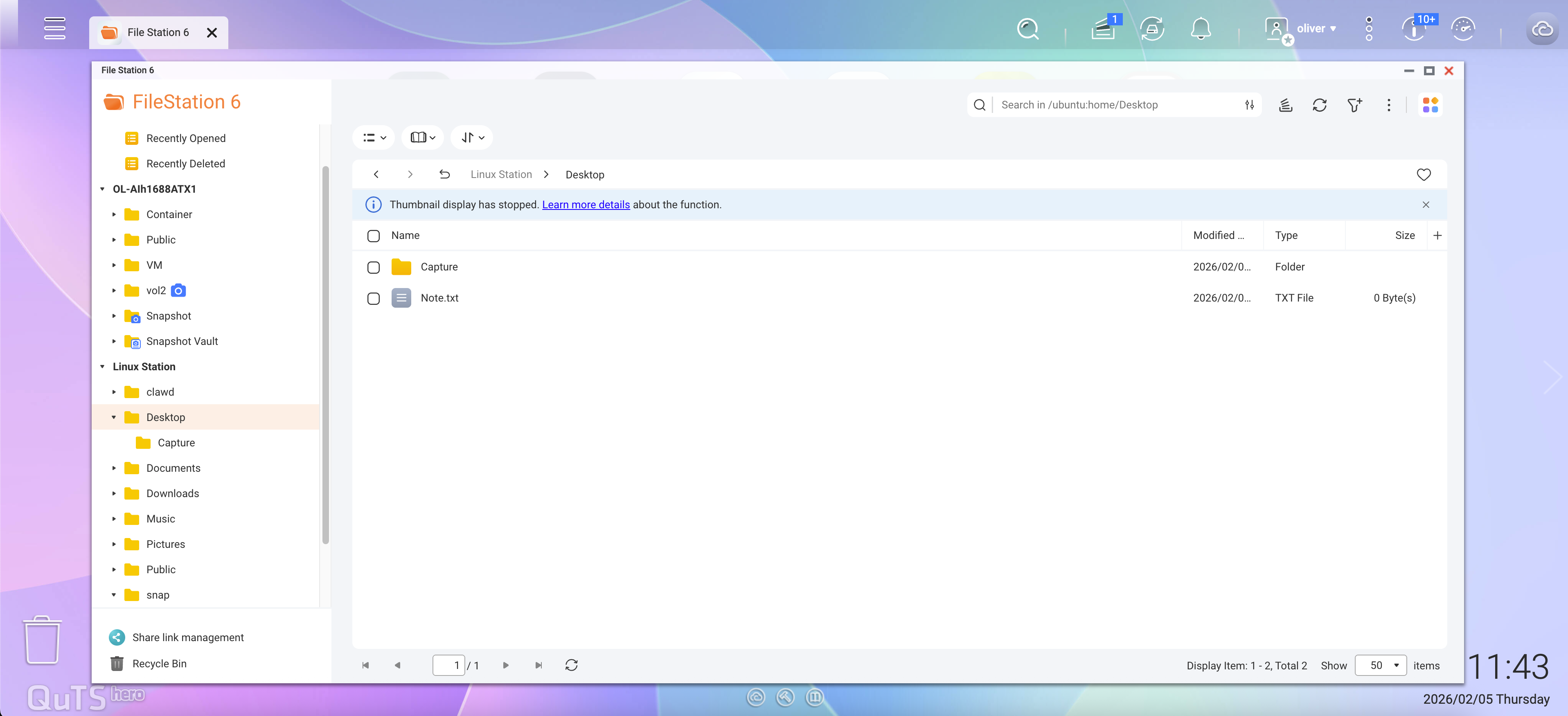
In File Station, a dedicated Linux Station section appears in the left panel. This section contains folders such as:
- Desktop
- Documents
- Downloads
- Music
- Pictures
- Videos
- (Other folders under the ~/ directory)
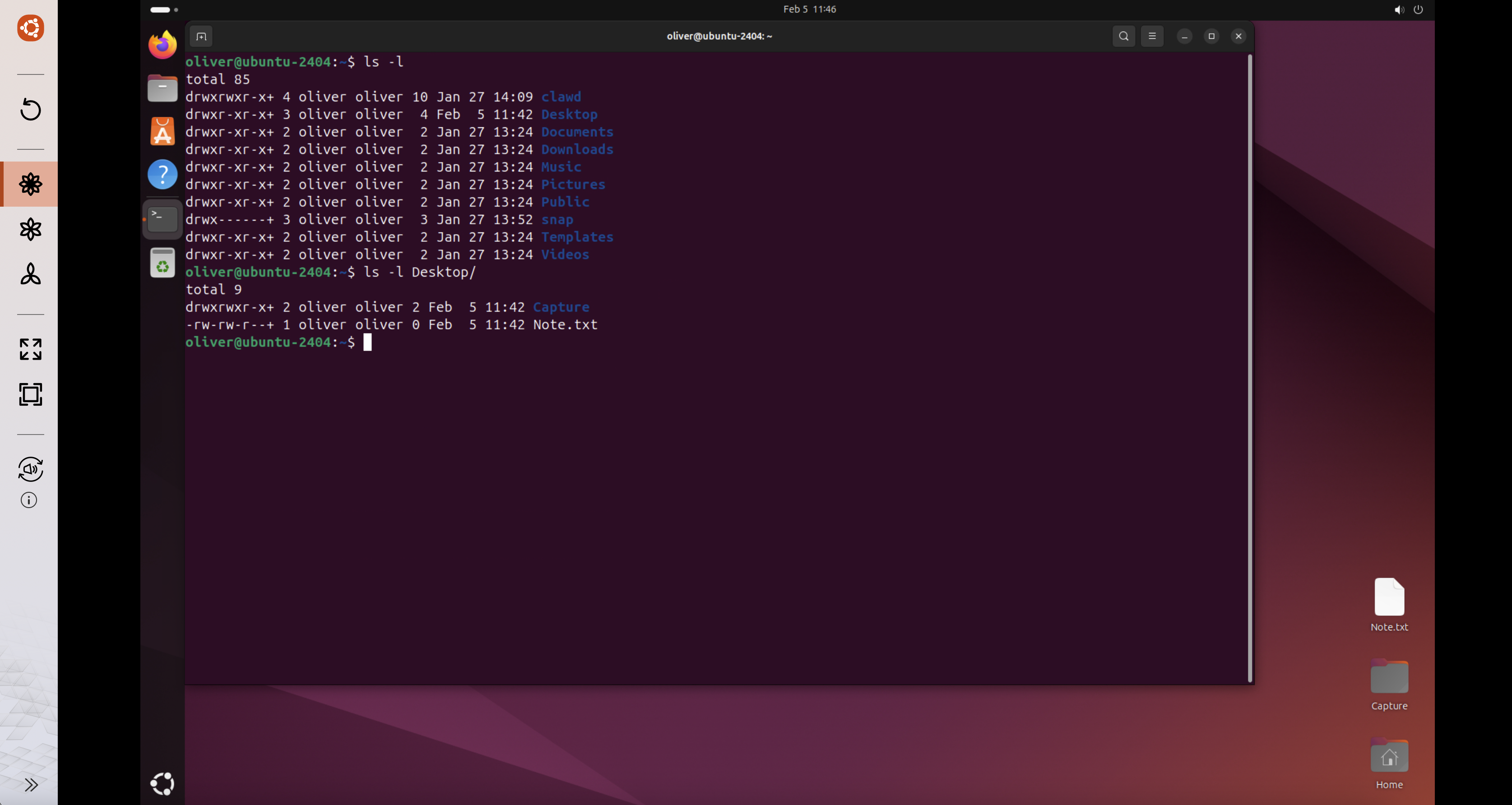
These folders correspond directly to the Ubuntu user's home directory (/home/<user>) inside the Linux Station environment.
Security Benefits of This Design
This architecture ensures that:
- Ubuntu applications cannot browse or scan the entire NAS file system.
- No NAS shared folders are mounted as volumes inside the Ubuntu environment.
- Only explicitly copied files are accessible to applications running in Linux Station.
As a result, even if an application or AI agent behaves unexpectedly or is compromised, the impact is limited to the Linux Station directories visible in File Station.
Best Practice for AI Agent Workloads
When experimenting with autonomous AI agents or third-party application, QNAP strongly recommends:
- Only copy files that are strictly required into the Linux Station folders.
- Avoid placing sensitive or confidential data in these directories.
- Treat the Linux Station file area as a controlled exchange zone, not a data repository.
Why This Approach Is More Secure Than Traditional Containers
While this design may require manually copying files instead of mounting NAS folders directly, it significantly reduces the risk of large-scale data exposure.
This trade-off prioritizes data protection while still preserving flexibility for development, testing, and experimentation.
Removal or Uninstallation
Users may consider reinstalling or uninstalling the Ubuntu environment in the following situations:
- All experimental applications are no longer required.
- The environment was used for testing untrusted or third-party workloads.
- Unexpected behavior or configuration drift is suspected.
- You want to reset the environment to a clean and known state.
Why Removal or Reinstallation Improves Security
Autonomous or experimental workloads may leave behind residual data, configuration changes, or installed components that are difficult to fully audit. Reinstalling or uninstalling the Ubuntu Linux Station instance ensures:
- All application data and user files inside the Linux Station environment are removed.
- Potential misconfigurations are fully reset.
- The NAS returns to a minimal and predictable security state.
This approach is especially recommended after experimenting with AI agents or other high-risk applications.
How to Reinstall or Uninstall Ubuntu Linux Station
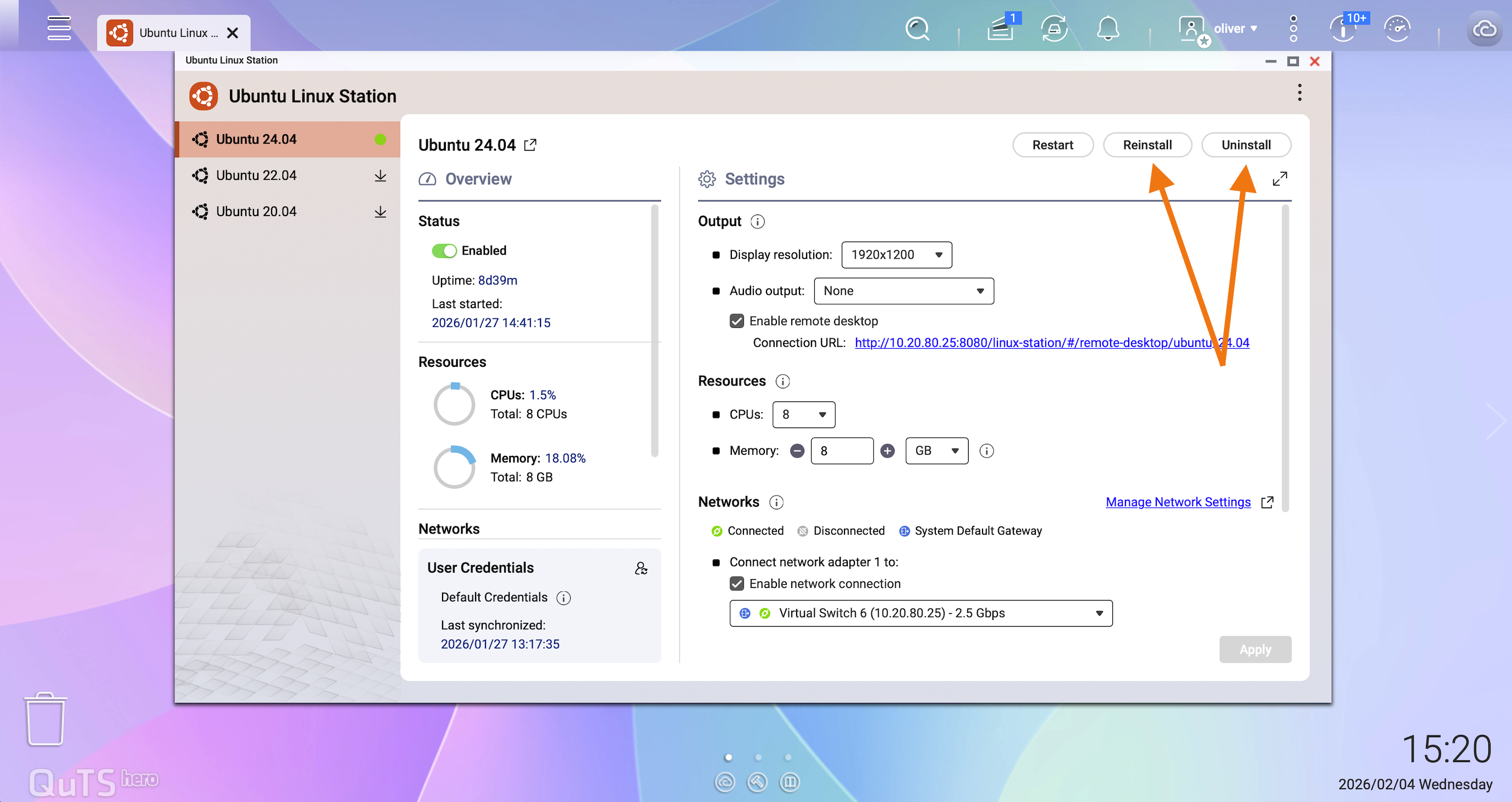
You can manage the Ubuntu Linux Station instance directly from the Linux Station management interface:
- Open Ubuntu Linux Station from the QNAP App Center.
- Select the installed Ubuntu version (for example, Ubuntu 24.04).
- Click Reinstall to reset the environment, or Uninstall to remove it completely.
适用产品
Ubuntu Linux 工作站
概述
QNAP NAS 不仅被设计为一个存储平台,还作为运行虚拟化和实验任务的安全基础。Ubuntu Linux 工作站是此设计的关键组件,提供 Linux 桌面环境,同时实施明确的安全边界以保护存储在 NAS 上的用户数据。
Ubuntu Linux 工作站的文件交换机制在可用性和安全性之间提供了平衡的方法。它使开发人员能够安全地进行优异工作负载实验,同时保持实验环境与关键 NAS 数据之间的强隔离。
解释
安全设计方法
与传统的基于容器的部署不同,NAS 文件夹可以自由地作为可写卷挂载,Ubuntu Linux 工作站采用了一种安全设计的方法。系统有意限制了数据在 Linux 环境和 NAS 之间交换的方式和位置。
这种设计降低了意外数据暴露、配置错误或意外文件访问的风险,特别是在用户运行实验性或自主应用程序时。
受控数据访问模型
在 Ubuntu Linux 工作站中运行的应用程序无法直接访问 NAS 共享文件夹,如Public、Container或用户主目录。
在 File Station 中,一个专用的Linux Station部分出现在左侧面板中。此部分包含以下文件夹:
- 桌面
- 文档
- 下载
- 音乐
- 图片
- 视频
- (~/ 目录下的其他文件夹)
这些文件夹直接对应于 Ubuntu 用户的主目录 (/home/<user>) 在 Linux Station 环境中。
此设计的安全优势
此架构确保:
- Ubuntu 应用程序无法浏览或扫描整个 NAS 文件系统。
- 没有 NAS 共享文件夹被挂载为 Ubuntu 环境中的卷。
- 只有明确复制的文件才能被 Linux Station 中运行的应用程序访问。
因此,即使应用程序或 AI 代理行为异常或被破坏,影响也仅限于 File Station 中可见的 Linux Station 目录。
AI 代理工作负载的较佳实践
在试验自主 AI 代理或第三方应用程序时,QNAP 强烈建议:
- 仅将严格必要的文件复制到 Linux Station 文件夹中。
- 避免在这些目录中放置敏感或机密数据。
- 将 Linux Station 文件区域视为受控交换区,而非数据存储库。
为何这种方法比传统容器更安全
虽然这种设计可能需要手动复制文件而不是直接挂载 NAS 文件夹,但它降低了大规模数据暴露的风险。
这种权衡优先考虑数据保护,同时仍保留开发、测试和实验的灵活性。
移除或卸载
用户可以在以下情况下考虑重新安装或卸载 Ubuntu 环境:
- 所有实验性应用程序不再需要。
- 环境用于测试不受信任或第三方工作负载。
- 怀疑有意外行为或配置漂移。
- 您希望将环境重置为干净且已知的状态。
为何移除或重新安装能提高安全性
自主或实验性工作负载可能会留下残留数据、配置更改或难以审核的已安装组件。重新安装或卸载 Ubuntu Linux 工作站实例可确保:
- Linux Station 环境中的所有应用程序数据和用户文件被移除。
- 潜在的错误配置被重置。
- NAS 恢复到较小化和可预测的安全状态。
在试验 AI 代理或其他高风险应用程序后,特别推荐这种方法。
如何重新安装或卸载 Ubuntu Linux 工作站
您可以直接从 Linux Station 管理界面管理 Ubuntu Linux 工作站实例:
- 打开Ubuntu Linux 工作站从 QNAP App Center。
- 选择已安装的 Ubuntu 版本(例如,Ubuntu 24.04)。
- 点击重新安装以重置环境,或卸载以移除它。