Applicable Products
- All QNAP NAS series
- Windows Server (any supported version)
Scenario
A user accesses a QNAP NAS shared folder via Network File Services (NFS) from a Windows Server running a supported version. When copying a file with the same name, Windows displays the Replace or Skip Files prompt, indicating that an existing file is present on the NAS.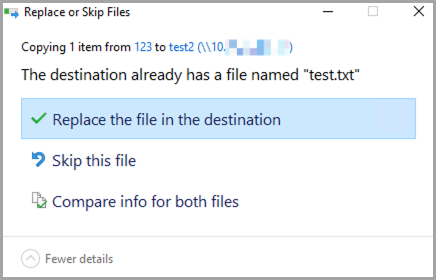
However, after selecting Replace the file in the destination, the operation fails with an access denied or permission error, preventing the file from being overwritten or updated.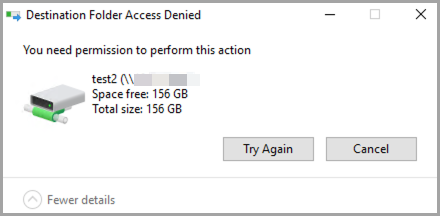
Root Cause
This behavior is a known limitation of the Client for NFS feature in Windows Server and is independent of the NAS configuration. The same behavior is observed across all supported Windows Server versions that include Client for NFS.
- Client for NFS supports only NFSv2 and NFSv3 and does not support NFSv4 ACLs. As a result, it cannot negotiate or modify POSIX ACLs over NFS.
- By default, Client for NFS accesses NFS shares using an anonymous UID and GID. If the NAS does not grant write permissions to this anonymous identity, write operations fail.
- Access is denied unless the anonymous UID and GID are explicitly mapped to a UID and GID that the NAS recognizes and allows to write to the shared folder, regardless of the shared folder’s configured write permissions.
Note
These settings must be configured on the Windows Server.
Solution
To resolve this issue, map the anonymous NFS user on the Windows Server to a UID and GID that the NAS allows to write to the shared folder.
You can apply the configuration using one of the following methods.
Method 1: Configure Using PowerShell (Recommended)
- Open PowerShell as an Administrator.
- Launch PowerShell with administrative privileges.
- Run the following commands to map the anonymous UID and GID to
0, which corresponds to the QNAP root user.Set-ItemProperty -Path "HKLM:\SOFTWARE\Microsoft\ClientForNFS\CurrentVersion\Default" -Name AnonymousUid -Value 0 -PropertyType DWord
Set-ItemProperty -Path "HKLM:\SOFTWARE\Microsoft\ClientForNFS\CurrentVersion\Default" -Name AnonymousGid -Value 0 -PropertyType DWord
- Run the following command to restart Client for NFS or reboot the system to apply the changes:
nfsadmin client restart
Tip
Alternatively, you can restart the Windows Server.
Method 2: Configure Using the Windows Registry
- Press Win + R.
- Type
regedit. - Press Enter.
- Navigate to the following registry path:
HKEY_LOCAL_MACHINE\SOFTWARE\Microsoft\ClientForNFS\CurrentVersion\Default
- Go to Edit > New, and then click DWORD (32-bit) Value.
- Create the following two DWORD (32-bit) values inside the default folder:
- AnonymousUid = 0
- AnonymousGid = 0
- Apply the changes by restarting the NFS client:
nfsadmin client restart
Tip
Alternatively, you can restart the Windows Server.
Important
- Mapping the UID and GID to
0 allows Client for NFS to access the NAS as the root user. Ensure that the NAS shared folder grants write permissions to this identity. - Apply these settings on each Windows Server that accesses the NFS share.
- This applies to all Windows versions that support the Client for NFS feature.
- For environments that require fine-grained permission control or NFSv4 ACL support, Windows Server acting as an NFS client is not supported.
Further Reading
适用产品
- All QNAP NAS series
- Windows Server (any supported version)
场景
用户通过网络文件服务(NFS)从运行支持版本的 Windows Server 访问 QNAP NAS 共享文件夹。当复制同名文件时,Windows 显示替换或跳过文件提示,表示 NAS 上已存在一个文件。
然而,在选择替换目标位置的文件后,操作因访问被拒绝或权限错误而失败,无法覆盖或更新文件。
根本原因
此行为是 Windows Server 中 NFS 客户端功能的已知限制,与 NAS 配置无关。在所有支持 NFS 客户端的 Windows Server 版本中都会出现相同的行为。
- NFS 客户端仅支持 NFSv2 和 NFSv3,不支持 NFSv4 ACL。因此,它无法通过 NFS 协商或修改 POSIX ACL。
- 默认情况下,NFS 客户端使用匿名 UID 和 GID 访问 NFS 共享。如果 NAS 未授予此匿名身份写权限,则写操作将失败。
- 除非将匿名 UID 和 GID 显式映射到 NAS 识别并允许写入共享文件夹的 UID 和 GID,否则访问将被拒绝,无论共享文件夹的写权限如何配置。
注意
这些设置必须在 Windows Server 上配置。
解决方案
要解决此问题,请将 Windows Server 上的匿名 NFS 用户映射到 NAS 允许写入共享文件夹的 UID 和 GID。
您可以使用以下方法之一应用配置。
方法 1:使用 PowerShell 配置(推荐)
- 以管理员身份打开 PowerShell。
- 启动PowerShell,并具有管理员权限。
- 运行以下命令将匿名 UID 和 GID 映射到
0,对应于 QNAP 的 root 用户。Set-ItemProperty -Path "HKLM:\SOFTWARE\Microsoft\ClientForNFS\CurrentVersion\Default" -Name AnonymousUid -Value 0 -PropertyType DWord
Set-ItemProperty -Path "HKLM:\SOFTWARE\Microsoft\ClientForNFS\CurrentVersion\Default" -Name AnonymousGid -Value 0 -PropertyType DWord
- 运行以下命令以重启 NFS 客户端或重启系统以应用更改:
nfsadmin client restart
提示
或者,您可以重启 Windows Server。
方法 2:使用 Windows 注册表配置
- 按下Win + R。
- 输入
regedit。 - 按下 Enter。
- 导航到以下注册表路径:
HKEY_LOCAL_MACHINE\SOFTWARE\Microsoft\ClientForNFS\CurrentVersion\Default
- 进入 编辑 > 新建,然后点击 DWORD (32 位) 值。
- 在默认文件夹中创建以下两个 DWORD (32 位) 值:
- AnonymousUid = 0
- AnonymousGid = 0
- 通过重启 NFS 客户端应用更改:
nfsadmin client restart
重要
- 将 UID 和 GID 映射到
0 允许 NFS 客户端以 root 用户身份访问 NAS。确保 NAS 共享文件夹授予此身份写入权限。 - 在每个访问 NFS 共享的 Windows 服务器上应用这些设置。
- 这适用于所有支持 NFS 客户端功能的 Windows 版本。
- 对于需要细粒度权限控制或 NFSv4 ACL 支持的环境,不支持 Windows 服务器作为 NFS 客户端。
进一步阅读


