Applicable Products
Multimedia Console
Diagnosis
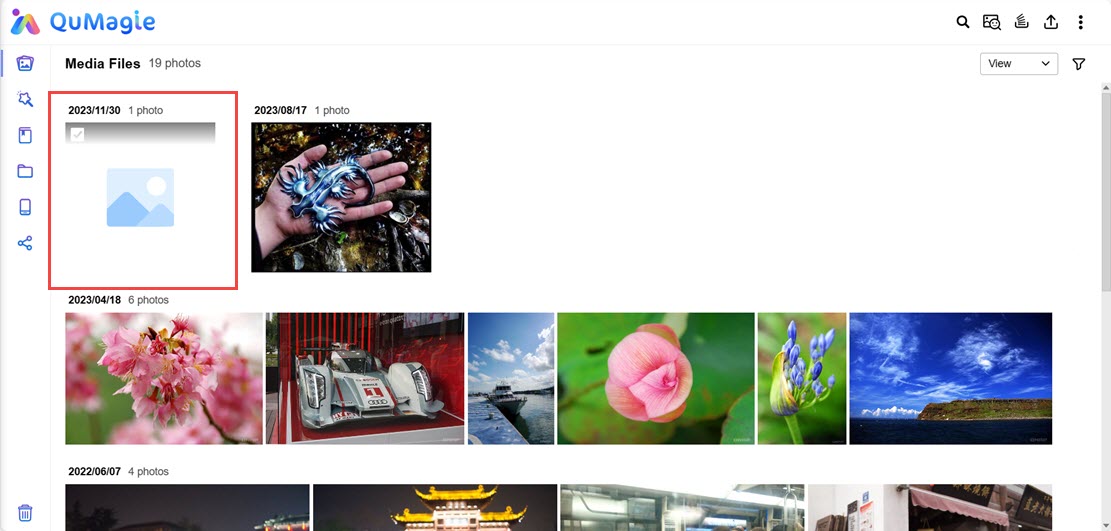
Many multimedia or file management apps use thumbnails generated by Multimedia Console to display image/video files. If Multimedia Console is unable to generate a thumbnail for an image/video, the image/video may be displayed with a default generic thumbnail:
Missing thumbnails in QuMagie
Solutions
Multimedia Console may fail to a generate thumbnail for an image/video for one or more of the following reasons:
The file format of the image/video is not supported
If your file has a format or codec that is not supported on your system, then Multimedia Console will be unable to generate a thumbnail.
The file format of the image/video requires a license
Certain media file formats require a CAYIN Media Viewer license. If you do not have the required license activated, then Multimedia Console will be unable to generate a thumbnail. For details on how to purchase and activate licenses, see "Licenses" in the QTS User Guide or QuTS hero User Guide.
Thumbnail generation may be disabled or configured incorrectly in Multimedia Console
To ensure thumbnail generation is enabled and correctly configured in Multimedia Console, do the following:
- Open Multimedia Console.
- Go to Thumbnail Generation.
- Ensure that Thumbnail Generation toggle is enabled.
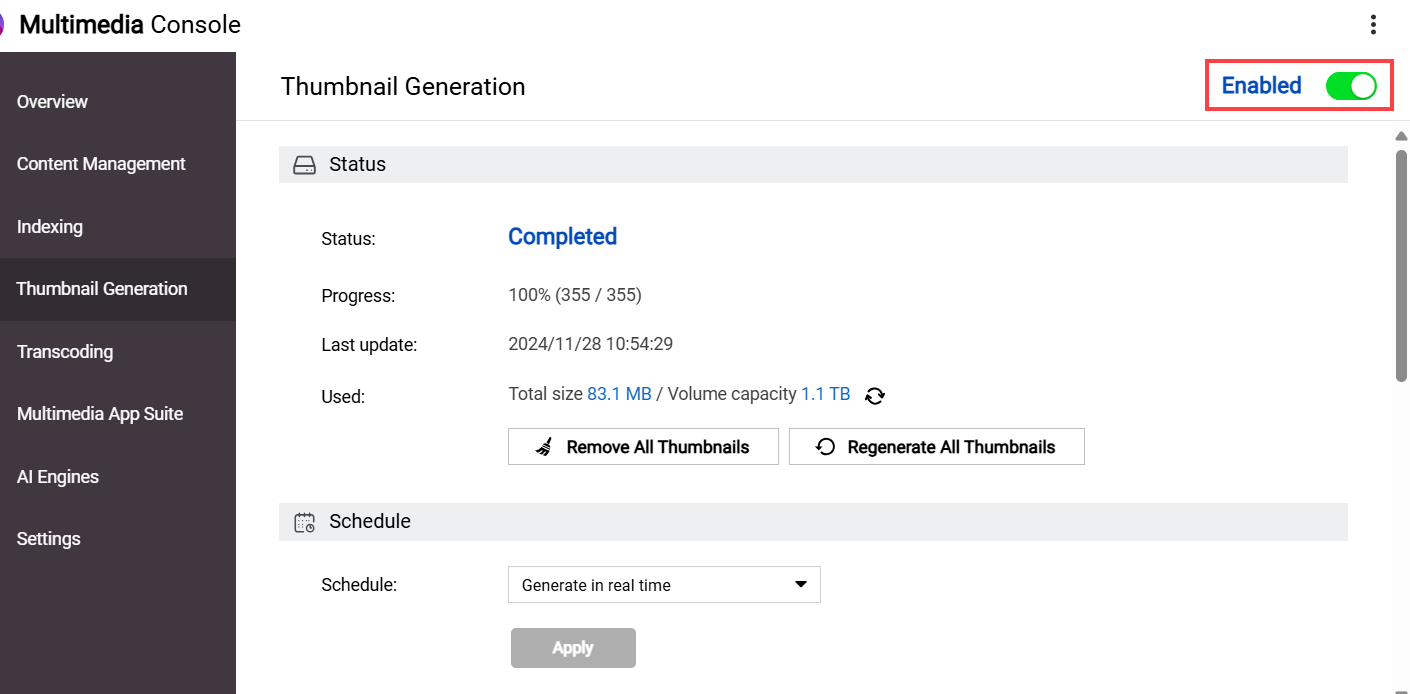
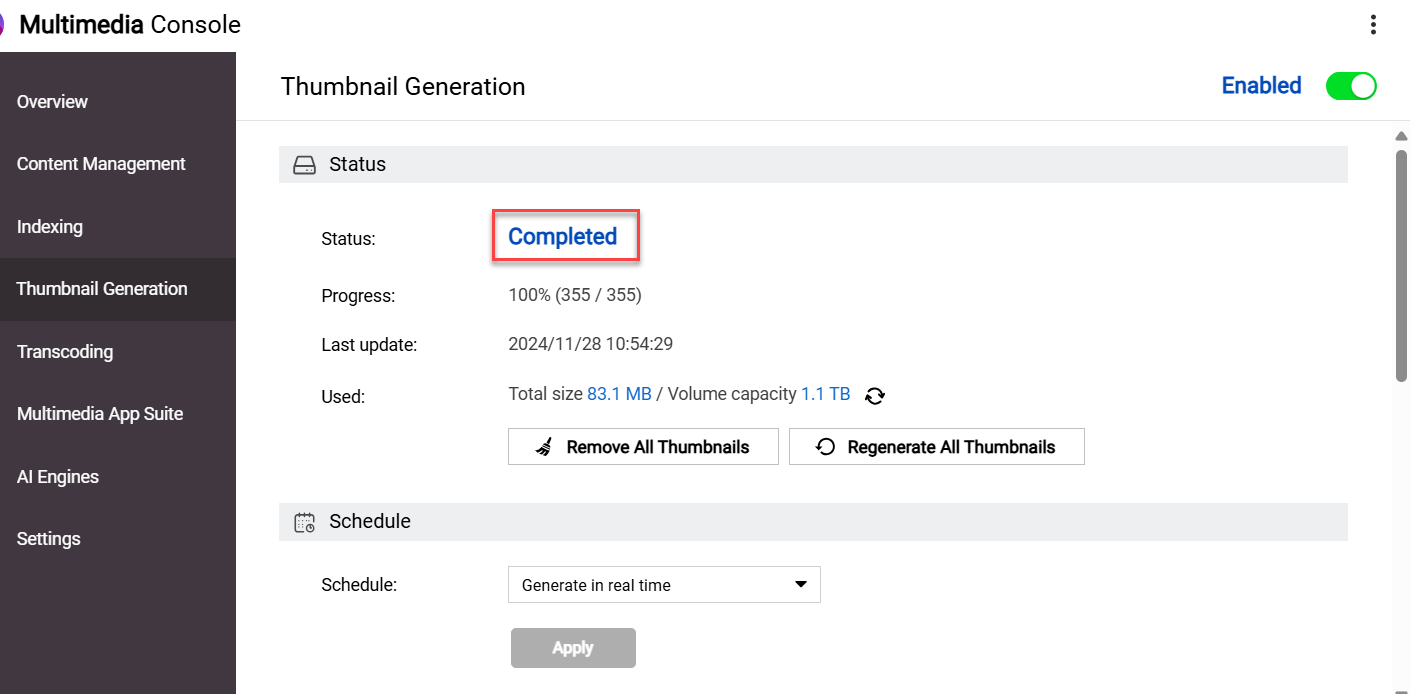
- Ensure that the Status of thumbnail generation is Completed.
After uploading/creating new images, Multimedia Console will begin generating thumbnails based on your thumbnail generation settings. If the thumbnail generation status is not Completed, wait until the status is Completed, and then look at your image/video.
- Scroll down to Advanced settings and check that image/video is not being excluded from thumbnail generation.
The image/video file isn't indexed yet
For many multimedia and file management apps to display images/videos the image/video files must be indexed by your system. Indexing is a process of analyzing and storing media files so that they can be more efficiently used by multimedia apps. To ensure that your images/videos have been indexed, do the following:
- Open Multimedia Console.
- Go to Indexing.
- Under Settings, locate the Index field.
If your system is still indexing files, the Index field will be "Indexing...":
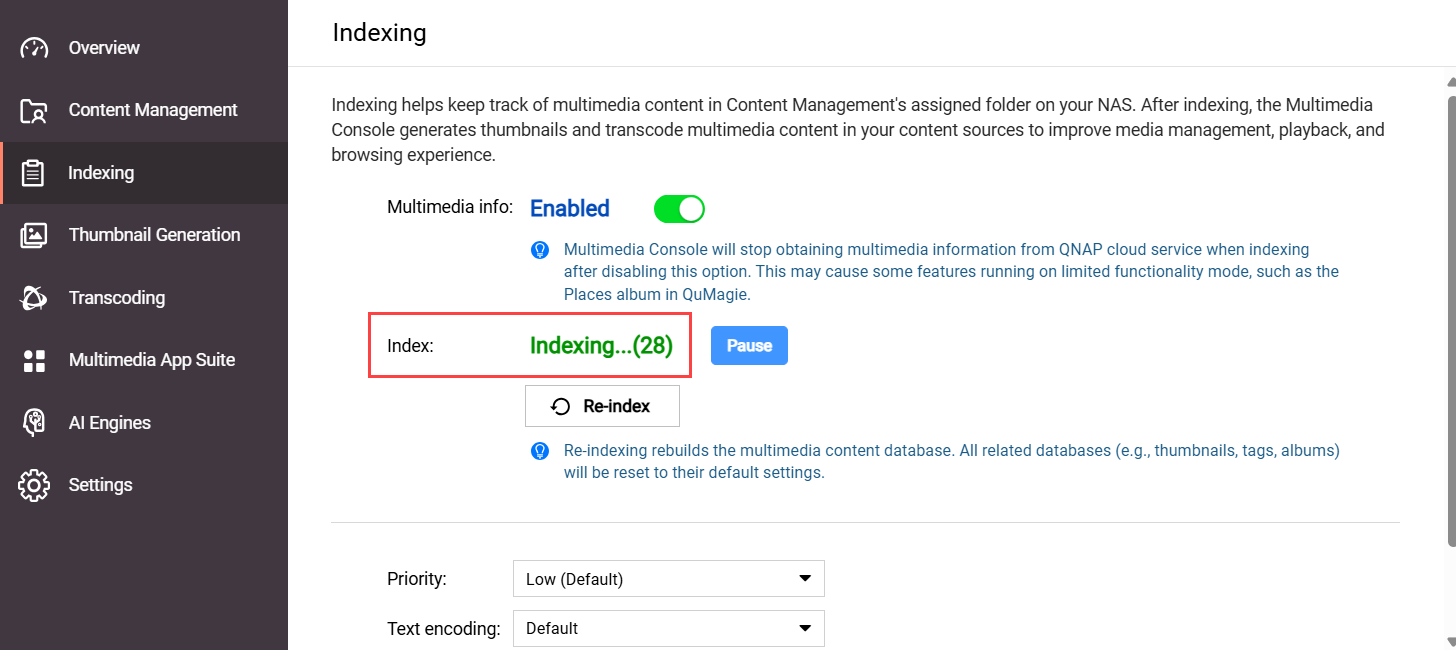 If your system has finished indexing files, the Index field will be "Completed":
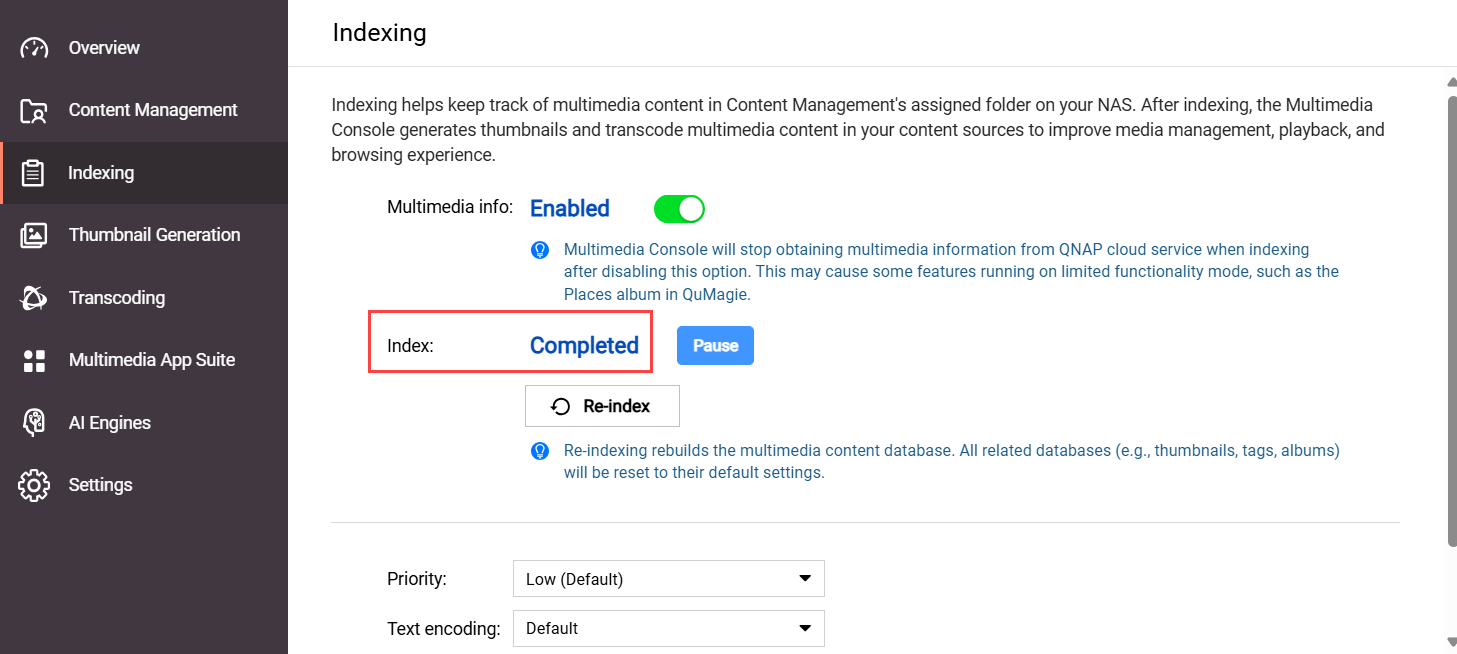
- If your system is still indexing files, wait until the indexing finishes, and then check your image/video.
The system file index has been corrupted
Some apps may not be able to display images/videos in your content source folders, or display their thumbnails correctly, if the system media index (also sometimes called the "Multimedia Console index" or "index database") has become corrupted. For various reasons, the system media index may become corrupted. There is no way to confirm if the system file index is corrupted or not, but you can re-index the system file index and see if that resolves your issue:
Warning
Re-indexing the system media file index will delete and rebuild all indexed data. Data that will be deleted includes thumbnails, media file tags, QuMagie albums, and other things. Media files themselves are not affected.
- Open Multimedia Console.
- Go to Indexing.
- Under Settings, click Re-index.
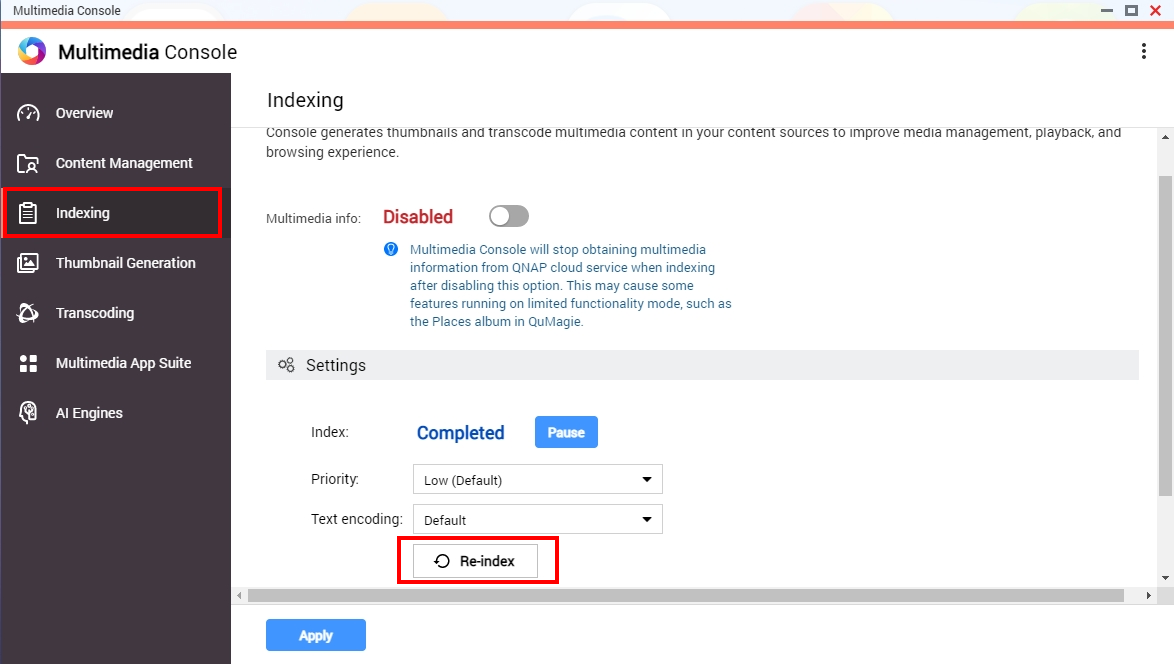 Your system will re-index all media files in your content source folders. This may take some time. After the indexing is complete, you can check your image/video.
Your image/video file is above the maximum supported size
Multimedia Console 2.6.0 and earlier
Multimedia Console will not generate a thumbnail for an image or video if any of the following apply:
- The width x height of the image/video is greater than 500,000,000 pixels.
- Your NAS has 2048 MB of total RAM or less and the width x height is greater than 240,000,000 pixels.
- Your NAS has 1024 MB of total RAM or less and the width x height is greater than 51,000,000 pixels.
- The file size of the image/video is greater than 1/8 of your NAS's total RAM.
- For TS files, the file size is greater than 60 MB.
Multimedia Console 2.7.0 and later
Starting from version 2.7.0, Multimedia Console uses up to half of your NAS's total RAM for thumbnail generation, and the pixel thresholds below are lower than in 2.6.0 and earlier at the same RAM tier. Multimedia Console will not generate a thumbnail for an image or video if any of the following apply:
- The width x height of the image/video is greater than 500,000,000 pixels.
- Your NAS has 4096 MB of total RAM or less and the width x height is greater than 240,000,000 pixels.
- Your NAS has 2048 MB of total RAM or less and the width x height is greater than 51,000,000 pixels.
- Your NAS has 1024 MB of total RAM or less and the width x height is greater than 20,000,000 pixels.
- The file size of the image/video is greater than 1/8 of your NAS's total RAM.
- For TS files, the file size is greater than 60 MB.
If Multimedia Console still cannot generate a thumbnail for your image/video, you can content QNAP support for further assistance.
Further reading
适用产品
Multimedia Console
诊断
许多多媒体或文件管理应用程序使用多媒体控制台生成的缩略图来显示图像 / 视频文件。如果 Multimedia Console 无法为图像 / 视频生成缩略图,则图像 / 视频可能会显示为默认的通用缩略图:
QuMagie 中缺少缩略图
解决方案
Multimedia Console 可能由于以下一个或多个原因无法为图像 / 视频生成缩略图:
图像 / 视频的文件格式不受支持
如果您的文件具有系统不支持的格式或编解码器,则 Multimedia Console 将无法生成缩略图。
图像 / 视频的文件格式需要许可证
缩略图生成可能在 Multimedia Console 中被禁用或配置不正确
为确保在 Multimedia Console 中启用并正确配置缩略图生成,请执行以下操作:
- 打开Multimedia Console.
- 前往缩略图生成。
- 确保缩略图生成开关已启用。
- 确保缩略图生成的状态为已完成。
上传 / 创建新图像后,Multimedia Console将根据您的缩略图生成设置开始生成缩略图。如果缩略图生成状态不是已完成,请等待状态为已完成,然后查看您的图像 / 视频。
- 向下滚动到优异设置 ,检查图像 / 视频是否未被排除在缩略图生成之外。
图像 / 视频文件尚未被索引
为了让许多多媒体和文件管理应用程序显示图像 / 视频,图像 / 视频文件必须由您的系统进行索引。索引是分析和存储媒体文件的过程,以便多媒体应用程序可以更高效地使用它们。要确保您的图像 / 视频已被索引,请执行以下操作:
- 打开Multimedia Console。
- 前往索引。
- 在设置中,找到索引字段。
如果您的系统仍在索引文件,索引字段将显示“正在索引...”:
如果您的系统已完成文件索引,索引字段将显示“已完成”:
- 如果您的系统仍在索引文件,请等待索引完成,然后检查您的图像 / 视频。
系统文件索引已损坏
如果系统媒体索引(有时也称为“Multimedia Console 索引”或“索引数据库”)已损坏,某些应用程序可能无法在您的内容源文件夹中显示图像 / 视频,或正确显示其缩略图。由于各种原因,系统媒体索引可能会损坏。无法确认系统文件索引是否损坏,但您可以重新索引系统文件索引,看看是否能解决您的问题:
警告
重新索引系统媒体文件索引将删除并重建所有索引数据。将被删除的数据包括缩略图、媒体文件标签、QuMagie 相册等。媒体文件本身不受影响。
- 打开Multimedia Console。
- 转到索引。
- 在设置中,点击重新索引。
您的系统将重新索引内容源文件夹中的所有媒体文件。这可能需要一些时间。索引完成后,您可以检查您的图像 / 视频。
您的图像 / 视频文件超过了支持的较大尺寸
Multimedia Console 2.6.0 及更早版本
如果出现以下任何情况,Multimedia Console 将不会为图像或视频生成缩略图:
- 图像 / 视频的宽 x 高大于 500,000,000 像素。
- 您的 NAS 总内存为 2048 MB 或更少,且宽 x 高大于 240,000,000 像素。
- 您的 NAS 总内存为 1024 MB 或更少,且宽 x 高大于 51,000,000 像素。
- 图像 / 视频的文件大小大于 NAS 总内存的 1/8。
- 对于 TS 文件,文件大小大于 60 MB。
Multimedia Console 2.7.0 及更高版本
从版本 2.7.0 开始,Multimedia Console 使用较多一半的 NAS 总内存来生成缩略图,并且以下像素阈值低于 2.6.0 及更早版本在相同内存级别下的阈值。 如果出现以下任何情况,Multimedia Console 将不会为图像或视频生成缩略图:
- 图像 / 视频的宽 x 高大于 500,000,000 像素。
- 您的 NAS 总内存为 4096 MB 或更少,且宽 x 高大于 240,000,000 像素。
- 您的 NAS 总内存为 2048 MB 或更少,且宽 x 高大于 51,000,000 像素。
- 您的 NAS 总内存为 1024 MB 或更少,且宽 x 高大于 20,000,000 像素。
- 图像 / 视频的文件大小大于 NAS 总内存的 1/8。
- 对于 TS 文件,文件大小大于 60 MB。
如果 Multimedia Console 仍然无法为您的图像 / 视频生成缩略图,您可以联系QNAP 支持以获得进一步的帮助。
进一步阅读


