Applicable Products
HDP for PC/VM
HDP PC Agent
Starting from version 2.3.1, the product previously known as HDP has been renamed to HDP for PC/VM.
Starting from version 1.3.0, the product previously known as NetBak PC Agent has been renamed to HDP PC Agent.
Scenario
You cannot add an inventory for your Windows PC or Windows server in HDP for PC/VM and you receive the error message "invalid identifier"
Background
HDP for PC/VM generates and assigns a device identifier to every Windows device added to HDP for PC/VM. Device identifiers allow HDP for PC/VM to uniquely identify each Windows device. Device identifiers are generated using the BIOS UUID of each device and must be unique among your HDP for PC/VM inventories. If two Windows devices have the same BIOS UUID, their generated device identifiers may be the same and HDP for PC/VM will be unable to uniquely identify either device. In this case, HDP for PC/VM will not allow you to create an inventory for the device with the duplicate device identifier, and you will receive the error message "invalid identifier" when trying to add the inventory.
Additionally, if your Windows devices has any of the following BIOS UUID's, HDP for PC/VM will be unable to generate a unique device identifier (to view your device's BIOS UUD, see How to check the UUID of your Windows device below):
- 00000000-0000-0000-0000-000000000000
- FFFFFFFF-FFFF-FFFF-FFFF-FFFFFFFFFFFF
- 03000200-0400-0500-0006-000700080009
Solution
If your device has a duplicate or invalid BIOS UUID, you will see a prompt indicating that the device does not have a valid identifier.
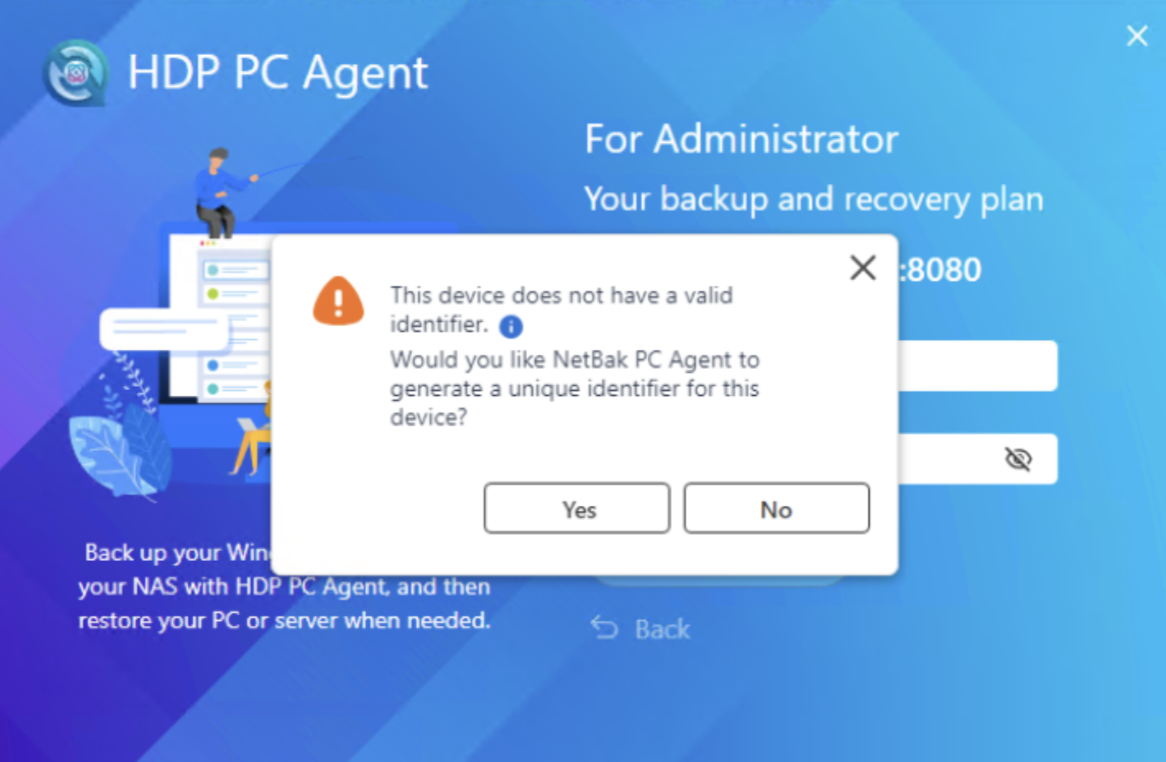
To resolve this issue and successfully sign into HDP PC Agent, your PC needs a unique device identifier. You can create a unique device identifier by doing one of the following:
- Click Yes to allow HDP PC Agent to automatically generate a unique device identifier.
- Click No to abort the sign in process, open Windows PowerShell, enter the following shell commands to manually set a device identifier created by you:
New-ItemProperty -Path "HKLM:\SOFTWARE\QNAP\HDP" -Name EnableSystemProductIdFailover -PropertyType DWORD -Value 1
New-ItemProperty -Path "HKLM:\SOFTWARE\QNAP\HDP" -Name SystemProductId -PropertyType String -Value "$(New-Guid)"
Where "New-Guid" is your custom device indentifier.
After generating a unique device identifier, open HDP PC Agent and try singing in again.
How to check the UUID of your Windows device
You can retrieve the BIOS UUID of your windows device using the following command in Windows PowerShell:
(Get-WmiObject Win32_ComputerSystemProduct).UUID
If your the BIOS UUID of your device is either missing or one of the following numbers listed below, then HDP for PC/VM will be unable to generate a unique device identifier and you will receive the error message "invalid identifier":
- 00000000-0000-0000-0000-000000000000
- FFFFFFFF-FFFF-FFFF-FFFF-FFFFFFFFFFFF
- 03000200-0400-0500-0006-000700080009
You may be able to change your device's BIOS UUID by contacting your hardware vendor, but you can also manually set a unique device identifier by performing the solution given above.
Further reading
HDP for PC/VM official page
HDP PC Agent official page
适用产品
HDP for PC/VM
HDP PC Agent
从版本 2.3.1 开始,之前称为 HDP 的产品已更名为HDP for PC/VM。
从版本 1.3.0 开始,之前称为 NetBak PC Agent 的产品已更名为HDP PC Agent。
场景
您无法在HDP for PC/VM中为您的 Windows PC 或 Windows 服务器添加库存,并收到错误信息“无效标识符”
背景
HDP for PC/VM为添加到HDP for PC/VM的每个 Windows 设备生成并分配一个设备标识符。设备标识符允许HDP for PC/VM稀有识别每个 Windows 设备。设备标识符是使用每个设备的 BIOS UUID 生成的,并且在您的HDP for PC/VM库存中必须是稀有的。如果两个 Windows 设备具有相同的 BIOS UUID,它们生成的设备标识符可能相同,HDP for PC/VM将无法稀有识别任一设备。在这种情况下,HDP for PC/VM将不允许您为具有重复设备标识符的设备创建库存,并且在尝试添加库存时,您将收到错误信息“无效标识符”。
此外,如果您的 Windows 设备具有以下任何 BIOS UUID,HDP for PC/VM将无法生成稀有的设备标识符(要查看设备的 BIOS UUID,请参见如何检查您的 Windows 设备的 UUID下方):
- 00000000-0000-0000-0000-000000000000
- FFFFFFFF-FFFF-FFFF-FFFF-FFFFFFFFFFFF
- 03000200-0400-0500-0006-000700080009
解决方案
如果您的设备具有重复或无效的 BIOS UUID,您将看到一个提示,指示该设备没有有效的标识符。
要解决此问题并成功登录到 HDP PC Agent,您的 PC 需要一个稀有的设备标识符。您可以通过以下方法之一创建稀有的设备标识符:
- 单击是以允许 HDP PC Agent 自动生成稀有的设备标识符。
- 点击否以中止登录过程,打开 Windows PowerShell,输入以下 shell 命令手动设置您创建的设备标识符:
New-ItemProperty -Path "HKLM:\SOFTWARE\QNAP\HDP" -Name EnableSystemProductIdFailover -PropertyType DWORD -Value 1
New-ItemProperty -Path "HKLM:\SOFTWARE\QNAP\HDP" -Name SystemProductId -PropertyType String -Value "$(New-Guid)"
其中 "New-Guid" 是您自定义的设备标识符。
生成稀有设备标识符后,打开 HDP PC Agent 并尝试重新登录。
如何检查您的 Windows 设备的 UUID
您可以在Windows PowerShell中使用以下命令检索 Windows 设备的 BIOS UUID:
(Get-WmiObject Win32_ComputerSystemProduct).UUID
如果您的设备的 BIOS UUID 缺失或是以下列出的数字之一,那么HDP for PC/VM将无法生成稀有的设备标识符,您将收到错误信息 "无效标识符":
- 00000000-0000-0000-0000-000000000000
- FFFFFFFF-FFFF-FFFF-FFFF-FFFFFFFFFFFF
- 03000200-0400-0500-0006-000700080009
您可以通过联系硬件供应商来更改设备的 BIOS UUID,但您也可以通过执行上述解决方案手动设置稀有的设备标识符。
进一步阅读
HDP for PC/VM 官方页面
HDP PC Agent 官方页面


