Applicable Products
Scenario
After deleting snapshots, the snapshot space usage does not decrease as expected. The storage pool still shows significant space being used by snapshots even though all visible snapshots have been deleted.
Solution
Use the tools in Storage & Snapshots to identify where snapshot space is used and to free up additional space in the storage pool.
- Go to Storage & Snapshots > Storage > Storage/Snapshots.
(This is the entry point for increasing free space in a storage pool.) - Select the relevant storage pool.
- Click Manage.
The Storage Pool Management window opens. - Click Actions, and then select Free some space.
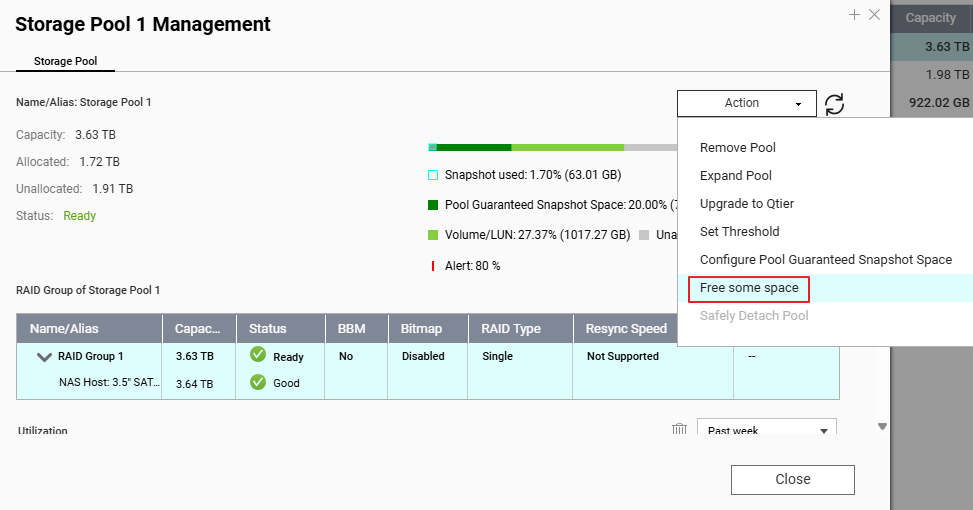 The Increase Pool Free Space window opens.
 - In the Increase Pool Free Space window, perform one or more of the available actions.
Note: Some options are only available if the storage pool has the corresponding configuration or contains the corresponding storage objects.
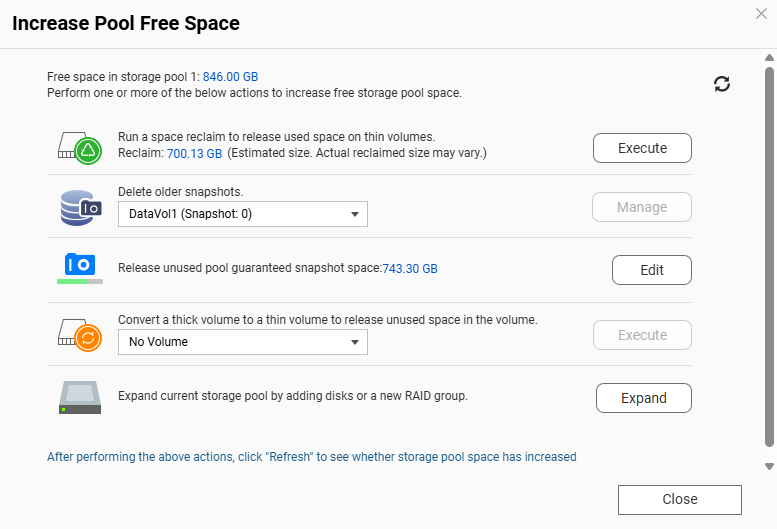
- Run a space reclaim to release used space in thin volumes
Available only if the storage pool has at least one thin volume with reclaimable space.
To create reclaimable space in a thin volume, you can delete unwanted files in that volume first, and then:- Click Execute.
A dialog box appears. - Click OK to reclaim the available storage space.
The system releases the used space to the storage pool. A dialog box appears. - Click OK to close the dialog box.
- Delete older snapshots (from the pool-level tool)
If you still have older snapshots in volumes or LUNs in this pool:- Select a volume or LUN.
- Click Manage.
The Snapshot Manager window opens. - Optional: Click the view icon to change to list view.
- Select one or more snapshots to delete.
- Click the Delete icon.
If you only deleted snapshots directly from Snapshot Manager (without running space reclaim or checking pool-level options), the storage pool may still show limited free space, especially when thin volumes or reserved snapshot space are involved.
Further Reading
适用产品
场景
删除快照后,快照的空间使用量没有如预期减少。存储池仍然显示快照占用了大量空间,即使所有可见的快照都已被删除。
解决方案
使用存储与快照总管中的工具来识别快照空间的使用位置,并释放存储池中的额外空间。
- 前往存储与快照总管 > 存储 > 存储 / 快照。
(这是增加存储池中可用空间的入口。) - 选择相关的存储池。
- 点击管理。
打开存储池管理窗口。 - 点击操作,然后选择释放一些空间。
打开增加池空闲空间窗口。 - 在增加池空闲空间窗口中,执行一个或多个可用操作。
注意:某些选项仅在存储池具有相应配置或包含相应存储对象时可用。
- 运行空间回收以释放精简卷中的已用空间
仅当存储池中至少有一个具有可回收空间的精简卷时可用。
要在精简卷中创建可回收空间,您可以先删除该卷中不需要的文件,然后:- 点击执行。
出现一个对话框。 - 点击确定以回收可用的存储空间。
系统将已用空间释放到存储池中。出现一个对话框。 - 点击确定以关闭对话框。
- 删除旧的快照(从池级工具)
如果您在此池中的卷或 LUN 中仍有旧的快照:- 选择一个卷或LUN。
- 点击管理。
快照管理器窗口打开。 - 可选:点击查看图标切换到列表视图。
- 选择一个或多个要删除的快照。
- 点击删除图标。
如果您只是直接从快照管理器中删除了快照(没有运行空间回收或检查池级选项),那么存储池可能仍然显示有限的可用空间,特别是在涉及精简卷或保留的快照空间时。
进一步阅读


