Applicable Products
Overview
Due to strict system limitations on background tasks in Android 15 and iOS, file transfers may pause if the app is closed or minimized.
The "Sleep & Transfer" feature is designed to make the necessary "foreground-only" requirement more convenient, especially for large or overnight tasks.
It enhances the experience by:
- Auto-Dimming: After 10 seconds of inactivity, the screen will automatically dim to 10% brightness. This protects your screen and ensures the light doesn't disturb your sleep.
- Task Visibility: It provides a clear dashboard showing exactly how many items (Upload/Download/Sync) are remaining.
Procedure
To use Sleep & Transfer, follow these steps:
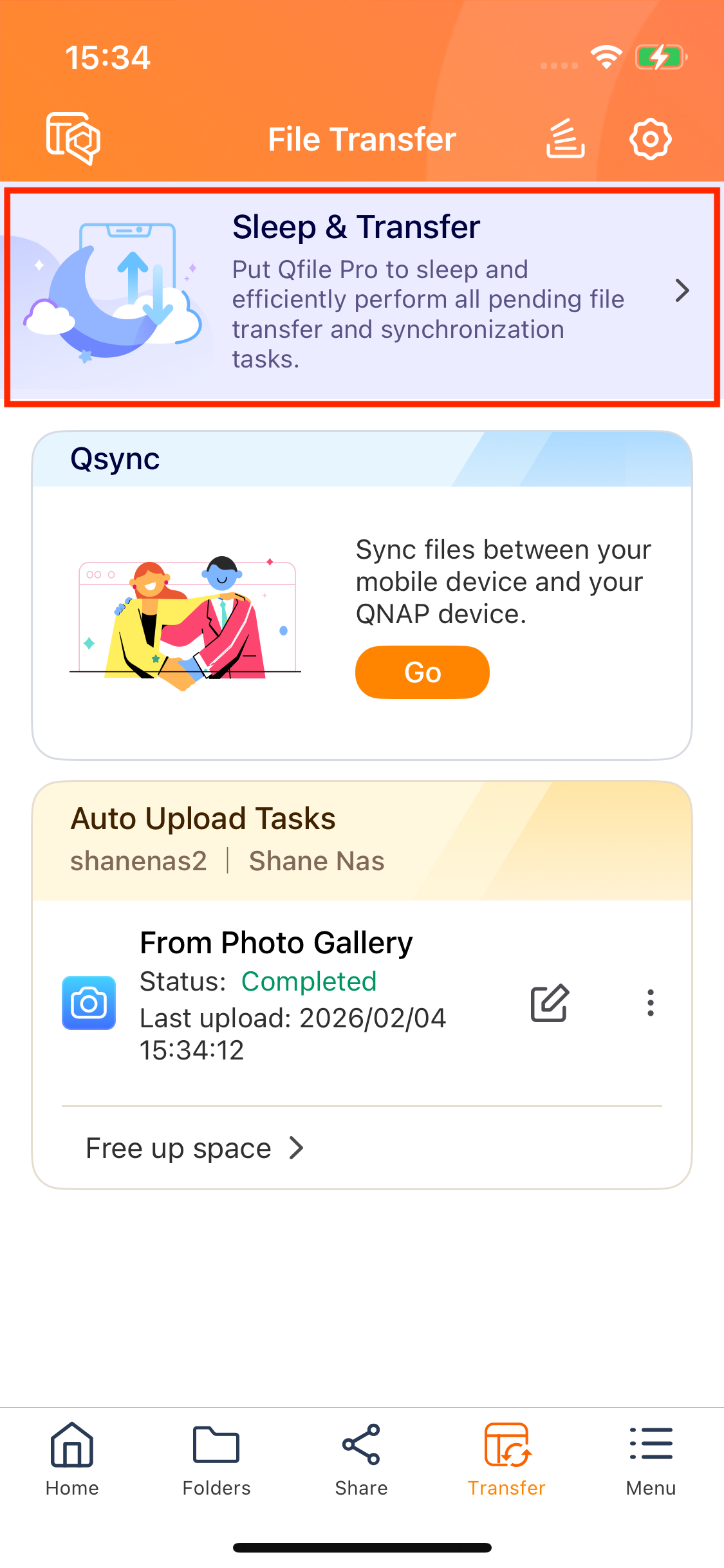
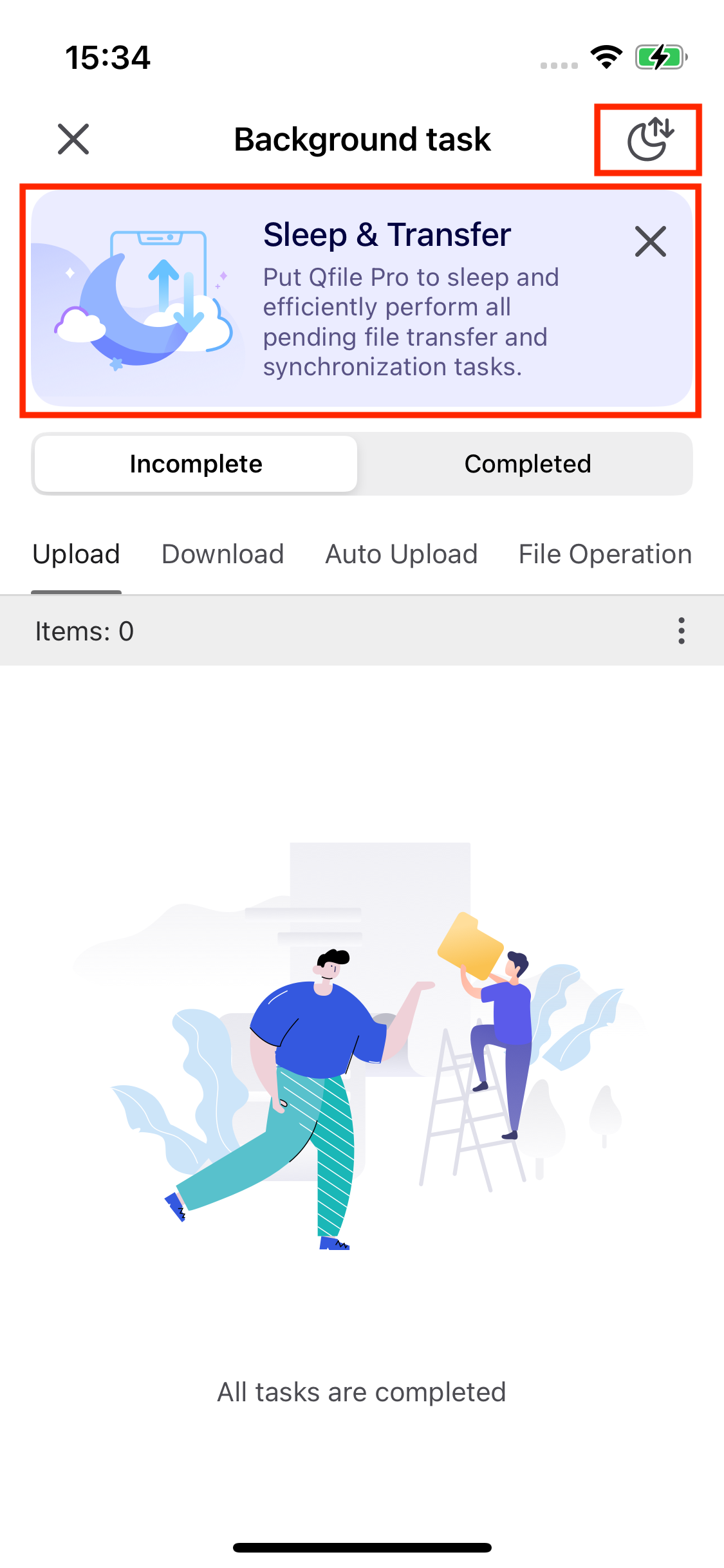
- Tap the Sleep & Transfer banner within Qfile Pro
- In Transfer Center
- In Background Task
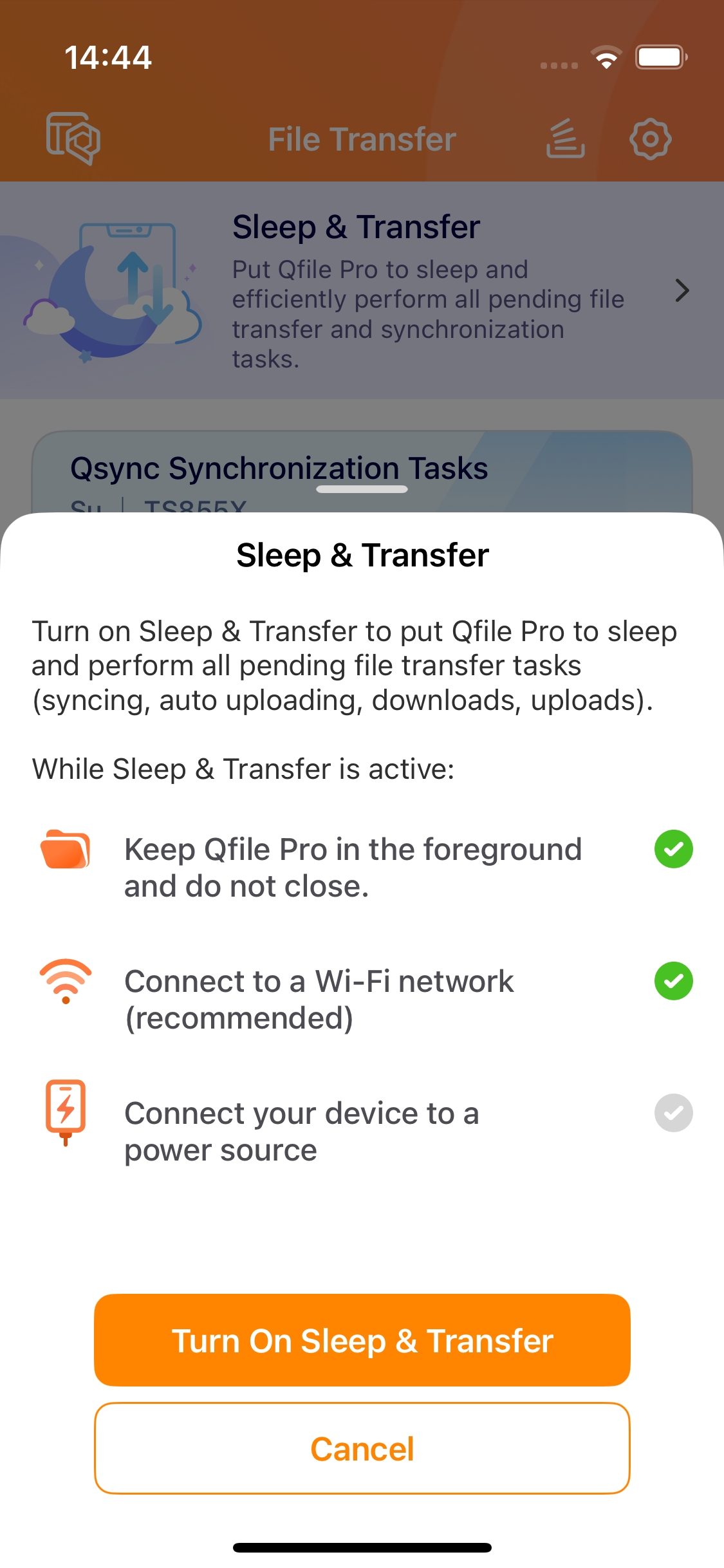
- The system will display three checklists. While these are optional, they are highly recommended for the best experience:
- Keep Qfile Pro in the foreground: Do not force-close the app.
- Connect to a Wi-Fi network: To avoid unstable signals or high cellular data costs.
- Connect to a power source: To ensure your phone doesn't run out of juice during long transfers.
- Tap "Turn On Sleep & Transfer"
FAQ
Q1: Will my screen stay at full brightness?
To prevent screen burn-in and save battery, Qfile Pro includes a smart dimming feature:
- If the screen is not touched for 10 seconds, the app will automatically dim the brightness to 10%.
- Once you touch the screen or use the Home button, the brightness will immediately return to your original setting.
Q2: Can I track the progress while in this mode?
Yes. The Sleep & Transfer dashboard provides a countdown of your remaining tasks:
- Upload items left
- Download items left
- Auto upload items left
- Synchronization (Qsync) items left
Q3: What happens if I switch to another app?
If you switch to another app while a transfer is active, Qfile Pro will attempt to continue the task in the background.
When you switch back to Qfile Pro, the app will automatically return to the Sleep & Transfer interface.
Further Reading
Why do Qfile Pro background tasks stop after a few hours on Android 15?
适用产品
概述
由于Android 15和iOS对后台任务的严格系统限制,如果应用程序被关闭或较小化,文件传输可能会暂停。
“睡眠与传输”功能旨在使必要的“仅前台”要求更方便,特别是对于大型或过夜任务。
它通过以下方式提升体验:
- 自动调光: 在 10 秒无操作后,屏幕将自动调暗至10% 亮度。这可以保护您的屏幕,并确保光线不会打扰您的睡眠。
- 任务可见性: 它提供一个清晰的仪表板,更贴合显示剩余的项目数量(上传 / 下载 / 同步)。
步骤
要使用睡眠与传输,请按照以下步骤操作:
- 点击睡眠与传输横幅在 Qfile Pro
- 传输中心
- 后台任务
中 - 系统将显示三个检查列表。虽然这些是可选的,但强烈建议以获得较佳体验:
- 保持 Qfile Pro 在前台:不要强制关闭应用程序。
- 连接到 Wi-Fi 网络:以避免信号不稳定或高额移动数据费用。
- 连接到电源:以确保您的手机在长时间传输过程中不会没电。
- 点击“开启睡眠与传输”
常见问题
Q1:我的屏幕会保持全亮吗?
为了防止屏幕烧伤并节省电池,Qfile Pro 包含一个智能调光功能:
- 如果屏幕在10 秒内未被触摸,应用程序将自动将亮度调暗至 10%。
- 一旦您触摸屏幕或使用 Home 按钮,亮度将立即恢复到您原来的设置。
Q2:在此模式下,我可以跟踪进度吗?
可以。睡眠与传输仪表板提供剩余任务的倒计时:
- 上传剩余项目
- 下载剩余项目
- 自动上传剩余项目
- 同步 (Qsync) 剩余项目
Q3:如果我切换到另一个应用程序会怎样?
如果在传输过程中切换到另一个应用程序,Qfile Pro 将尝试在后台继续任务。
当您切换回 Qfile Pro 时,应用程序将自动返回到睡眠与传输界面。
进一步阅读
为什么 Qfile Pro 后台任务在 Android 15 上运行几小时后会停止?


