Applicable Products
Malware Remover 7.0.0 and later versions
Overview
Ransomware Guard is a real-time protection feature in Malware Remover, available on QuTS hero h6.0.0 and later. It continuously monitors your QNAP NAS, automatically detecting and blocking ransomware attacks before damage can spread.
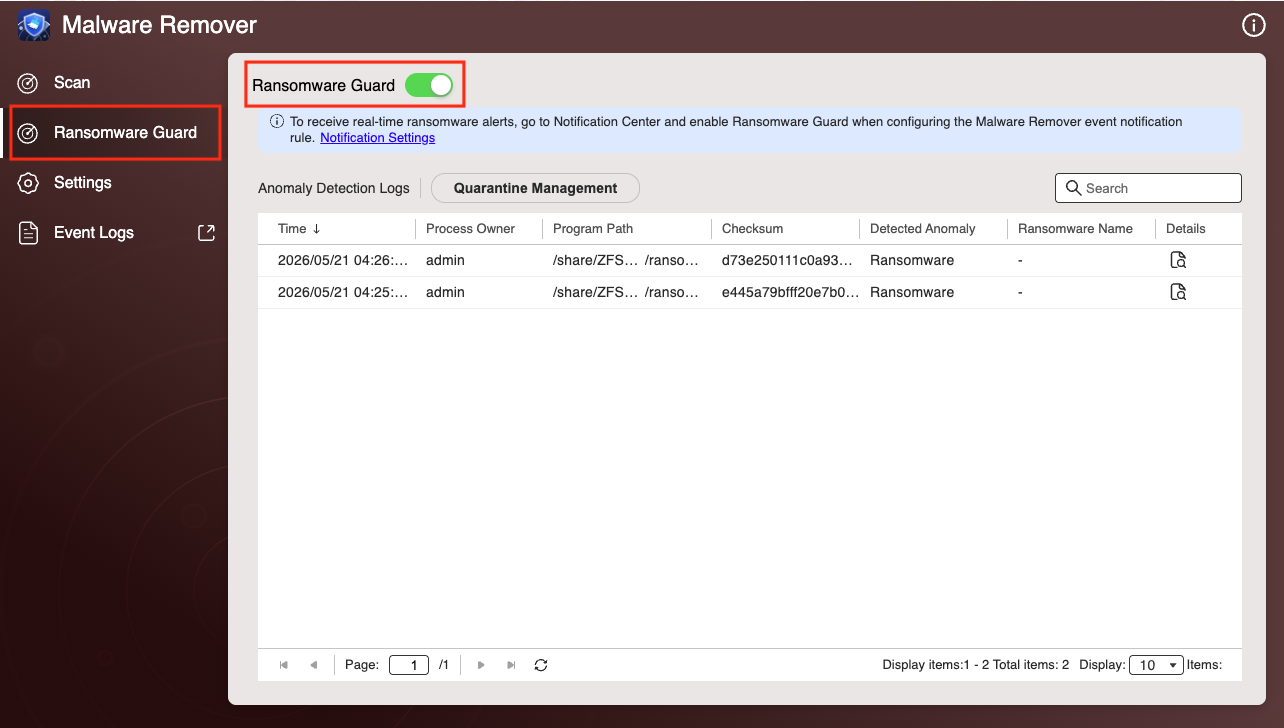
To use Ransomware Guard, go to Malware Remover > Ransomware Guard and enable the toggle.
Detection Methods
Ransomware Guard uses two complementary detection methods:
- Behavior-based detection: Monitors running processes for suspicious patterns, including mass file encryption, mass file renaming, and abnormally high read/write activity.
- Signature-based detection: Compares programs against a database of known ransomware patterns, updated through Malware Remover.
Automatic Response
When a threat is identified, Ransomware Guard responds automatically:
- Stops the malicious program from accessing files: Prevents further encryption or overwriting immediately.
- Quarantines the program: Isolates the threat without interrupting other running programs.
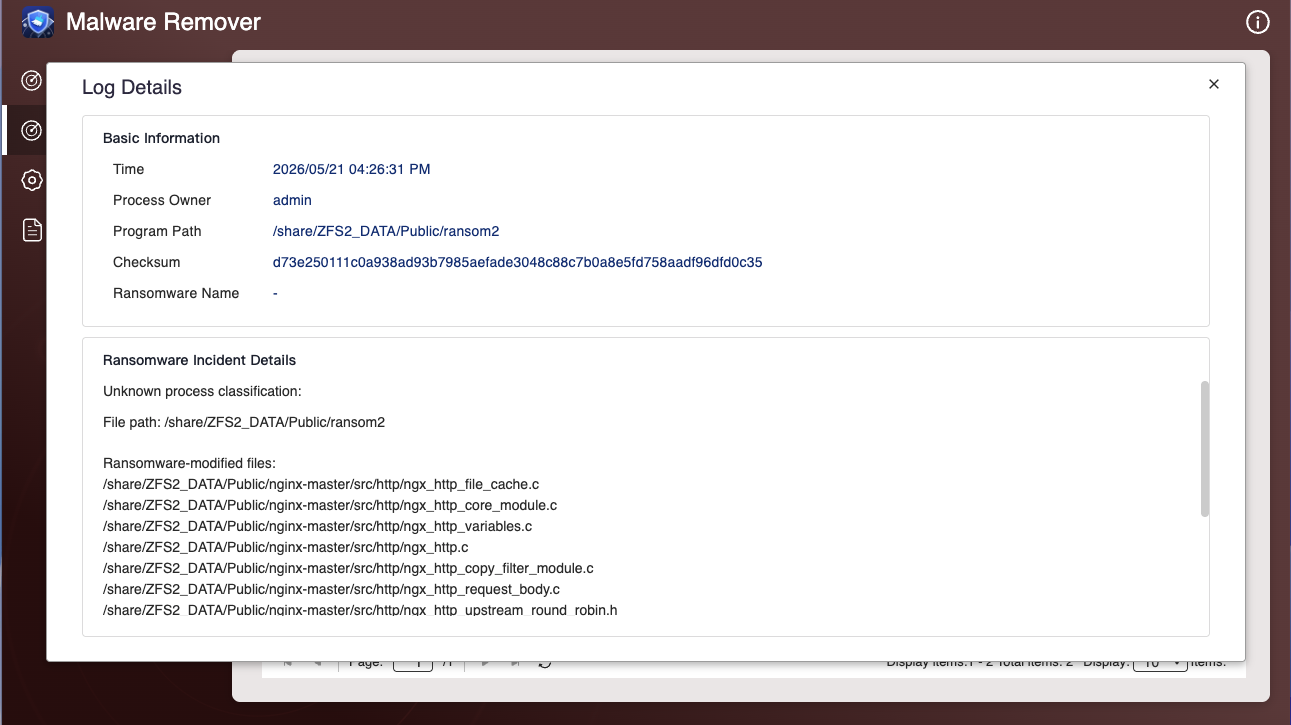
- Logs the event: Records event details such as the time, affected program, and the type of suspicious behavior detected. You can review the logs in Malware Remover > Ransomware Guard > Anomaly Detection Logs.
To view the full details of a detection event, click the details icon in the log list.
Managing False Positives
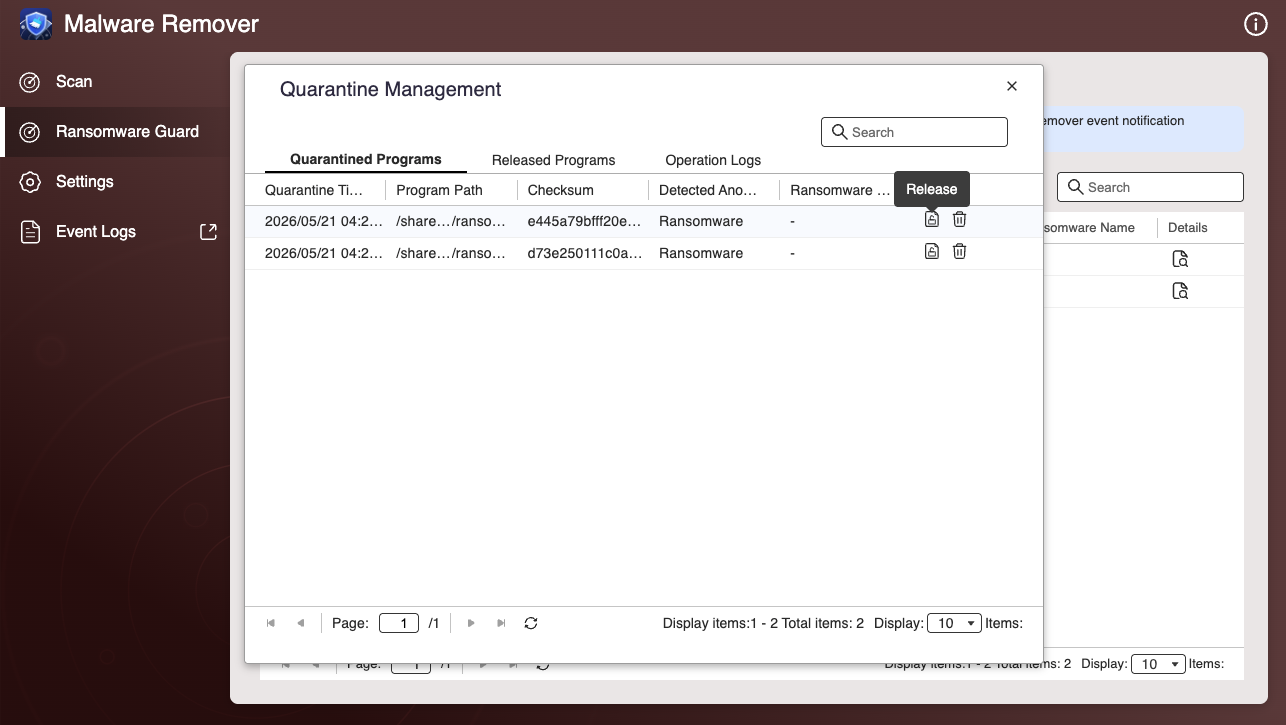
If Ransomware Guard blocks a program you trust, you can manage it in Malware Remover > Ransomware Guard > Quarantine Management.
To release a quarantined program
- In the Quarantined Programs tab, click Release next to the program.
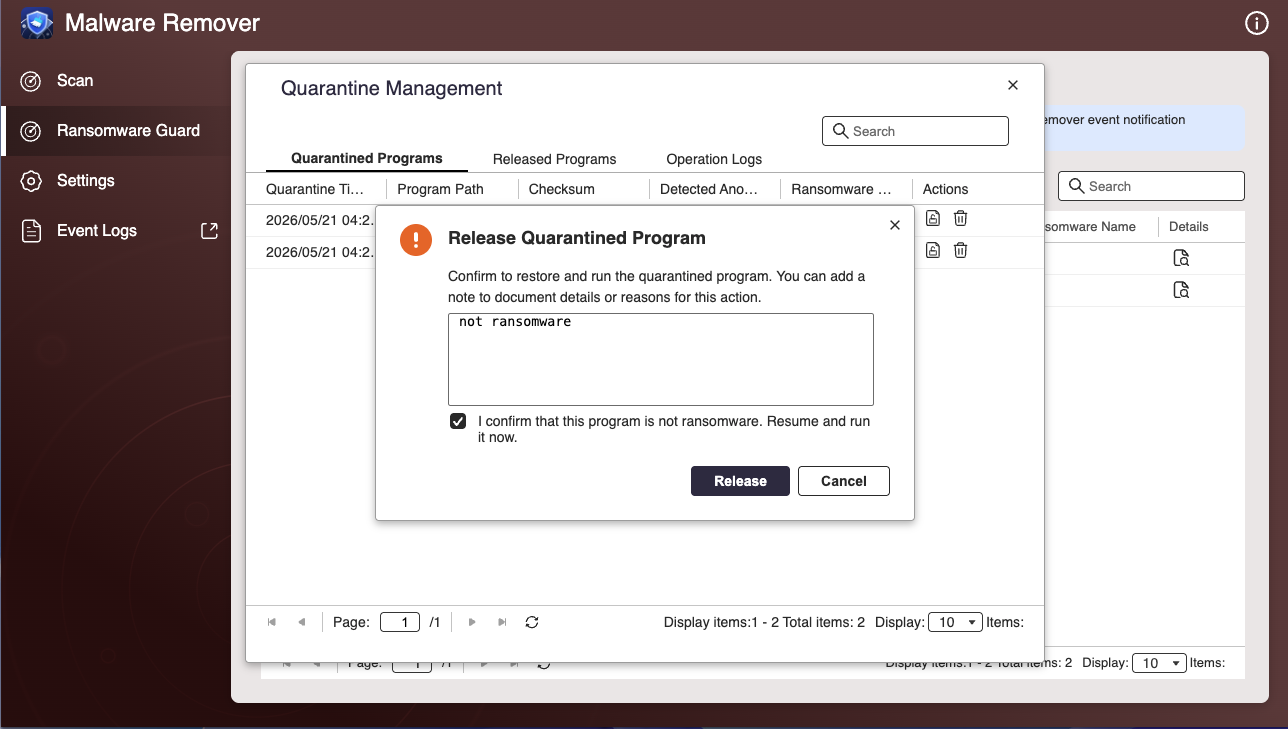
- Add a note to document the reason, then select the confirmation checkbox.
- Click Release.
- Enter your password to verify your identity and click Verify.
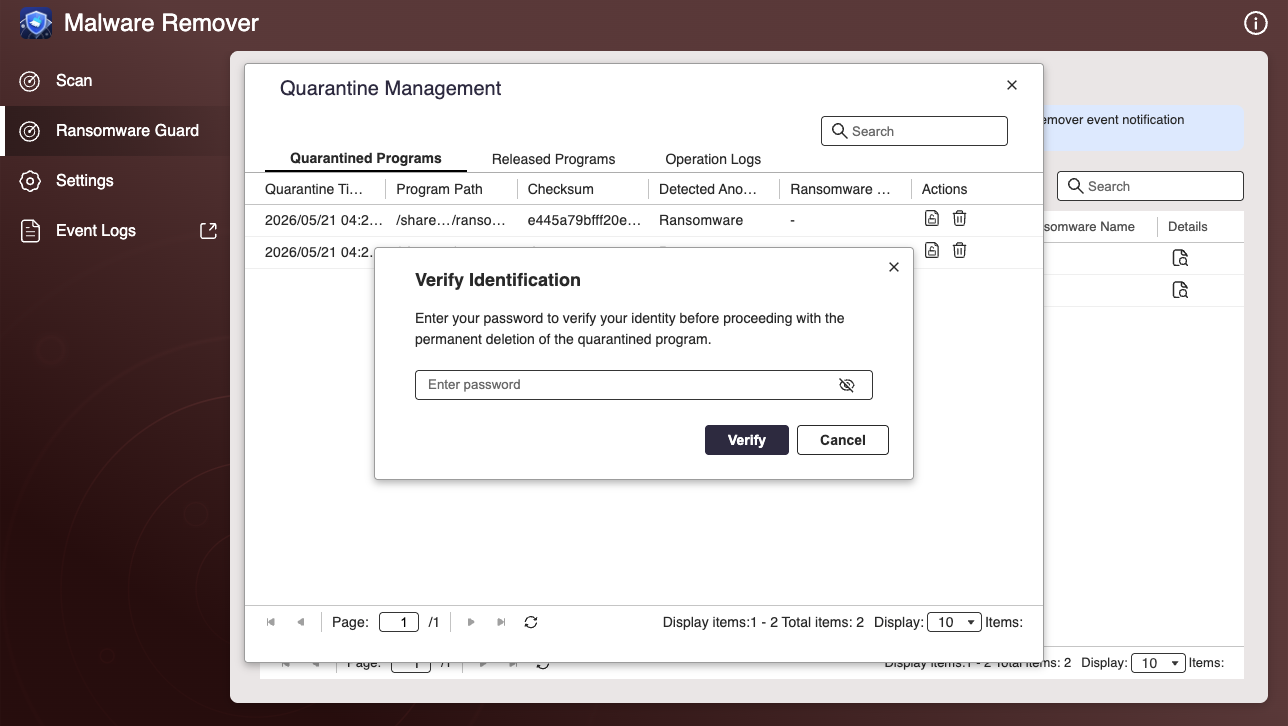
To permanently delete a quarantined program
- Click the delete icon next to the program.
- Add a note if needed, then select the confirmation checkbox.
- Click Delete.
- Enter your password to verify your identity and click Verify.
Note
Deleted quarantined programs cannot be restored.
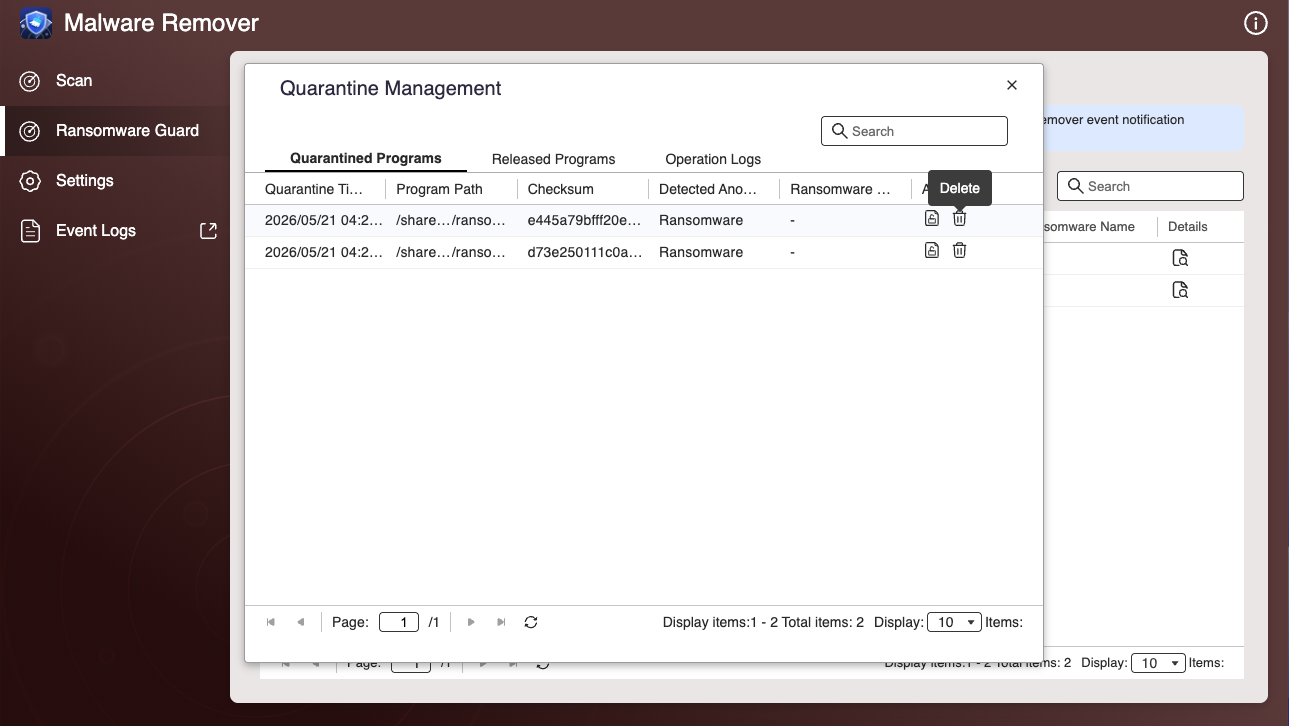
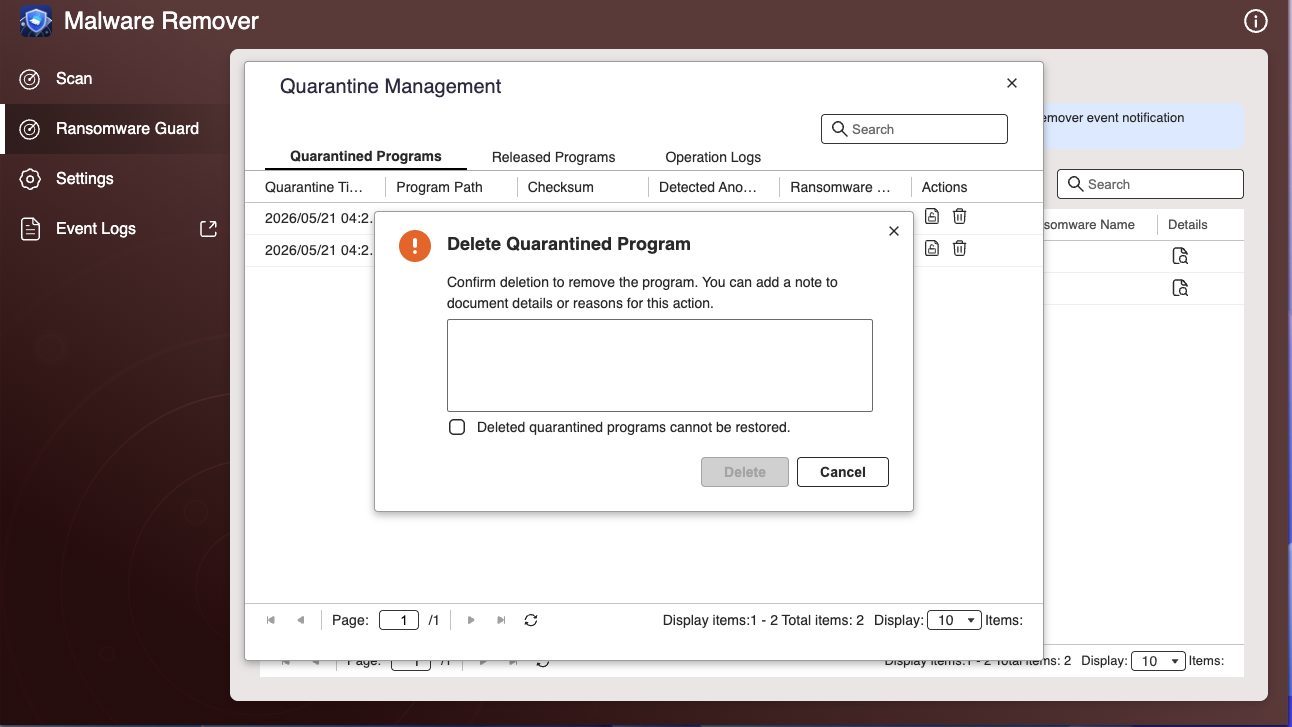
To view released programs
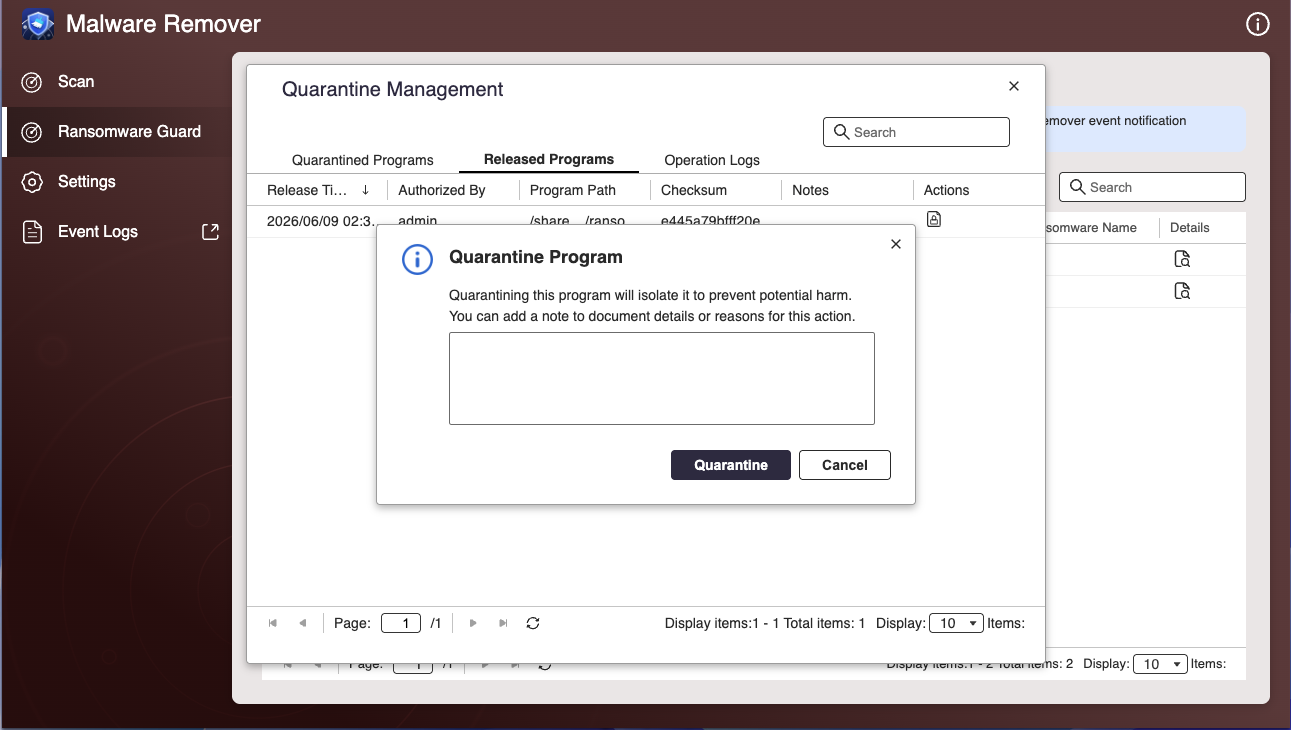
Click the Released Programs tab to see all programs that have been released from quarantine. Released programs will not be blocked or quarantined again.
If you need to re-quarantine a released program, click Quarantine next to it.
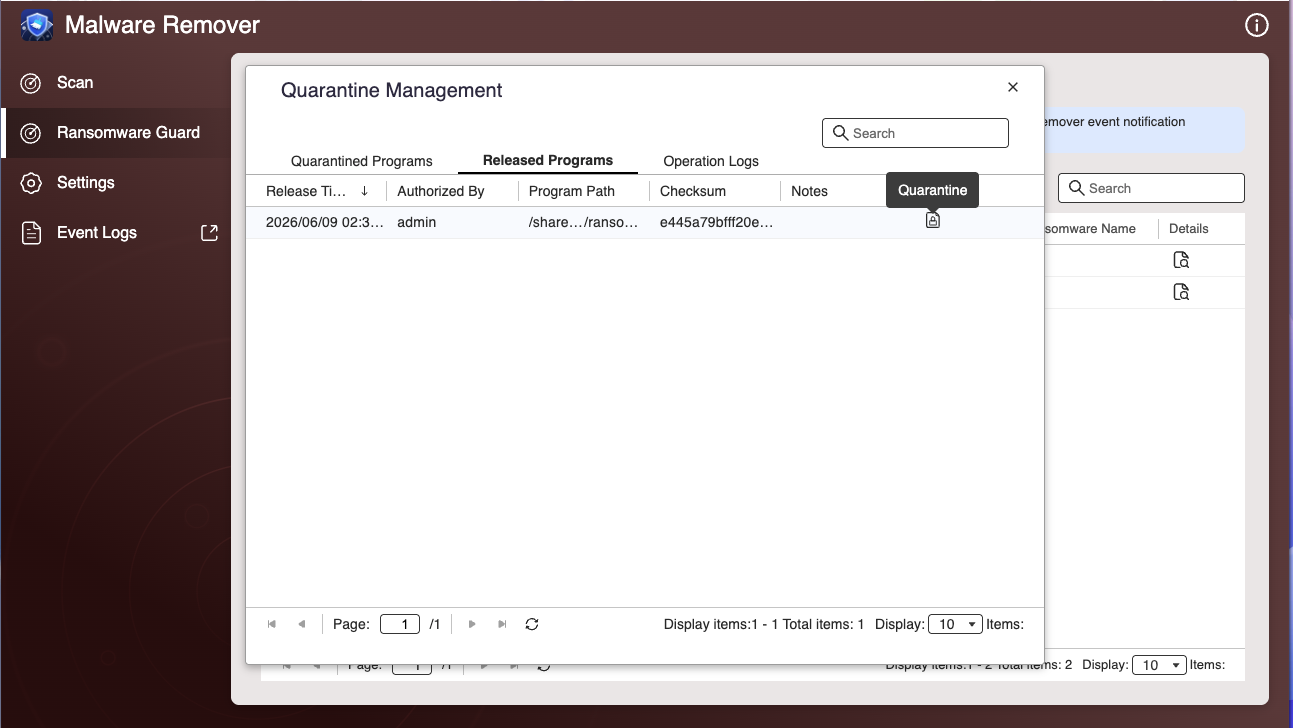
To view the operation history
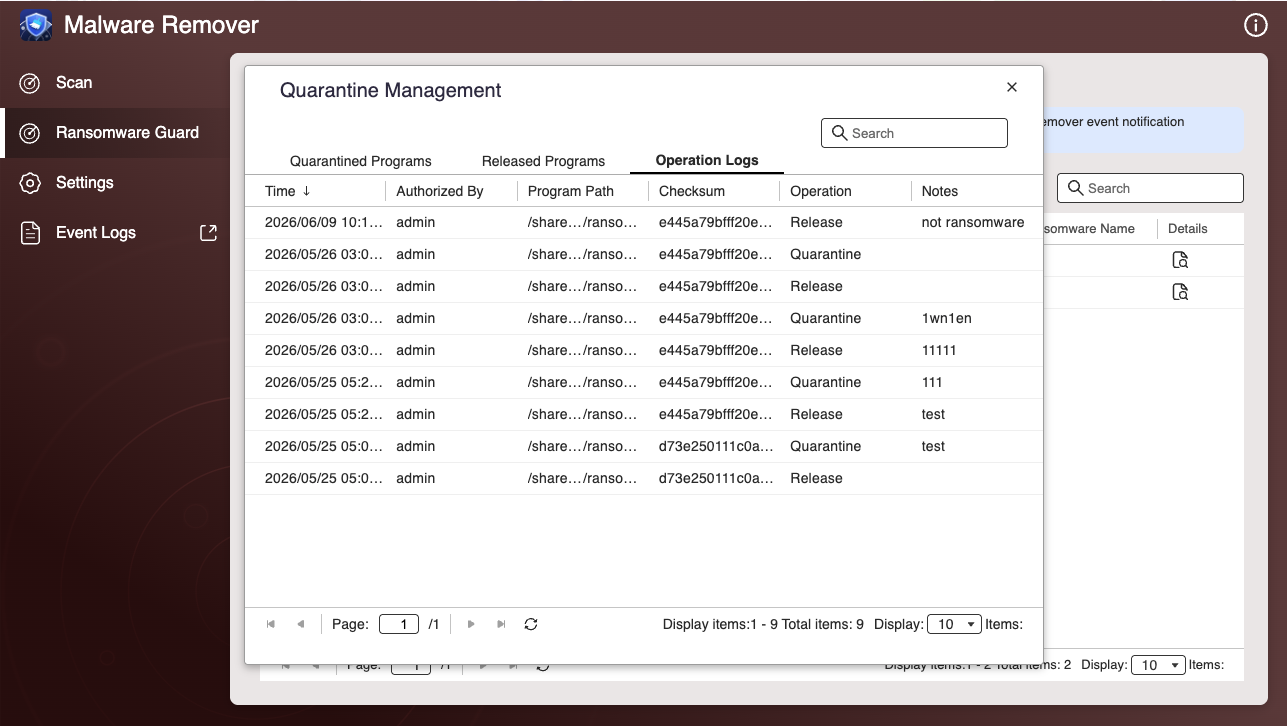
Click the Operation Logs tab to review a full history of quarantine and release actions, including the time, operator, and notes.
适用产品
Malware Remover 7.0.0 及更高版本
概述
Ransomware Guard 是 Malware Remover 中的实时保护功能,适用于 QuTS hero h6.0.0 及更高版本。它持续监控您的 QNAP NAS,自动检测并阻止勒索软件攻击,以防止损害扩散。
要使用 Ransomware Guard,请转到Malware Remover > Ransomware Guard 并 启用切换。
检测方法
Ransomware Guard 使用两种互补的检测方法:
- 基于行为的检测:监控运行中的进程是否存在可疑模式,包括大量文件加密、大量文件重命名和异常高的读 / 写活动。
- 基于特征码的检测:将程序与已知勒索软件模式的数据库进行比较,该数据库通过 Malware Remover 更新。
自动响应
当识别到威胁时,Ransomware Guard 会自动响应:
- 阻止恶意程序访问文件:立即防止进一步的加密或覆盖。
- 隔离程序:在不干扰其他运行程序的情况下隔离威胁。
- 记录事件:记录事件详情,如时间、受影响的程序和检测到的可疑行为类型。您可以在Malware Remover > Ransomware Guard > 异常检测日志中查看日志。
要查看检测事件的完整详情,请点击日志列表中的详情图标。
管理误报
如果 Ransomware Guard 阻止了您信任的程序,您可以在Malware Remover > Ransomware Guard > 隔离管理中进行管理。
要释放隔离的程序
- 在隔离程序选项卡中,点击程序旁边的释放。
- 添加备注以记录原因,然后选择确认复选框。
- 点击释放。
- 输入您的密码以验证身份,然后点击验证。
要长期删除隔离的程序
- 点击程序旁边的删除图标。
- 如有需要,添加备注,然后选择确认复选框。
- 点击删除。
- 输入您的密码以验证身份,然后点击验证。
查看已释放的程序
点击已释放程序选项卡以查看所有已从隔离中释放的程序。已释放的程序不会再次被阻止或隔离。
如果需要重新隔离已释放的程序,点击其旁边的隔离。
查看操作历史
点击操作日志选项卡以查看隔离和释放操作的完整历史记录,包括时间、操作员和备注。


