


如何在 QuWAN QBelt VPN 服务器与 QVPN 设备客户端之间建立 VPN 隧道连接
如何在 QuWAN QBelt VPN 服务器与 QVPN 设备客户端之间建立 VPN 隧道连接
本教程介绍如何在 QuWAN Orchestrator 中配置 QuWAN QBelt VPN 服务器与 QVPN 设备客户端之间的 VPN 隧道连接。
QuWAN Orchestrator VPN 服务器设置
要将 VPN 客户端连接到 QuWAN QBelt VPN 服务器,必须先将 QuWAN 中心配置为 VPN 服务器,并在 QuWAN Orchestrator 中添加 VPN 用户。
配置 QuWAN QBelt VPN 服务器设置
QBelt 是 QNAP 是一种专有通信协议,包含了 DTLS 和 AES-256 加密。QuWAN Orchestrator 支持将 QuWAN 中心设备配置为 QBelt VPN 服务器。
只能在配置了 QuWAN vRouter Edition 的 QNAP NAS、QGD 交换机、QuCPE 和第三方监控程序上配置 QuWAN QBelt VPN 服务器设置。
- 转到。
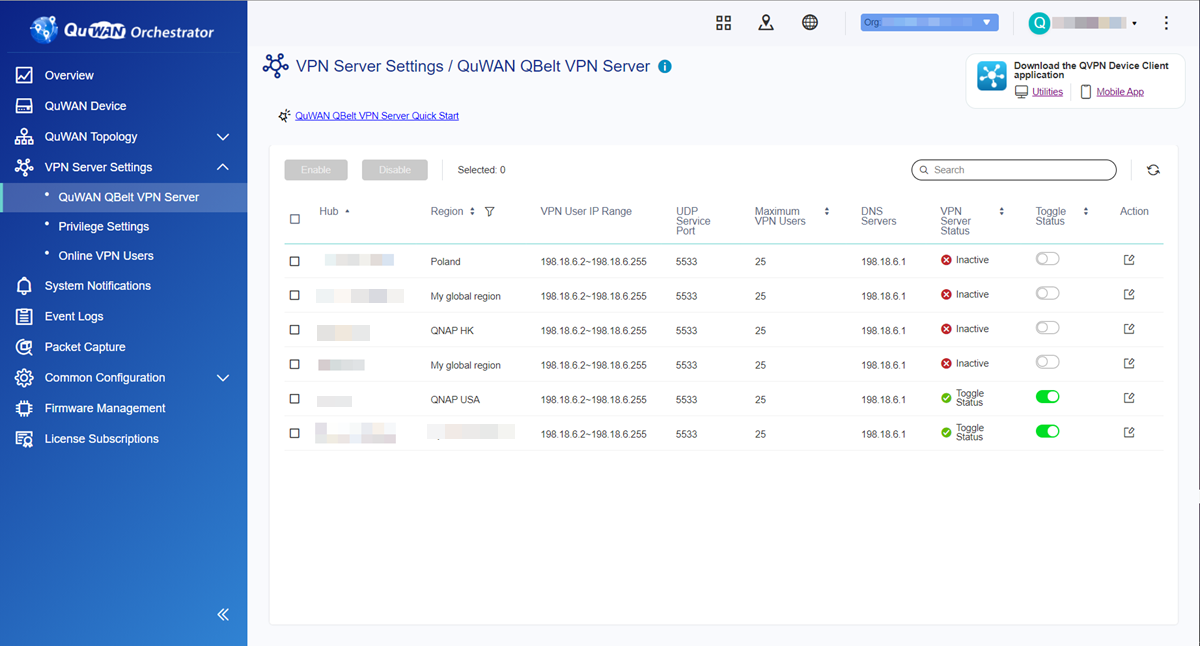
- 单击
 。注意:
。注意:“QuWAN QBelt VPN Server”(QuWAN QBelt VPN 服务器)页面中列出的中心将自动配置默认的 VPN 服务器设置。您可以根据自己的 VPN 要求编辑设置。
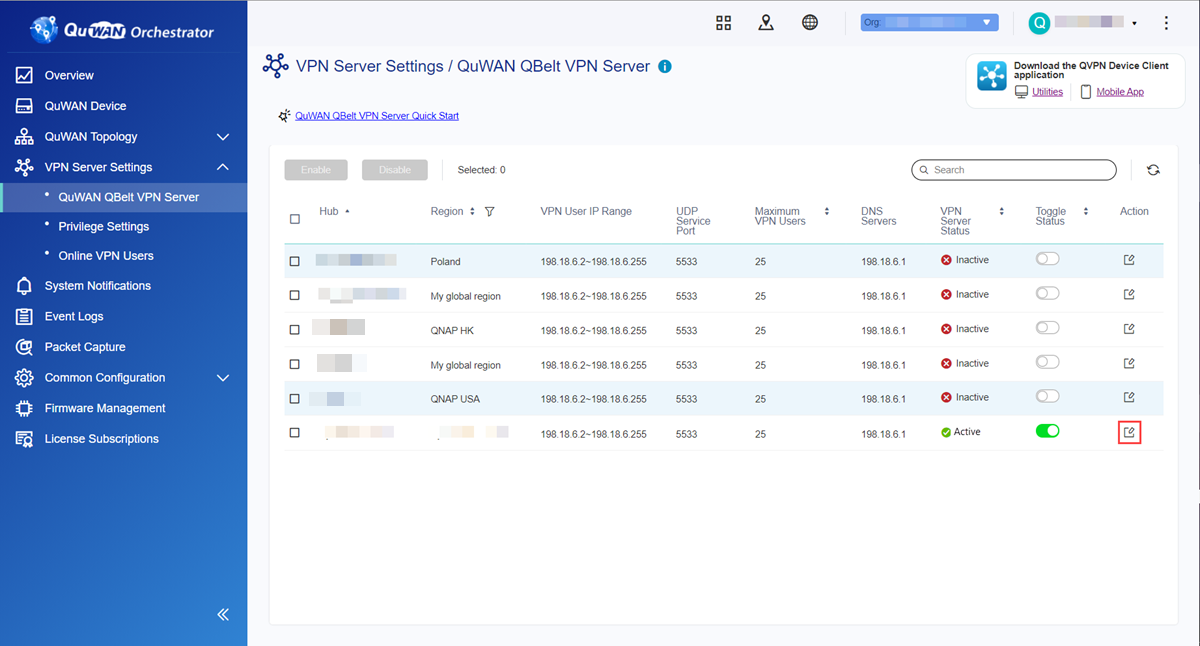
此时会出现 VPN 服务器配置窗口。
- 配置 QuWAN QBelt VPN 服务器设置。
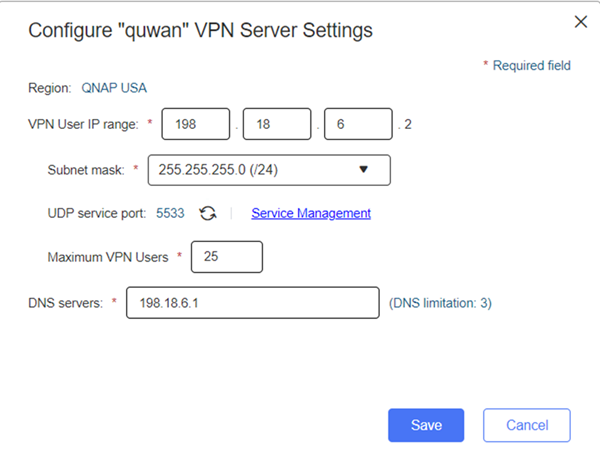
设置
用户操作
VPN User IP Range(VPN 用户 IP 范围)
为 VPN 用户分配固定的 IP 地址范围。
Subnet mask(子网掩码)
指定用于细分 IP 地址的子网掩码。
UDP service port(UDP 服务端口)
单击“Service Management”(服务管理),为 UDP 服务端口分配端口号。
提示:单击
 刷新 UDP 服务端口号。
Maximum number of VPN users(最大 VPN 用户数)
指定可以连接到 VPN 服务器的最大 VPN 用户数。
注意:允许的最大 VPN 用户数取决于指定的子网掩码。
DNS servers(DNS 服务器)
指定 DNS 服务器的 IP 地址。
提示:最多可以指定三个 DNS 服务器。
用逗号 (,) 分隔条目。
QuWAN Orchestrator 随即保存 VPN 服务器设置。
单击  启用 VPN 服务器。
添加 VPN 用户
- 转到。
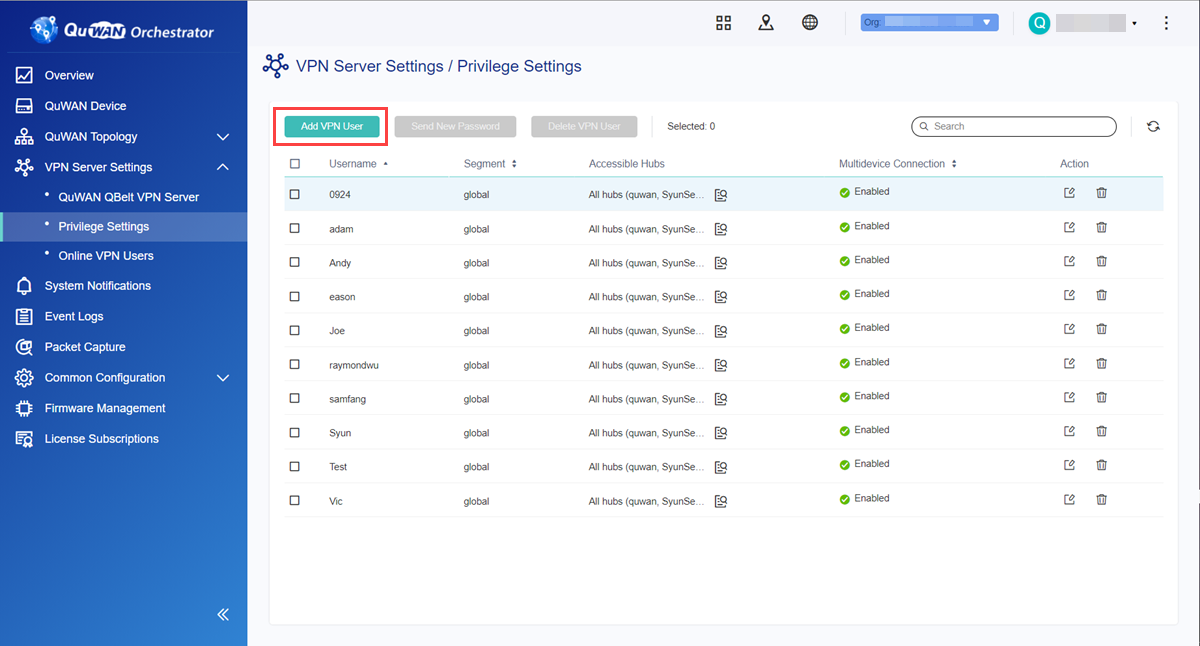
- 单击“Add VPN User”(添加 VPN 用户)。
此时会出现“Add VPN User”(添加 VPN 用户)窗口。
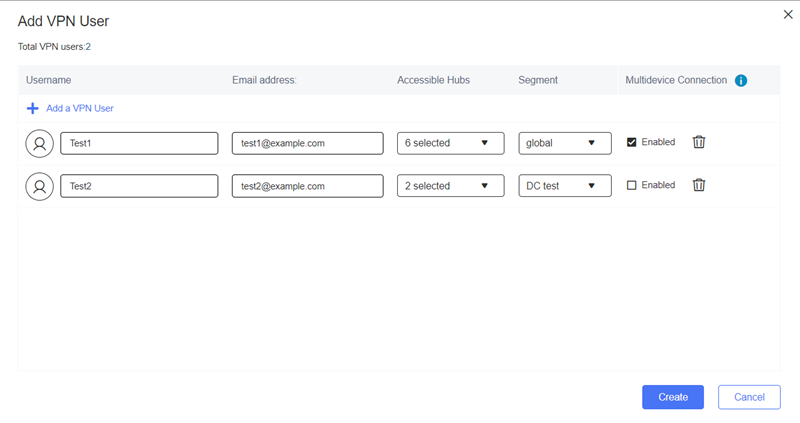
- 配置 VPN 用户设置。
设置
用户操作
Username(用户名)
指定 VPN 用户的名称。
提示:用户名要求:
长度:1–32 个字符
有效字符:A Z、a-z、0-9
Email Address(电子邮件地址)
指定 VPN 用户的电子邮件地址。
Accessible Hubs(可访问中心)
选择配置为 VPN 服务器的可用 QuWAN 中心。
提示:可以选择多个 VPN 服务器。
VPN 用户只能连接到选定的中心。
Segment(网段)
选择属于 VPN 用户的预配置网段,以应用分段防火墙规则。
提示:可以在多个 VPN 用户之间共享一个网段。
Multi-device Accessibility(多设备可访问性)
选择此项可允许 VPN 用户帐户同时从多个设备连接。
提示:要添加多个 VPN 用户,请单击“Add VPN User”(添加 VPN 用户)。
要删除新添加的 VPN 用户,请单击
 。
。
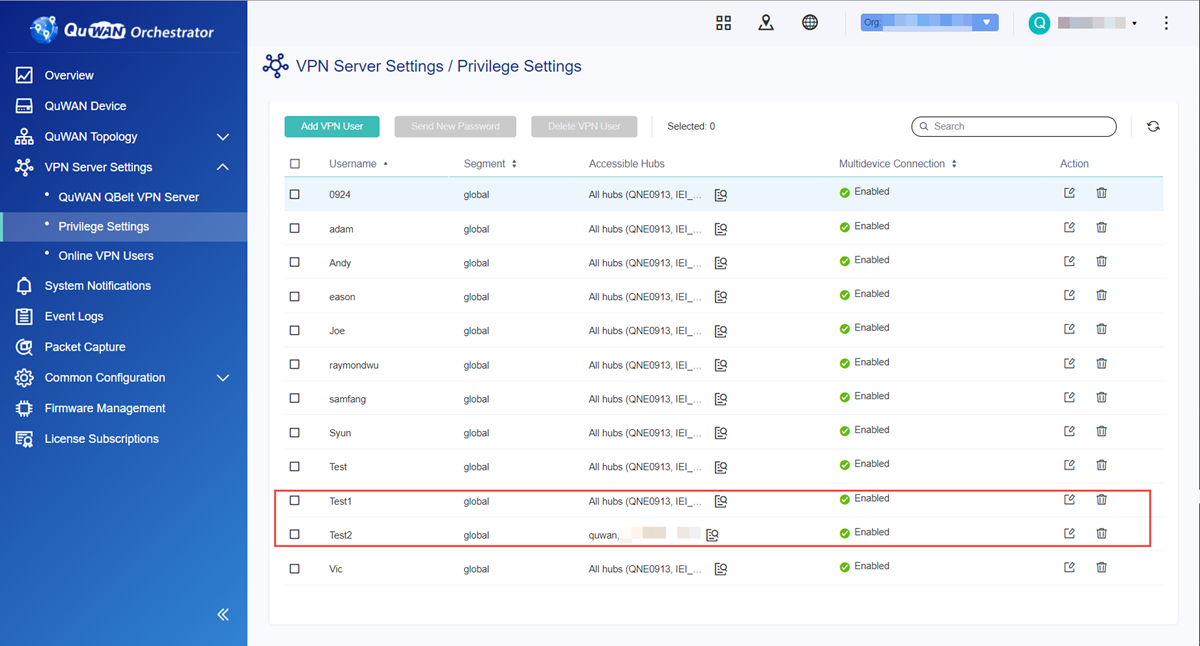
QuWAN Orchestrator 随即添加 VPN 用户。
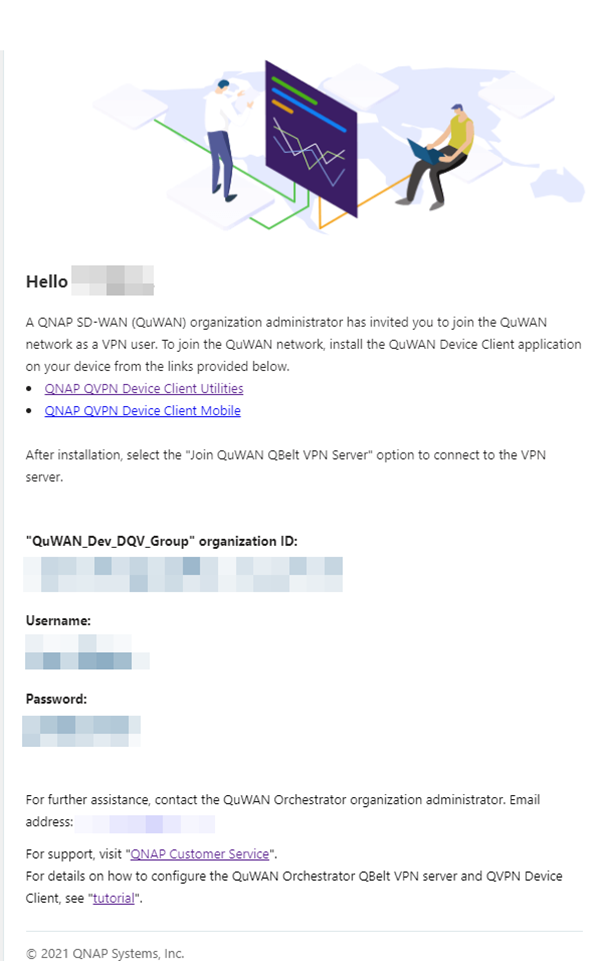
在 QuWAN Orchestrator 中添加 VPN 用户后,电子邮件收件人将收到一封电子邮件,其中包含组织 ID、用户名和密码。确保收件人在配置 QuWAN QBelt VPN 设置时,在 QVPN 设备客户端中输入此信息。
删除 VPN 用户
- 转到。
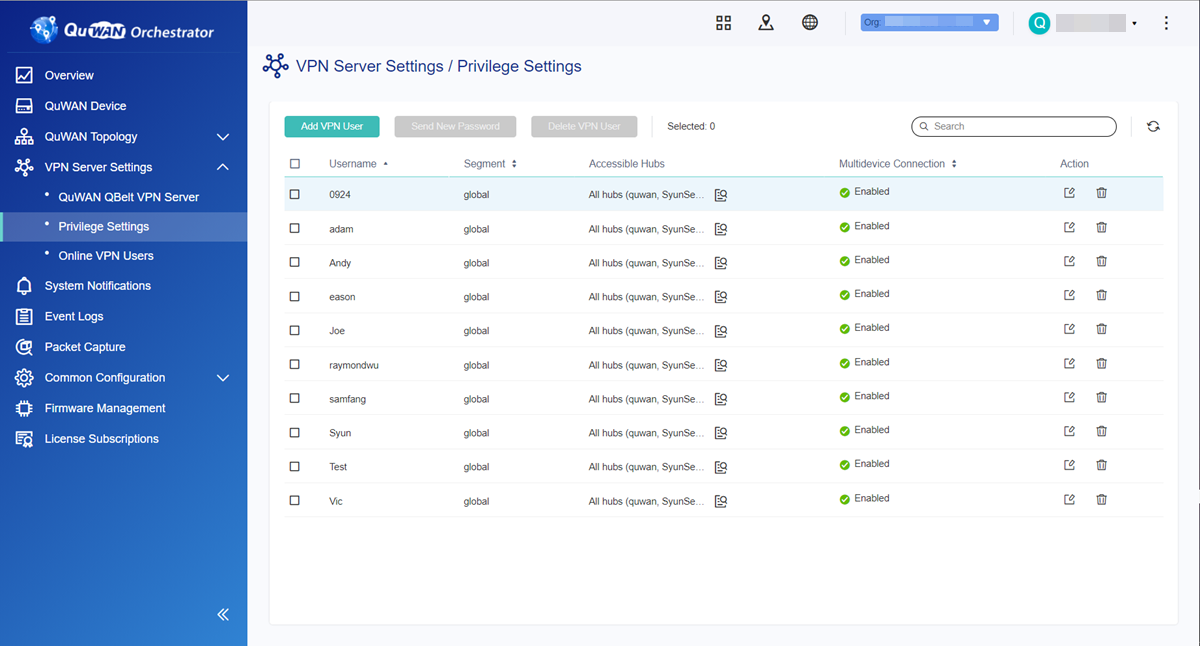
- 选择删除 VPN 用户的方法。
指定一个 VPN 用户。
单击
。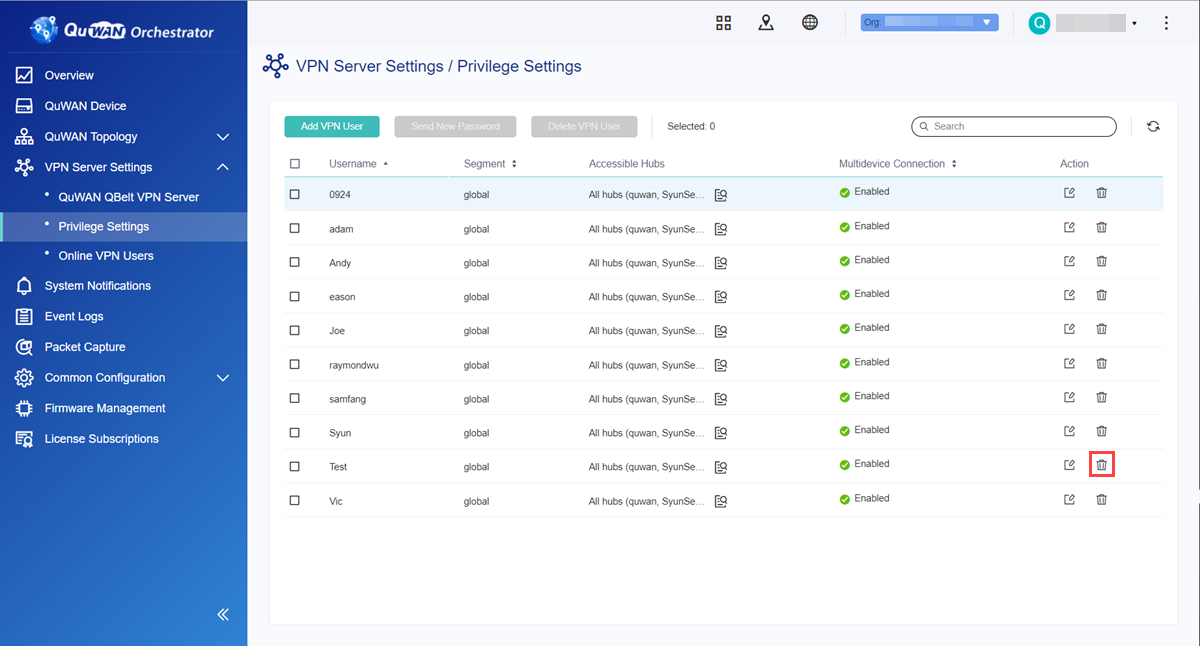
此时会出现确认消息。
单击“Delete”(删除)。
指定一个 VPN 用户。
单击 VPN 用户名旁边的
 。提示:
。提示:可以选择多个 VPN 用户。
单击“Delete VPN User”(删除 VPN 用户)。
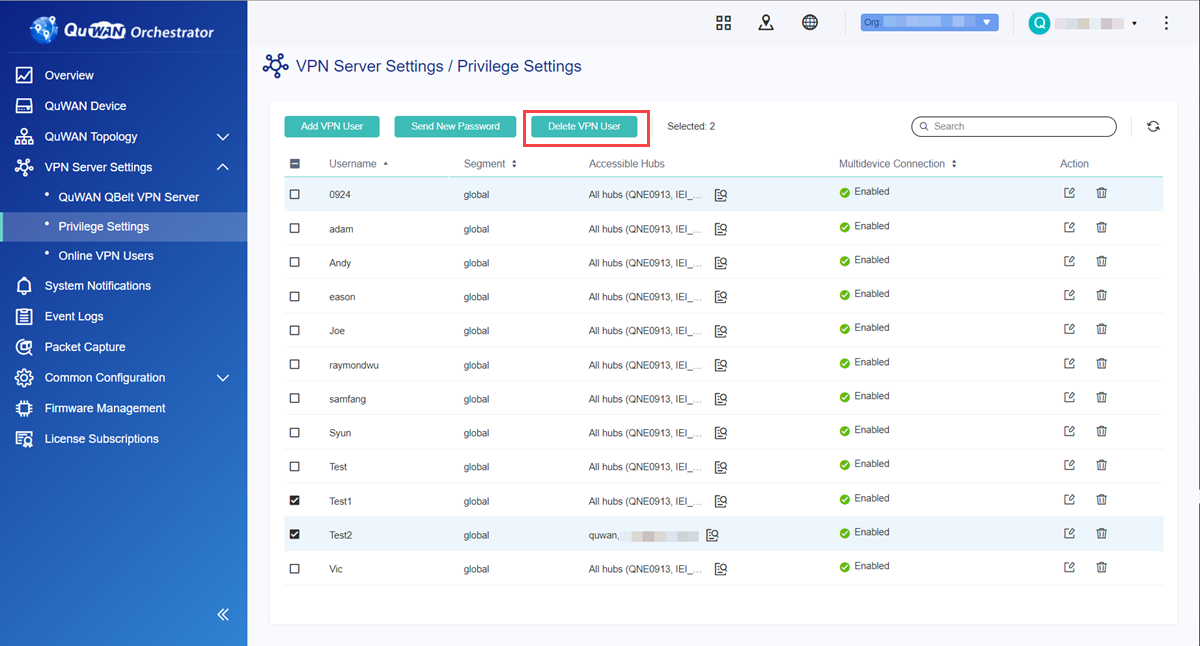
此时会出现确认消息。
单击“Delete”(删除)。
QuWAN Orchestrator 将删除 VPN 用户,并向 VPN 用户发送一封电子邮件,确认已删除 VPN 用户权限。
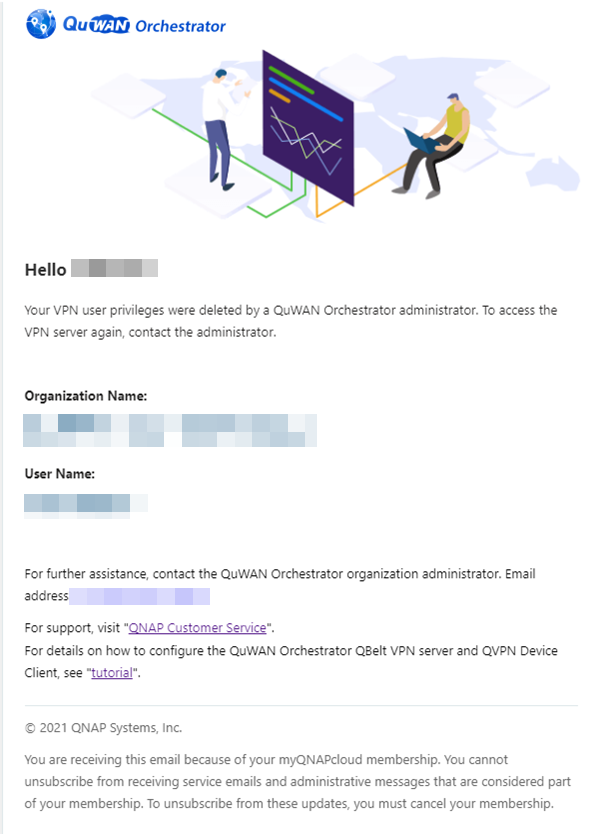
向 VPN 用户发送新密码
您可以通过向指定的电子邮件地址发送电子邮件来重置 VPN 用户密码。可以同时对多个 VPN 用户执行此过程。
- 转到。
- 单击 VPN 用户名旁边的 。提示:
可以选择多个 VPN 用户。
- 单击“Send New Password”(发送新密码)。
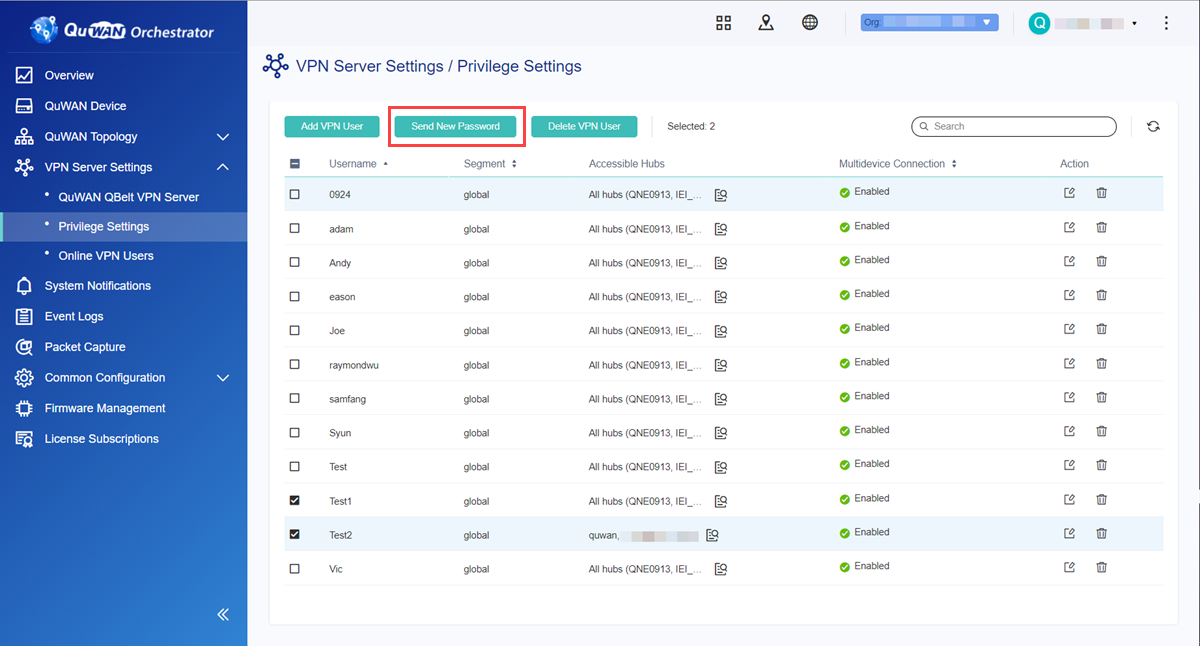
此时会出现确认消息。
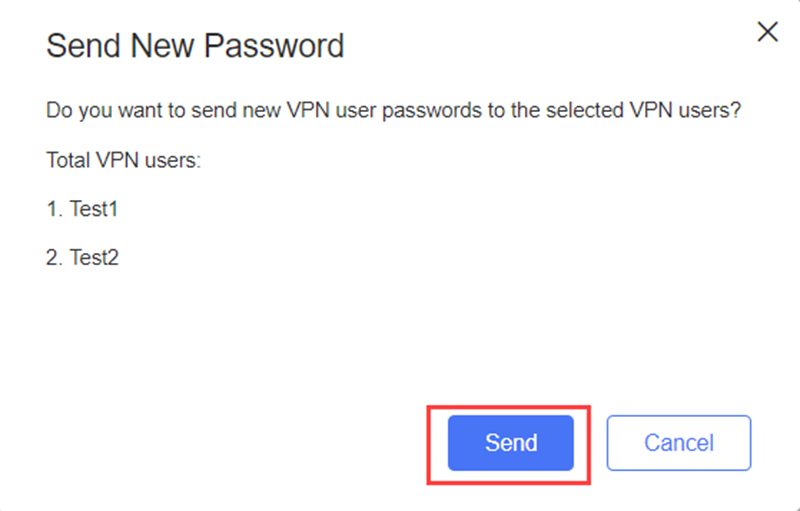
QuWAN Orchestrator 随即向所选 VPN 用户发送一次性密码电子邮件。
断开在线 VPN 用户
要限制在线 VPN 用户的数量或拒绝可疑 VPN 用户的访问,可以断开连接到 QuWAN Orchestrator VPN 服务器的在线 VPN 用户。
- 转到。
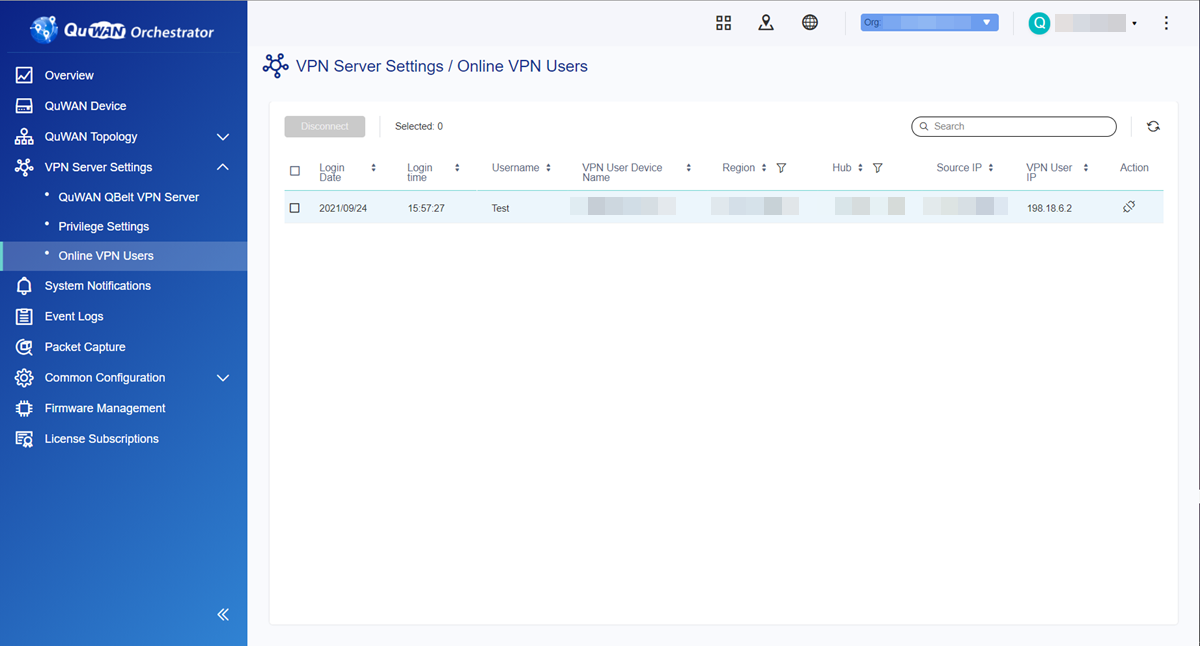
- 单击登录日期旁边的 。提示:
可以选择多个 VPN 用户。
- 单击“Disconnect”(断开连接)。
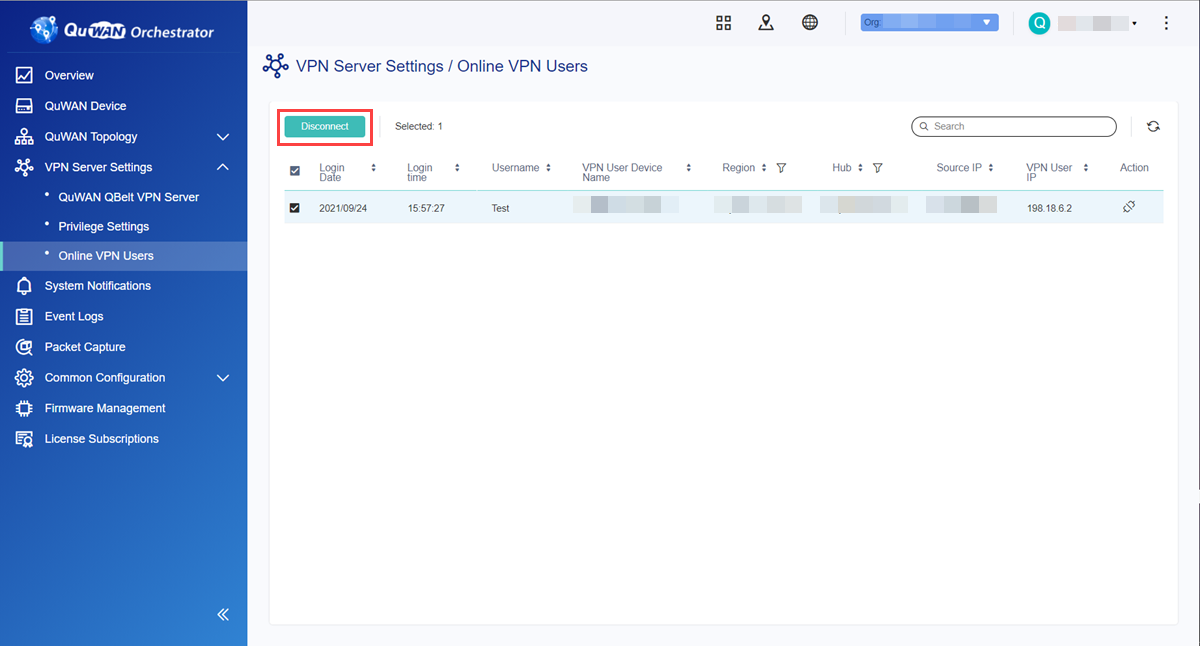
此时会出现确认消息。
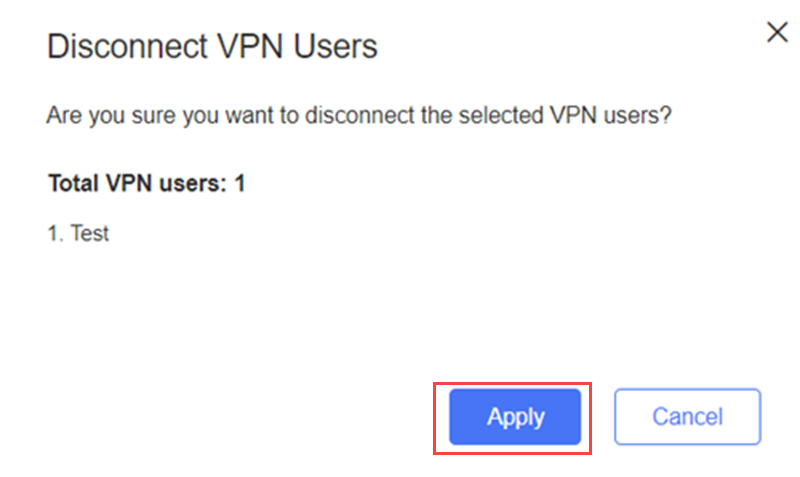
QuWAN Orchestrator 随即断开所选的 VPN 用户。
QVPN VPN 服务器 VPN 客户端设置
配置 QuWAN QBelt VPN 服务器设置并在 QuWAN Orchestrator 中添加 VPN 用户后,您必须在 VPN 用户设备上安装 QVPN 设备客户端。有关详细信息,请查看以下内容:
关于 QVPN 设备客户端
QVPN 设备客户端可以管理与 QNAP 设备上正在运行的 VPN 服务器的连接。该客户端可在 Windows、macOS、iOS 或 Android 设备上使用,整合了用于监控 VPN 连接速度、查看连接日志及访问设备上正在运行的服务的各种工具。
QVPN 设备客户端仅支持与设备上正在运行的 QBelt 服务器的连接。
有关 QVPN 设备客户端协议兼容性的详细信息,请参见下表。
平台 | 支持的协议 |
|---|---|
Windows |
|
macOS |
|
|
|
在 Windows 10 上配置 QuWAN QBelt VPN 客户端设置
确保 VPN 用户能够收到来自 QuWAN Orchestrator 的电子邮件,其中有配置 QVPN 设备客户端 QuWAN QBelt VPN 设置所需的组织 ID、用户名和密码。
- 选择“QuWAN VPN Server”(QuWAN VPN 服务器)。
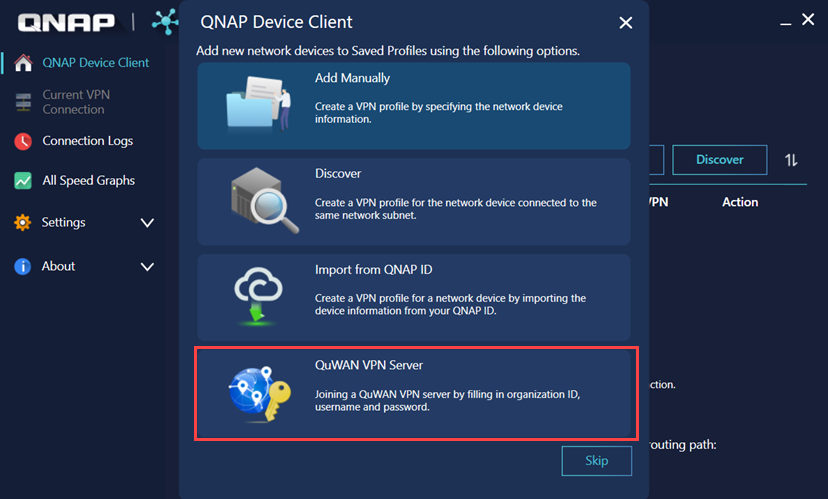
此时会出现“Connect to a QuWAN VPN Server”(连接到 QuWAN VPN 服务器)窗口。
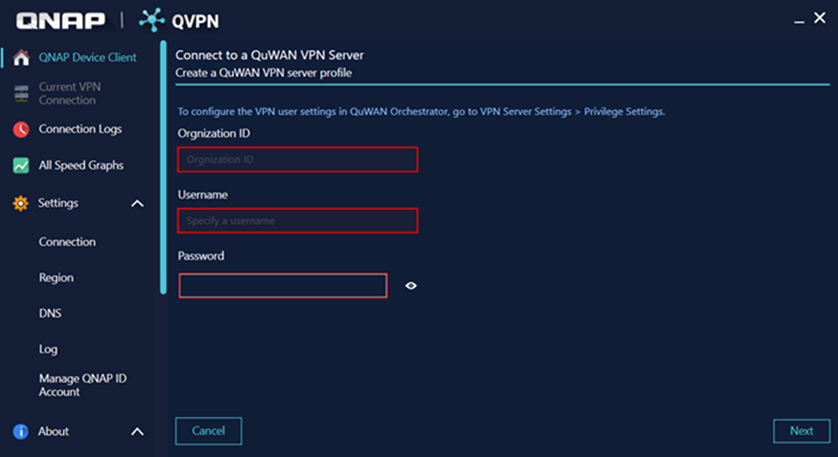
- 单击“OK”(确定)。
此时会出现密码页面。
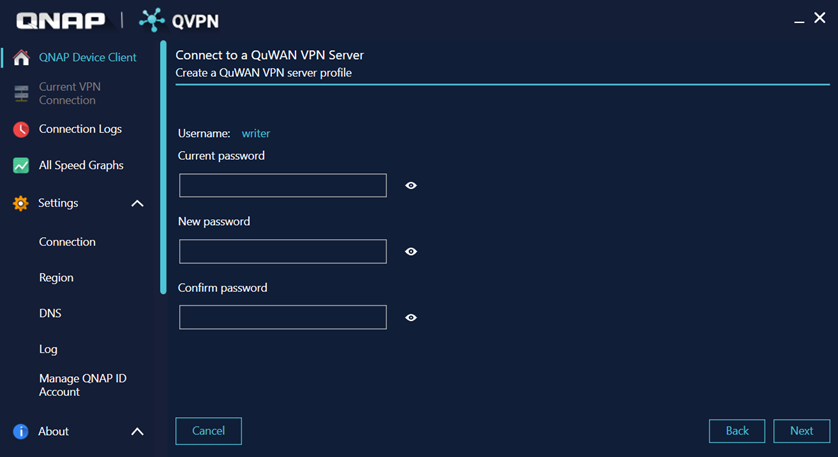
- 单击“Next”(下一步)。
此时会出现配置文件设置页面。
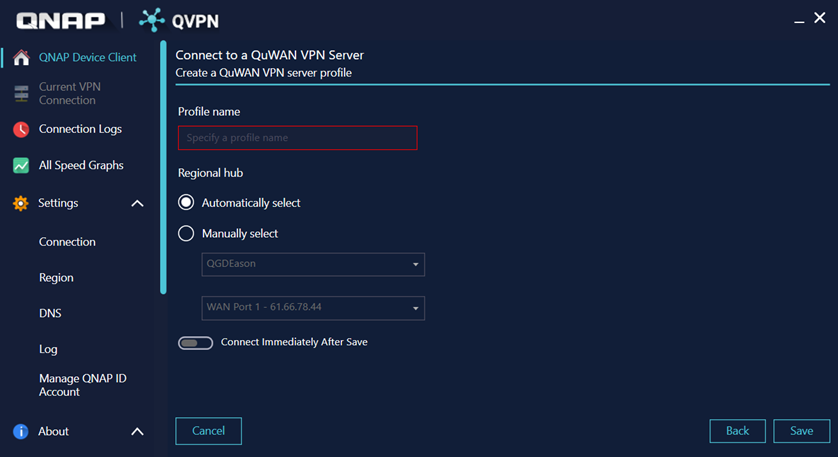
- 单击连接图标。
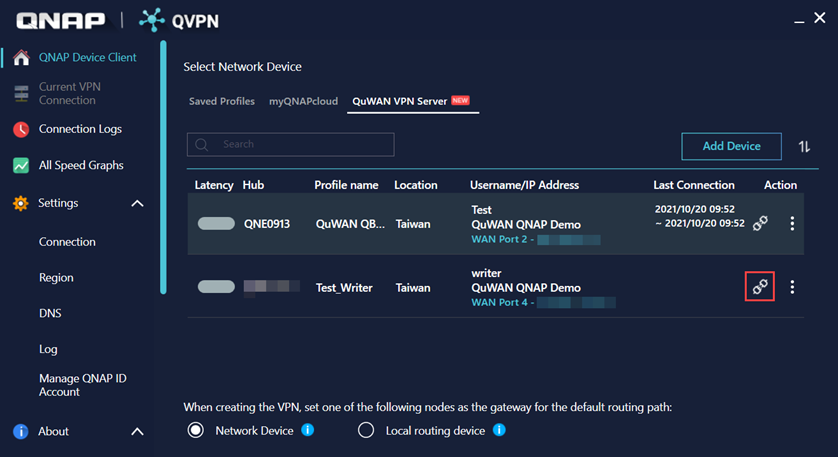
QVPN VPN 服务器将建立与 QuWAN Orchestrator 中的 QuWAN VPN 服务器的 VPN 隧道连接。
在 macOS 10.13 上配置 QuWAN QBelt VPN 客户端设置
在配置 VPN 客户端设置之前,请确保满足以下条件。
将在 QuWAN Orchestrator 的“QuWAN QBelt VPN Server”(QuWAN QBelt VPN 服务器)页面中启用配置为 VPN 服务器的 QuWAN 中心。
在 QuWAN Orchestrator 的“Privilege Settings”(权限设置)页面中添加 VPN 用户。
VPN 用户收到来自 QuWAN Orchestrator 的电子邮件,其中有配置 QVPN 设备客户端 QuWAN QBelt VPN 设置所需的组织 ID、用户名和密码。
- 选择“QuWAN VPN Server”(QuWAN VPN 服务器)。
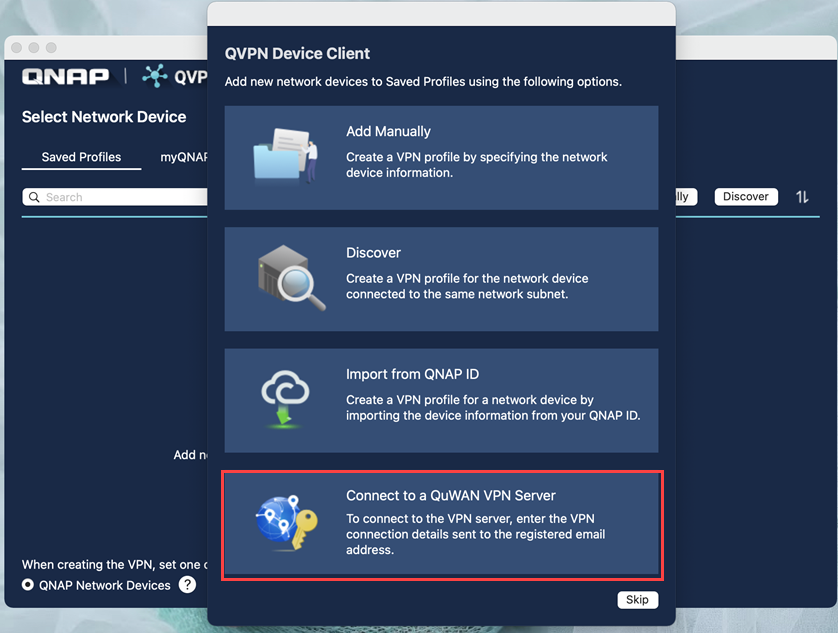
- 单击“Connect to a QuWAN VPN Server”(连接到 QuWAN VPN 服务器)。
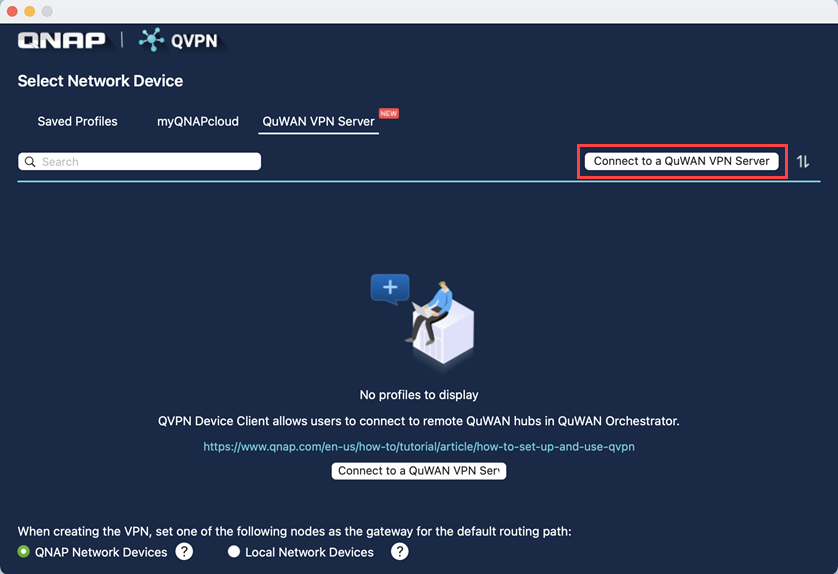
此时会出现“Connect to a QuWAN VPN Server”(连接到 QuWAN VPN 服务器)窗口。
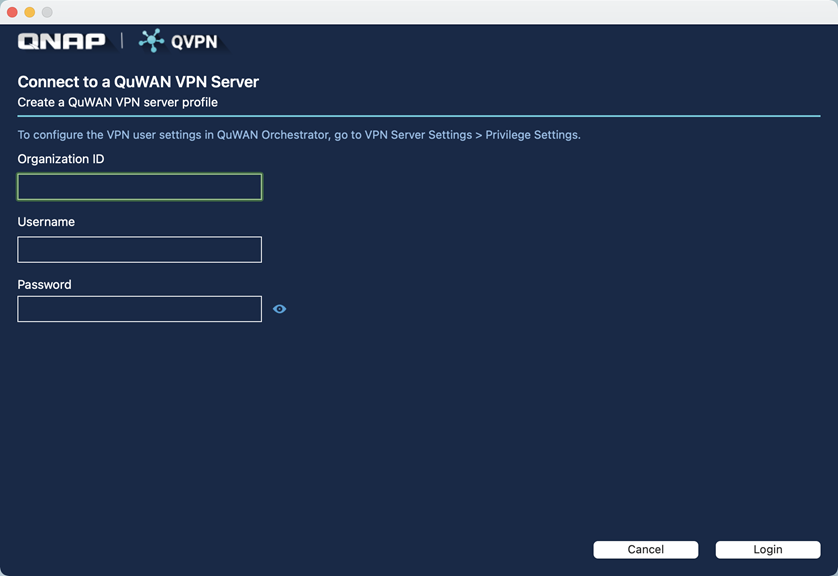
- 单击“OK”(确定)。
此时会出现密码页面。
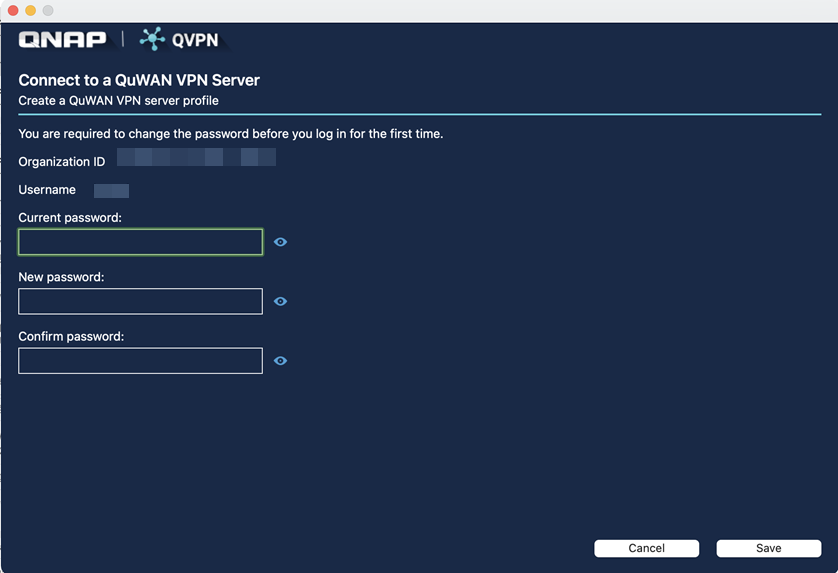
- 单击“Save”(保存)。
此时会出现配置文件设置页面。
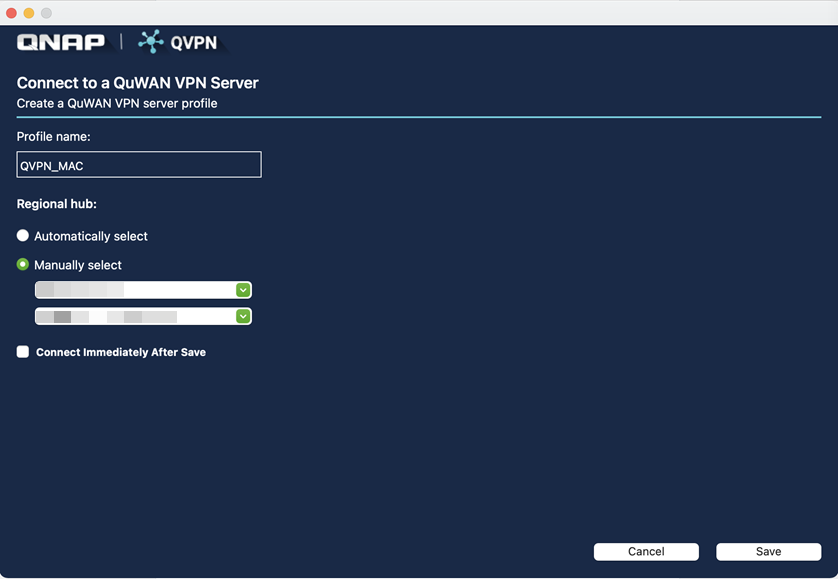
- 单击连接图标。
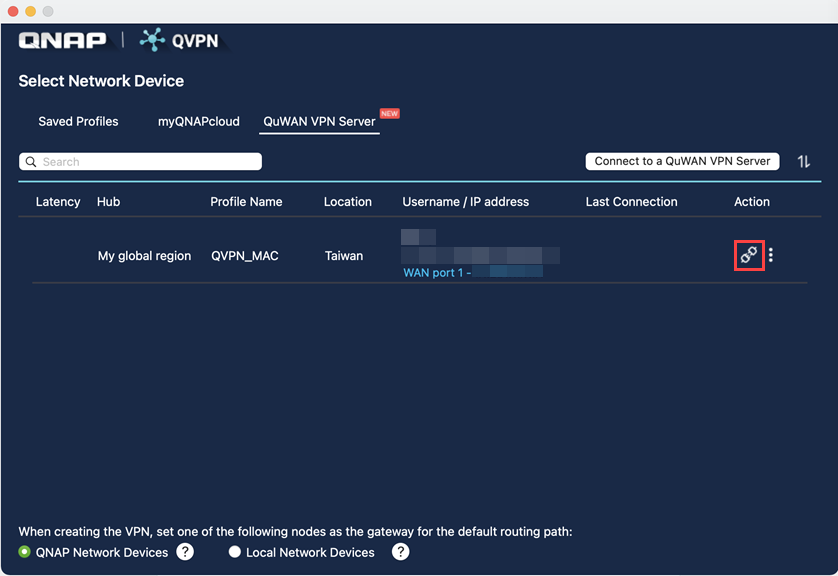
QVPN VPN 服务器将建立与 QuWAN Orchestrator 中的 QuWAN VPN 服务器的 VPN 隧道连接。
在 Android 7.0 上配置 QuWAN QBelt VPN 客户端设置
在配置 VPN 客户端设置之前,请确保满足以下条件。
将在 QuWAN Orchestrator 的“QuWAN QBelt VPN Server”(QuWAN QBelt VPN 服务器)页面中启用配置为 VPN 服务器的 QuWAN 中心。
在 QuWAN Orchestrator 的“Privilege Settings”(权限设置)页面中添加 VPN 用户。
VPN 用户收到来自 QuWAN Orchestrator 的电子邮件,其中有配置 QVPN 设备客户端 QuWAN QBelt VPN 设置所需的组织 ID、用户名和密码。
- 选择“QuWAN VPN Server”(QuWAN VPN 服务器)。
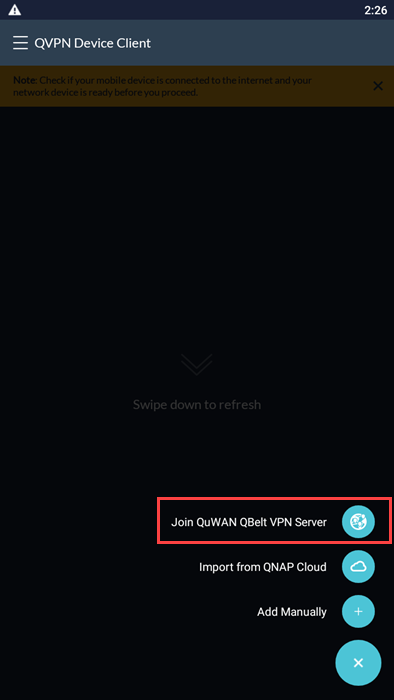
此时会出现“Join QuWAN VPN Server”(加入 QuWAN VPN 服务器)窗口。
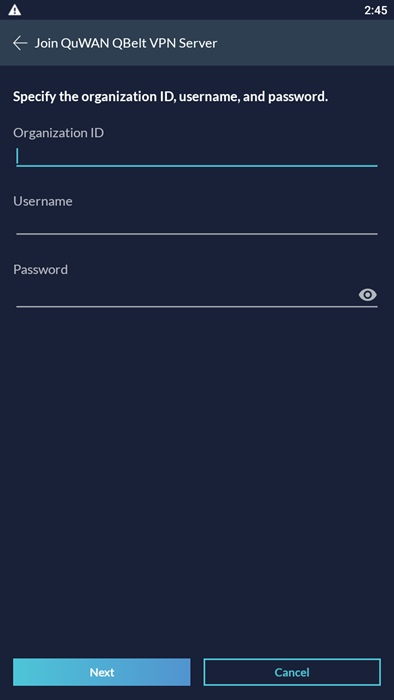
- 单击“OK”(确定)。
此时会出现密码页面。
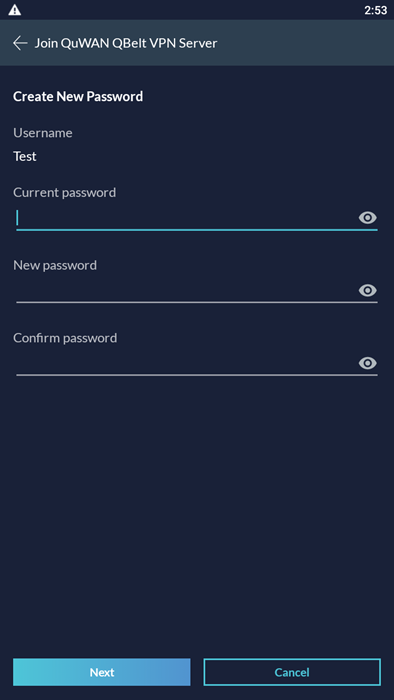
- 单击“Next”(下一步)。
此时会出现配置文件设置页面。
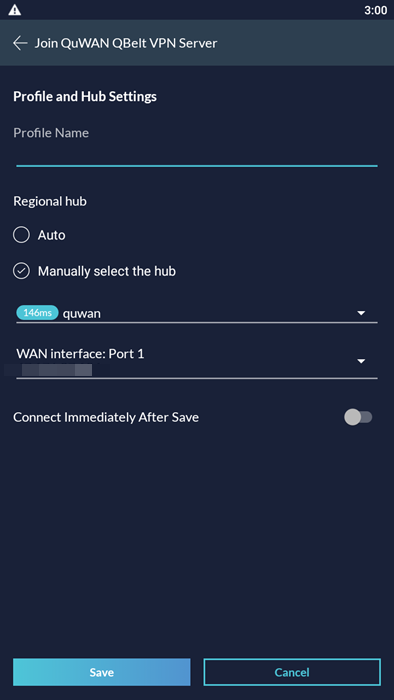
- 单击
 。
。 - 单击“Connect”(连接)。
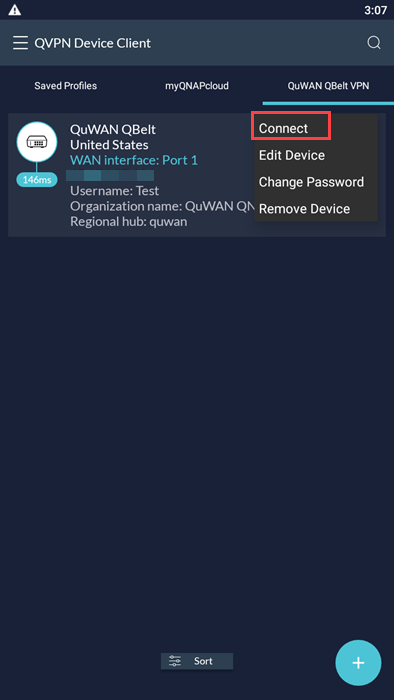
QVPN VPN 服务器将建立与 QuWAN Orchestrator 中的 QuWAN VPN 服务器的 VPN 隧道连接。
在 iOS 上配置 QuWAN QBelt VPN 客户端设置
在配置 VPN 客户端设置之前,请确保满足以下条件。
将在 QuWAN Orchestrator 的“QuWAN QBelt VPN Server”(QuWAN QBelt VPN 服务器)页面中启用配置为 VPN 服务器的 QuWAN 中心。
在 QuWAN Orchestrator 的“Privilege Settings”(权限设置)页面中添加 VPN 用户。
VPN 用户收到来自 QuWAN Orchestrator 的电子邮件,其中有配置 QVPN 设备客户端 QuWAN QBelt VPN 设置所需的组织 ID、用户名和密码。
- 选择“QuWAN VPN Server”(QuWAN VPN 服务器)。
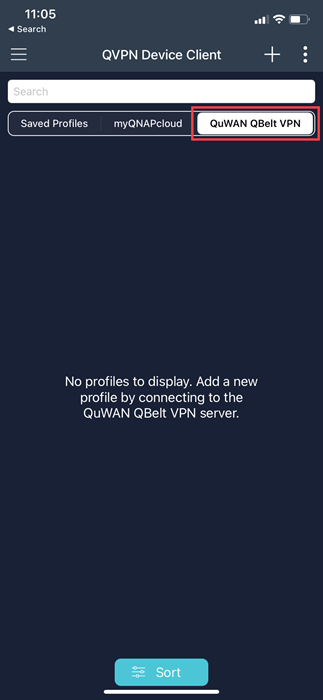
- 单击“Join QuWAN QBelt VPN Server”(加入 QuWAN QBelt VPN 服务器)。
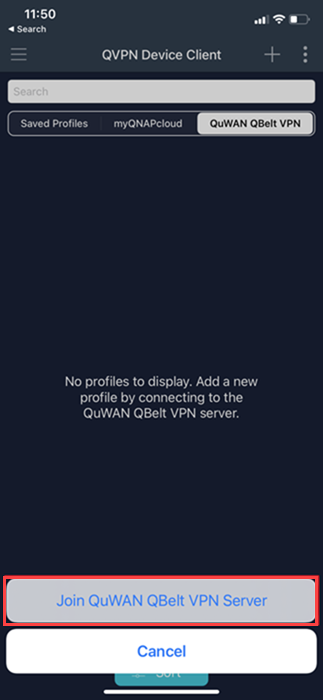
此时会出现“Join QuWAN VPN Server”(加入 QuWAN VPN 服务器)窗口。
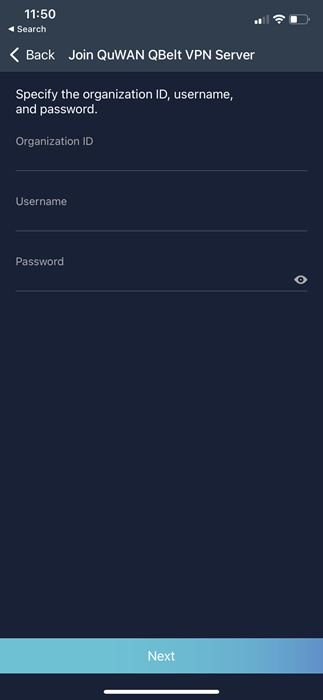
- 单击“OK”(确定)。
此时会出现密码页面。
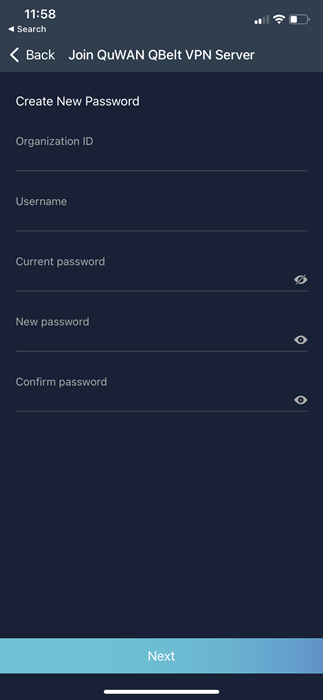
- 单击“Next”(下一步)。
此时会出现配置文件设置页面。
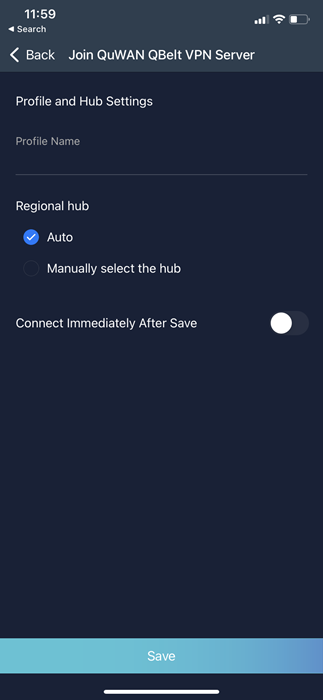
- 单击 。
- 单击“Connect”(连接)。
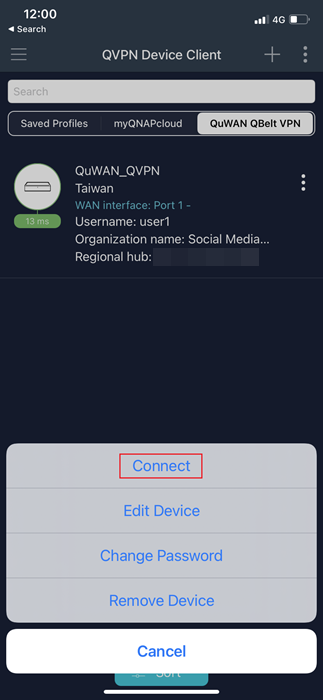
QVPN VPN 服务器将建立与 QuWAN Orchestrator 中的 QuWAN VPN 服务器的 VPN 隧道连接。
需要进一步协助,欢迎前往官方社区发帖,与其他用户及 QNAP 专家交流。 前往 QNAP 官方社区


