Applicable Products
- All NAS models running QTS or QuTS hero
Explanation
By default, DHCP assigns IP addresses dynamically, which may change each time the lease is renewed. To ensure your NAS always receives the same IP address, you can configure a DHCP reservation (also known as Reserved IP table) on your router. This binds the NAS’s MAC address to a specific IP address, so the router always assigns the same IP during DHCP lease renewals.
Procedure
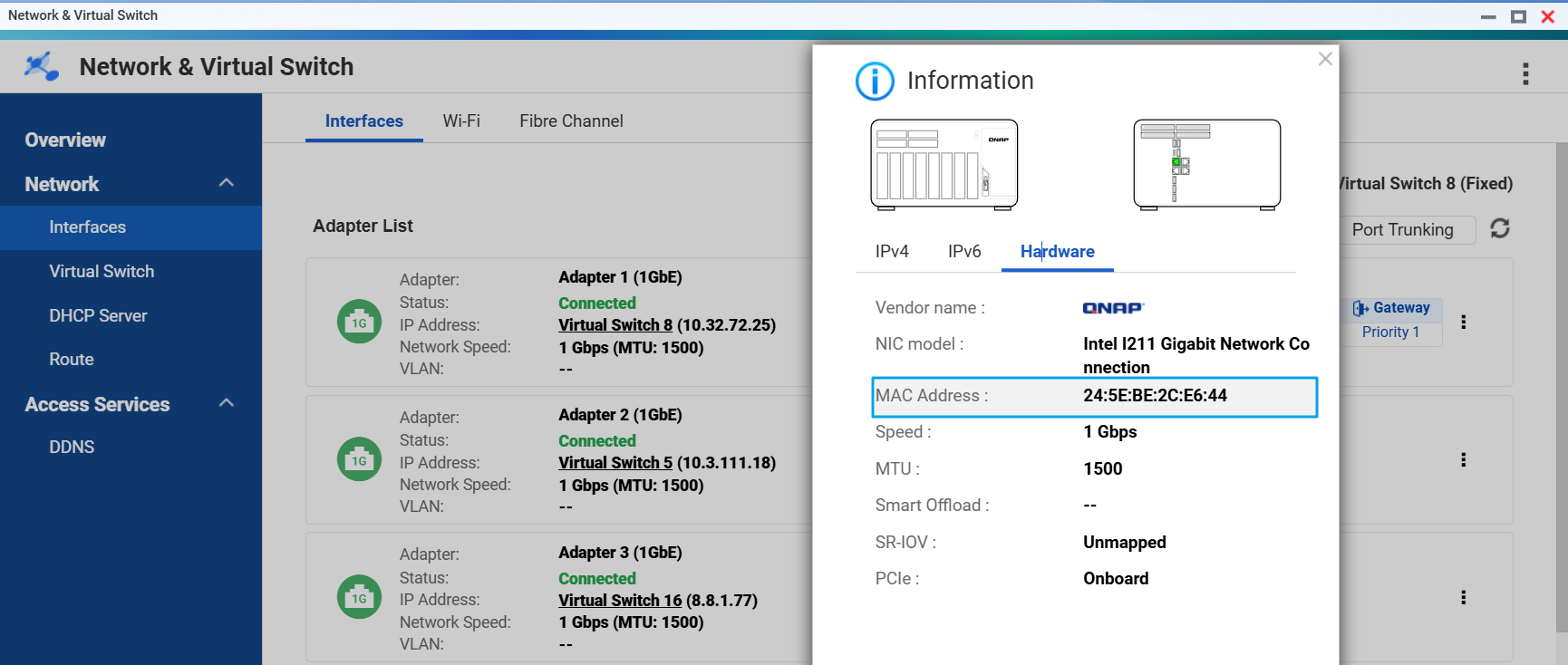
- Identify your NAS MAC address:
- Log in to QTS or QuTS hero as an administrator.
- Go to Control Panel > Network & Virtual Switch.
- Select the relevant Ethernet interface (for example, Adapter 2).
- Note the MAC address displayed for the interface.
- Configure DHCP reservation on your router:
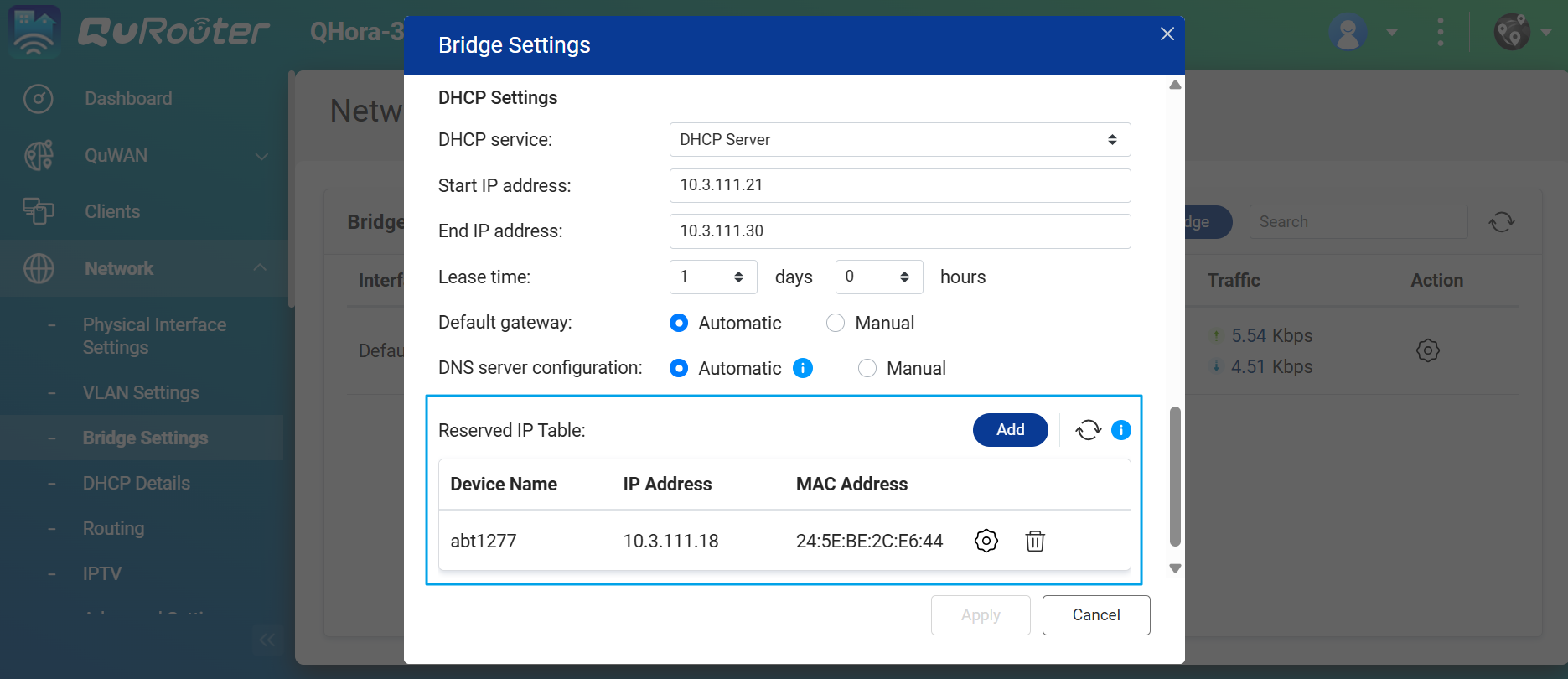
- Log in to your router’s management interface (for example, QHora-301W).
- Navigate to the Network > Bridge Settings > DHCP Settings > Reserved IP Table (terminology may vary by router brand).
- Add a new reservation using your NAS’s MAC address and assign the desired IP address.
- Apply the changes.
- Tip: Consult your router’s documentation for specific instructions, as interfaces and terminology differ.
- Set your NAS to obtain an IP address automatically:
- On your NAS, go to Control Panel > Network & Virtual Switch.
- Select the Ethernet interface or Virtual Switch.
- Set the interface to Obtain IP address automatically (DHCP).
- Click Apply.
- Restart your NAS and router: After configuring the reservation, restart both devices to ensure the NAS receives the reserved IP address on the next DHCP lease renewal.
- After setup, your NAS will consistently receive the same IP address from the router, even after reboots or DHCP lease renewals.
- If you have multiple network interfaces, repeat the process for each interface as needed.
Limitations
- Router interfaces and terminology may vary; refer to your router’s manual for details.
- Ensure the reserved IP address is not used by other devices to avoid conflicts.
- If the NAS is moved to a different network or the router is replaced, you must reconfigure the DHCP reservation.
适用产品
- All NAS models running QTS or QuTS hero
说明
默认情况下,DHCP 动态分配 IP 地址,每次租约更新时可能会更改。为了确保您的 NAS 始终获得相同的 IP 地址,您可以在路由器上配置 DHCP 保留(也称为保留 IP 表)。这将 NAS 的 MAC 地址绑定到特定的 IP 地址,因此路由器在 DHCP 租约更新期间始终分配相同的 IP。
步骤
- 识别您的 NAS MAC 地址:
- 以管理员身份登录 QTS 或 QuTS hero。
- 前往 控制台 > 网络与虚拟交换机。
- 选择相关的以太网接口(例如,适配器 2)。
- 记录接口显示的MAC 地址。
- 在路由器上配置 DHCP 保留:
- 登录到路由器的管理界面(例如,QHora-301W)。
- 导航到 网络 > 桥接设置 > DHCP 设置 > 保留 IP 表(术语可能因路由器品牌而异)。
- 使用您的 NAS 的 MAC 地址添加新的保留并分配所需的 IP 地址。
- 应用更改。
- 提示:请查阅路由器的文档以获取具体说明,因为界面和术语可能不同。
- 将您的 NAS 设置为自动获取 IP 地址:
- 在您的 NAS 上,前往 控制台 > 网络与虚拟交换机。
- 选择以太网接口或虚拟交换机。
- 将接口设置为 自动获取 IP 地址(DHCP)。
- 点击 应用。
- 重启您的 NAS 和路由器: 配置保留后,重启两个设备以确保 NAS 在下次 DHCP 租约更新时接收到保留的 IP 地址。
- 设置完成后,即使在重启或 DHCP 租约更新后,您的 NAS 也将始终从路由器接收到相同的 IP 地址。
- 如果您有多个网络接口,请根据需要为每个接口重复此过程。
限制
- 路由器界面和术语可能有所不同;请参考路由器的手册以获取详细信息。
- 确保保留的 IP 地址未被其他设备使用以避免冲突。
- 如果 NAS 移动到不同的网络或更换路由器,您必须重新配置 DHCP 保留。


