Applicable Products
- QNAP NAS
- QNAP Expansion Enclosure (if applicable)
Overview
If an HDD or SSD in a QNAP NAS suddenly becomes undetected, shows as disconnected, or the system reports messages such as Disk I/O Error, Disk Plugged Out, or RAID Degraded, follow this FAQ to perform initial troubleshooting.
A disk drop does not necessarily mean that the HDD/SSD itself has
failed. The issue may also be related to the disk tray, disk bay, backplane, SATA/SAS/NVMe connection, controller/HBA, expansion enclosure, power, or drive compatibility/firmware.
Important: If the RAID is already degraded and another RAID member
disk is also showing an abnormal status, or if multiple disks in the
same RAID group are experiencing issues, stop disk swapping, RAID
rebuilding, and high-I/O disk tests. Protect your data first and
contact QNAP Support.
Quick Troubleshooting Reference
| Observation |
Possible Cause / Investigation Direction |
| The same disk has the issue in different bays |
Disk |
| The manufacturer's diagnostic tool also reports an error |
Disk |
| SMART / Bad Block Test reports an error |
Disk |
| Different disks have the same issue in the same bay |
Tray / Bay / Backplane |
| The issue no longer occurs after replacing the tray |
Disk Tray |
| The disk reappears after a disk drop and SMART is normal |
Tray / Connection / I/O Path |
| Disks in different bays experience disk drops over time |
Do not assume individual HDD failures; investigate the Tray / Shared Hardware Path |
| Multiple disks drop at the same time |
Backplane / Controller / Power / Expansion Path |
| Multiple disks in an expansion enclosure disappear at the same time |
Expansion Enclosure / Connection / Power / Shared Path |
| A disk drop occurs together with a system crash or other system error |
Contact QNAP Support for further System / Kernel / Hardware analysis |
The table above provides initial troubleshooting directions only and should not be used by itself to make a final determination of the failed
component.
Solution
1. Check the RAID and data status
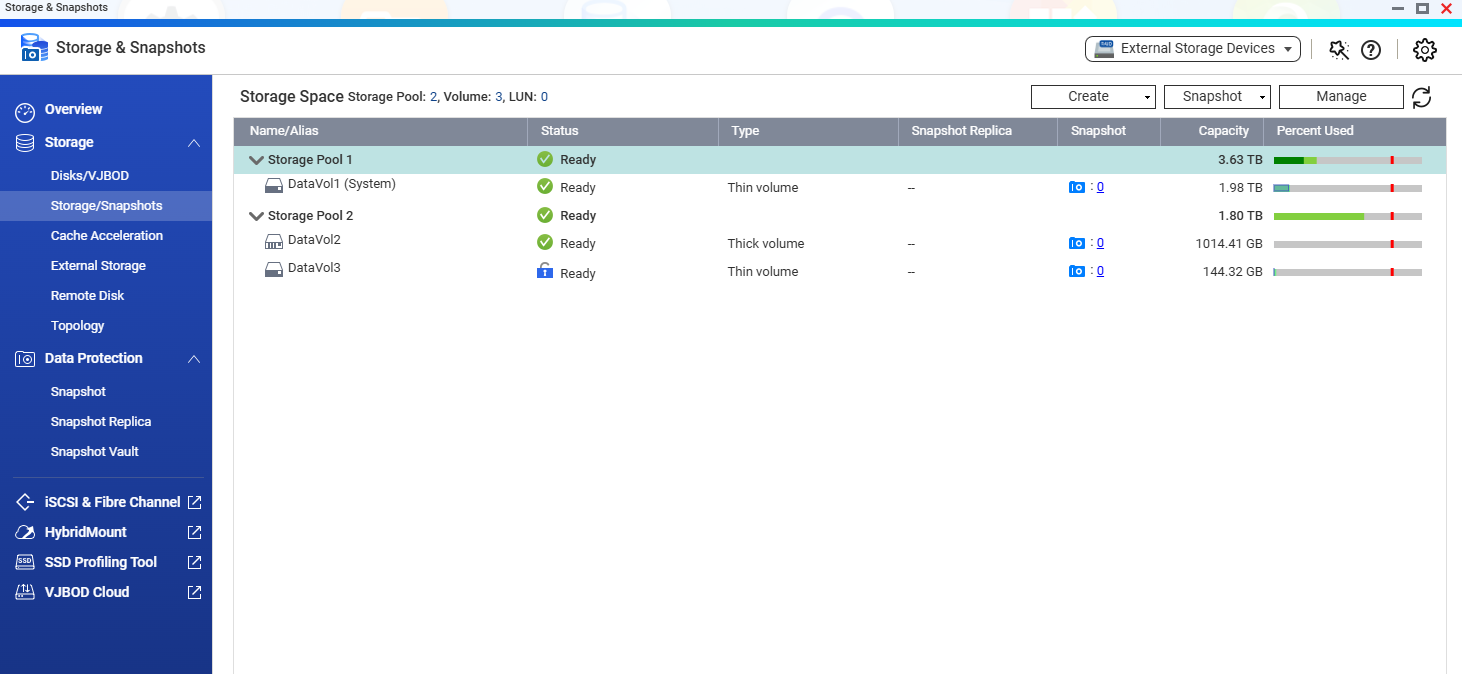
Open Storage & Snapshots and check the status of the storage pool, RAID group, other member disks, and data accessibility.
If two or more disks in the same RAID group are abnormal, the storage pool is inactive, or the data is inaccessible, stop further testing.
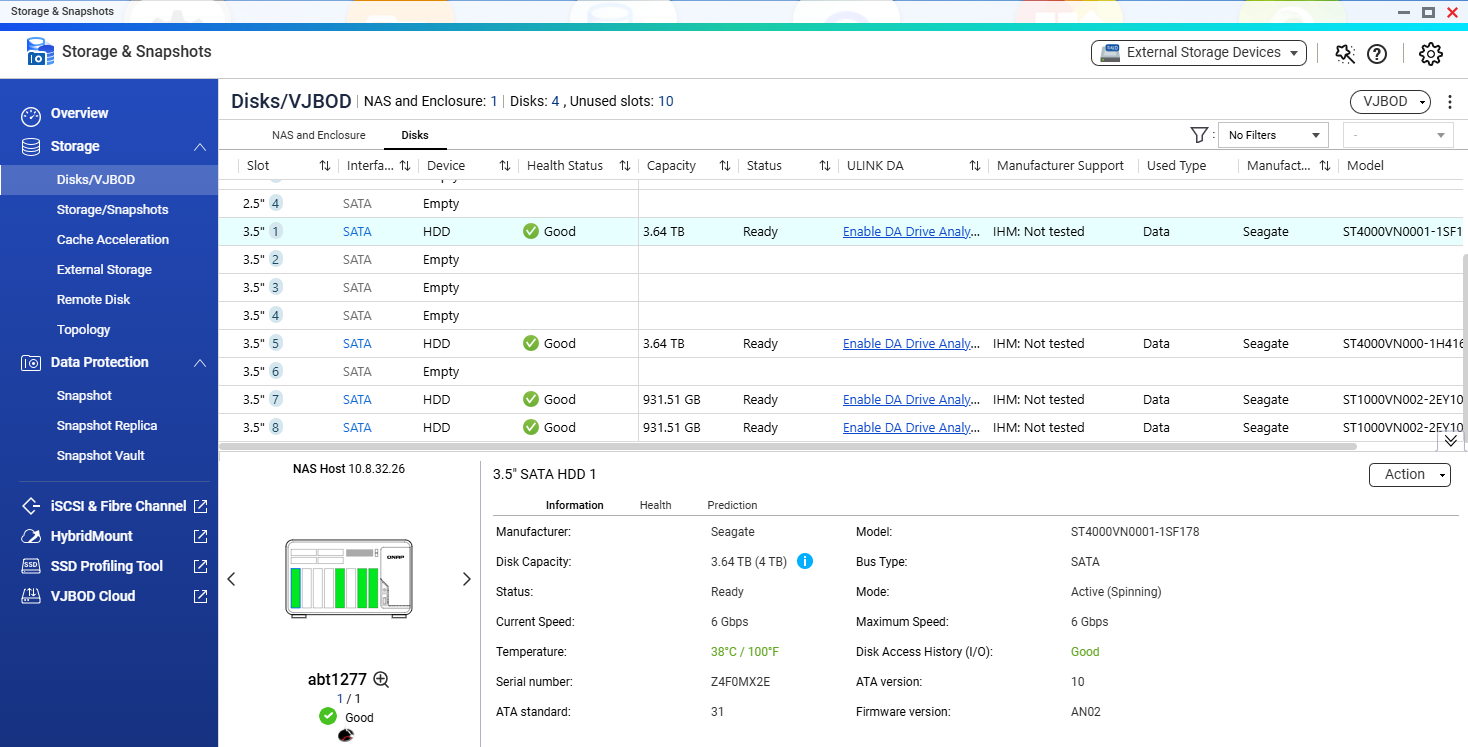
2. Record the issue information
Before rebooting the NAS or removing the disk, record:
- NAS model
- QTS/QuTS hero firmware version and build
- RAID type and storage pool / RAID group
- Affected disk bay / slot
- Disk model, capacity, firmware, and serial number
- Exact date and time when the disk drop occurred
- Whether the disk recovered automatically
- Whether any other disks experienced the same issue at the same or a similar time
- What task the NAS was performing when the issue occurred
Take screenshots of Storage & Snapshots > Disks/VJBOD and the RAID/storage pool status.
3. Check disk compatibility
Verify that the HDD/SSD is listed on the QNAP Compatibility List and record the disk firmware version. Do not update the drive firmware solely as a troubleshooting step for a disk drop.
4. Check the event log and disk health
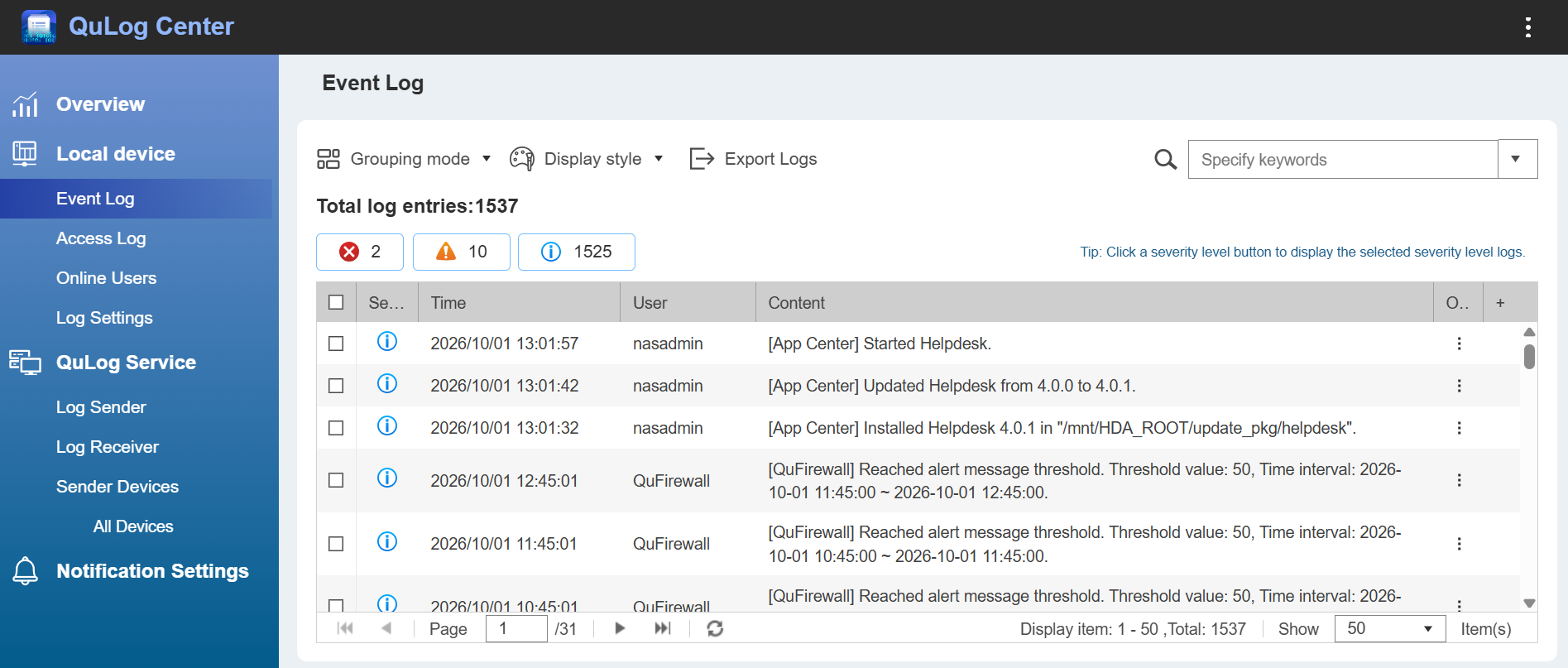
In QuLog Center > System Event Log, check for events around the time of the issue, such as Disk disconnected, Disk I/O error, RAID degraded, SMART warning, or Expansion enclosure disconnected.
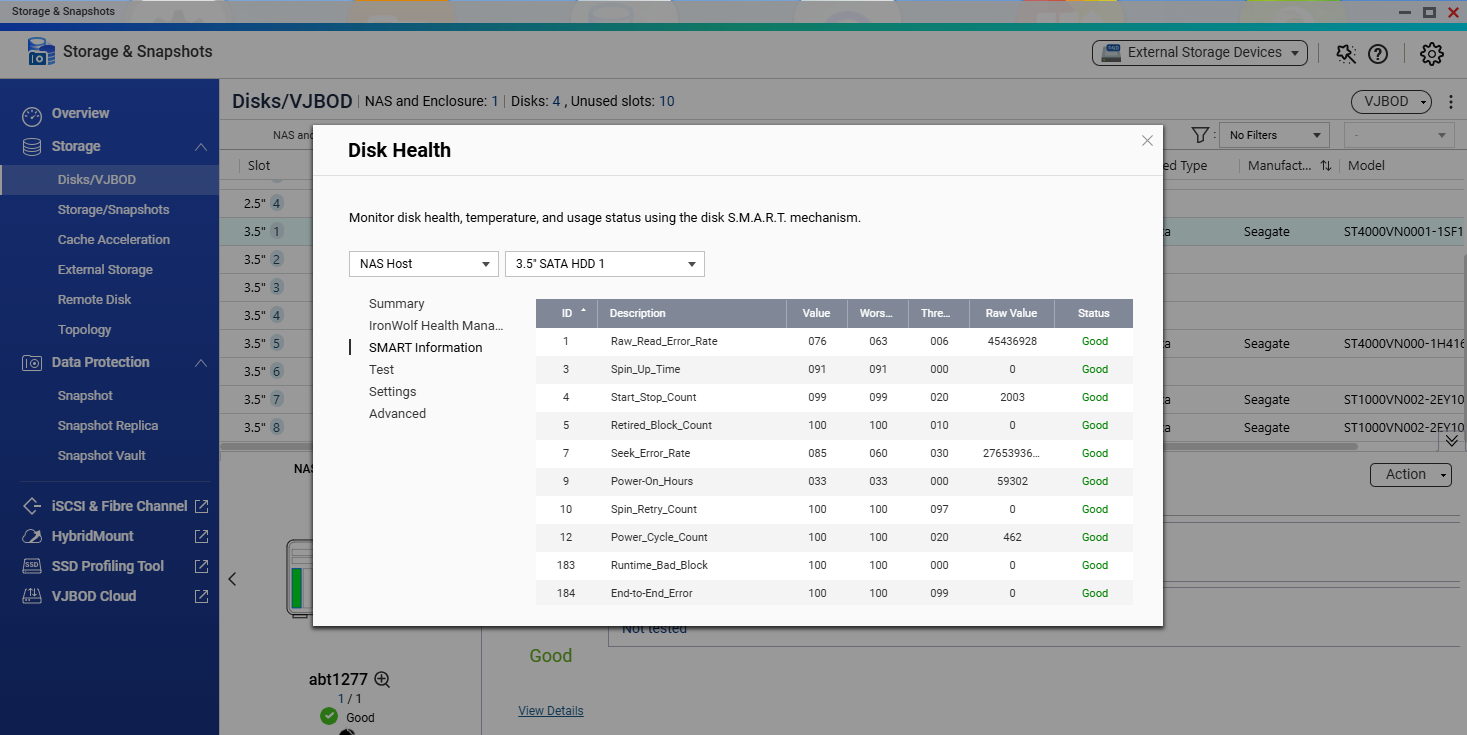
In Storage & Snapshots > Disks/VJBOD, check the disk health, SMART information, temperature, and Reallocated/Pending/Uncorrectable Sector values.
5. Collect diagnostic logs before further troubleshooting
If the NAS GUI is still accessible, go to:
Helpdesk > Diagnostic Tool > Download Logs
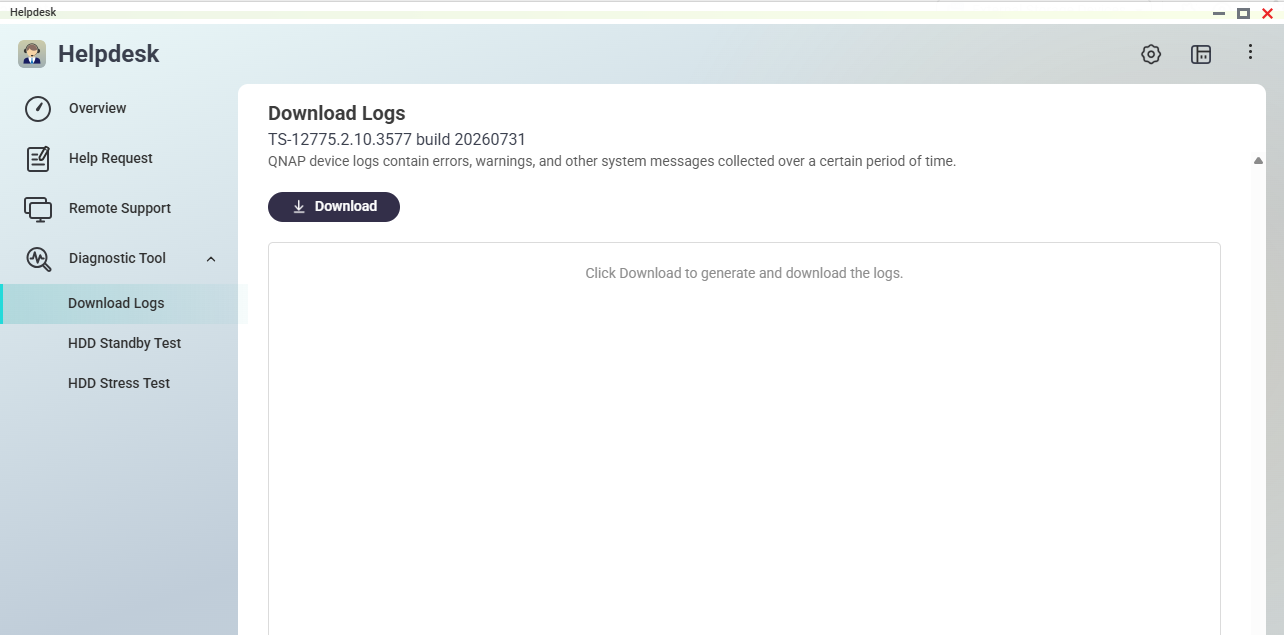
Download the diagnostic log ZIP file before considering a reboot. An accurate incident timestamp can help QNAP Support correlate the issue with kernel and storage-related messages.
6. Run disk tests only when the RAID and data are safe
If the RAID is stable, no other member disk is abnormal, and important data has been backed up, consider running:
- Complete SMART Test
- Scan for bad blocks
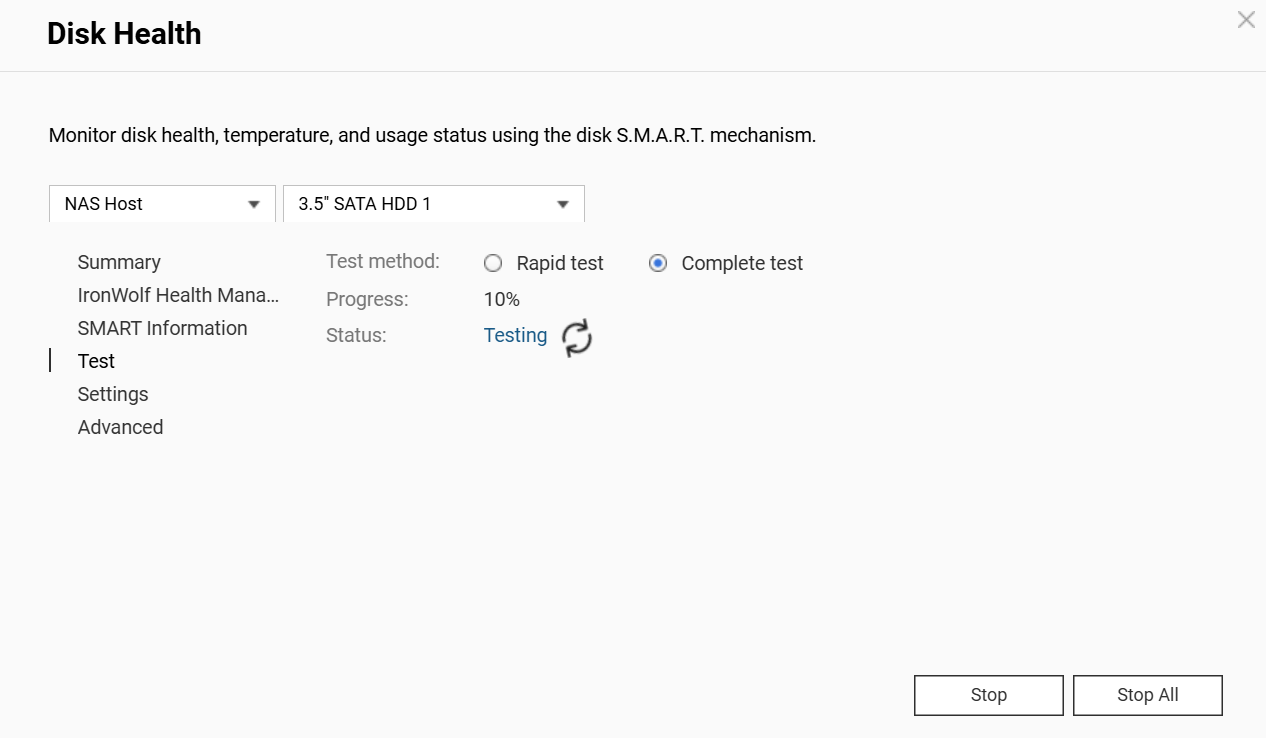
If the RAID is degraded or another member disk is abnormal, do not run long-duration disk tests.
7. Perform a disk/bay isolation test if necessary
If the disk can be safely removed:
- Move the suspected disk to another known-good bay and check whether the problem follows the disk.
- If necessary, connect the disk to a PC or use an appropriate SATA-to-USB adapter, and test it with the disk manufacturer's diagnostic tool.
If the problem follows the disk → Investigate the disk first.
If different disks have the same problem in the same bay → Investigate the disk tray, bay, backplane, or I/O path.
Do not randomly swap RAID member disks. Before moving a disk, record
its serial number, original bay/slot, and RAID group. If you are
unsure whether the disk can be safely moved, stop and contact QNAP
Support.
What NOT to Do
- Do not reboot immediately before collecting diagnostic logs.
- Do not repeatedly remove and reinsert the same disk.
- Do not randomly swap RAID member disks.
- Do not force a RAID rebuild when another member disk is already abnormal.
- Do not run long-duration disk tests on a degraded RAID when doing so could put the data at risk.
- Do not assume that the HDD/SSD has failed before confirming the cause.
- Do not change multiple variables, such as the disk, tray, and firmware, at the same time.
When should I stop troubleshooting?
Stop further testing and contact QNAP Support if multiple disks in the RAID are abnormal, the storage pool is inactive, data is inaccessible, multiple disks experience disk drops or I/O errors at the same time, the RAID rebuild repeatedly fails, a disk repeatedly disconnects and reconnects, the NAS crashes or restarts unexpectedly, or important data does not have a verified backup.
What should I provide when contacting QNAP Support?
- NAS model / firmware version and build
- RAID type / RAID group status
- Disk bay, model, firmware, and serial number
- Exact timestamp of the disk drop
- Whether the disk recovered automatically and whether other disks
experienced the issue at the same time
- Storage & Snapshots screenshots
- SMART / Disk Health results
- Complete SMART / Bad Block Scan results (if performed)
- System Event Log
- Diagnostic Log ZIP file
- Disk/Bay Cross Test and manufacturer diagnostic test results (if performed)
Further Reading
适用产品
- QNAP NAS
- QNAP Expansion Enclosure (if applicable)
概述
如果 QNAP NAS 中的 HDD 或 SSD 突然无法检测到、显示为断开连接,或系统报告磁盘 I/O 错误、磁盘拔出或 RAID 降级等消息,请按照此常见问题解答进行初步故障排除。
磁盘掉线并不一定意味着 HDD/SSD 本身已经
故障。问题也可能与磁盘托架、磁盘槽位、背板、SATA/SAS/NVMe 连接、控制器 /HBA、扩展机箱、电源或驱动器兼容性 / 固件有关。
重要提示:如果 RAID 已经降级,并且另一个 RAID 成员
磁盘也显示异常状态,或者同一 RAID 组中的多个磁盘出现问题,请停止磁盘交换、RAID
重建和高 I/O 磁盘测试。首先保护您的数据并
联系QNAP 支持。
快速故障排除参考
| 观察 |
可能原因 / 调查方向 |
| 同一磁盘在不同槽位出现问题 |
磁盘 |
| 制造商的诊断工具也报告错误 |
磁盘 |
| SMART/ 坏块测试报告错误 |
磁盘 |
| 不同磁盘在同一槽位出现相同问题 |
托架 / 槽位 / 背板 |
| 更换托架后问题不再出现 |
磁盘托架 |
| 磁盘掉线后重新出现且 SMART 正常 |
托架 / 连接 /I/O 路径 |
| 不同槽位的磁盘随时间出现掉线 |
不要假设单个 HDD 故障;调查托架 / 共享硬件路径 |
| 多个磁盘同时掉线 |
背板 / 控制器 / 电源 / 扩展路径 |
| 扩展机箱中的多个磁盘同时消失 |
扩展机箱 / 连接 / 电源 / 共享路径 |
| 磁盘掉线伴随系统崩溃或其他系统错误 |
联系 QNAP 支持以进行进一步的系统 / 内核 / 硬件分析 |
上表仅提供初步故障排除方向,不应单独用于对故障
组件做出较终判断。
解决方案
1. 检查 RAID 和数据状态
打开存储与快照总管并检查存储池、RAID 组、其他成员磁盘和数据可访问性的状态。
如果同一 RAID 组中的两个或多个磁盘异常,存储池处于非活动状态,或数据不可访问,请停止进一步测试。
2. 记录问题信息
在重启 NAS 或移除磁盘之前,记录:
- NAS 型号
- QTS/QuTS hero 固件版本和构建
- RAID 类型和存储池 / RAID 组
- 受影响的磁盘托架 / 插槽
- 磁盘型号、容量、固件和序列号
- 磁盘掉线发生的确切日期和时间
- 磁盘是否自动恢复
- 是否有其他磁盘在相同或相似时间经历了相同的问题
- 问题发生时 NAS 正在执行的任务
截取存储与快照总管 > 磁盘/VJBOD和 RAID/ 存储池状态的截图。
3. 检查磁盘兼容性
确认 HDD/SSD 是否在QNAP 兼容性列表上列出,并记录磁盘固件版本。不要仅仅作为磁盘掉线的故障排除步骤来更新驱动器固件。
4. 检查事件日志和磁盘健康状况
在QuLog Center > 系统事件日志中,检查问题发生时的事件,例如磁盘断开连接、磁盘 I / O 错误、RAID 降级、SMART 警告或扩展机箱断开连接。
在存储与快照总管 > 磁盘/VJBOD中,检查磁盘健康状况、SMART 信息、温度和重新分配 / 待处理 / 无法纠正的扇区值。
5. 在进一步故障排除之前收集诊断日志
如果 NAS GUI 仍然可访问,请前往:
帮助台 > 诊断工具 > 下载日志
在考虑重启之前,下载诊断日志 ZIP 文件。更贴合的事件时间戳可以帮助 QNAP 支持将问题与内核和存储相关的消息关联起来。
6. 仅在 RAID 和数据安全时运行磁盘测试
如果 RAID 稳定,没有其他成员磁盘异常,并且重要数据已备份,考虑运行:
- 完整的 SMART 测试
- 扫描坏块
如果 RAID 已降级或其他成员磁盘异常,请勿运行长时间的磁盘测试。
7. 如有必要,进行磁盘 / 插槽隔离测试
如果磁盘可以安全移除:
- 将疑似磁盘移动到另一个已知良好的插槽,检查问题是否随磁盘移动。
- 如有必要,将磁盘连接到 PC 或使用合适的 SATA-to-USB 适配器,并使用磁盘制造商的诊断工具测试。
如果问题随磁盘移动 → 先调查磁盘。
如果不同磁盘在同一插槽有相同问题 → 调查磁盘托架、插槽、背板或 I / O 路径。
不要随意交换 RAID 成员磁盘。在移动磁盘之前,记录
其序列号、原始插槽和 RAID 组。如果不确定磁盘是否可以安全移动,请停止并联系 QNAP
支持。
不要做的事情
- 在收集诊断日志之前,不要立即重启。
- 不要反复移除和重新插入同一磁盘。
- 不要随意交换 RAID 成员磁盘。
- 当另一个成员磁盘已经异常时,不要强制 RAID 重建。
- 在 RAID 降级时,不要运行长时间的磁盘测试,因为这样可能会使数据面临风险。
- 在确认原因之前,不要假设硬盘 / 固态硬盘已损坏。
- 不要同时更改多个变量,例如磁盘、托盘和固件。
我应该何时停止故障排除?
如果 RAID 中的多个磁盘异常,存储池处于非活动状态,数据无法访问,多个磁盘同时出现磁盘掉线或 I / O 错误,RAID 重建反复失败,磁盘反复断开和重新连接,NAS 崩溃或意外重启,或重要数据没有经过验证的备份,请停止进一步测试并联系 QNAP 支持。
联系 QNAP 支持时我应该提供什么?
- NAS 型号 / 固件版本和构建
- RAID 类型 / RAID 组状态
- 磁盘槽位、型号、固件和序列号
- 磁盘掉线的更贴合时间戳
- 磁盘是否自动恢复以及其他磁盘
是否同时出现问题
- 存储与快照总管截图
- SMART / 磁盘健康结果
- 完整的 SMART / 坏块扫描结果(如果已执行)
- 系统事件日志
- 诊断日志 ZIP 文件
- 磁盘 / 槽位交叉测试和制造商诊断测试结果(如果已执行)
进一步阅读


