


How to switch NAS OS between QTS and QES
Some NAS models, like TES-1885U / TES-3085U / TDS-16489U-R2 can be either run with QTS or QES. These NAS models are shipped with QES OS by the factory default. You can follow the below procedure to switch it to QTS if you need.
Attention: All of the data on the disk will be removed and reconfigured after switching from one to the other OS. Please backup your data first if any before proceeding to the next step.
-
Switch from QES to QTS
-
Make sure you have already backed up all data of the NAS first.
-
Shutdown NAS and unplug all disks from both front and rear disk slots.
-
Power on the NAS and enter NAS web management page.
-
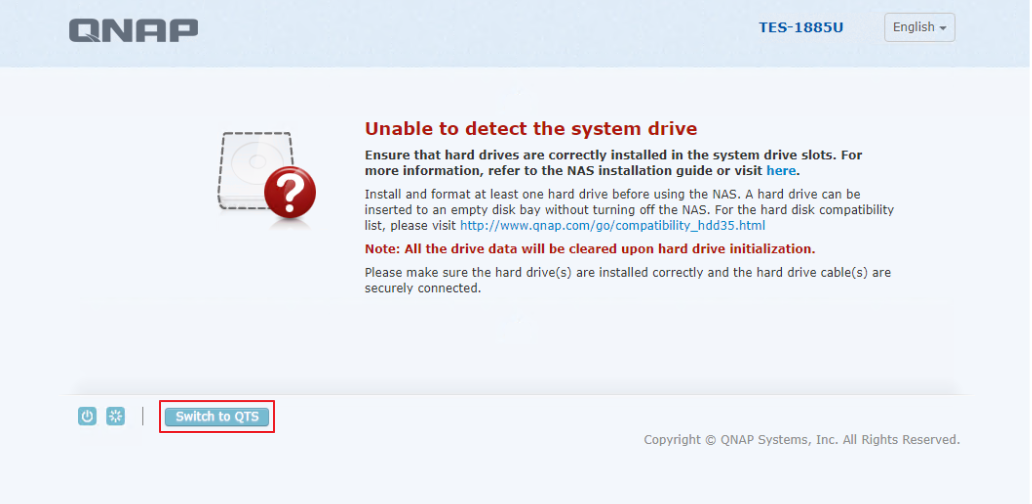
After entering the webpage, you can find the Switch to QTS button at the bottom of the page.
-
Click the Switch to QTS button.
-
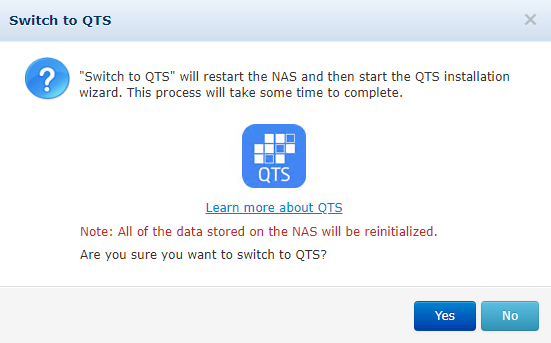
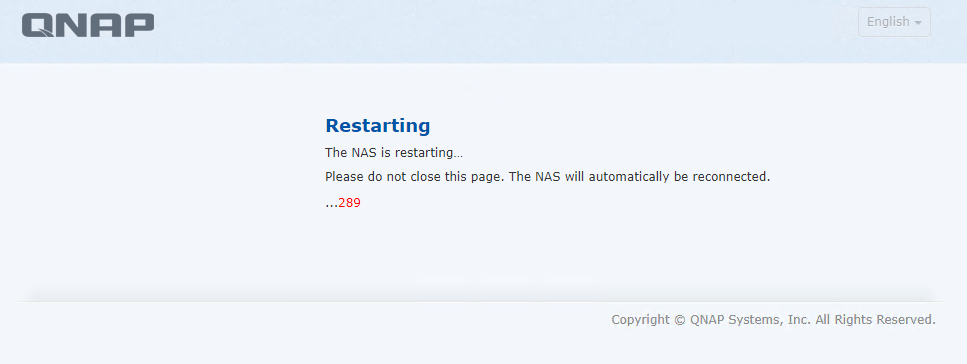
Click the Yes button to confirm it and wait for the system reboot.
-
After the system boot up, it completes to switch to QTS. Then you can plug in all disks to start the NAS initialization.
-
Switch from QTS to QES
-
Make sure you have already backed up all data of the NAS first.
-
Shutdown NAS and unplug all disks from both front and rear disk slots.
-
Power on the NAS and enter NAS web management page.
-
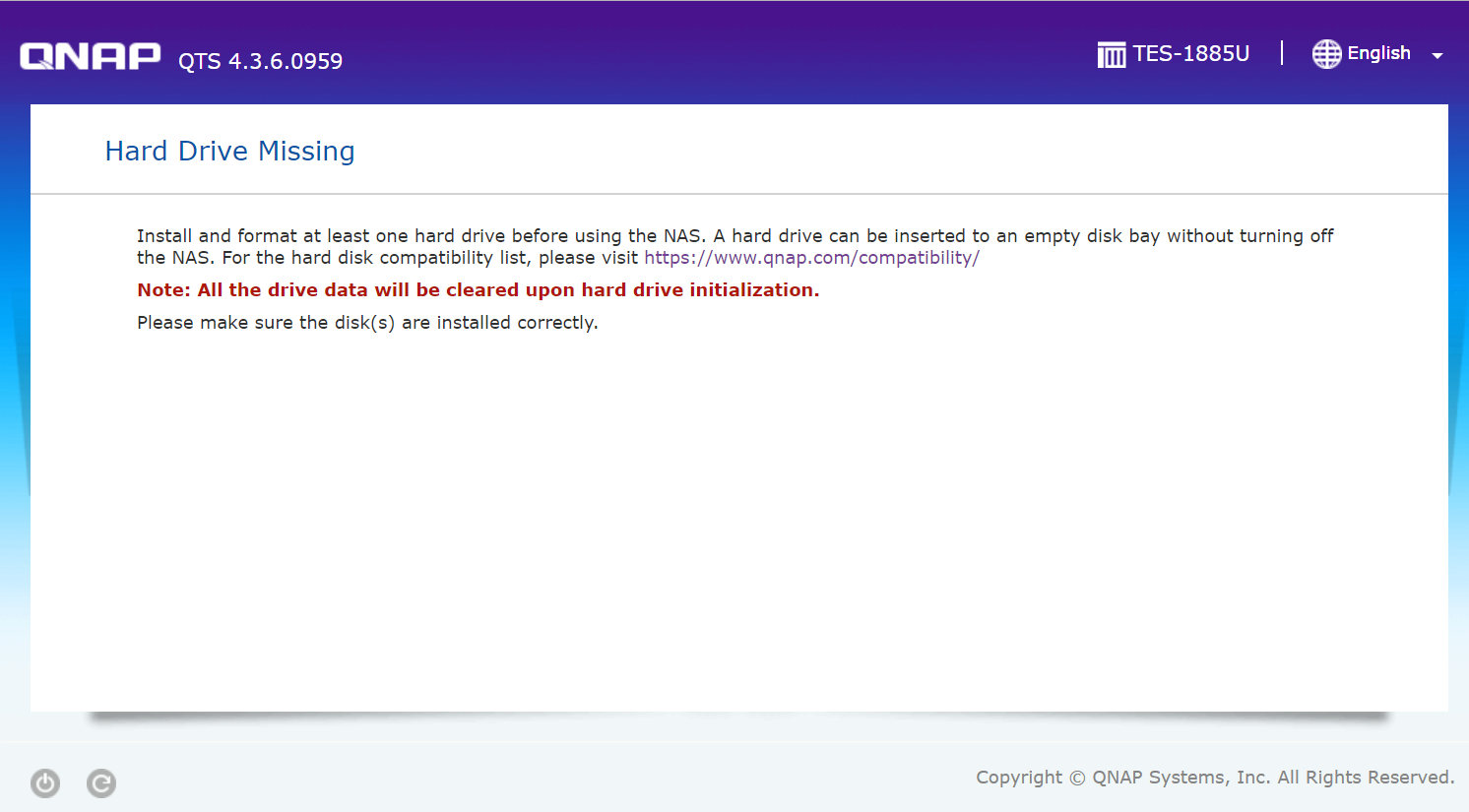
After entering the webpage, you could only see this Hard Drive Missing page but could not find the Switch to QES button.
-
At this moment, please plug in one free disk (Make sure no available data on it).
-
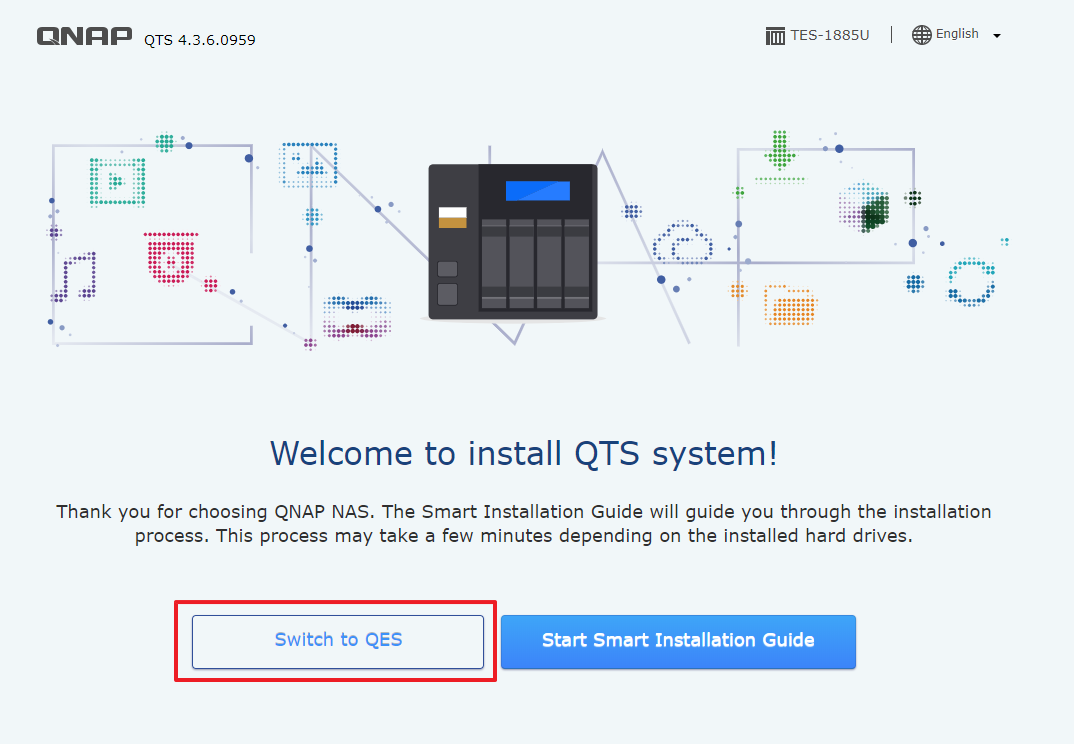
After the disk is plugged in, you should be able to find the Switch to QES button at the bottom of the page.
-
Click the Switch to QES button.

-
Click the Yes button to confirm it and wait for the system reboot.
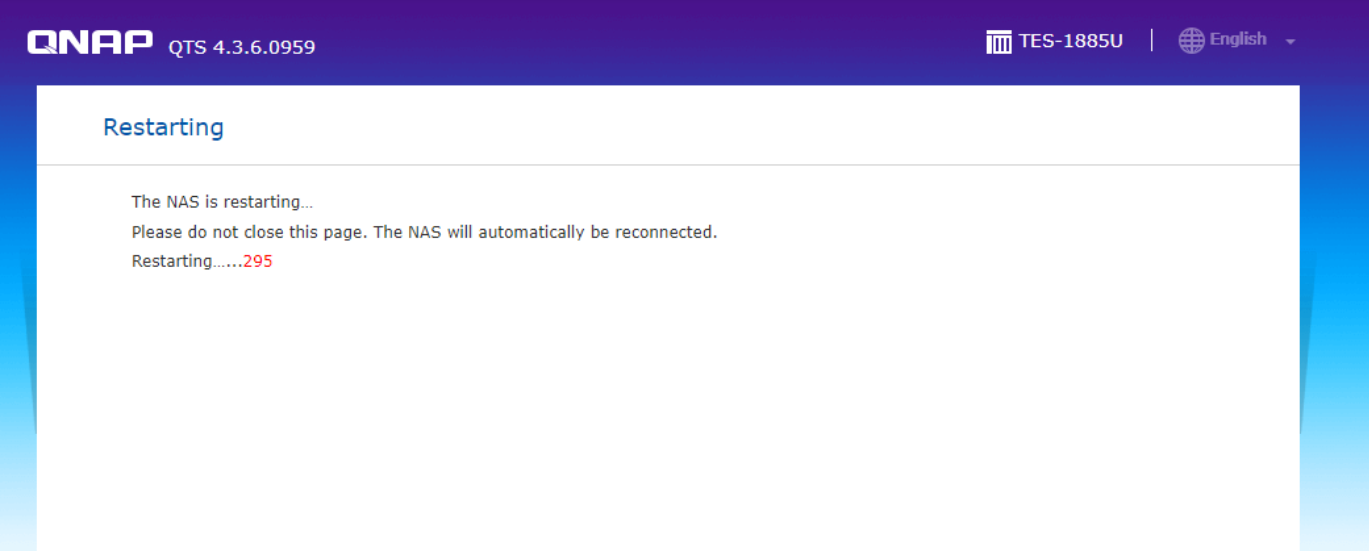
After the system boot up, it completes switching to QES. Then you can plug in all disks to start the NAS initialization
需要进一步协助,欢迎前往官方社区发帖,与其他用户及 QNAP 专家交流。 前往 QNAP 官方社区


