Applicable Products
All QNAP NAS models
Scenario
Your NAS has been operating normally for years. Recently, without significant changes in configuration or usage, its performance has become unstable or noticeably slower.
Root Cause
Alongside network and system workload factors, a sudden or occasion drop in performance is often related to declining hard drive health.
As hard drives age, physical degradation may occur on the disk surface, which can result in bad sectors. When the system encounters these problematic sectors, the drive may repeatedly retry read/write operations or attempt to recover and reallocate bad sectors to spare areas.
During this recovery and reallocation process, disk I/O operations can be temporarily blocked or delayed, causing the NAS to appear slow or unresponsive. As a result, users may experience intermittent performance degradation, such as slower file access, longer response times, or unstable read/write speed, even though the workload and environment remain unchanged.
These can be related to disk health indicators such as S.M.A.R.T. warnings. When hard drives have unstable or unreadable sectors, the system may repeatedly retry I/O operations, resulting in slower performance.
Solution
QNAP NAS devices provide disk health monitoring through S.M.A.R.T. (Self-Monitoring, Analysis, and Reporting Technology), which can alert you to potential disk issues before a complete failure occurs.
Step 1: Check S.M.A.R.T. disk health
- Open Storage & Snapshots in QTS or QuTS hero.
- Go to Disksand review the S.M.A.R.T. information for each disk. Pay close attention to these attributes:
- Reallocated Sector Count
- Current Pending Sector
- Uncorrectable Sector Count
Step 2: Interpret disk health indicators
- Reallocated Sector Count increases: Indicates that the drive is remapping bad sectors, which may signal ongoing degradation.
- Current Pending Sector > 0: Indicates there are sectors awaiting reallocation that may cause slowdowns due to repeated read attempts.
- Uncorrectable Sector Count > 0: Indicates that data cannot be recovered from these sectors, increasing the risk of data loss and significant slowdowns.
Example with S.M.A.R.T. screenshot
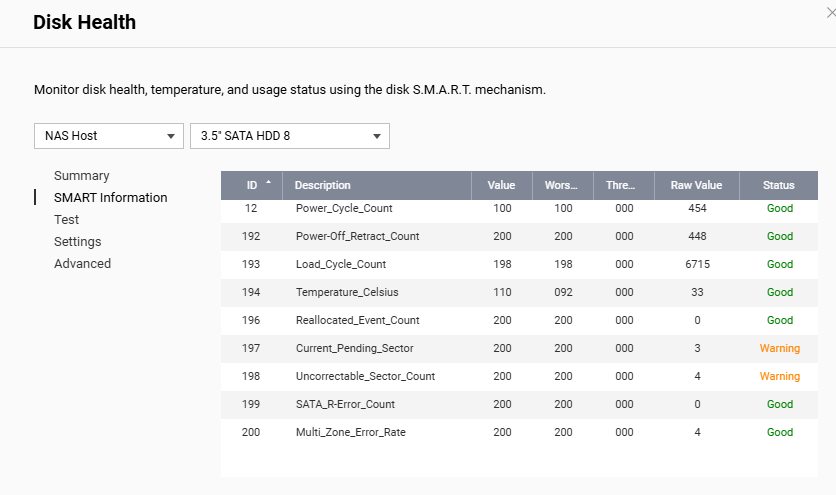
Key findings in this example:
- Current Pending Sector = 3 (Warning): Indicates that 3 sectors are currently unreadable. The system will repeatedly retry access, leading to slower file access, longer backup or sync times, and intermittent system latency.
- Uncorrectable Sector Count = 4 (Warning): Indicates that 4 sectors cannot be repaired, which may result in file read errors, application instability, or longer RAID rebuild times.
- Reallocated Event Count = 0: No reallocation has occurred yet, but the presence of pending and uncorrectable sectors strongly indicates that reallocation is imminent.
Step 3: Recommended actions
Recommendations based on S.M.A.R.T. results| Observation | Recommendation |
|---|
| Pending Sector detected | Back up your data as soon as possible. |
| Uncorrectable Sector detected | Avoid using the disk for long-term storage. |
| Pending + Uncorrectable present | Replace the disk at your earliest convenience. |
| Reallocated Sector Count increases | Replace the disk as soon as possible. An increasing count indicates progressive disk failure. |
| Performance already degraded | Prompt disk replacement can prevent further issues. |
Important Notice: RAID is not a substitute for backups. When disk health degrades, there is a risk of data loss during replacement or rebuild. Always ensure your data is backed up to an external device or cloud service before replacing a disk or rebuilding RAID.
Further Reading
适用产品
所有 QNAP NAS 型号
场景
您的 NAS 已正常运行多年。较近,在配置或使用没有变化的情况下,其性能变得不稳定或明显变慢。
根本原因
除了网络和系统工作负载因素外,性能的突然或偶然下降通常与硬盘健康状况下降有关。
随着硬盘的老化,磁盘表面可能会出现物理退化,导致坏扇区。当系统遇到这些问题扇区时,硬盘可能会反复重试读 / 写操作或尝试恢复并将坏扇区重新分配到备用区域。
在此恢复和重新分配过程中,磁盘 I/O 操作可能会暂时被阻塞或延迟,导致 NAS 显得缓慢或无响应。因此,用户可能会遇到间歇性的性能下降,例如文件访问速度变慢、响应时间变长或读 / 写速度不稳定,即使工作负载和环境保持不变。
这些可能与磁盘健康指标有关,例如 S.M.A.R.T. 警告。当硬盘有不稳定或无法读取的扇区时,系统可能会反复重试 I/O 操作,导致性能变慢。
解决方案
QNAP NAS 设备通过 S.M.A.R.T.(自我监控、分析和报告技术)提供磁盘健康监控,可以在故障发生之前提醒您潜在的磁盘问题。
步骤 1:检查 S.M.A.R.T. 磁盘健康状况
- 打开存储与快照总管在 QTS 或 QuTS hero 中。
- 前往磁盘并查看每个磁盘的 S.M.A.R.T. 信息。特别注意以下属性:
步骤 2:解释磁盘健康指标
- 重新分配扇区计数增加:表示硬盘正在重新映射坏扇区,可能表明正在进行的退化。
- 当前待处理扇区 > 0:表示有待重新分配的扇区,可能由于反复读取尝试导致速度变慢。
- 无法纠正的扇区计数 > 0: 表示无法从这些扇区恢复数据,增加了数据丢失和减速的风险。
带有 S.M.A.R.T. 截图的示例
此示例中的关键发现:
- 当前待处理扇区 = 3(警告): 表示当前有 3 个扇区无法读取。系统将反复尝试访问,导致文件访问速度变慢,备份或同步时间延长,以及系统间歇性延迟。
- 不可修复扇区计数 = 4(警告): 表示有 4 个扇区无法修复,可能导致文件读取错误、应用程序不稳定或 RAID 重建时间延长。
- 重新分配事件计数 = 0: 尚未发生重新分配,但待处理和不可修复扇区的存在强烈表明重新分配即将发生。
步骤 3:推荐操作
基于 S.M.A.R.T. 结果的建议| 观察 | 建议 |
|---|
| 检测到待处理扇区 | 尽快备份您的数据。 |
| 检测到不可修复扇区 | 避免将磁盘用于长期存储。 |
| 存在待处理和不可修复扇区 | 请尽早更换磁盘。 |
| 重新分配扇区计数增加 | 请尽快更换磁盘。 增加的计数表明磁盘故障正在进展。 |
| 性能已下降 | 及时更换磁盘可以防止进一步的问题。 |
重要通知: RAID 不是备份的替代品。当磁盘健康状况恶化时,替换或重建期间存在数据丢失的风险。在更换磁盘或重建 RAID 之前,请始终确保您的数据已备份到外部设备或云服务。
进一步阅读


