Applicable Products
- All NAS series
- QVPN Client for Windows and macOS
Details
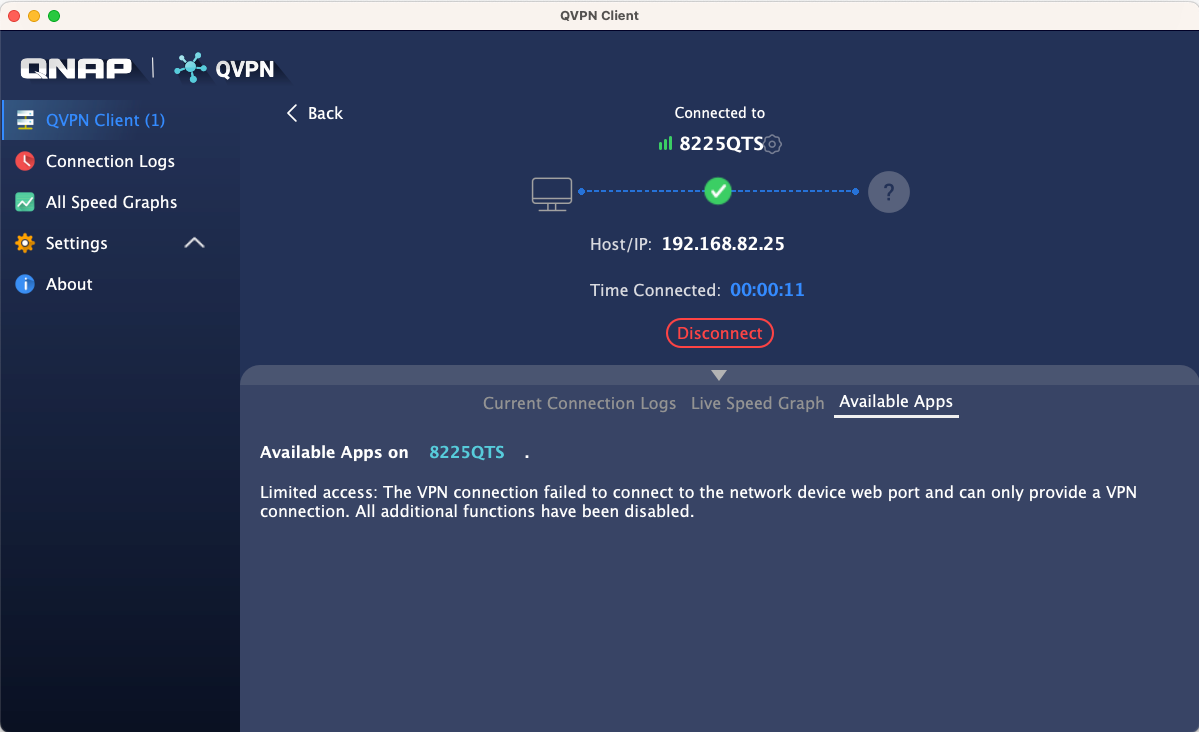
When connecting a client device to a VPN server on a QNAP NAS using QVPN Client, you may encounter a Limited access message or fail to see applications hosted on the VPN server. This behavior can be attributed to the following factors:
- The NAS system port configured for local network access differs from the port used for external internet connections.
- The connection to the NAS is established using an external IP address or an alternate DDNS instead of the NAS device information linked to the QNAP ID. This can prevent QVPN Client from retrieving the necessary port information from the myQNAPcloud service.
- Network policies or rules configured in QuFirewall may be restricting access.
Solution
1. Configure the VPN profile LAN port number manually
Ensure the VPN client uses the correct NAS port for connection.
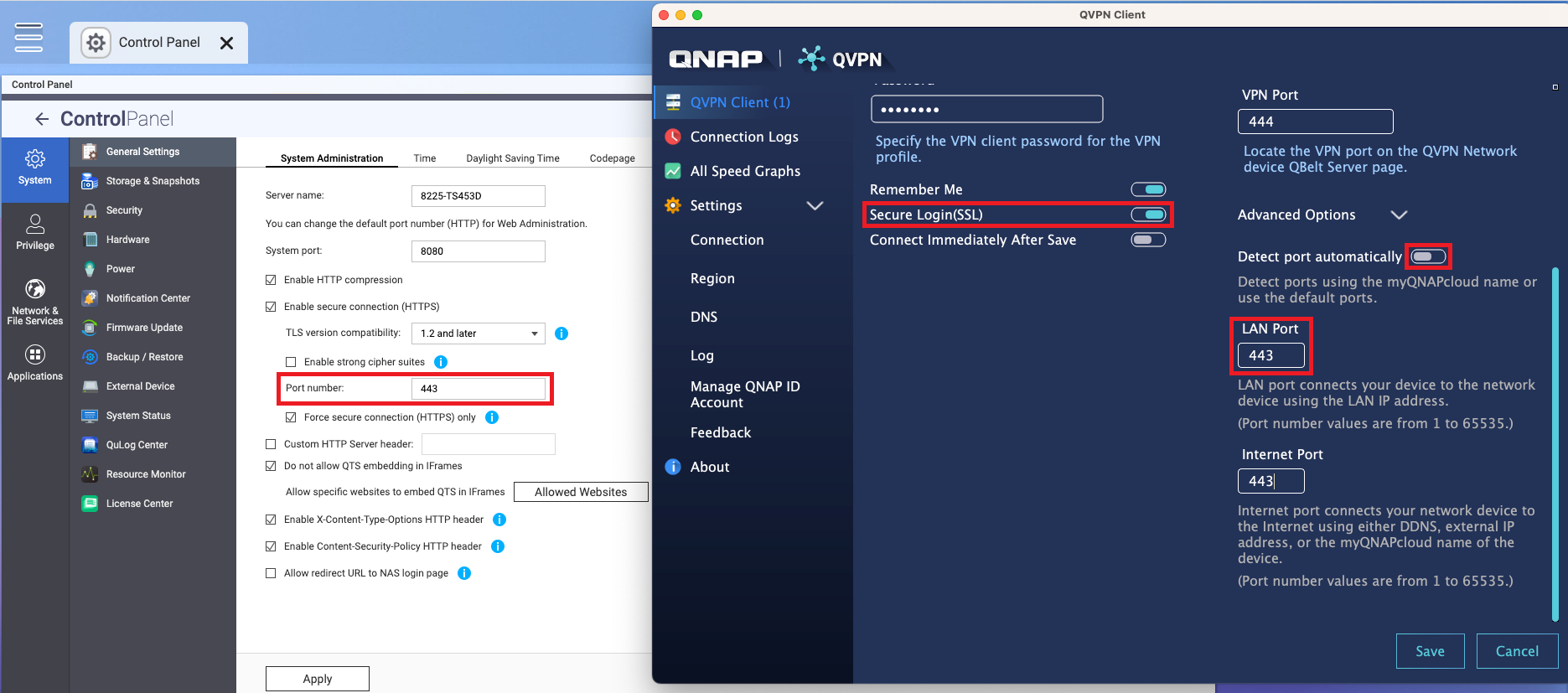
- On the NAS device, locate the system port number.
- Log in to the NAS.
- Go to Control Panel > System > General Settings > System Administration.
- Note the system port number displayed.

- Open QVPN Client on the client device.
- Identify the VPN profile and under Action, click
 , and then click Edit Profile.
 - Click Edit Profile to modify the VPN profile.
- Click Advanced Options.
- Disable Detect port automatically.
- Specify the NAS system port number in the LAN Port field.
Note
If you have enabled
Secure Login (SSL) for the VPN profile, locate the secure connection (HTTPS) port number in the NAS
Control Panel, under
System >
General Settings >
System Administration. Then, enter the same port number in the
LAN Port field on the VPN profile configuration page in QVPN Client.
- Click Save, and then click Connect to establish a VPN connection with the profile.
2. Import the NAS device using your QNAP ID
If connecting via external IP or DDNS, importing the NAS device through the QNAP ID can resolve the issue.
- Open QVPN Client on the client device.
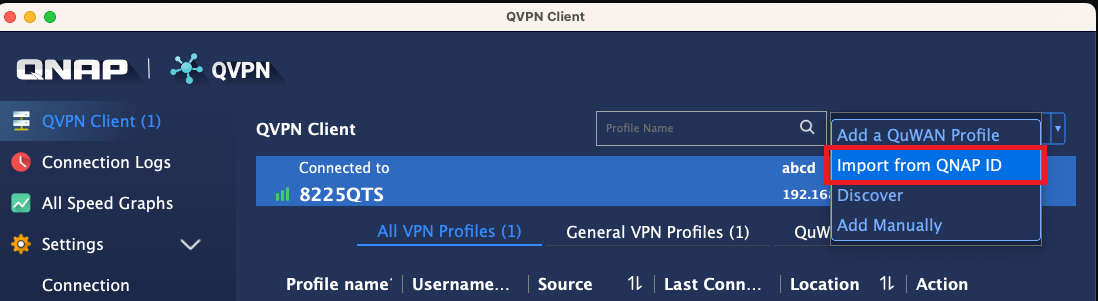
- From the drop-down menu, click Import from QNAP ID.
 A new tab opens in your default browser.
 - Enter your QNAP ID username and password.
- Click Sign in.
- Click Continue as to continue with the same QNAP ID.
- Close the browser tab after the successful sign in notification appears.
- Re-open QVPN Client.
- Select one or more devices you want to import.
- Click Import.
- Identify the VPN profile and under Action, click , and then click Edit Profile.
- Click Edit Profile to modify the VPN profile.
- Enter the missing profile information.
- Click Save, and then click Connect to establish a VPN connection with the profile.
3. Add the VPN subnet to QuFirewall's firewall profile
If QuFirewall is restricting VPN traffic, update its configuration to allow the VPN subnet. For details, see How to setup QuFirewall to allow VPN connections.
适用产品
- All NAS series
- QVPN Client for Windows and macOS
详情
当使用 QVPN Client 将客户端设备连接到QNAP NAS上的VPN服务器时,您可能会遇到有限访问消息或无法看到VPN服务器上托管的应用程序。这种行为可能归因于以下因素:
- 为本地网络访问配置的NAS系统端口与用于外部互联网连接的端口不同。
- 连接到NAS是使用外部IP地址或备用DDNS,而不是与QNAP ID链接的NAS设备信息。这可能会阻止 QVPN Client 从myQNAPcloud服务检索必要的端口信息。
- 在QuFirewall中配置的网络策略或规则可能会限制访问。
解决方案
1. 手动配置VPN配置文件的LAN端口号
确保VPN客户端使用正确的NAS端口进行连接。
- 在NAS设备上,找到系统端口号。
- 登录到NAS。
- 转到控制台> 系统 >常规设置> 系统管理。
- 记下显示的系统端口号。
- 在客户端设备上打开 QVPN Client 。
- 识别VPN配置文件,在操作下点击 ,然后点击编辑配置文件。
- 点击编辑配置文件以修改VPN配置文件。
- 点击高级选项。
- 禁用自动检测端口。
- 在LAN端口字段中指定NAS系统端口号。注意如果您为VPN配置文件启用了安全登录(SSL),请在NAS控制台中找到安全连接(HTTPS)端口号,位于系统 >常规设置> 系统管理下。然后,在 QVPN Client 的VPN配置文件配置页面的LAN端口字段中输入相同的端口号。
- 点击保存,然后点击连接以使用该配置文件建立VPN连接。
2. 使用您的QNAP ID导入NAS设备
如果通过外部IP或DDNS连接,通过QNAP ID导入NAS设备可以解决问题。
- 在客户端设备上打开 QVPN Client 。
- 从下拉菜单中,点击从QNAP ID导入。 在默认浏览器中打开一个新标签页。
- 输入您的QNAP ID用户名和密码。
- 点击登录。
- 点击继续以继续使用相同的QNAP ID。
- 在成功登录通知出现后关闭浏览器标签页。
- 重新打开 QVPN Client 。
- 选择您要导入的一个或多个设备。
- 点击导入。
- 识别VPN配置文件,在操作下点击 ,然后点击编辑配置文件。
- 点击编辑配置文件以修改VPN配置文件。
- 输入缺失的配置信息。
- 点击保存,然后点击连接以使用该配置文件建立VPN连接。
3. 将VPN子网添加到Qu防火墙的防火墙配置文件中
如果QuFirewall限制了VPN流量,请更新其配置以允许VPN子网。详情请参见 如何设置QuFirewall以允许VPN连接 。


