Applicable Products
- All QNAP NAS models running QTS or QuTS hero
Overview
SSH access that works fine on a local network will typically fail when attempted from outside using the WAN (public) IP address. This is expected and correct behaviour — by default, home routers block inbound connections from the internet, and intentionally exposing SSH to the internet invites brute-force attacks and automated exploit scanners.
The correct approach is to first establish a VPN tunnel between your remote computer and the home network, and then connect to the NAS using its local (LAN) IP address exactly as you would from home. The NAS itself never needs to be exposed to the public internet.
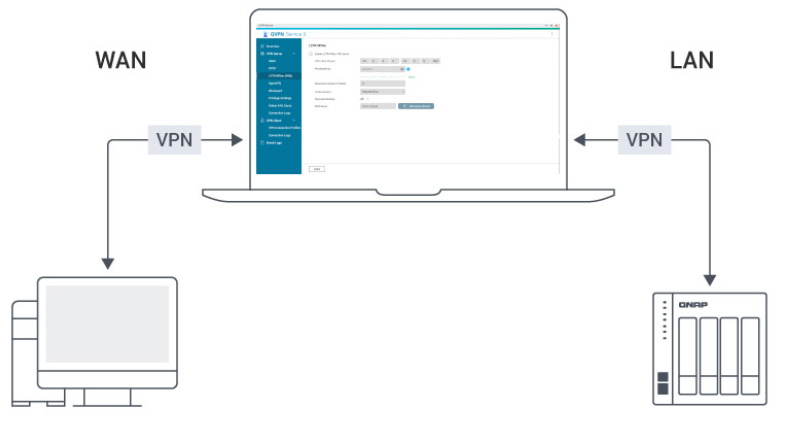
The Solution: Establish a VPN Tunnel First
Once a VPN tunnel is active, your remote computer is effectively on the same private network as the NAS. You can then point PuTTY at the NAS's LAN IP address (e.g., 192.168.1.x) and the SSH connection will succeed just as it does at home.
There are several VPN options available, including QNAP's built-in QVPN Service and third-party solutions such as WireGuard, OpenVPN, and overlay-VPN tools like Tailscale or ZeroTier. Choose the one that fits your infrastructure.
Option A: QVPN Service (Built-in QNAP Solution)
QNAP's QVPN Service app lets the NAS act as a VPN server (supporting OpenVPN, WireGuard, and L2TP/IPSec). Your remote computer connects to the VPN server, joining the home network virtually.
On the NAS — Set up the VPN Server
- In QTS/QuTS hero, open App Center and install QVPN Service if not already installed.
- Open QVPN Service and go to the VPN Server tab.
- Choose a protocol (WireGuard is recommended for performance; OpenVPN for broad client compatibility) and enable the server.
- Configure the allowed IP pool and download or export the client configuration file.
- On your router, forward the corresponding VPN port to the NAS's LAN IP address.
| VPN Protocol |
Default Port(s)Best for |
Protocol Type |
| L2TP/IPSec |
500, 4500, 1701 |
UDP |
| OpenVPN |
1194 |
UDP |
| WireGuard |
51820 |
UDP |
| QBelt |
443 |
UDP |
Note
- Do not open other NAS service ports to the Internet. This ensures all access is tunneled through the VPN.
- The actual port numbers may be customized in your device settings. Always confirm the configured port in your QVPN management interface.
On the Remote Computer — Connect to the VPN
- Install the matching VPN client (e.g., the official WireGuard app or OpenVPN client).
- Import the configuration file exported from QVPN Service.
- Connect to the VPN. Once the tunnel is up, your computer is on the home LAN.
SSH into the NAS via PuTTY
- Open PuTTY.
- In the Host Name field, enter the NAS's LAN IP address (e.g.,
192.168.1.100).
- Set Port to the SSH port configured on the NAS (default:
22).
- Click Open and log in with your NAS credentials.
Note
The VPN port (not the SSH port) must be forwarded on the router. SSH itself does not need to be exposed to the internet.
Tip
Use Control Panel > Network & Virtual Switch > Overview on the NAS to confirm the LAN IP address before you travel.
Option B: QHORA Router as VPN Server (No NAS Exposure Required)
If your network uses a QNAP Qhora router (e.g., Qhora-301W, Qhora-321), you can run the VPN server directly on the router rather than the NAS. This is the cleanest topology: the router is already the internet-facing device, so no extra port-forwarding rules are needed for the NAS, and every device on the LAN — including the NAS — becomes reachable through the VPN tunnel automatically.
On the Qhora Router — Set up the VPN Server
-
Log in to the Qhora management UI (default: http://192.168.100.1 or via QuRouter in QTS if managed centrally).
-
Go to VPN > VPN Server.
-
Select a protocol and click Enable:
| Protocol |
| QBelt |
| L2TP |
| OpenVPN |
| WireGuard |
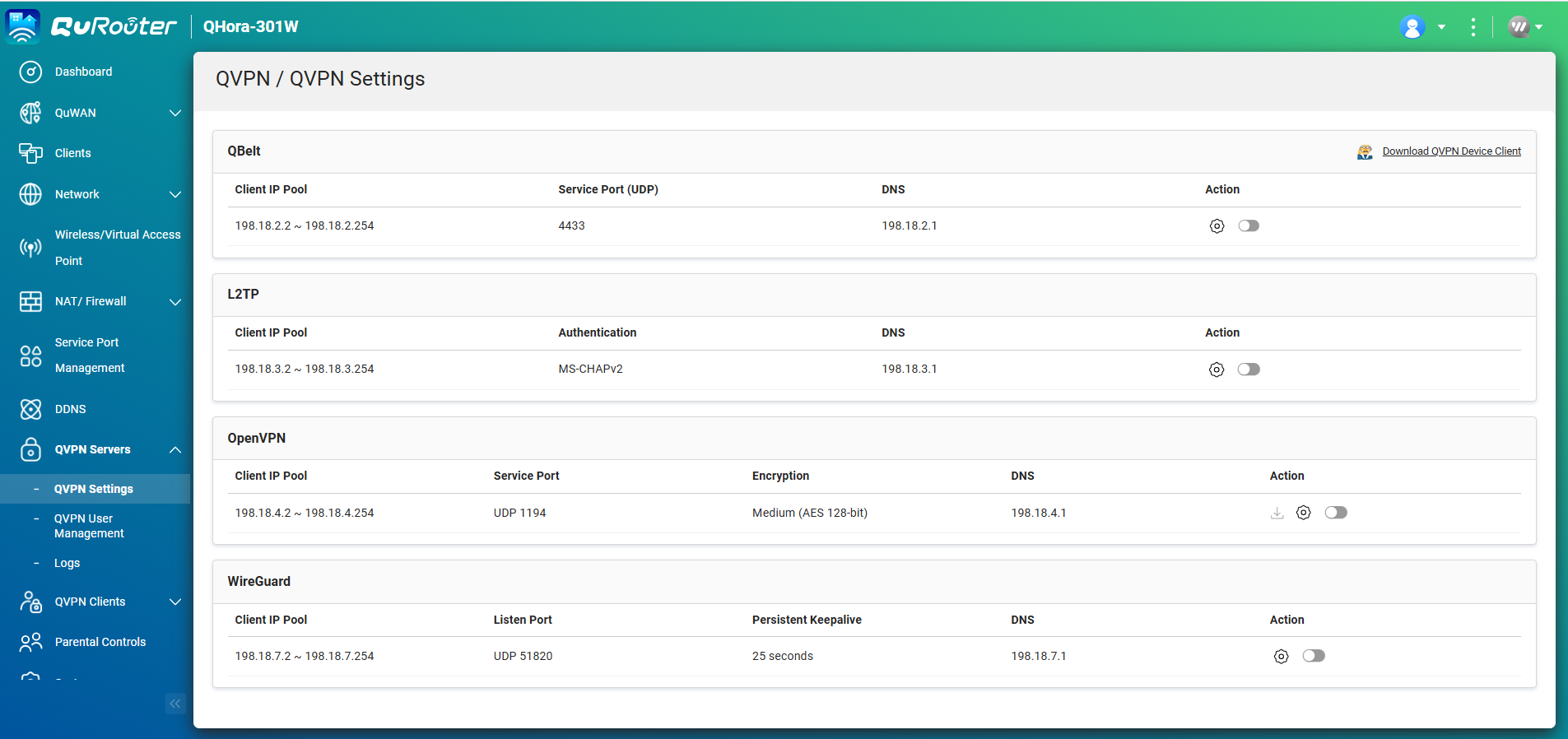
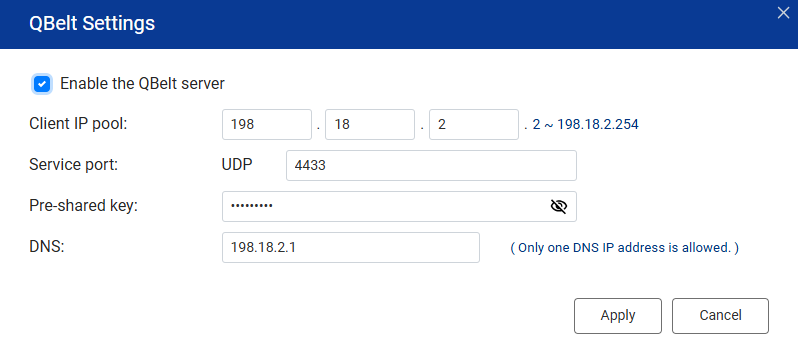
4. Complete the server configuration (port, IP pool, DNS) and click Apply.
Note
Because the Qhora router is already the WAN gateway, its VPN port is directly reachable from the internet — no additional port-forwarding rule is required.
On the Remote Computer — Connect to the VPN
- Install the matching VPN client for the chosen protocol.
- Connect to the VPN. The tunnel terminates at the router and you are placed on the home LAN.
SSH into the NAS via PuTTY
- Open PuTTY.
- In the Host Name field, enter the NAS's LAN IP address (e.g.,
192.168.1.100).
- Set Port to the SSH port configured on the NAS (default:
22).
- Click Open and log in with your NAS credentials.
Tip
This approach gives you full LAN access through one VPN connection — not just the NAS, but any other device on the home network as well.
Option C: Overlay VPN Tools (e.g., Tailscale, ZeroTier)
Overlay VPN tools create an encrypted virtual network between enrolled devices without requiring any router port forwarding. Install the client on both the NAS (via App Center) and the remote computer, sign in with the same account, and the devices can reach each other as if on a LAN.
Once the overlay VPN is connected, use the virtual IP address assigned to the NAS by the VPN service (not the WAN IP and not the LAN IP) as the PuTTY host.
Note
Each overlay VPN tool has its own setup procedure. Refer to the respective documentation.
Troubleshooting
Issue: PuTTY times out or shows "Network error: Connection timed out" when using the WAN IP.
Solution: The router is blocking the connection. Do not attempt to connect via the WAN IP directly — establish a VPN tunnel first and use the LAN IP.
Issue: PuTTY shows "Connection refused" even after the VPN tunnel is connected.
Solution:
- Confirm SSH is enabled on the NAS: go to Control Panel > Network & File Services > Telnet / SSH and verify SSH is on and note the port number.
- Verify you are using the correct LAN IP address (not the WAN IP or VPN virtual IP, unless using an overlay VPN).
- Check that no NAS-side firewall rule is blocking the connection: go to Control Panel > Security > Security Level.
Issue: VPN connects but the NAS LAN IP is unreachable.
Solution:
- Confirm the VPN tunnel is fully established (check the VPN client status).
- For QVPN, verify the assigned IP pool does not conflict with the home LAN subnet.
- Try pinging the NAS LAN IP from the remote computer to confirm layer-3 reachability before opening PuTTY.
Further Reading
适用产品
- All QNAP NAS models running QTS or QuTS hero
概述
在本地网络上正常工作的 SSH 访问通常会在尝试通过 WAN(公共)IP 地址从外部访问时失败。这是预期且正确的行为——默认情况下,家用路由器会阻止来自互联网的入站连接,故意将 SSH 暴露给互联网会招致暴力破解攻击和自动化漏洞扫描器。
正确的方法是首先在远程计算机和家庭网络之间建立 VPN 隧道,然后使用其本地(LAN)IP 地址连接到 NAS,就像在家中一样。NAS 本身永远不需要暴露在公共互联网中。
解决方案:首先建立 VPN 隧道
一旦 VPN 隧道激活,您的远程计算机实际上就在与 NAS 相同的私有网络上。然后您可以将 PuTTY 指向 NAS 的LAN IP 地址(例如,192.168.1.x),SSH 连接将像在家中一样成功。
有多种 VPN 选项可供选择,包括 QNAP 的内置QVPN VPN 服务器和第三方解决方案,如 WireGuard、OpenVPN 以及像 Tailscale 或 ZeroTier 这样的覆盖 VPN 工具。选择适合您基础设施的选项。
选项 A:QVPN VPN 服务器(内置 QNAP 解决方案)
QNAP 的QVPN VPN 服务器应用程序让 NAS 充当 VPN 服务器(支持 OpenVPN、WireGuard 和 L2TP/IPSec)。您的远程计算机连接到 VPN 服务器,虚拟加入家庭网络。
在 NAS 上——设置 VPN 服务器
- 在 QTS/QuTS hero 中,打开App Center并安装QVPN VPN 服务器(如果尚未安装)。
- 打开QVPN VPN 服务器并转到VPN 服务器选项卡。
- 选择协议(推荐使用 WireGuard 以获得性能;OpenVPN 适用于广泛的客户端兼容性)并启用服务器。
- 配置允许的 IP 池并下载或导出客户端配置文件。
- 在您的路由器上,将相应的 VPN 端口转发到 NAS 的 LAN IP 地址。
| VPN 协议 |
默认端口适用 |
协议类型 |
| L2TP/IPSec |
500, 4500, 1701 |
UDP |
| OpenVPN |
1194 |
UDP |
| WireGuard |
51820 |
UDP |
| QBelt |
443 |
UDP |
注意
- 不要将其他 NAS 服务端口开放到互联网。这确保所有访问都通过 VPN 隧道。
- 实际端口号可以在您的设备设置中自定义。请始终在 QVPN 管理界面中确认配置的端口。
在远程计算机上 — 连接到 VPN
- 安装匹配的 VPN 客户端(例如,官方 WireGuard 应用或 OpenVPN 客户端)。
- 导入从 QVPN VPN 服务器导出的配置文件。
- 连接到 VPN。一旦隧道建立,您的计算机就处于家庭局域网中。
通过 PuTTY SSH 连接到 NAS
- 打开 PuTTY。
- 在主机名字段中,输入 NAS 的局域网 IP 地址(例如,
192.168.1.100)。
- 将端口设置为 NAS 上配置的 SSH 端口(默认:
22)。
- 点击打开并使用您的 NAS 凭据登录。
注意
VPN 端口(不是 SSH 端口)必须在路由器上进行转发。SSH 本身不需要暴露在互联网上。
提示
在 NAS 上使用控制台 > 网络与虚拟交换机 > 概览来确认出行前的局域网 IP 地址。
选项 B:QHORA 路由器作为 VPN 服务器(无需暴露 NAS)
如果您的网络使用QNAP Qhora 路由器(例如,Qhora-301W,Qhora-321),您可以直接在路由器上运行 VPN 服务器,而不是在 NAS 上。这是较简洁的拓扑:路由器已经是面向互联网的设备,因此不需要为 NAS 设置额外的端口转发规则,局域网中的每个设备——包括 NAS——都可以通过 VPN 隧道自动访问。
在 Qhora 路由器上——设置 VPN 服务器
-
登录 Qhora 管理界面(默认:http://192.168.100.1或通过 QTS 中的QuRouter进行集中管理)。
-
进入VPN > VPN 服务器。
-
选择一个协议并点击启用:
| 协议 |
| QBelt |
| L2TP |
| OpenVPN |
| WireGuard |
4. 完成服务器配置(端口、IP 池、DNS)并点击应用。
注意
由于 Qhora 路由器已经是 WAN 网关,其 VPN 端口可以直接从互联网访问——无需额外的端口转发规则。
在远程计算机上——连接到 VPN
- 安装与所选协议匹配的 VPN 客户端。
- 连接到 VPN。隧道终止于路由器,您将置于家庭局域网中。
通过 PuTTY SSH 进入 NAS
- 打开 PuTTY。
- 在主机名字段中,输入 NAS 的局域网 IP 地址(例如,
192.168.1.100)。
- 将端口设置为 NAS 上配置的 SSH 端口(默认:
22)。
- 点击打开并使用您的 NAS 凭据登录。
提示
这种方法通过一个 VPN 连接为您提供完整的局域网访问——不仅仅是 NAS,还有家庭网络上的其他设备。
选项 C:覆盖 VPN 工具(例如,Tailscale,ZeroTier)
覆盖 VPN 工具在注册设备之间创建一个加密的虚拟网络,无需任何路由器端口转发。在 NAS(通过 App Center)和远程计算机上安装客户端,使用相同的账户登录,设备即可像在局域网中一样互相访问。
一旦覆盖 VPN 连接成功,使用 VPN 服务分配给 NAS 的虚拟 IP 地址(不是 WAN IP,也不是 LAN IP)作为 PuTTY 主机。
注意
每个覆盖 VPN 工具都有其自己的设置程序。请参考相应的文档。
故障排除
问题:使用 WAN IP 时,PuTTY 超时或显示“网络错误:连接超时”。
解决方案:路由器阻止了连接。不要尝试直接通过 WAN IP 连接——首先建立 VPN 隧道并使用 LAN IP。
问题:即使 VPN 隧道已连接,PuTTY 仍显示“连接被拒绝”。
解决方案:
- 确认 NAS 上的 SSH 已启用:前往控制台 > 网络和文件服务 > Telnet / SSH,确认 SSH 已开启并记录端口号。
- 确认您使用的是正确的LAN IP 地址(除非使用覆盖 VPN,否则不要使用 WAN IP 或 VPN 虚拟 IP)。
- 检查是否有 NAS 端的防火墙规则阻止了连接:前往控制台 > 安全 > 安全级别。
问题: VPN 连接成功但 NAS LAN IP 无法访问。
解决方案:
- 确认 VPN 隧道已建立(检查 VPN 客户端状态)。
- 对于 QVPN,确认分配的 IP 池与家庭 LAN 子网不冲突。
- 尝试从远程计算机 ping NAS LAN IP,以确认在打开 PuTTY 之前的三层可达性。
进一步阅读


