


How to offer internet connection to a device connected directly to the NAS
Applied models:
-
All NAS Series with 2 or more network adapter
Applied Firmware:
-
All
Before this The NAS should have internet connection using one of the adapters and we have selected the adapter as default gateway.
Now we connect the device (a computer for example) directly to the NAS in a free adapter and follow these steps:
1. Open Network & Virtual Switch and create a Virtual Switch > Advanced Mode.
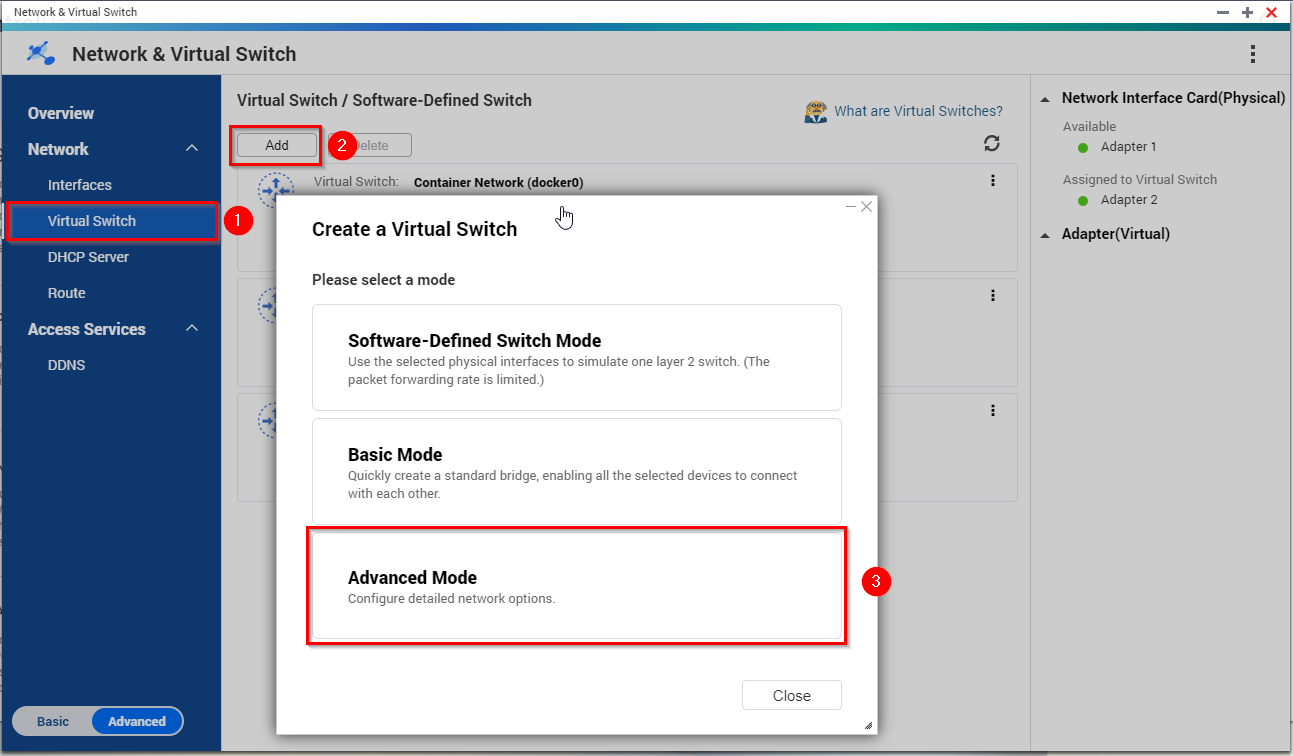
2. Select NAS LAN port in which we connected the another device (in our example port 2) .

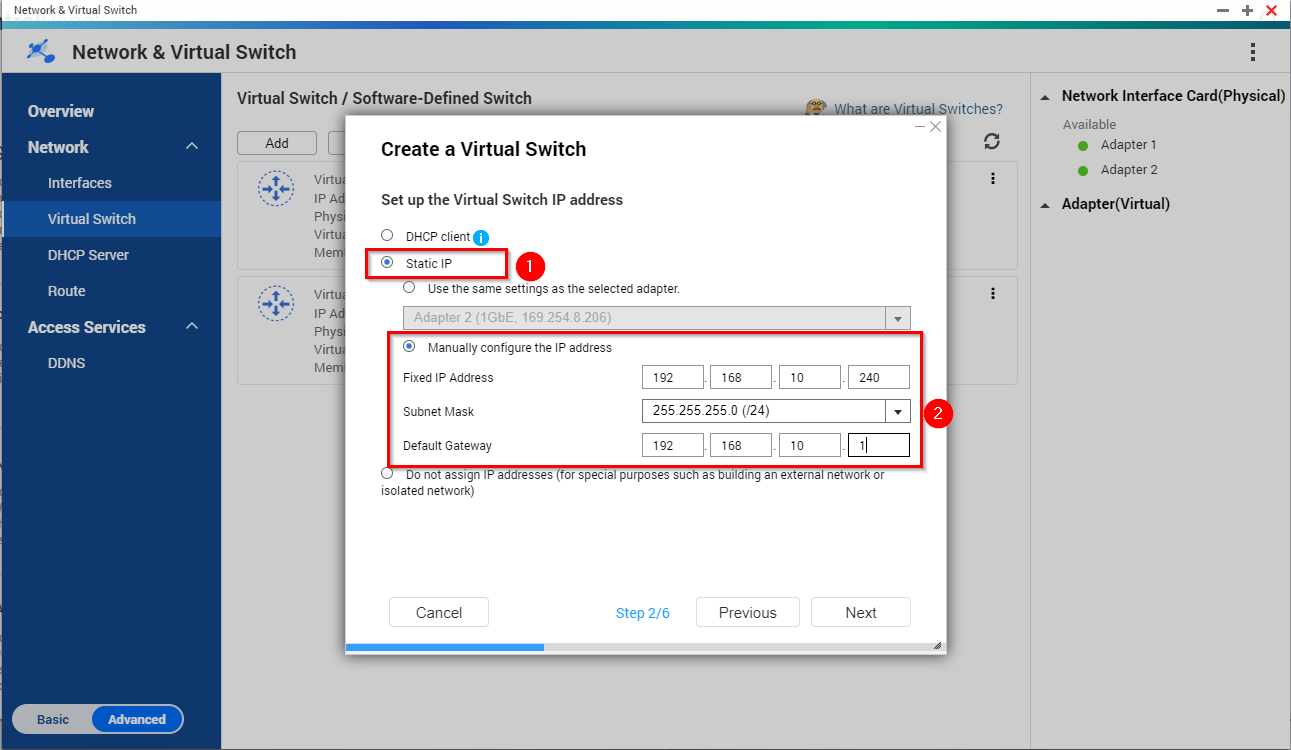
3. We Static IP and Assign an IP in a different network as our local network. In our example we use the networ 192.168.10.0/24 and assign the NAS the ip 192.168.10.240. We need to assign a default gateway so we use the 192.168.10.1 (this is a free IP, no device will use this).
4. Select "Enable NAT" & "Enable DHCP server".
In this way the NAS will act as a DHCP server. We would set the DHCP server on this page. (remember to assign the 192.168.10.1 with the DHCP server. I selected in the example to start with the IP 192.168.10.2 so the first IP will be free).

Finally you will not change any other parameter in the wizard, just click “Next” until the end.
This way the NAS will act as DHCP server and will provide IP and DNS settings to the devices connected to the adapter2 (you can connect as well a switch to the adapter and devices to the physical switch). As well will provide them internet connection through the NAS and access to the Adapter 1 local network using the local IP.
需要进一步协助,欢迎前往官方社区发帖,与其他用户及 QNAP 专家交流。 前往 QNAP 官方社区


