


What should I do if I cannot access my QNAP NAS due to a firewall block?
最后修订日期:
2026-10-02
Applicable Products
Software
- QuFirewall 2.4.1 and later
Operating Systems
- QTS
- QuTS hero
Scenario
You cannot access your NAS because QuFirewall or QTS's security setting has blocked your device's IP address, preventing it from connecting to the NAS.
Before you start
If your device's IP address has been blocked, you can't use that same device to fix the problem. It won't be able to connect to the NAS to change the firewall settings. You'll need either:
- A different device on the same network whose IP address isn't blocked.
- The same device connected from a different network or a different IP address (for example, by switching networks or using a VPN).
The steps below assume you're using an unblocked device.
Solution
If QuFirewall is installed
- On an unblocked device connected to the same network as the NAS, download and install Qfinder Pro.
- Open Qfinder Pro. It automatically searches for QNAP NAS devices on your network.
- Locate your NAS in the list and double-click its name or IP address. The QTS login screen opens in your browser.
- Log in with your username and password.
- Open QuFirewall and go to Denied IP Analysis.
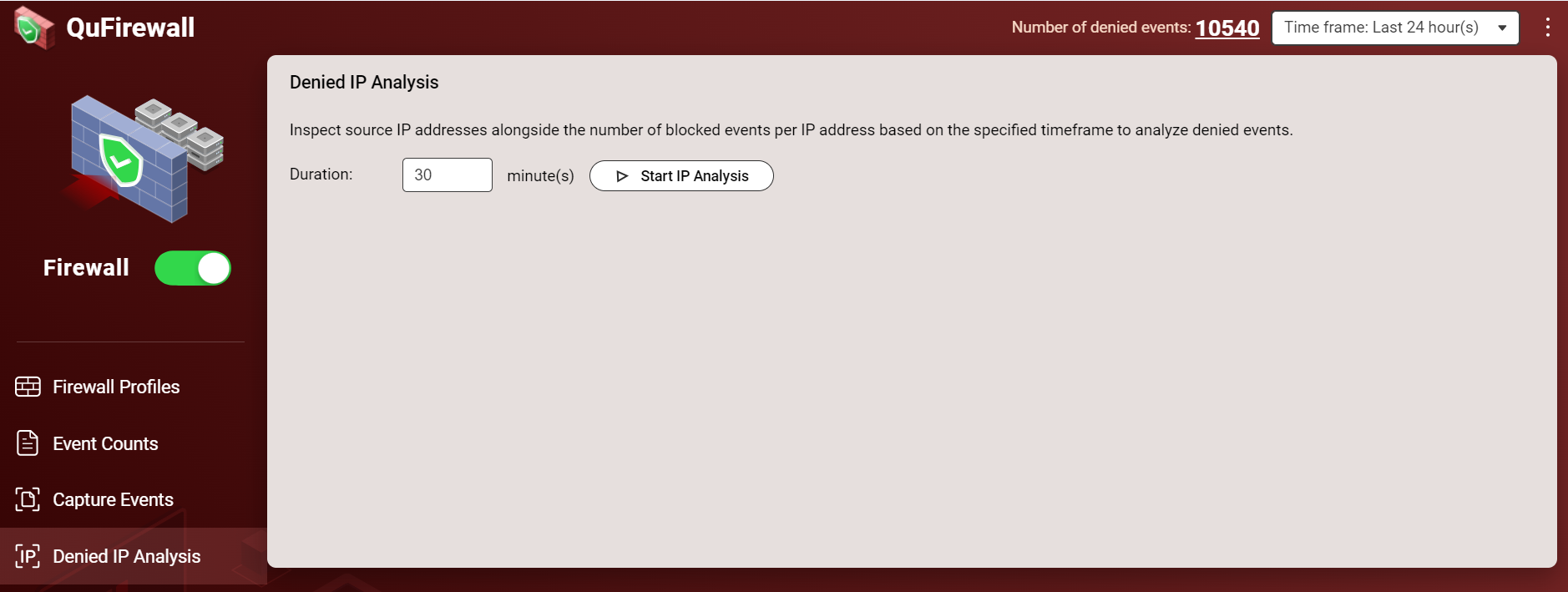
- Click Start IP Analysis.
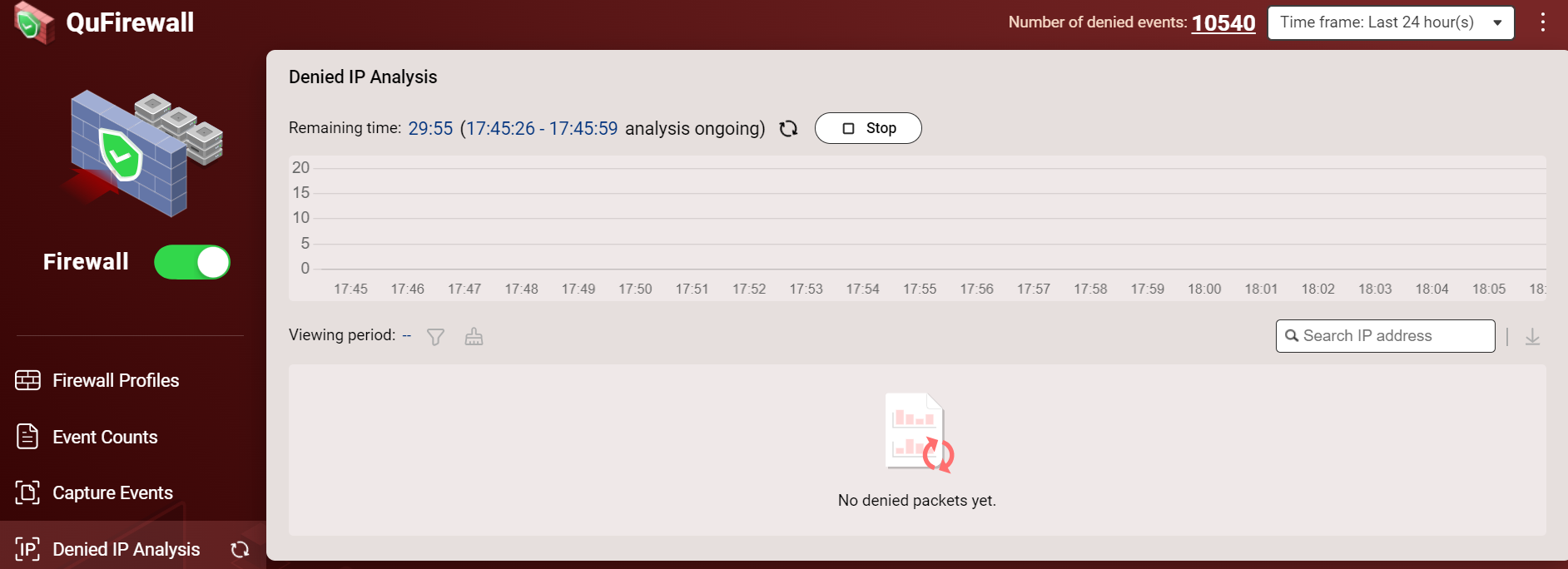
- From the originally blocked device, try connecting to the NAS again using its IP address while the analysis is running.
- Wait for the analysis to finish.
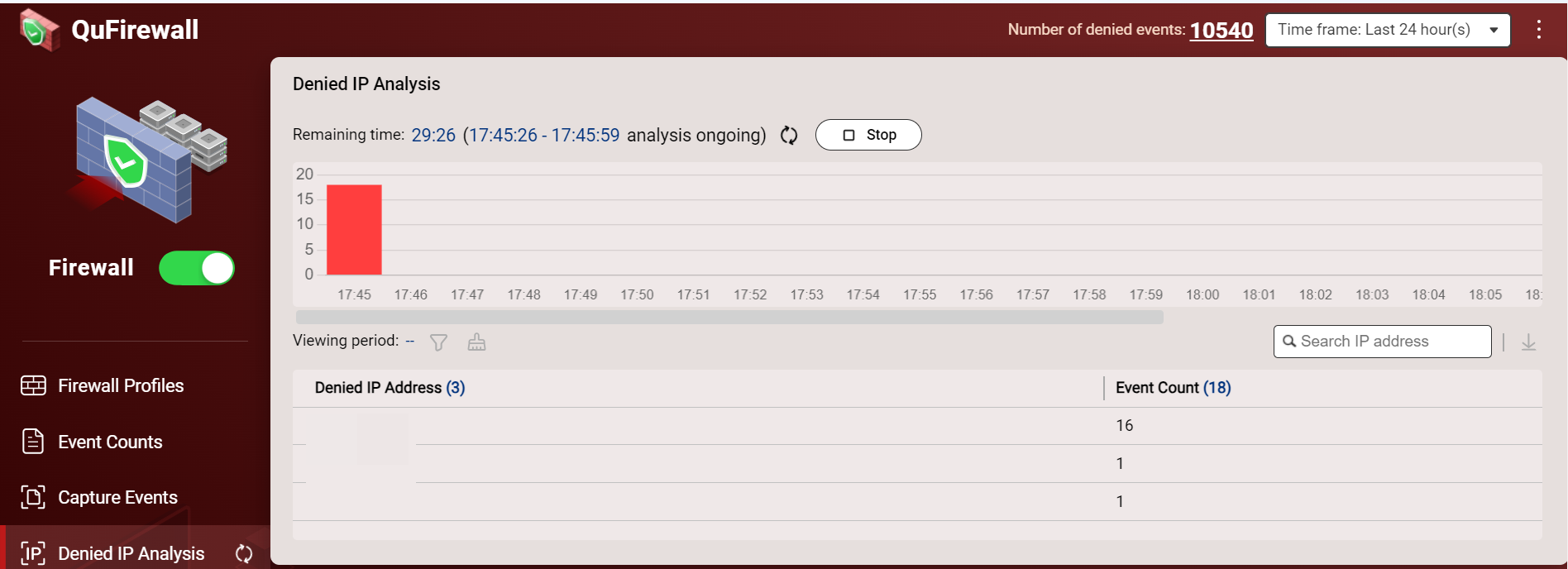
- If the blocked device's IP address appears in the results, create a new QuFirewall rule to allow it.
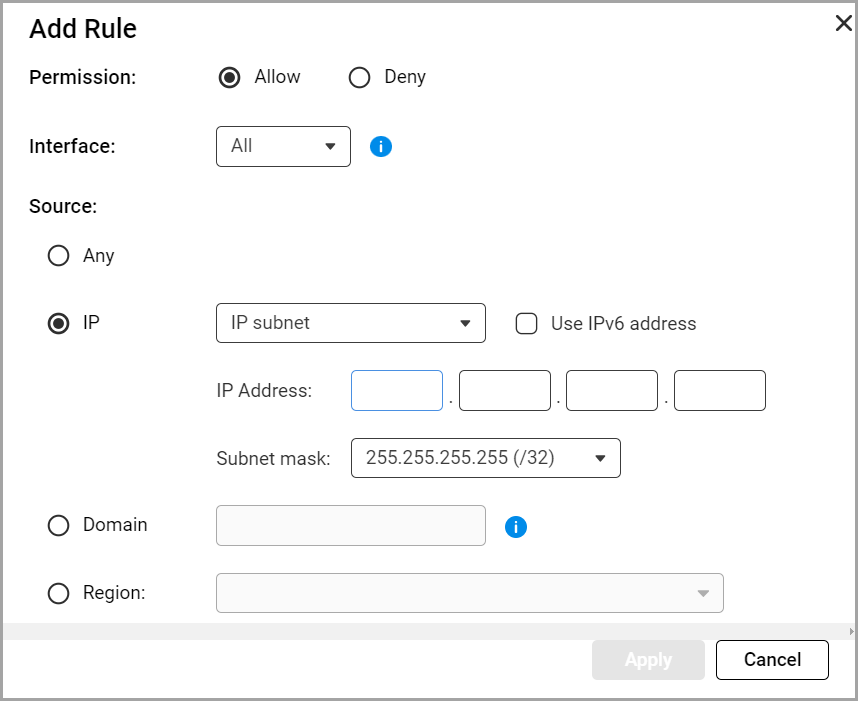
For details, see How to Use QuFirewall? - Also check whether the IP address is listed under Firewall Profiles > your active profile > Denied IP Addresses:
- Go to Firewall Profiles, click Add Profile, and select Create Profile.
- Next to Denied IP addresses, click the edit icon.

- The Denied IP Addresses window appears.
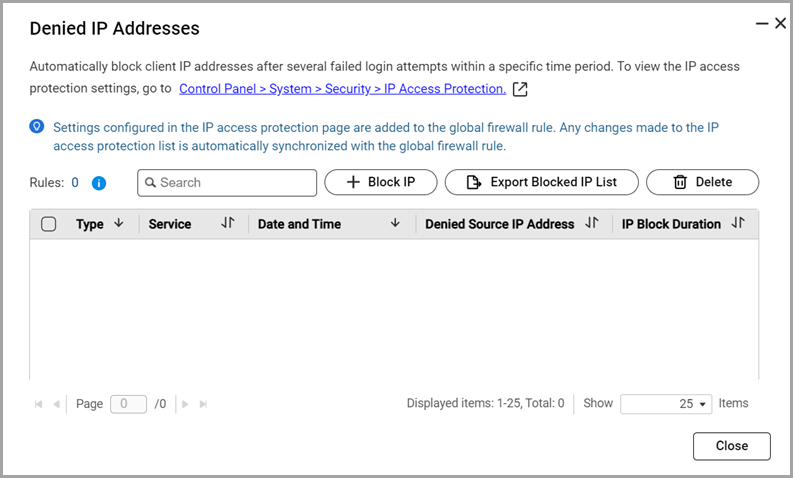
- Check if the blocked device's IP address is in the list.
- If it is, select it and click Delete.
If QuFirewall is not installed
Confirm that Control Panel security settings aren't blocking your device:
- Connect a different, unblocked computer that can access the NAS.
- Log in to QTS as an administrator.
- Go to Control Panel > System > Security > Allow/Deny List.
- Select an option:
| Option | Description | User Action |
|---|---|---|
| Allow all connections | The NAS can connect to all IP addresses and network domains. | Select Allow all connections. |
| Use IP deny list | The NAS cannot connect to any IP address or network domain on the deny list. | Select Deny connections from the list, click Add, specify the IP address, netmask, or range, then click Create. |
| Use IP allow list | The NAS can only connect to IP addresses or network domains on the allow list. | Select Allow connections from the list only, click Add, specify the IP address, netmask, or range, then click Create. |
- Click Apply.
Note
- If your device still remains blocked, review the Access Logs in QuLog Center to help identify the root cause, and report it to QNAP Customer Service.
- If you can't access the NAS from any device at all, you may need to reset the NAS. See System reset and restore to factory default.
需要进一步协助,欢迎前往官方社区发帖,与其他用户及 QNAP 专家交流。 前往 QNAP 官方社区


