Applicable Products
QTS, QuTS hero, HBS3 (Hybrid Backup Sync 3)
Overview
As businesses increasingly adopt cloud services like Microsoft 365 and OneDrive for Business, it's important to have a reliable backup strategy to protect your cloud-stored data. While cloud providers offer some level of redundancy, they do not replace the need for dedicated backup, especially when dealing with accidental deletions, ransomware, or compliance requirements.
QNAP offers a comprehensive backup solution through Hybrid Backup Sync (HBS3), which allows users to seamlessly back up, restore, and synchronize data across local NAS, remote servers, and popular cloud platforms. HBS3 provides solutions for backup, restoration, and synchronization across local, remote, and cloud storage. HBS3 also allows you to protect your NAS data by backing it up to supported cloud services like OneDrive for Business — and in some configurations, also retrieving data from the cloud back to the NAS.
Procedure
Follow these steps to back up data from the QNAP NAS to Microsoft OneDrive for Business using HBS3:
Step 1: Add OneDrive for Business as a Storage Space
Open HBS3 in the App Center or from the Main Menu.
In the left panel, go to Storage Spaces, and click + Add.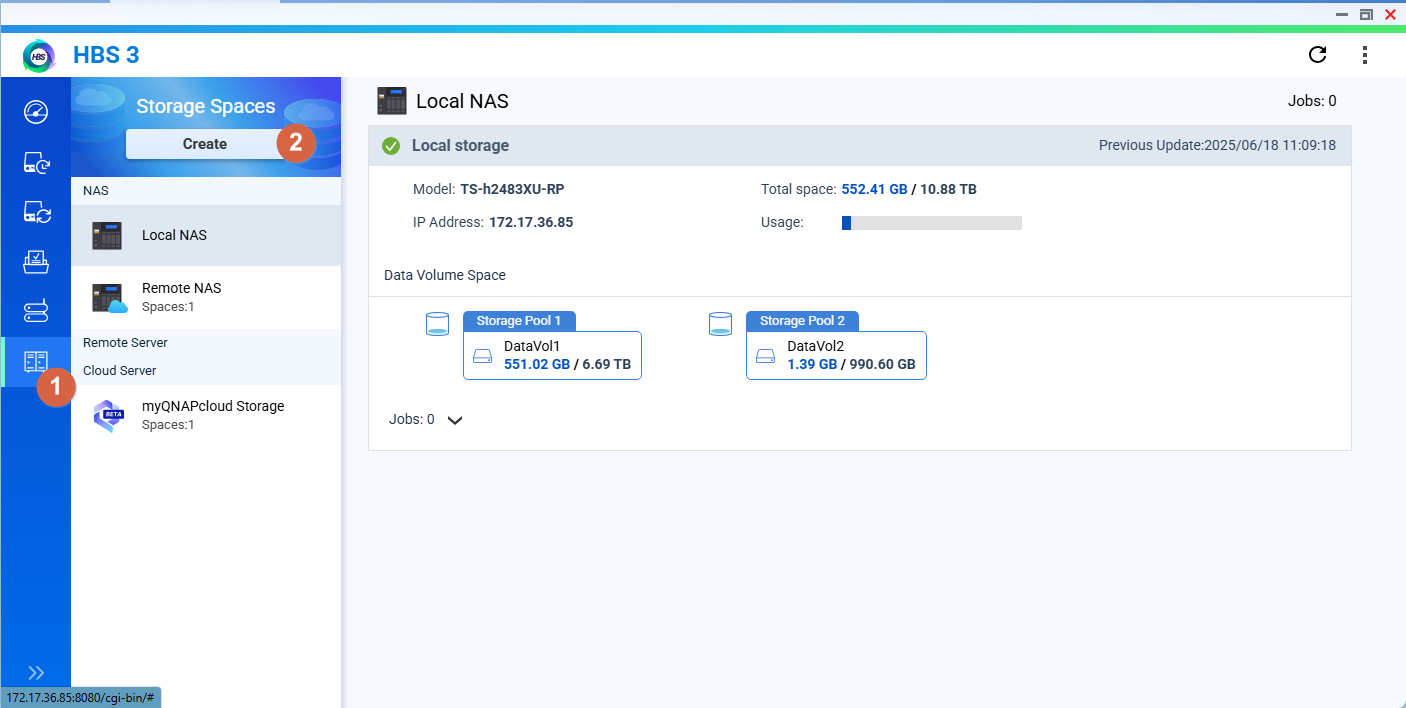
Choose OneDrive for Business from the list of supported cloud services.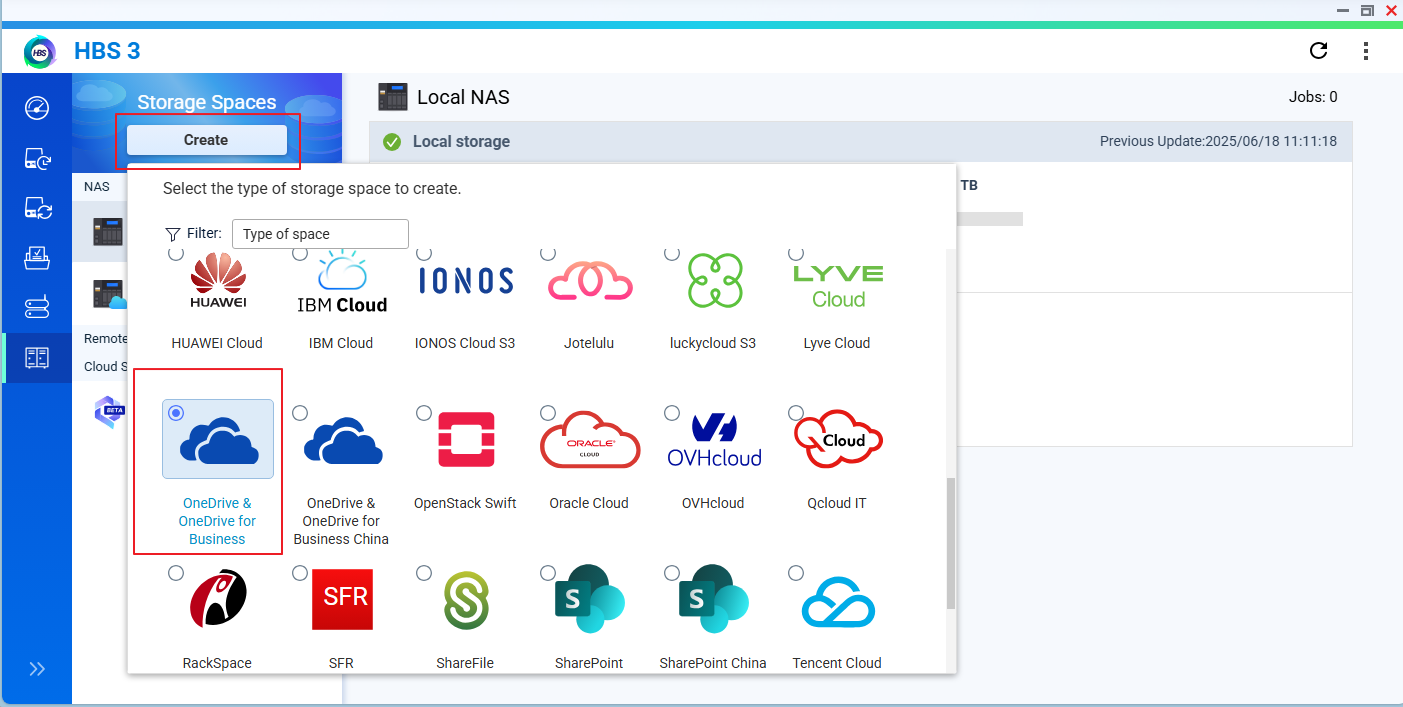
Sign in with your Microsoft 365 account and grant necessary permissions.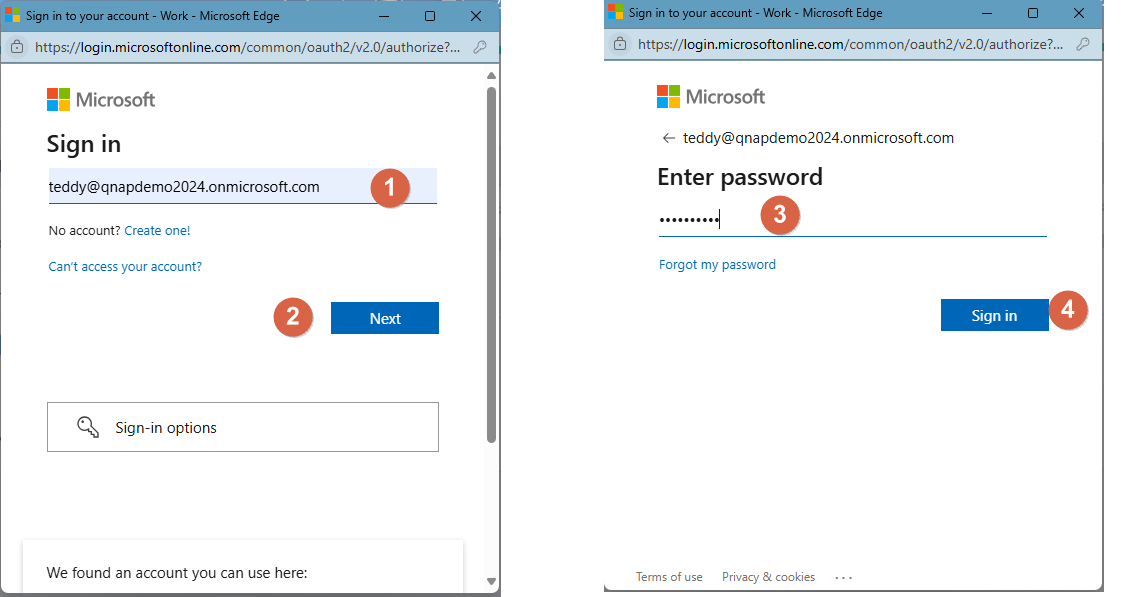
After authentication, OneDrive for Business will appear as a cloud storage destination.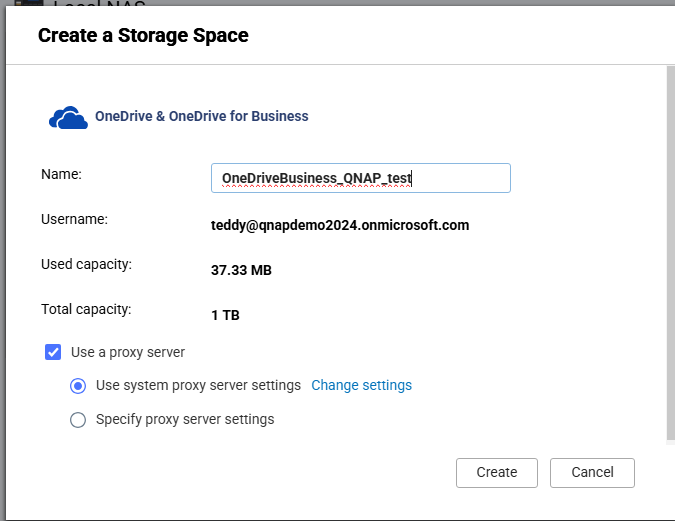
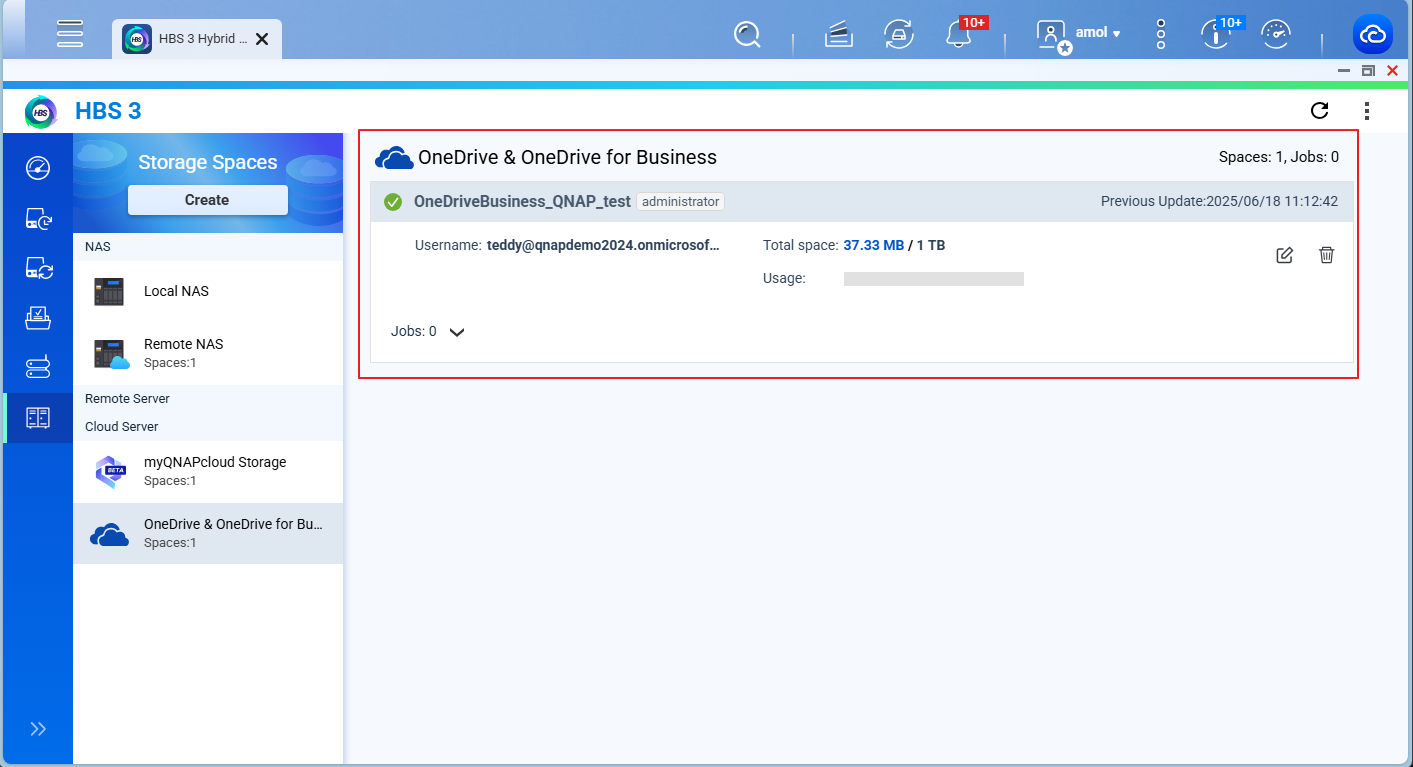
Step 2: Create a Backup Job
Go to Backup & Restore > Backup Job > New Backup Job.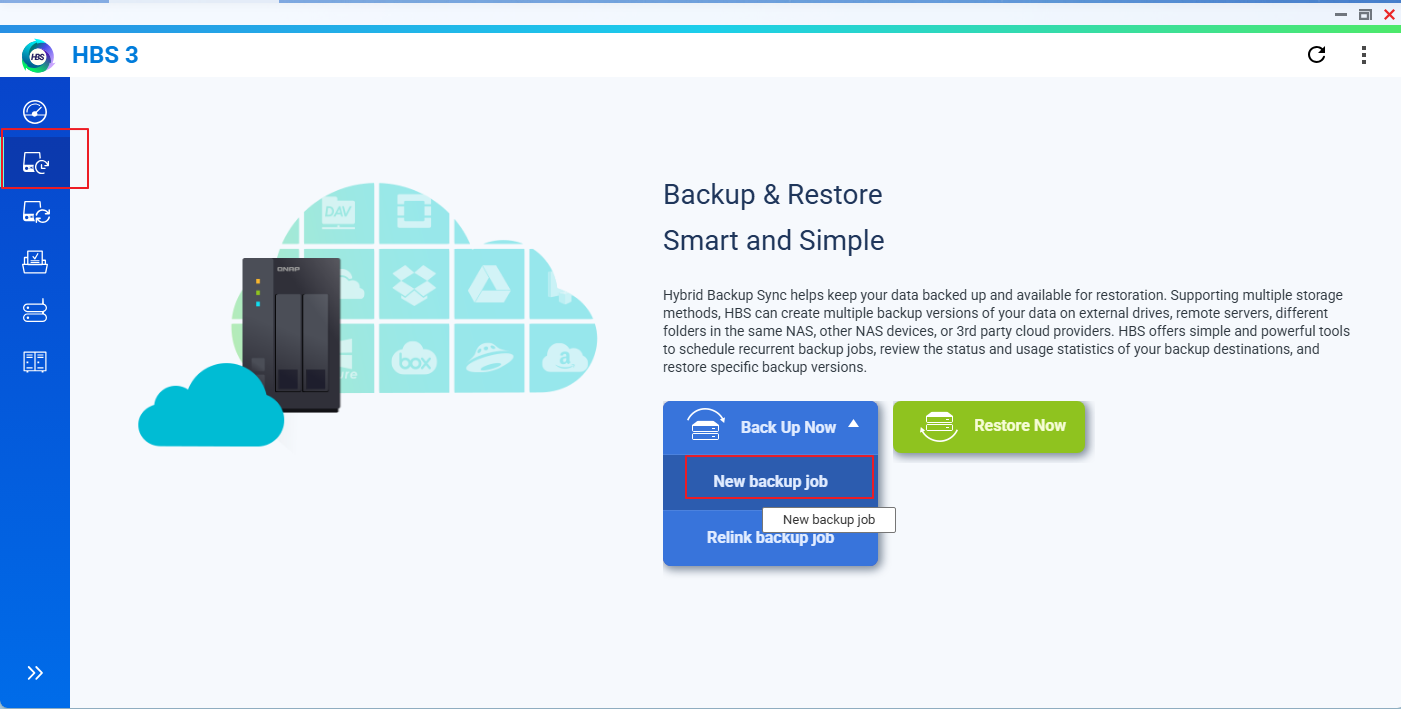
Select the source folders on your NAS that you want to back up.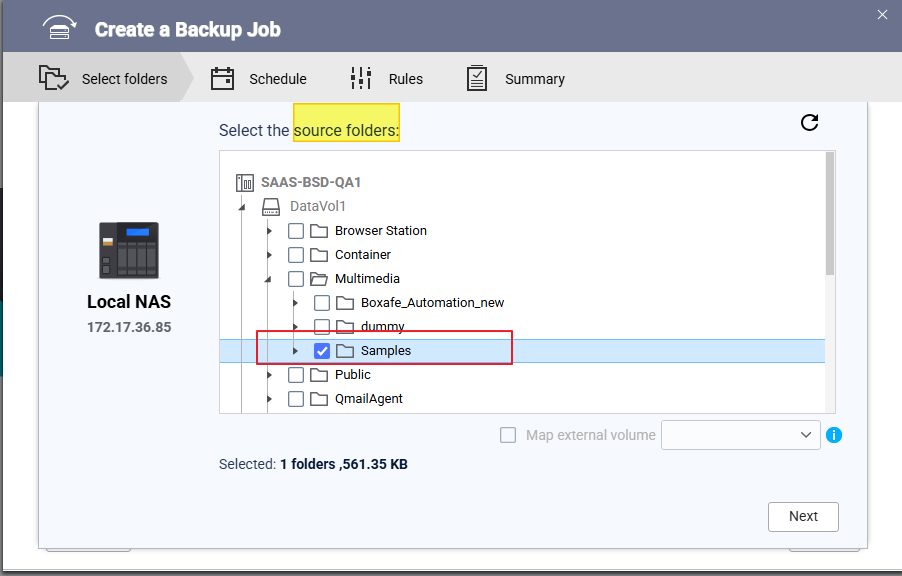
Choose OneDrive for Business as the destination.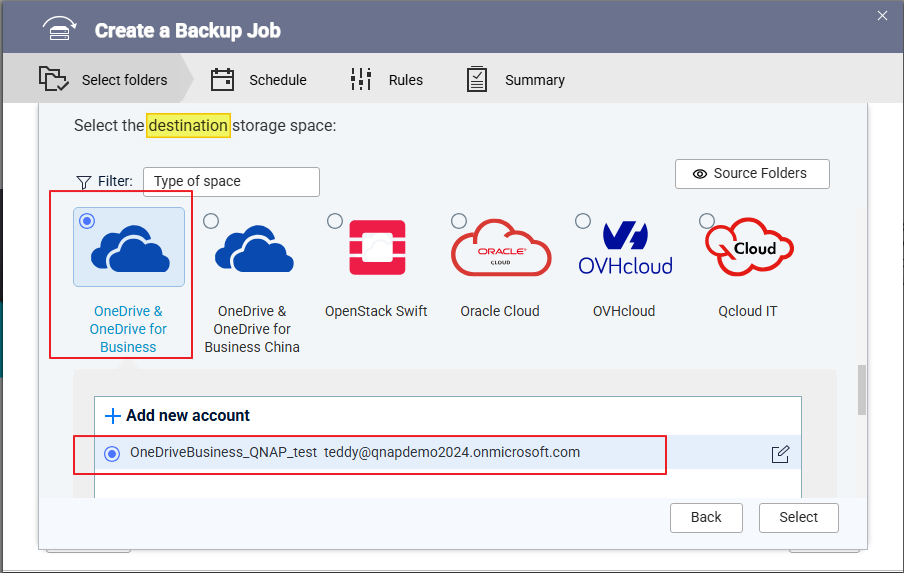
Verify source and destination details and enter an appropriate Job Name. Click Next.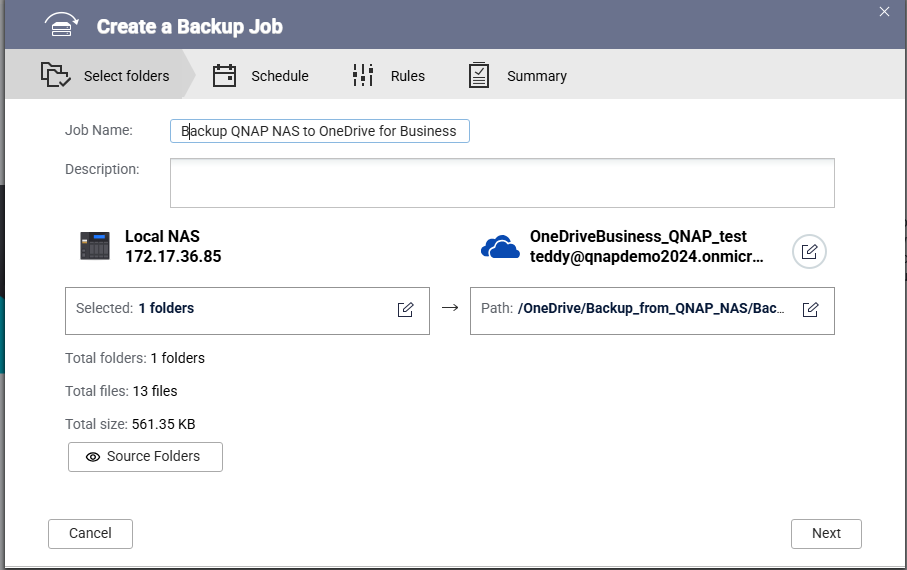
(Optional) Configure additional options such as:
Click Create to save and activate the backup job.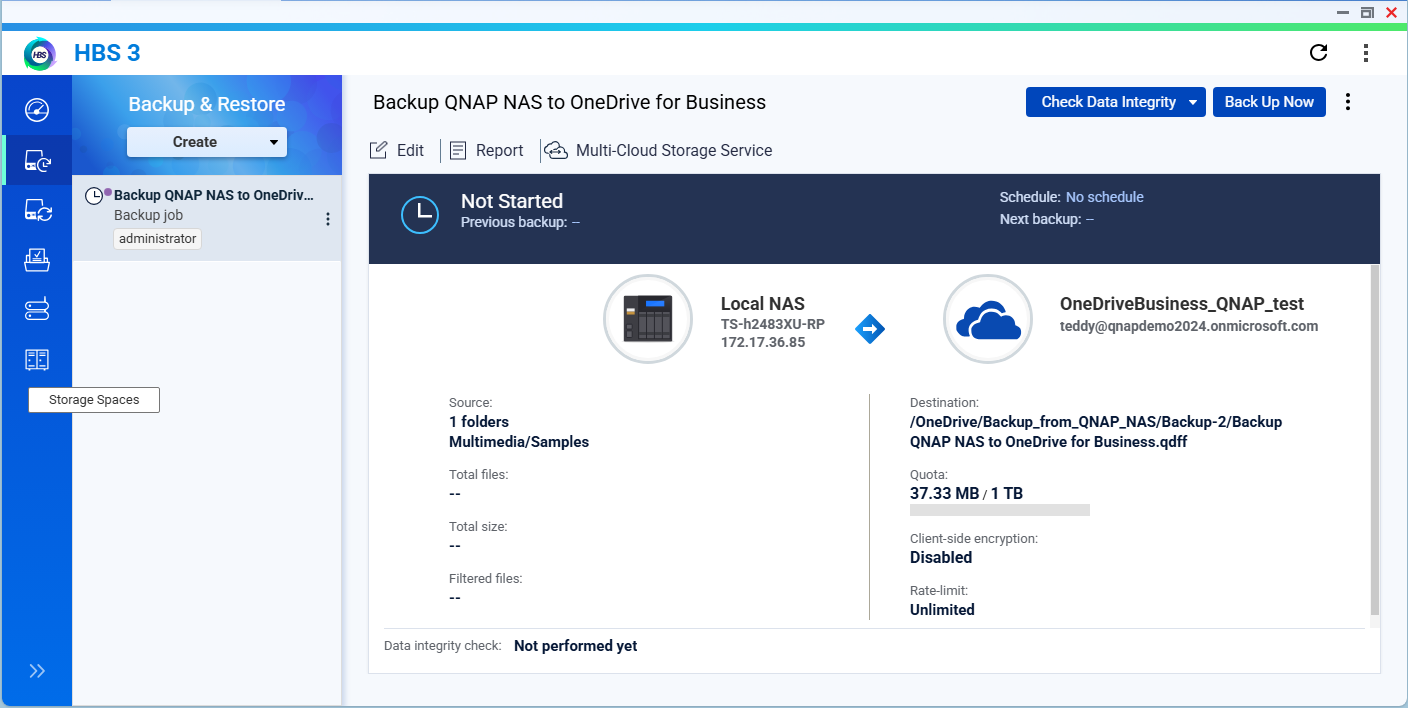
Step 3: Run the Backup Job
You can run the backup job immediately or only run the job based on a specified schedule. 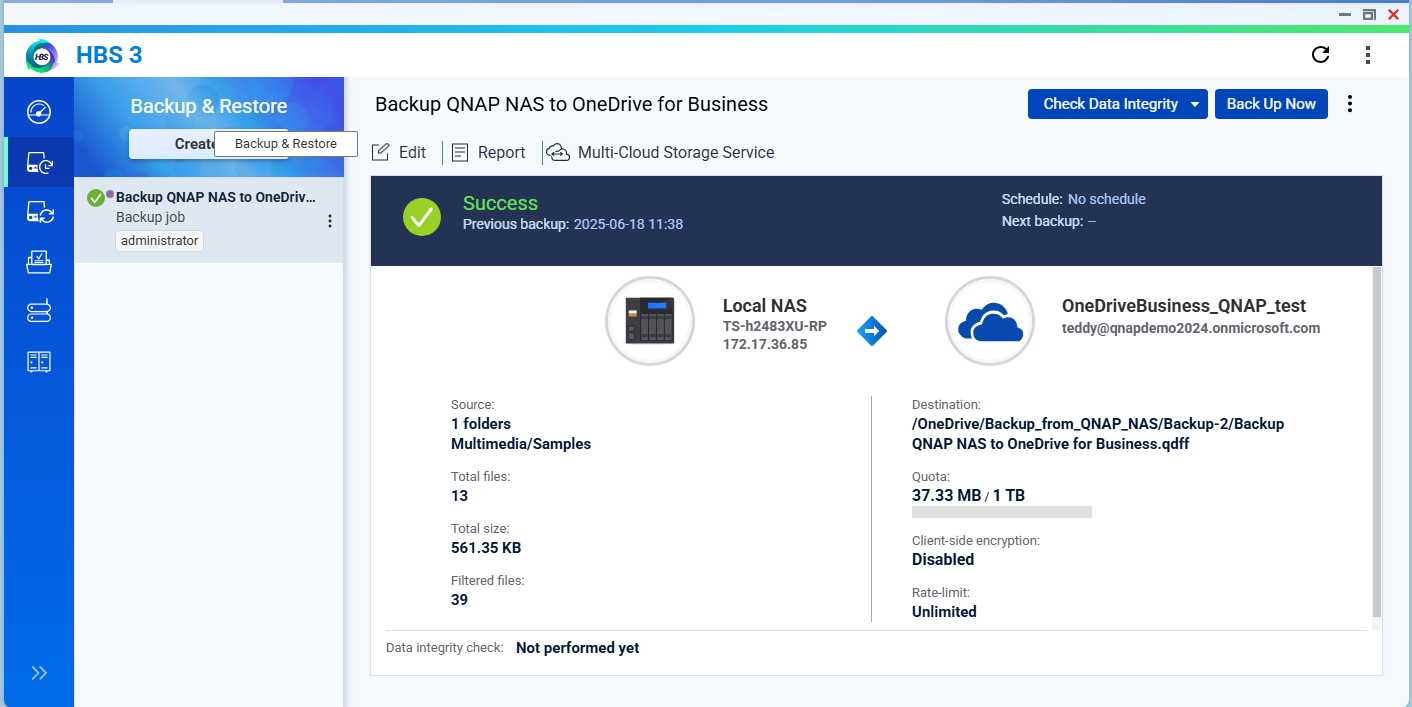
After job completion, you may log in to the OneDrive for Business portal and check whether the data is backed up successfully. 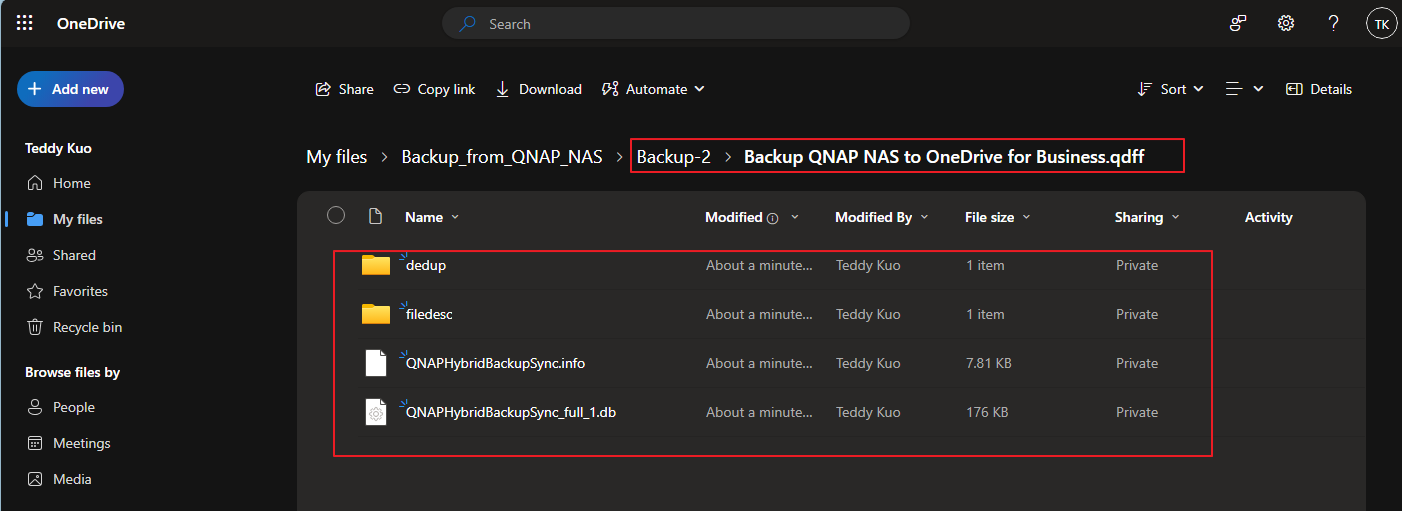
Tip
You may also explore options to use QNAP
HDP for SaaS to back up data from OneDrive for Business to QNAP NAS if you have such requirements.
Further Reading
Scenarios for Using Active Sync in HBS 3
适用产品
QTS, QuTS hero, HBS3 (Hybrid Backup Sync 3)
概述
随着企业越来越多地采用云服务,如 Microsoft 365 和 OneDrive for Business,拥有可靠的备份策略来保护云存储的数据变得尤为重要。虽然云服务提供商提供了一定程度的冗余,但它们不能替代专用备份的需求,尤其是在处理意外删除、勒索软件或合规要求时。
QNAP 通过Hybrid Backup Sync (HBS3)提供全面的备份解决方案,使用户能够无缝备份、恢复和同步本地 NAS、远程服务器和流行云平台的数据。HBS3 提供备份、恢复和同步本地、远程和云存储的解决方案。HBS3 还允许您通过备份到支持的云服务(如 OneDrive for Business)来保护您的 NAS 数据,并在某些配置中将数据从云检索回 NAS。
步骤
按照以下步骤使用 HBS3 将数据从 QNAP NAS 备份到 Microsoft OneDrive for Business:
步骤 1:将 OneDrive for Business 添加为存储空间
在 App Center 中打开 HBS3 或从主菜单打开。
在左侧面板中,进入存储空间,然后点击 + 添加。
选择OneDrive for Business从支持的云服务列表中。
使用您的 Microsoft 365 账户登录并授予必要的权限。
认证后,OneDrive for Business 将显示为云存储目的地。
步骤 2:创建备份任务
进入备份与恢复 > 备份任务 > 新建备份任务。
选择源文件夹 在您的 NAS 上您想要备份的内容。
选择 OneDrive for Business 作为 目的地。
验证 源和 目的地 详细信息并输入适当的 任务名称。点击 下一步。
(可选)配置其他选项,例如:
点击 创建以保存并激活备份任务。
步骤 3:运行备份任务
提示
如果您有这样的需求,您还可以探索使用 QNAP
SaaS 的 HDP将数据从 OneDrive for Business 备份到 QNAP NAS 的选项。
进一步阅读
在 HBS 3 中使用 Active Sync 的场景


