Applicable Products
Qfile Pro iOS 4.5.3 or later, Qfile Pro Android 4.5.1 or later
Overview
When you sign in to Qfile Pro using your QID account and try to enable biometric authentication, you may see a message stating that you have reached the device limit for biometric authentication. In this case, you will not be able to enable biometric authentication on the new device. Biometric authentication for Qfile Pro can only be enabled on a maximum number of mobile devices. You will be unable to enable biometric authentication new mobile devices after enabling it on the maximum number of devices.
Solution
To enable biometric authentication on a new device after reaching the maximum number of devices, you must first remove account access for one or more devices from your QNAP account from the QNAP Account webpage.
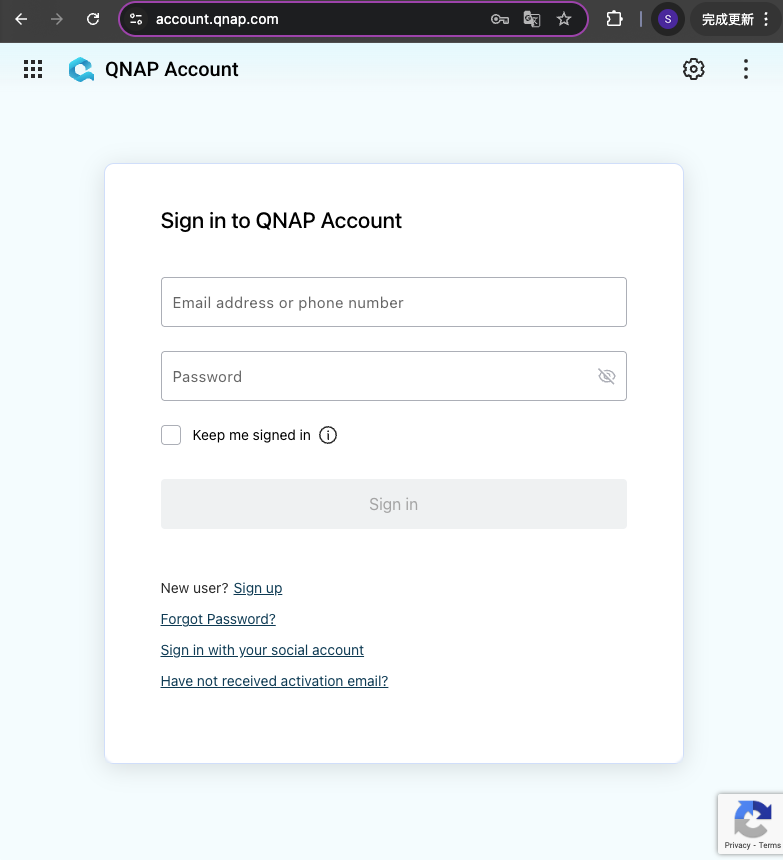
- Sign into your QNAP account via the QNAP Account webpage.
- In the left menu, go to Security.
- Go to the Logged in Devices tab.
- In the Account Access column, click Remove Access.
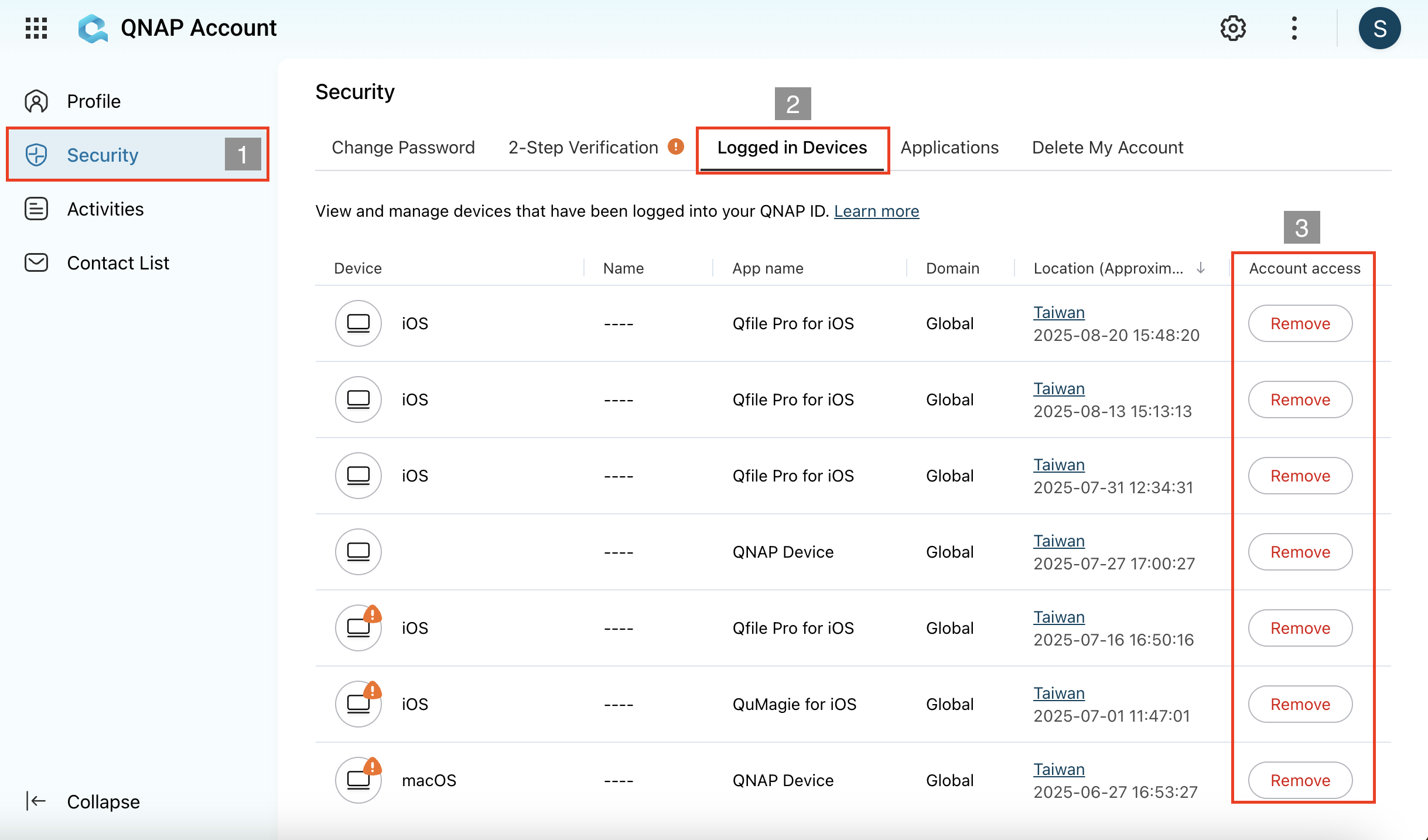
Removing access for a device will log the device out of QNAP Account. You do not need to disable biometric authentication on the device. You can remove a device's account access without having access to the device, if the device is lost or stolen for example.
- On the new mobile device, sign into Qfile Pro, go to Settings > Manage QNAP ID and enable biometric authentication.
适用产品
Qfile Pro iOS 4.5.3 或更高版本,Qfile Pro Android 4.5.1 或更高版本
概述
当您使用 QID 账户登录 Qfile Pro 并尝试启用生物识别认证时,可能会看到一条消息,提示您已达到生物识别认证的设备限制。在这种情况下,您将无法在新设备上启用生物识别认证。Qfile Pro 的生物识别认证只能在一定数量的移动设备上启用。启用后,您将无法在超过设备数量的新移动设备上启用生物识别认证。
解决方案
要在达到设备数量限制后在新设备上启用生物识别认证,您必须首先从QNAP 账户网页中移除一个或多个设备的账户访问权限。
- 通过QNAP 账户网页登录您的 QNAP 帐户。
- 在左侧菜单中,进入安全。
- 进入登录设备标签。
- 在账户访问列中,点击移除访问。
移除设备的访问权限将会使设备退出 QNAP 帐户。您无需在设备上禁用生物识别认证。如果设备丢失或被盗,您可以在没有设备访问权限的情况下移除设备的账户访问权限。
- 在新的移动设备上,登录 Qfile Pro,进入设置 > 管理 QNAP ID 并启用生物识别认证。


