Applicable Products
Overview
Storage pool scrubbing is a maintenance task that scans the file system of each RAID group in a storage pool to detect and automatically repair damaged data blocks in the ZFS file system. Scheduling pool scrubbing helps maintain data consistency and integrity. However, while scrubbing is running, the storage pool's read and write performance may be reduced. It is recommended to schedule pool scrubbing during periods of low NAS usage.
When storage pools are large or contain significant data, scrubbing tasks may take a long time to complete. If a scheduled system reboot or shutdown occurs during an active scrubbing task, the process will be interrupted and must be restarted from the beginning. Advanced scheduling features, such as excluding specific times or days, can help avoid conflicts with planned maintenance or reboots.
Procedure
Follow these steps to set up storage pool scrubbing with appropriate scheduling and exclusions. The example below demonstrates how to configure scrubbing for a scenario where:
- Business hours are Monday to Friday, 8:00–19:00.
- A scheduled system reboot occurs every Sunday early morning, 3:00.
- The largest storage pool requires approximately 30 hours to complete scrubbing.
- Scrubbing should run only once per month.
Step 1: Plan the monthly scrubbing schedule
- Scrubbing should not run during business hours (Mon–Fri, 8:00–19:00).
- Scrubbing must finish before the scheduled reboot (Sunday early morning).
- Choose a monthly window that allows uninterrupted completion (for example, the first Friday of each month, 20:00 to Sunday 3:00).
Step 2: Configure the monthly scrubbing schedule and exclude times
- Go to Storage & Snapshots > Storage > Storage/Snapshots.
- Click Settings or locate Storage Global Settings.
- Find the Pool Scrubbing Schedule setting.
- Set the schedule to run monthly, starting on the first Friday after business hours (for example, at 20:00).
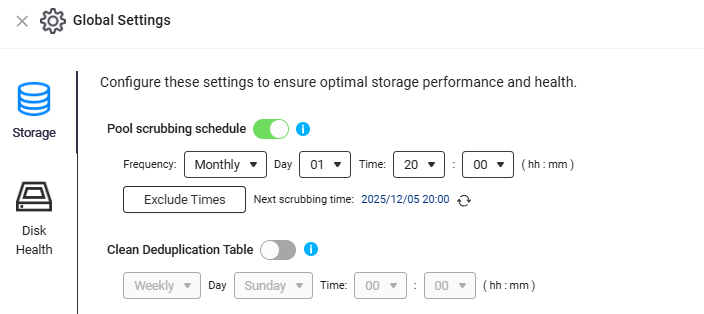
- In Exclude Times, add:
- Monday to Friday, 8:00–19:00 (to avoid business hours)
- Sunday, 3:00 (to avoid the scheduled reboot window)
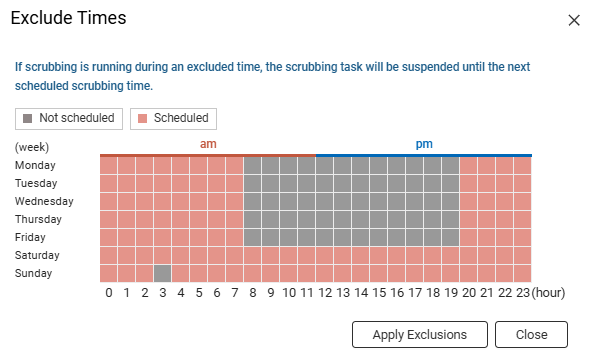
- Save your settings.
This configuration ensures monthly scrubbing completes before the scheduled reboot and does not impact business operations.
Note: The exact navigation and labels may vary slightly depending on your QuTS hero version.
Step 3: Monitor scrubbing progress
- In Storage & Snapshots, select the storage pool to view scrubbing status and progress.
- Check logs or notifications for completion or errors.
Recommendation
- Review and adjust the scrubbing schedule if your business hours or scrubbing duration changes.
- Use Exclude Times to prevent scrubbing during critical periods.
- Monitor scrubbing progress and check system logs for any interruptions or errors.
- If scrubbing is interrupted, manually restart the task as soon as possible to maintain data integrity.
Further Reading
适用产品
概述
存储池清理是一项维护任务,它扫描每个 RAID 组的文件系统,以检测并自动修复 ZFS 文件系统中的损坏数据块。安排池清理有助于维护数据的一致性和完整性。然而,在清理运行期间,存储池的读写性能可能会降低。建议在 NAS 使用率低的时段安排池清理。
当存储池较大或包含大量数据时,清理任务可能需要很长时间才能完成。如果在活动清理任务期间发生计划的系统重启或关机,进程将被中断,必须从头开始。优异调度功能,如排除特定时间或日期,可以帮助避免与计划的维护或重启发生冲突。
步骤
按照以下步骤设置存储池清理的适当调度和排除。下面的示例演示如何为以下场景配置清理:
- 工作时间为周一至周五,8:00-19:00。
- 计划的系统重启在每周日凌晨 3:00 进行。
- 较大的存储池需要大约 30 小时完成清理。
- 清理每月仅运行一次。
步骤 1:计划每月的清理时间表
- 清理不应在工作时间内运行(周一至周五,8:00-19:00)。
- 清理必须在计划的重启之前完成(周日凌晨)。
- 选择一个允许不间断完成的每月时间窗口(例如,每月的较高个周五,20:00 到周日 3:00)。
步骤 2:配置每月的清理时间表并排除时间
- 前往 存储与快照总管 > 存储 > 存储 / 快照。
- 点击 设置 或找到 存储 全局设置。
- 找到 池清理时间表 设置。
- 将计划设置为每月运行,开始于较高个周五下班后(例如,20:00)。
- 在 排除时间中,添加:
- 周一至周五,8:00-19:00(以避免工作时间)
- 周日,3:00(以避免计划的重启窗口)
- 保存您的设置。
此配置确保每月清理在计划重启前完成,并且不影响业务运营。
注意:具体的导航和标签可能会因您的 QuTS hero 版本而略有不同。
步骤 3:监控清理进度
- 在 存储与快照总管中,选择存储池以查看清理状态和进度。
- 检查日志或通知以了解完成情况或错误。
建议
- 如果您的工作时间或清理持续时间发生变化,请审查并调整清理计划。
- 使用 排除时间以防止在关键时期进行清理。
- 监控清理进度并检查系统日志以发现任何中断或错误。
- 如果清理被中断,请尽快手动重新启动任务以维护数据完整性。
进一步阅读


