Applicable products
- QTS
- QuTS hero
- Hybrid Backup Sync 3
Scenario
I want the NAS to automatically upload or copy data from a USB flash drive to a NAS shared folder as soon as I insert the drive into the front USB slot, without any further action (such as clicking a button or manually starting a backup job).
Solution
The following procedures describe how to configure the NAS to automatically upload data from a USB external drive when it is connected.
Procedure 1: Ensure USB storage devices are allowed
If USB storage devices are disallowed, the NAS cannot access a USB external drive in the front USB slot, and no automatic or manual upload will work.
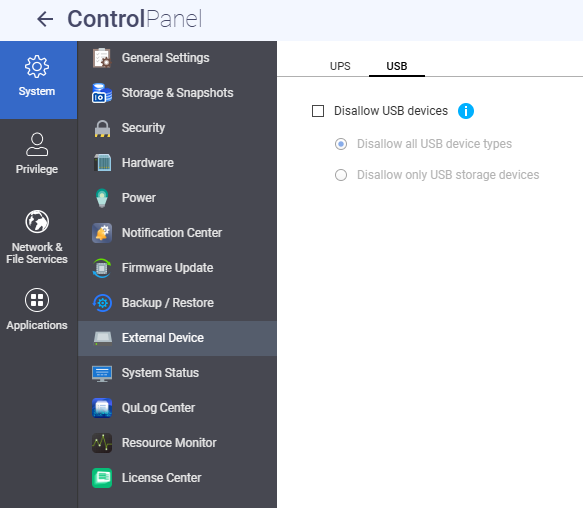
- Go to Control Panel > System > External Device > USB.
- Locate the Disallow USB devices setting.
- Check which option is selected:
- Disallow all USB device types: All USB devices are disabled, including UPS devices, Wi-Fi dongles, USB cameras, USB mice, USB keyboards, USB speakers, and external USB storage devices such as USB flash drives, external hard drives, QNAP JBOD enclosures, and QNAP RAID expansion enclosures. This also disables USB One Touch Copy and file transfers from mobile devices.
- Disallow only USB storage devices: External USB storage devices (including USB flash drives, external hard drives, and QNAP expansion enclosures) are disabled.
- To use a USB external drive for any upload or backup workflow, make sure that neither of these options is selected. In older QTS versions, this setting may not be available, and USB devices are not restricted by this option.
Procedure 2: Configure a one-way sync job in Hybrid Backup Sync (HBS)
Follow the steps below to create a one-way sync job that automatically uploads data from a USB external drive to a NAS shared folder.
- Open HBS 3.
- Go to Sync.
- In the Sync Now menu, click One-way Sync Job.
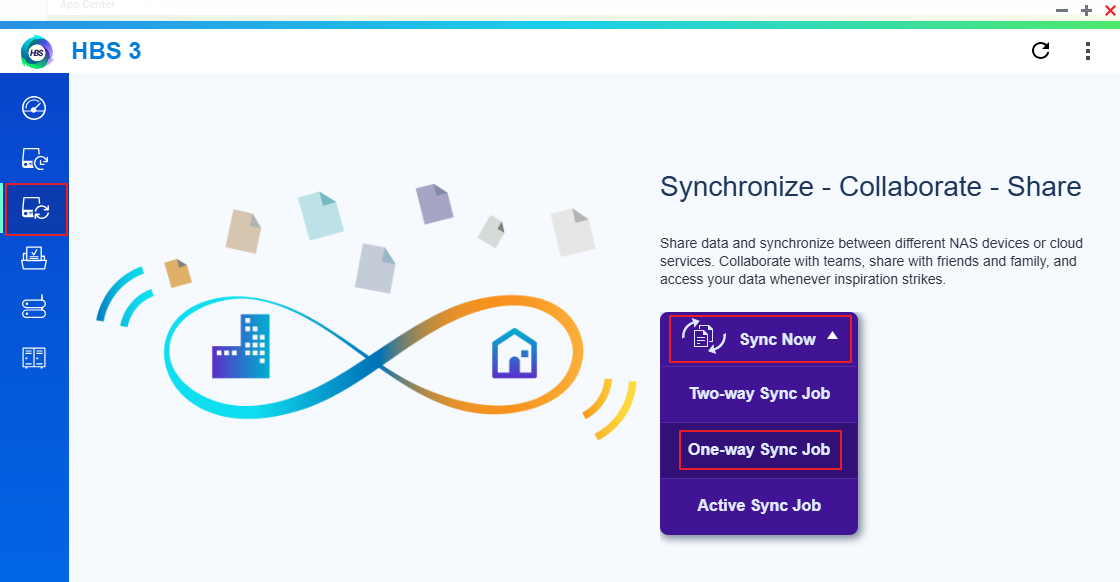
The Create a Sync Job window opens.
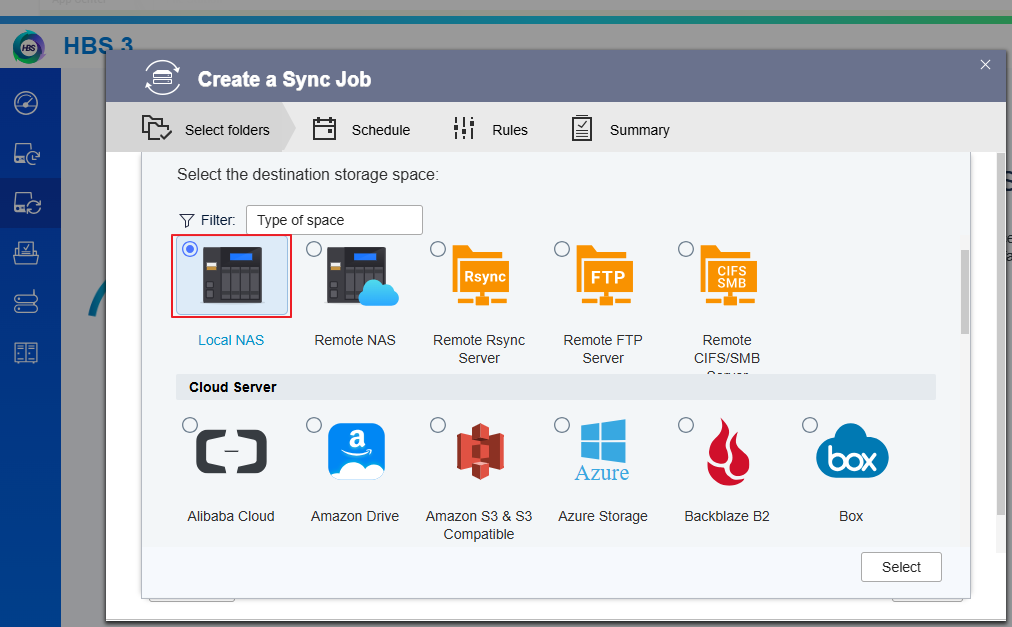
- Select the Local NAS option and click Select.
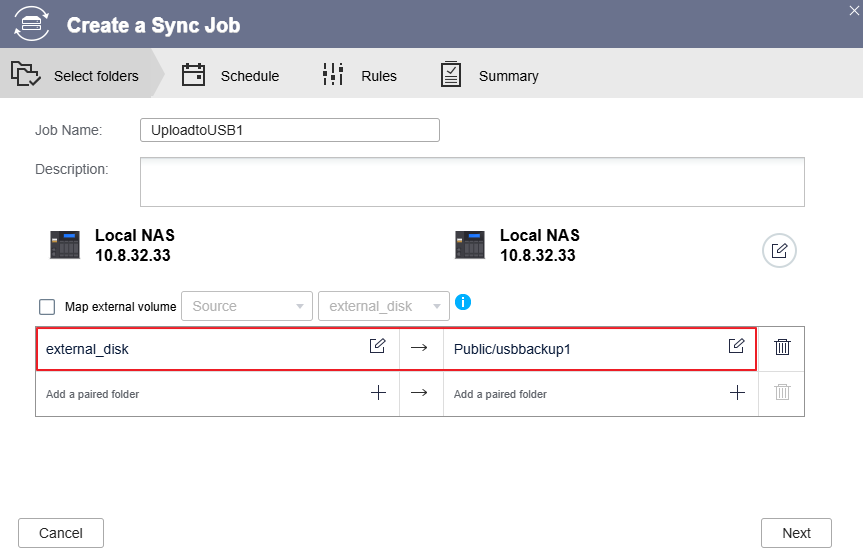
- Enter a Job name.
- Create a sync pair from the USB external drive (for example,
external_disk) to the target NAS shared folder, and then click Next.
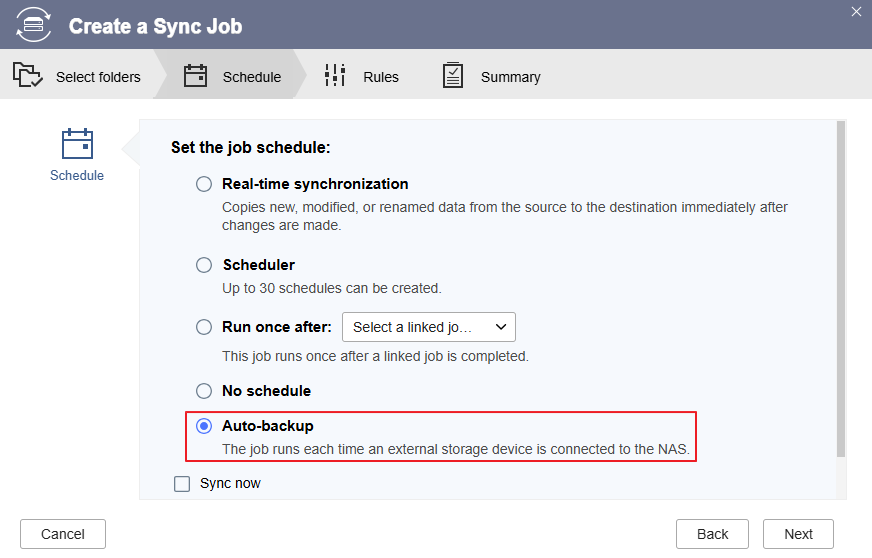
- In the schedule settings, select Auto-backup, and then click Next.
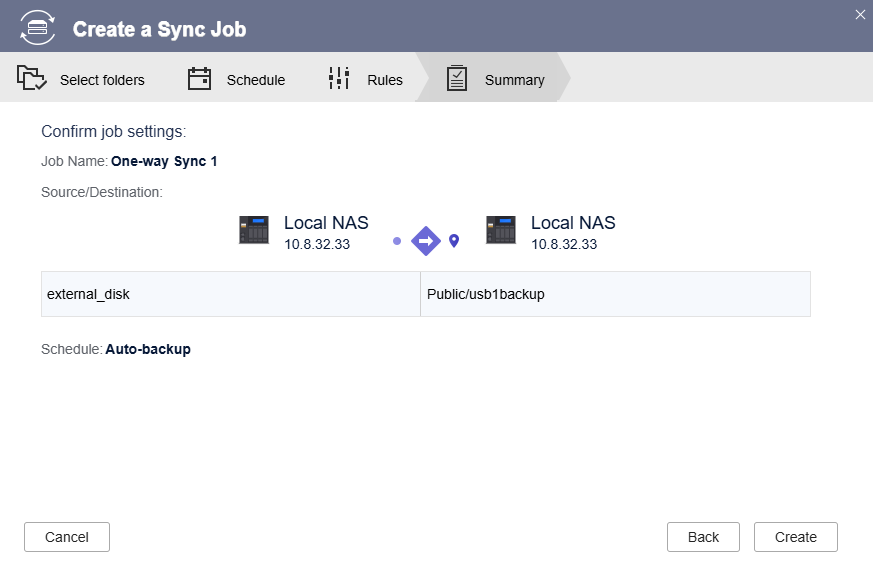
- Follow the wizard to complete the remaining settings, and then click Create.
- After the job is created, you can click Sync now to run the first sync immediately.
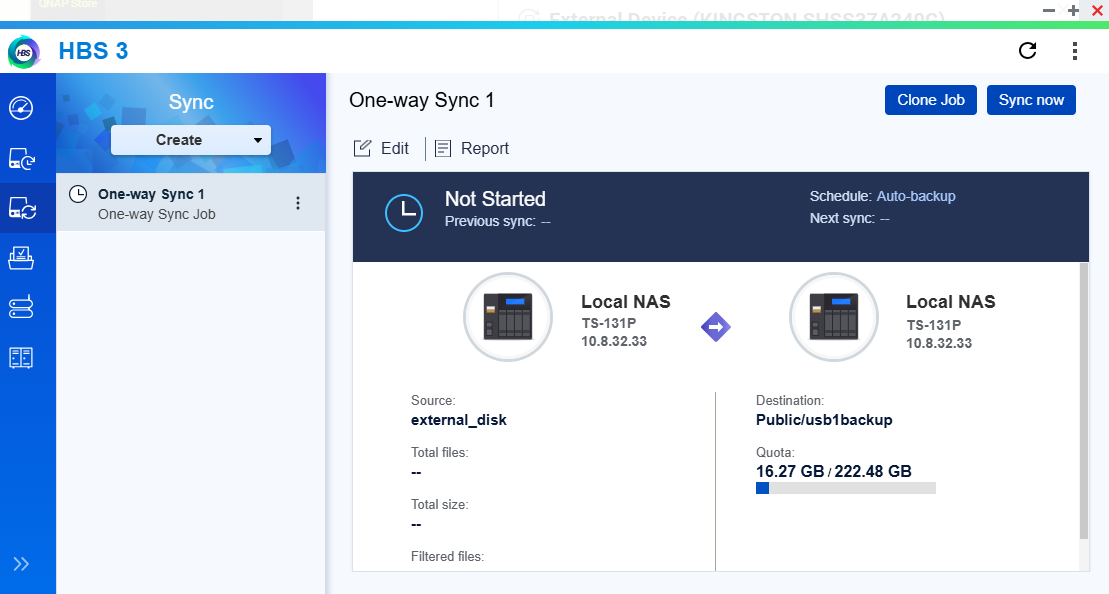
From now on, whenever the USB external drive is connected to the NAS, new or changed data on the drive will be automatically uploaded to the specified NAS shared folder according to the job settings.
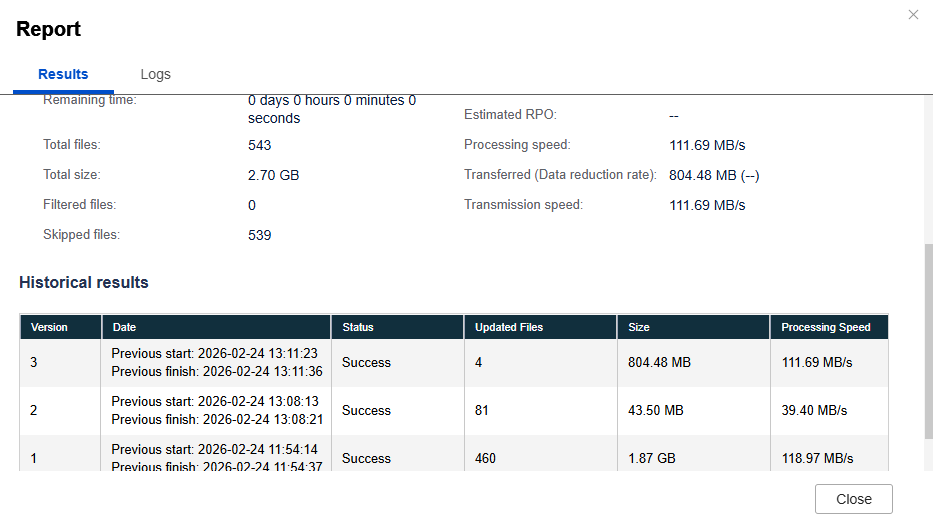
To verify the sync job, go to Sync > Report in HBS 3 and review the job report.
Note: This configuration creates a one-way sync from the USB external drive to the NAS. Files on the NAS are not synchronized back to the USB drive. Depending on your sync policy, files on the NAS may be overwritten or deleted. Review the sync policy settings in HBS 3 before running the job.
Further reading
适用产品
- QTS
- QuTS hero
- Hybrid Backup Sync 3
场景
我希望在将 USB 闪存驱动器插入前置 USB 插槽后,NAS 能够自动将数据上传或复制到 NAS 共享文件夹,而无需进一步操作(如点击按钮或手动启动备份任务)。
解决方案
以下步骤描述了如何配置 NAS,以便在连接 USB 外部驱动器时自动上传数据。
步骤 1:确保允许 USB 存储设备
如果不允许 USB 存储设备,NAS 将无法访问前置 USB 插槽中的 USB 外部驱动器,自动或手动上传均无法进行。
- 前往控制台 > 系统 > 外部设备 > USB。
- 找到禁止 USB 设备设置。
- 检查选择了哪个选项:
- 禁止所有 USB 设备类型:禁用所有 USB 设备,包括 UPS 设备、Wi-Fi 适配器、USB 摄像头、USB 鼠标、USB 键盘、USB 音箱和外部 USB 存储设备,如 USB 闪存驱动器、外部硬盘、QNAP JBOD 机箱和 QNAP RAID 扩展机箱。这也会禁用 USB 一键复制和来自移动设备的文件传输。
- 仅禁止 USB 存储设备:禁用外部 USB 存储设备(包括 USB 闪存驱动器、外部硬盘和 QNAP 扩展机箱)。
- 要使用 USB 外部驱动器进行任何上传或备份工作流程,请确保未选择这些选项。在旧版 QTS 中,可能没有此设置,USB 设备不受此选项限制。
步骤 2:在 Hybrid Backup Sync (HBS) 中配置单向同步任务
按照以下步骤创建一个单向同步任务,将数据从 USB 外部驱动器自动上传到 NAS 共享文件夹。
- 打开HBS 3。
- 进入同步。
- 在立即同步菜单中,点击单向同步任务。
将打开创建同步任务窗口。
- 选择本地 NAS选项并点击选择。
- 输入一个任务名称。
- 创建一个从 USB 外部驱动器(例如,
external_disk)到目标 NAS 共享文件夹的同步对,然后点击下一步。
- 在计划设置中,选择自动备份,然后点击下一步。
- 按照向导完成剩余设置,然后点击创建。
- 任务创建后,您可以点击立即同步立即运行较高次同步。
从现在开始,每当 USB 外部驱动器连接到 NAS 时,驱动器上的新数据或更改的数据将根据任务设置自动上传到指定的 NAS 共享文件夹。
要验证同步任务,请在 HBS 3 中进入同步 > 报告并查看任务报告。
注意:此配置创建了从 USB 外部驱动器到 NAS 的单向同步。NAS 上的文件不会同步回 USB 驱动器。根据您的同步策略,NAS 上的文件可能会被覆盖或删除。在运行任务之前,请查看 HBS 3 中的同步策略设置。
进一步阅读


