Applicable Products
- QuMagie iOS 2.6.0 and later
- QuMagie Android 2.9.0 and later
Overview
QuMagie AI Assistant is built in QuMagie Mobile to help you perform photo and video management tasks with voice or text commands.
To ensure your privacy and data security, command interpretation is processed only through the AI model on your mobile platform, such Apple Intelligence on iOS and Gemini Nano on supported Android devices. Your request is analyzed locally on the device and is never sent to an external cloud AI service.
On the Gallery, Video, Album, and Folder pages, you can use QuMagie AI Assistant to:
- Upload photos and videos to the NAS
- Search media by time, location, people, or objects
- Batch-manage media files (including adding to albums, tagging, adding to favorites, and sharing)
- Perform system operations such as enabling Sleep Mode and configuring backup settings
Note
- AI Assistant is currently not available on other QuMagie pages.
- QuMagie AI Assistant is designed to help you perform multimedia tasks, not as a general-purpose AI assistant.
Tip
Since QuMagie AI Assistant relies on local AI processing, it may not be as performant as cloud-based AI services for handling complex or long sentences, open-ended requests, or casual conversations. For optimal results, use short and clear sentences.
System Requirements
iOS
To use QuMagie AI Assistant on iOS, ensure the following:
- QuMagie has been updated to 2.6.0 or later.
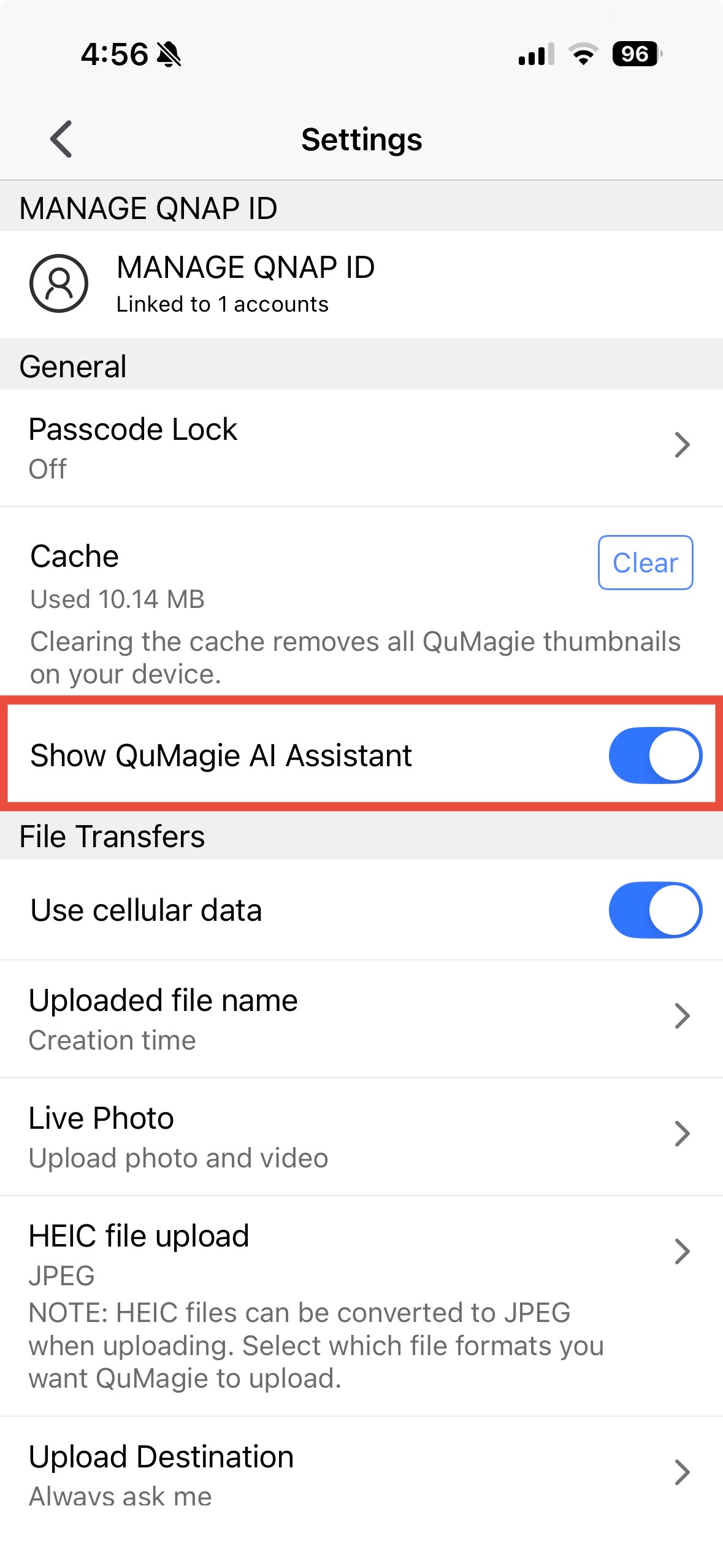
- AI Assistant display is enabled in QuMagie > Settings > General > Show AI Assistant
- Your iOS device has been updated to iOS 26 or later.
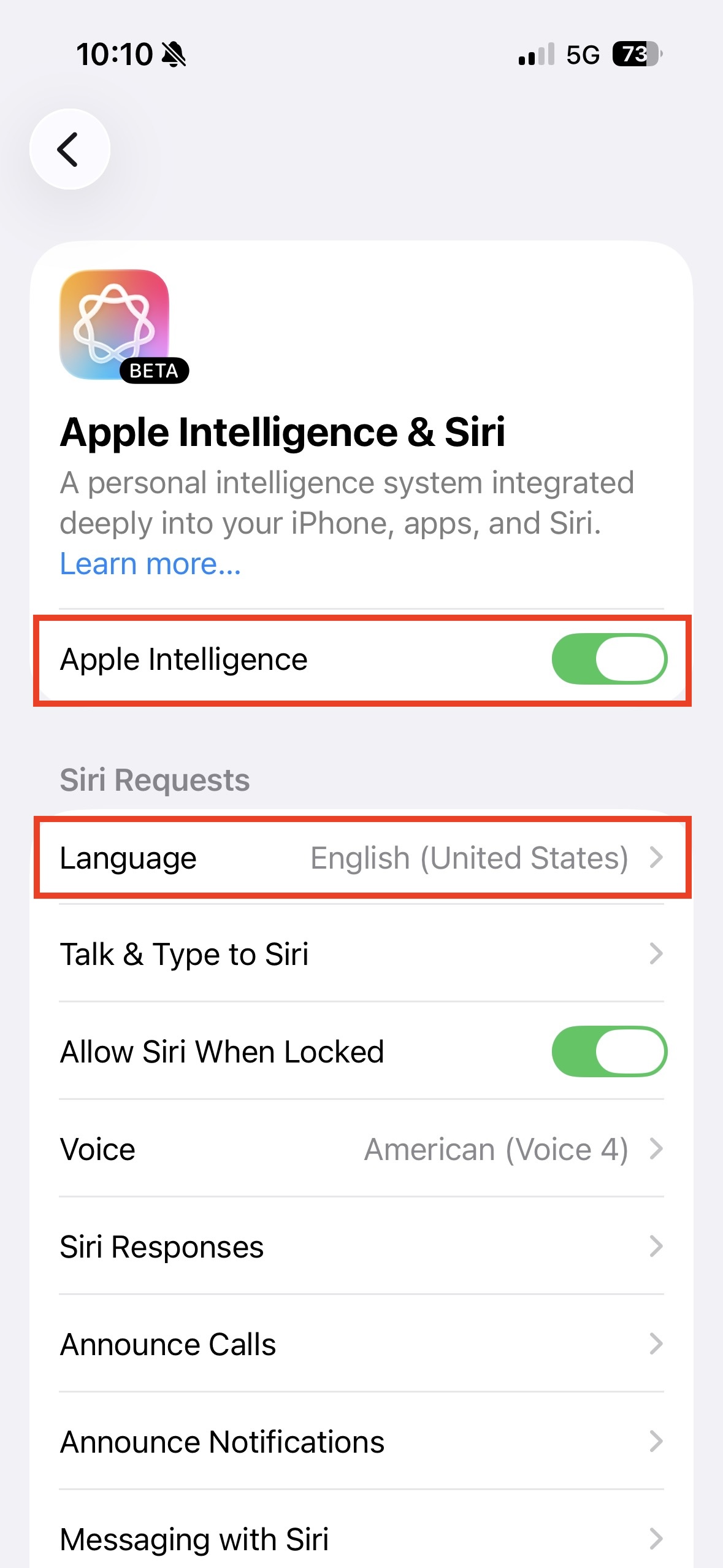
- Apple Intelligence is enabled on the device.
- The device system language is set to English, Traditional Chinese, or Simplified Chinese.
- Apple Intelligence language matches the system language, and the language pack download is complete. To configure language settings, go to Settings > Apple Intelligence & Siri > Language
Troubleshooting
- Changing the language resets the downloaded language pack. QuMagie AI Assistant will not be available until the download is complete. Please wait until the download is complete.
- If you are using an iOS device in the China region, Apple Intelligence support may vary due to regional policies or vendor configurations. We recommend checking with Apple to confirm whether your device and region are supported.
Android
To use QuMagie AI Assistant on Android, ensure the following:
If your device is not listed above, check your device manufacturer's official website or related resources to confirm whether Gemini Nano is supported.
Troubleshooting
- Gemini Nano download issues:
- Gemini Nano model only supports downloading over Wi-Fi and may pause on mobile networks (4G/5G). Please connect to Wi-Fi and wait for the download to complete before trying again. If the download is interrupted due to switching to a mobile network midway, it will automatically resume once Wi-Fi is reconnected.
- If the device is downloading Gemini Nano and switches to a mobile network, the download will pause. Please switch back to Wi-Fi, and then the download will resume automatically. Once complete, manually toggle the switch again to enable the feature.
- If the device meets the above requirements but the feature still cannot be enabled, go to Settings > Apps > Show System Apps, search for AICore. Verify that the app has not been disabled or force-stopped, and then tap Enable. If the issue persists, restart the phone and try again.
- If you are using an Android device in the China region, Gemini Nano support may vary due to regional policies or vendor configurations. We recommend checking with Google or your device manufacturer to confirm whether your device and region are supported.
How to use QuMagie AI Assistant
- Open QuMagie Mobile.
- Connect to your NAS.
- On the Gallery, Video, Album, or Folder pages, tap the floating AI button.

- Type your command in the input field or tap the microphone icon to use voice commands.
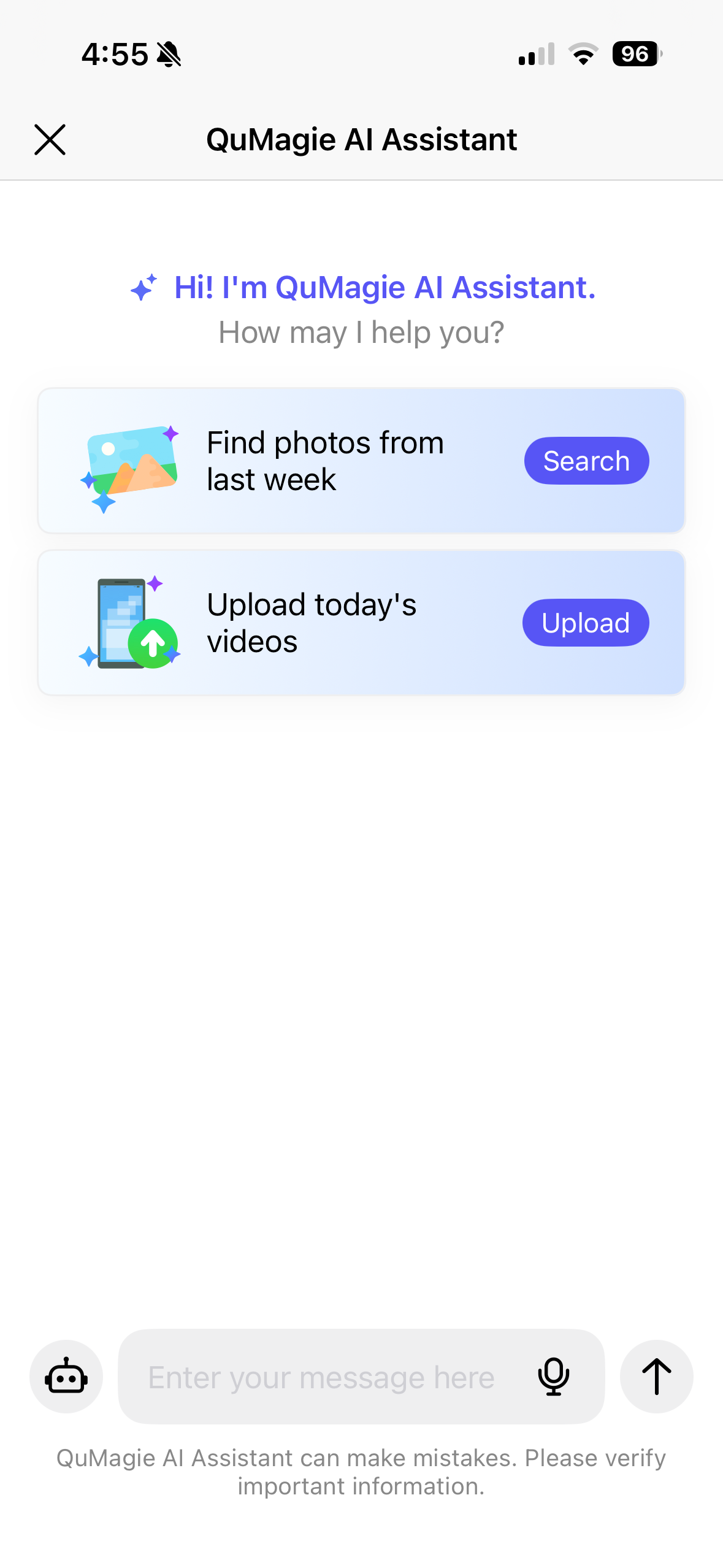
- AI interprets your command and executes the action. It may display a confirmation message for your approval before proceeding.
- (Optional) You can also tap the robot icon on the left side of the input field to see a full list of supported commands and examples.
Tip
QuMagie AI Assistant supports searching for a single location / person / album name / object at a time. We recommend not searching two locations or two objects simultaneously.
How to Disable QuMagie AI Assistant
- Open QuMagie Mobile.
- Go to Settings > General.
- Disable Show QuMagie AI Assistant.
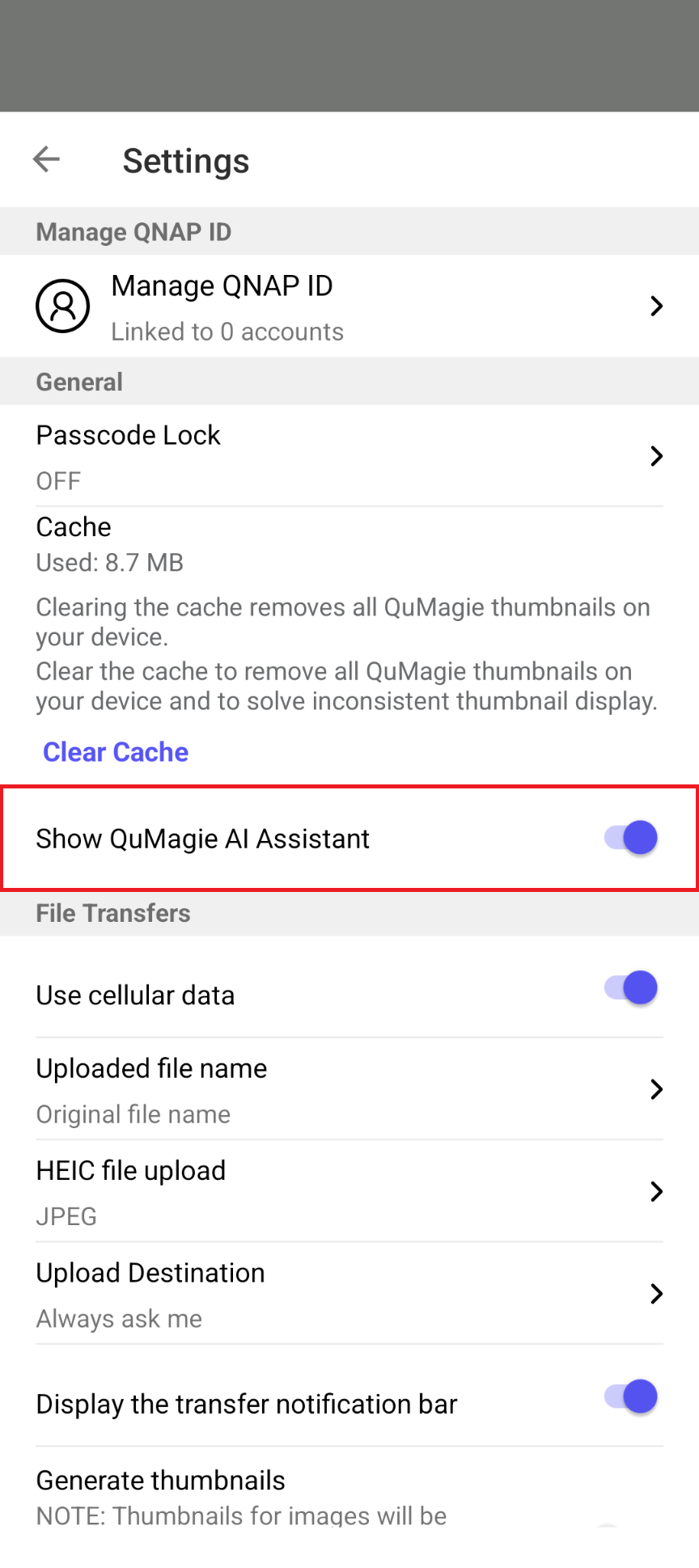
When you disable this option, the floating action button for QuMagie AI Assistant will disappear from the user interface. You may enable this option anytime if you want the button to appear again.
Command Examples
Here are some common use cases and useful commands for QuMagie AI Assistant:
- Upload and auto-archive
After a trip, use a command like this to organize your photos:
Upload today's photos and save them to the ‘2026 Japan Trip’ album.
The AI finds your photos, confirms their details, and uploads them to the specified album in one step.
- Search by time, location, or people
To find photos from a specific trip, use a command like these:
Find photos taken in Japan last year.
Find photos with Tom
AI Assistant searches your NAS and displays the results.
- Add to favorites
To organize your favorite photos, use a command like this:
Add last month's photos to my favorites.
AI Assistant batch-processes your photos, so you do not need to select them one by one.
- Quick share
To share multiple related photos with friends, use a command like this:
Share my photos taken in Taipei.
AI Assistant creates a share link and opens the share menu for you to choose how to share.
适用产品
- QuMagie iOS 2.6.0 and later
- QuMagie Android 2.9.0 and later
概述
QuMagie AI 助手内置于 QuMagie Mobile,帮助您通过语音或文本命令执行照片和视频管理任务。
为了确保您的隐私和数据安全,命令解释仅通过您移动平台上的 AI 模型处理,例如 iOS 上的 Apple 智能和支持的 Android 设备上的 Gemini Nano。您的请求在设备本地进行分析,绝不会发送到外部云 AI 服务。
在图库、视频、相册和文件夹页面,您可以使用 QuMagie AI 助手来:
- 将照片和视频上传到 NAS
- 按时间、地点、人物或物体搜索媒体
- 批量管理媒体文件(包括添加到相册、标记、添加到收藏夹和分享)
- 执行系统操作,如启用睡眠模式和配置备份设置
注意
- AI 助手目前在其他 QuMagie 页面上不可用。
- QuMagie AI 助手旨在帮助您执行多媒体任务,而不是作为通用 AI 助手。
提示
由于 QuMagie AI 助手依赖于本地 AI 处理,在处理复杂或长句子、开放式请求或随意对话时,可能不如基于云的 AI 服务高效。为获得较佳效果,请使用简短且清晰的句子。
系统要求
iOS
要在 iOS 上使用 QuMagie AI 助手,请确保以下事项:
- QuMagie 已更新至 2.6.0 或更高版本。
- 在QuMagie > 设置 > 常规 > 显示 AI 助手
中启用 AI 助手显示。 - 您的 iOS 设备已更新至 iOS 26 或更高版本。
- Apple 智能已在设备上启用。
- 设备系统语言设置为英语、繁体中文或简体中文。
- Apple 智能语言与系统语言匹配,并且语言包下载已完成。要配置语言设置,请前往设置 > Apple 智能与 Siri > 语言
故障排除
- 更改语言会重置已下载的语言包。在下载完成之前,QuMagie AI 助手将不可用。请等待下载完成。
- 如果您在中国地区使用 iOS 设备,由于区域政策或供应商配置,Apple 智能支持可能会有所不同。我们建议您与 Apple 核实您的设备和地区是否受支持。
安卓
要在安卓设备上使用 QuMagie AI 助手,请确保以下事项:
如果您的设备不在上述列表中,请查看设备制造商的官方网站或相关资源以确认是否支持 Gemini Nano。
故障排除
- Gemini Nano 下载问题:
- Gemini Nano 型号仅支持通过 Wi-Fi 下载,并可能在移动网络(4G/5G)上暂停。请连接 Wi-Fi 并等待下载完成后再重试。如果由于中途切换到移动网络而导致下载中断,一旦重新连接 Wi-Fi,下载将自动恢复。
- 如果设备正在下载 Gemini Nano 并切换到移动网络,下载将暂停。请切换回 Wi-Fi,然后下载将自动恢复。完成后,请再次手动切换以启用该功能。
- 如果设备符合上述要求但仍无法启用该功能,请前往设置 > 应用程序 > 显示系统应用,搜索AICore.确认应用程序未被禁用或强制停止,然后点击启用。如果问题仍然存在,请重启手机并重试。
- 如果您在中国地区使用安卓设备,由于区域政策或供应商配置,Gemini Nano 支持可能会有所不同。我们建议您与 Google 或设备制造商核实您的设备和地区是否受支持。
如何使用 QuMagie AI 助手
- 打开 QuMagie 移动应用。
- 连接到您的 NAS。
- 在图库、视频、相册或文件夹页面,点击浮动 AI 按钮。
- 在输入框中输入您的命令,或点击麦克风图标使用语音命令。
- AI 解释您的命令并执行操作。它可能会显示确认消息以供您批准后再继续。
- (可选)您还可以点击输入框左侧的机器人图标查看支持的命令和示例的完整列表。
提示
QuMagie AI 助手支持一次搜索一个地点 / 人名 / 相册名称 / 物体。我们建议不要同时搜索两个地点或两个物体。
如何禁用 QuMagie AI 助手
- 打开 QuMagie 移动应用。
- 前往设置 > 常规。
- 禁用显示 QuMagie AI 助手。
禁用此选项后,QuMagie AI 助手的浮动操作按钮将从用户界面中消失。如果您希望按钮再次出现,可以随时启用此选项。
命令示例
以下是一些常见的使用案例和 QuMagie AI 助手的有用命令:


