Applicable Products
- myQNAPcloud 1.0.90, 1.1.90 and later
- SSL 2.2.71 and later
- License center 1.8.56, 1.9.56, 2.0.42 and later
Overview
You can use an SSL certificate to secure your QNAP NAS connection with an SSL certificate to prevent "Not Secure" browser warnings and protect your data during remote access. This guide explains how to purchase and install an SSL certificate. The actual steps depend on your NAS firmware version and account status.
Note that myQNAPcloud SSL certificates can only be used with myQNAPcloud DDNS domain names, including:
myqnapcloud.com
mycloudnas.com
Your certificate will be linked to your currently signed-in QNAP account and cannot be switched to another account. You can add up to 3 alternative domain names to the same myQNAPcloud SSL certificate. For example: mycorp.mycloudnas.com, corpname.mycloudnas.com, company.mycloudnas.com
Global and China sites
QNAP SSL certificates are for either the Global or the China region. They are not interchangeable. Once you have specified a region for the certificate, you cannot change it to the other region. The system will provide domain names based on your region settings.
Global:
China:
QTS versions supported by purchase platforms
| QTS Version | SSL Purchase Method | Description |
|---|
| QTS 4.1.9 or earlier | Not supported | SSL certificates are not supported. Please update your QTS to a newer version to install SSL certificates. |
| QTS 4.2 - 5.0.1 | myQNAPcloud | You can purchase a certificate via the myQNAPcloud website, then install the certificate on the NAS. |
| QTS 5.1.0 or later | myQNAPcloud
Software Store | You can purchase a certificate via the myQNAPcloud website or in the QNAP Software Store. |
Differences between purchase platforms
SSL certificates purchased from myQNAPcloud and Software Store are both directly provided and maintained by QNAP. However, they differ in their renewal mechanisms. Only the SSL certificates purchases from QNAP Software Store can be automatically renewed, which means the store automatically renews your payment when your current certificate is about to expire. This can ensure that your secure connection will not be disrupted due to certificate unavailability.
Procedure
The purchase and installation process of myQNAPcloud SSL certificate varies depending on your purchase method and your QTS version. Please first select a section corresponding to your purchase method and then select a section corresponding to your QTS version.
If you purchase the certificate from the myQNAPcloud website
Go to the myQNAPcloud website
- Visit myQNAPcloud.
- Sign in using your QNAP ID.
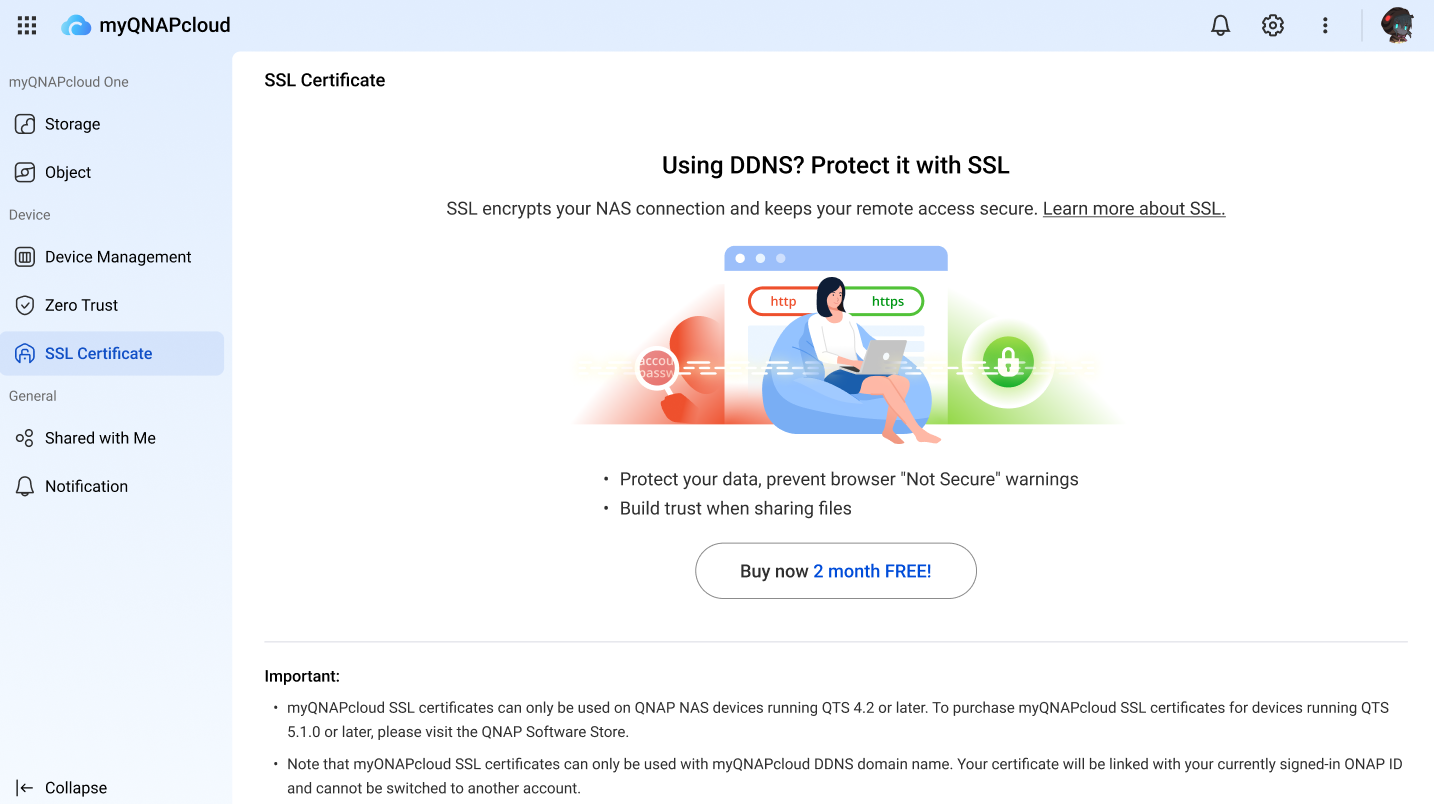
- From the navigation menu, select SSL Certificate.
You will see the SSL Certificate introduction page if you do not have any SSL certificates yet.
Select your NAS device
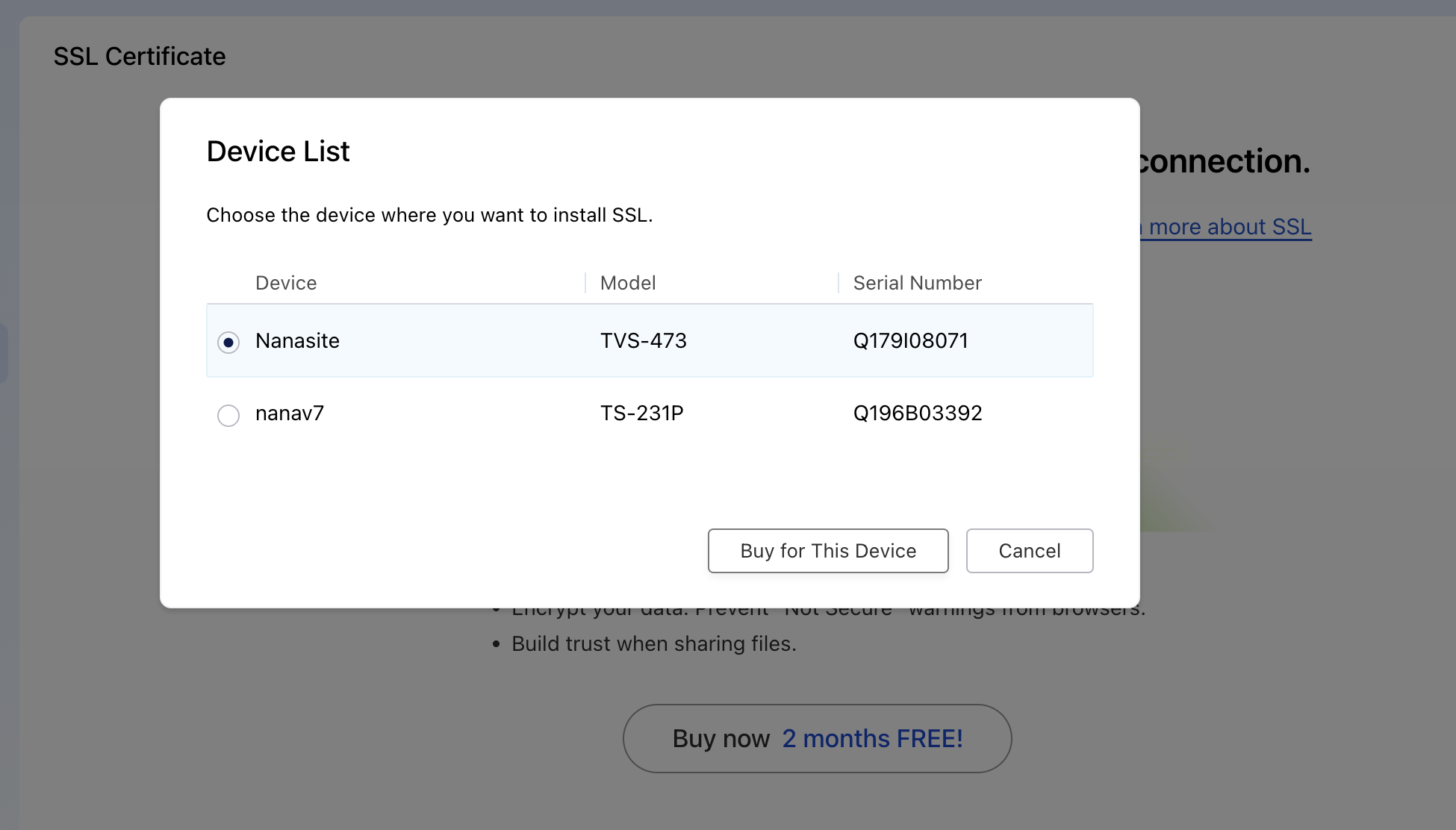
When you click Buy Now, the system checks your NAS devices that are linked to your QNAP ID.
- If you do not have any devices: please view setup instructions and connect your device.
- If you have only one device:
- The system will detect your device version and proceed to the next step.
- If you have multiple devices: A list will appear. Select one NAS device, then click Buy for This Device to continue.
Purchase and install an SSL certificate
For QTS 4.1 or earlier versions
Earlier firmware versions do not support SSL certificates. Please consider updating your firmware to a newer version so that your NAS can benefit from more secure connections.
For QTS 4.2 - QTS 5.0.1
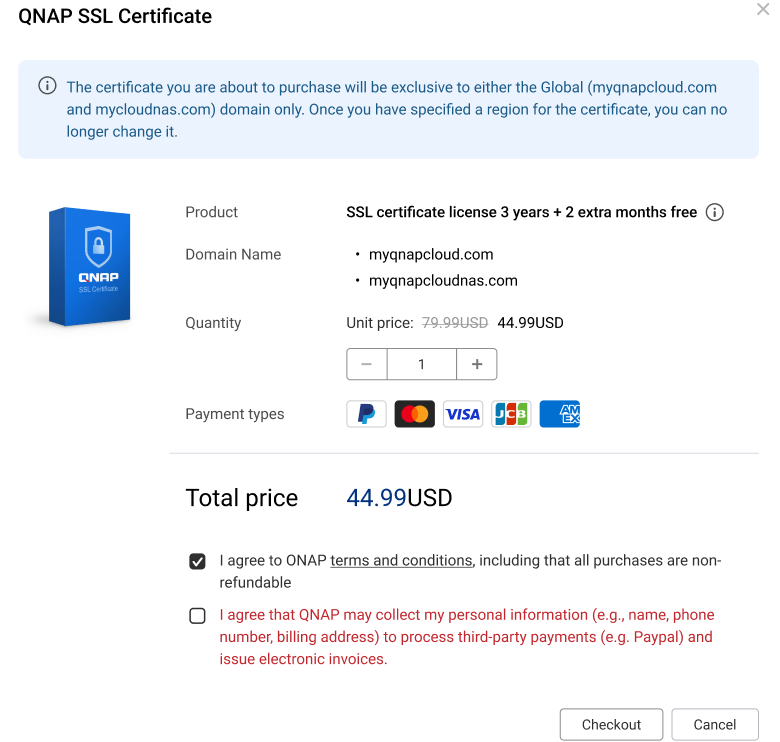
- Region & domain: The system detects your region and domain options.
- Global: myqnapcloud.com or mycloudnas.com
- China: mycloudnas.com
- Review product details and complete the payment.
Agree to Terms and Conditions and information collecting before proceeding.
Then click Checkout to complete your payment.
3. Payment and Order Confirmation
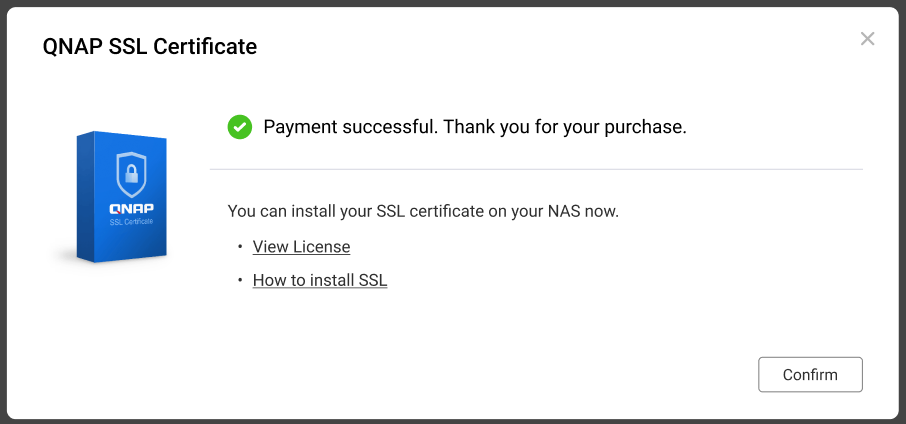
When you finish the purchase and reopen the SSL Certificate page, your existing SSL licenses will appear in a list. Click SSL Installation Guide to view installation steps.
Please note that at this stage, your SSL certificate has not yet been installed on this device. Follow the steps below to install the certificate on the NAS.
Install a myQNAPcloud SSL Certificate
After purchasing an SSL certificate using your myQNAPcloud account, you can install the certificate directly on your NAS. Note that your NAS must be linked to the same QNAP ID that was used for the purchase.
On your NAS, go to myQNAPcloud > SSL Certificate.
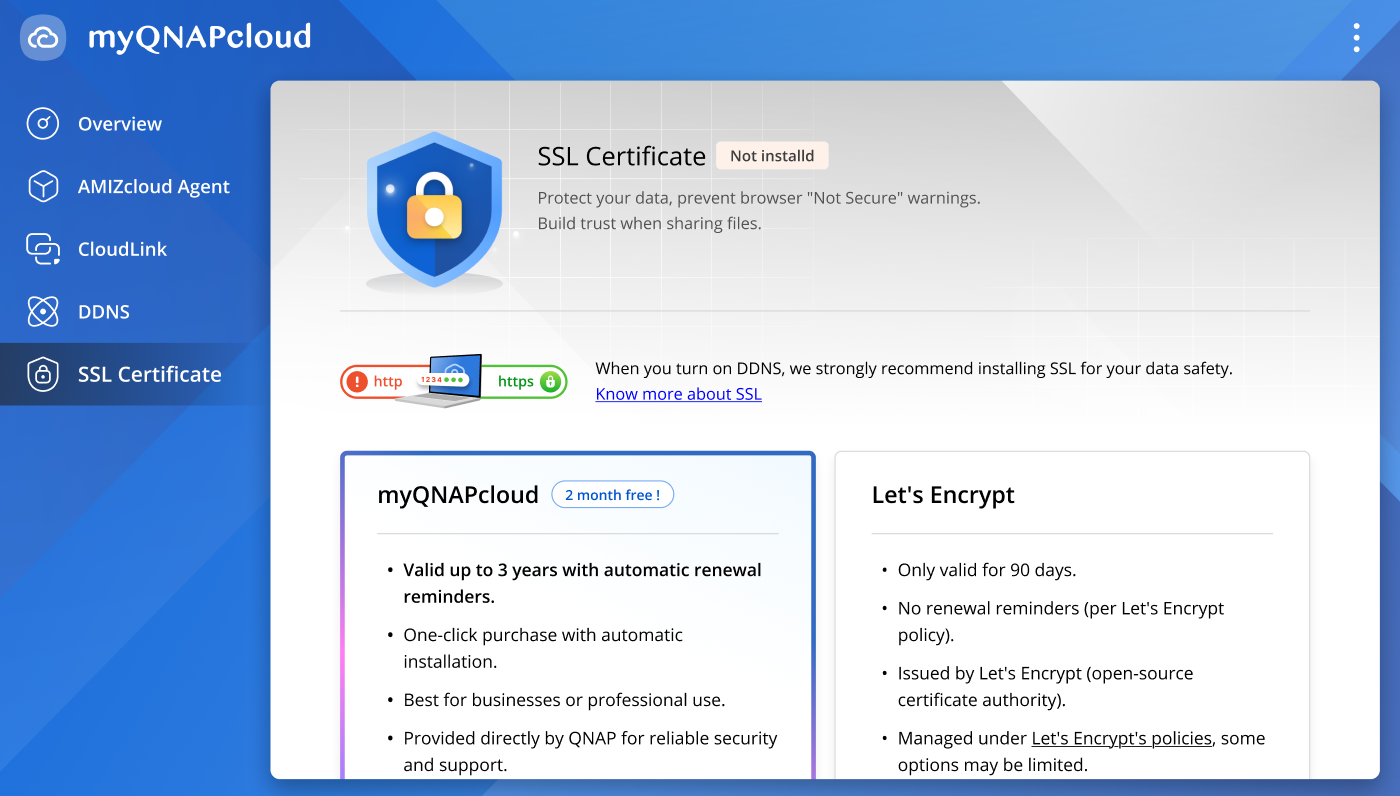
On the SSL Certificate section, click Install.
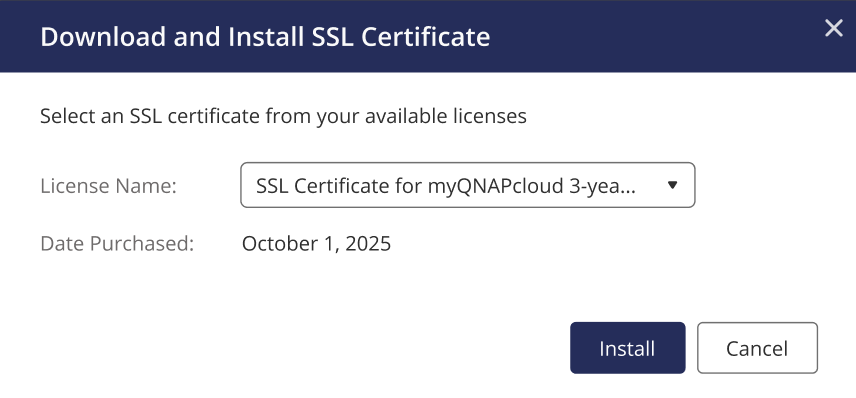
If you only have one SSL certificate, the system will automatically install this certificate. If multiple SSL certificates are available under your account, the system will display a list of certificates.
- Select the purchased SSL certificate that you want to install.
- Click Install again to begin the installation process.
Note
If you do not see any available SSL certificates, please verify that your purchase was successfully completed.
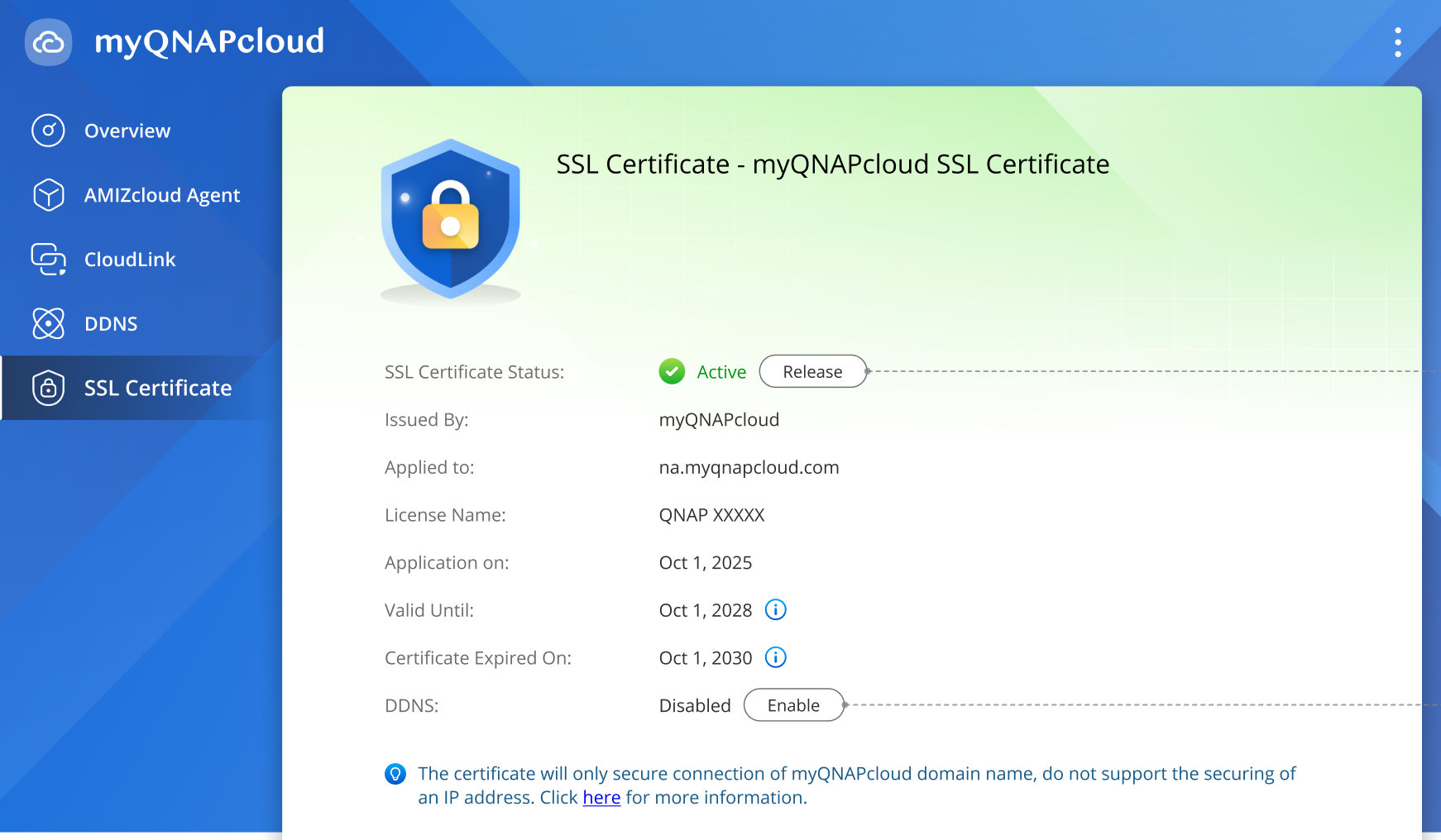
If your myQNAPcloud SSL certificate has been successfully installed, you will see the following information:
- SSL Certificate Status: Active
- Applied to: yourname.myqnapcloud.com
- Issued by: myQNAPcloud
Release and re-apply the SSL certificate (optional)
If you want to transfer this SSL certificate to another NAS device:
- Click Release at the bottom of the SSL Certificate page.
- The certificate will be removed from the current device.
- Log in to another NAS, go to myQNAPcloud > SSL Certificate, and click Install for the same certificate.
For QTS 5.1.0 or later versions
The system automatically connects to the QNAP Software Store.
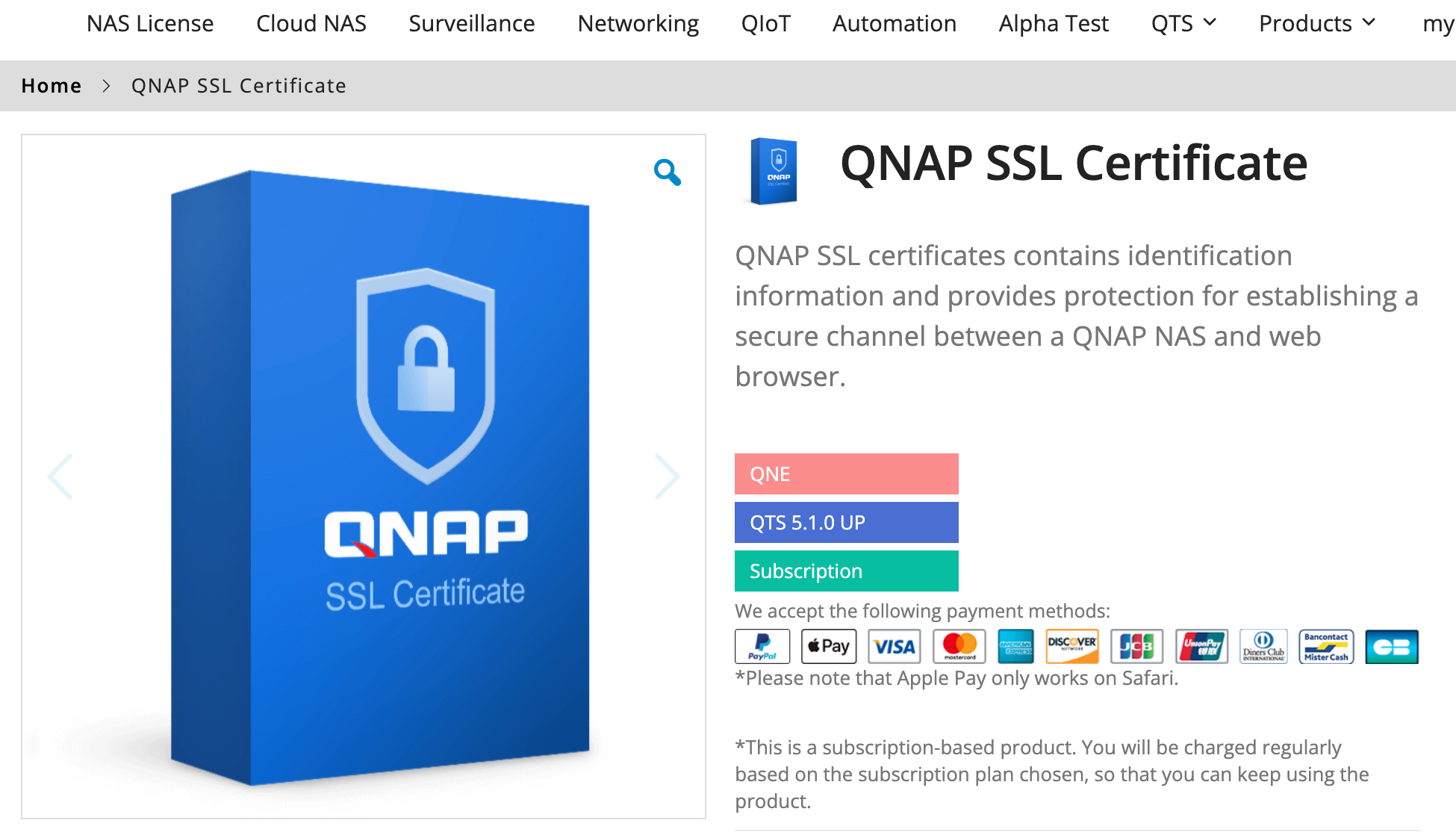
- Click Checkout Now.
- Follow the on-screen instructions to complete the purchase.
- The system returns to myQNAPcloud and displays a confirmation.
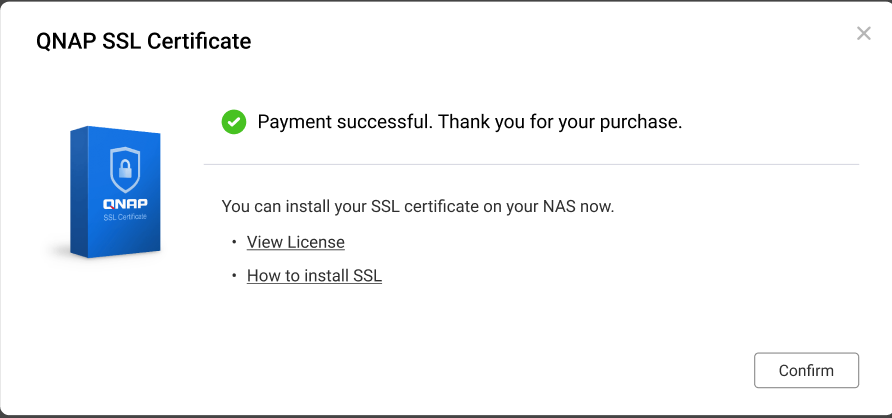
After purchasing an SSL certificate using your QNAP ID, you can install the certificate directly on your NAS.
Note that you can check your purchased certificate and other licenses in License Manager
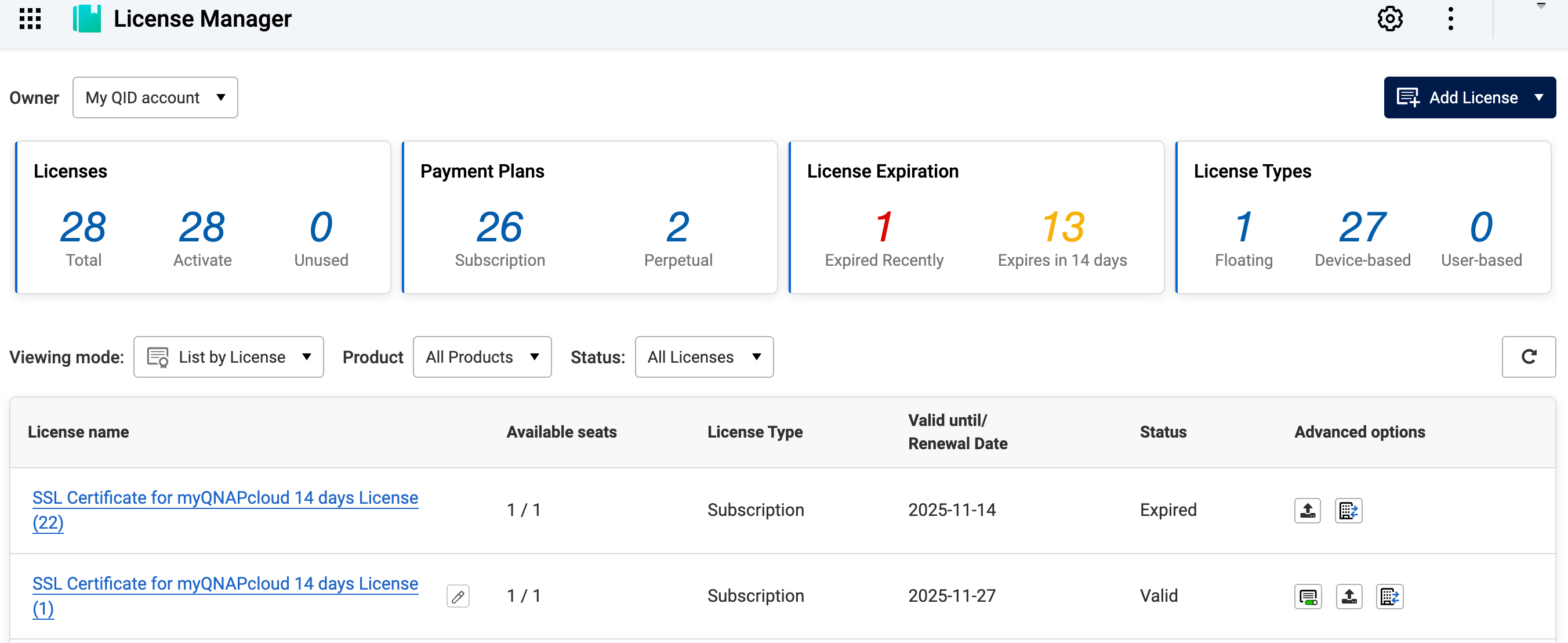
Activate a myQNAPcloud SSL certificate
Before installing an SSL certificate, you must first activate this certificate. You can activate an SSL certificate on the License Manager website (myQNAPcloud Link is required) or in License Center on the NAS.
- Installation: After purchasing an SSL certificate with your myQNAPcloud account and successfully activating the license, you can install it directly on your NAS through the myQNAPcloud page.
Activate an SSL certificate in License Manager
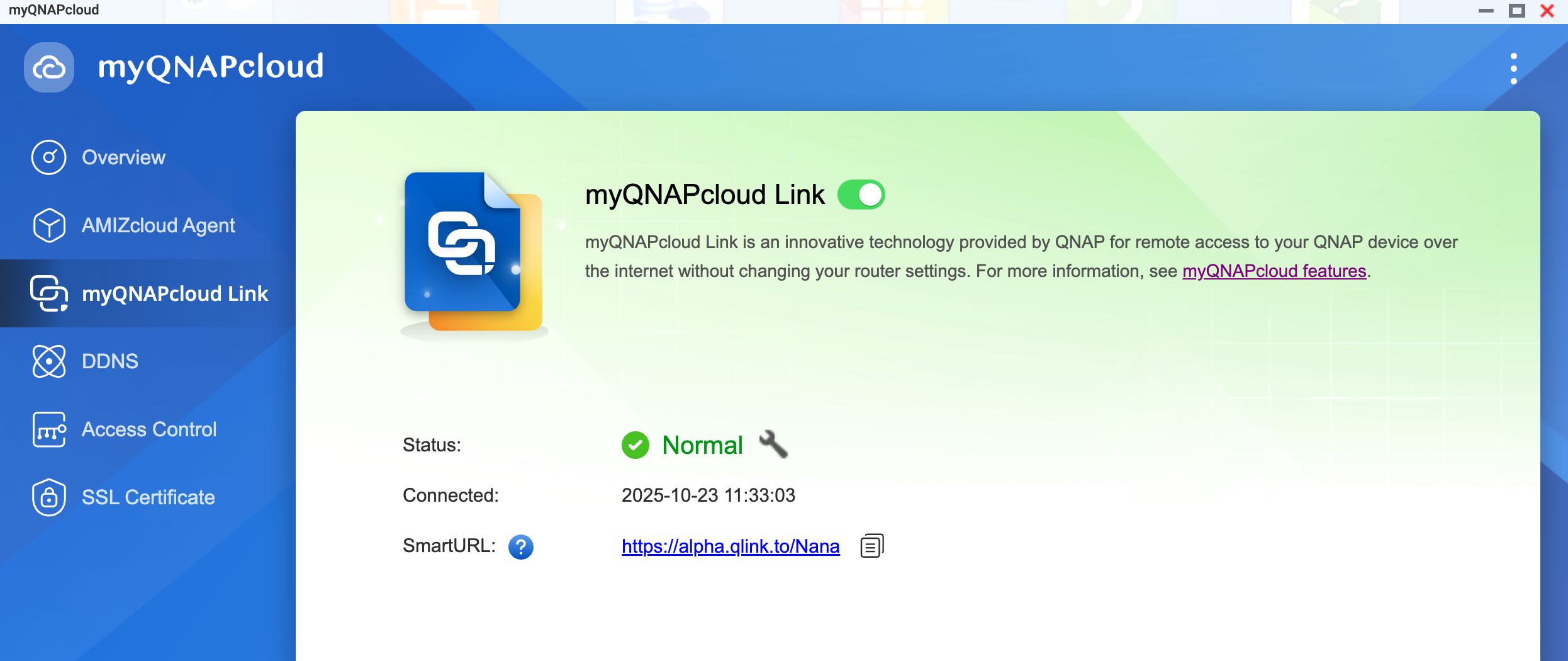
Note that you must enable myQNAPcloud Link before activating an SSL certificate in License Manager:
- On the NAS, go to myQNAPcloud > myQNAPcloud Link.
- Enable myQNAPcloud Link. Ensure that the status of myQNAPcloud Link is normal.
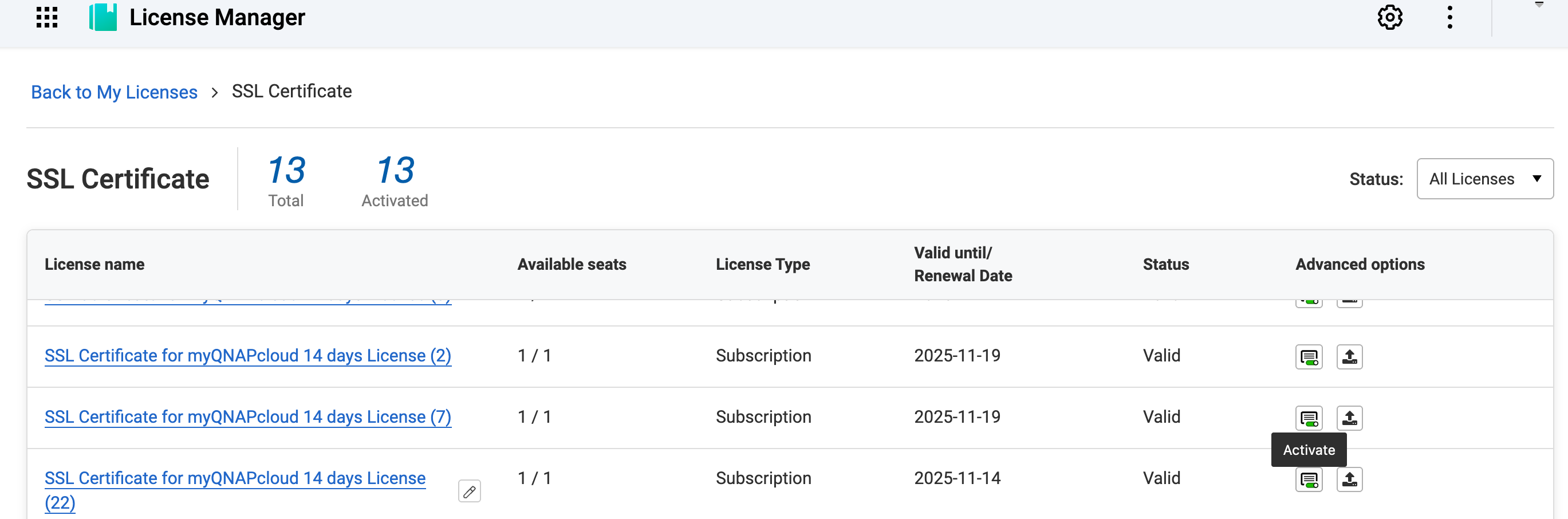
Activate an SSL License in License Manager
- Go to License Manager.
- Sign in with your QNAP ID.
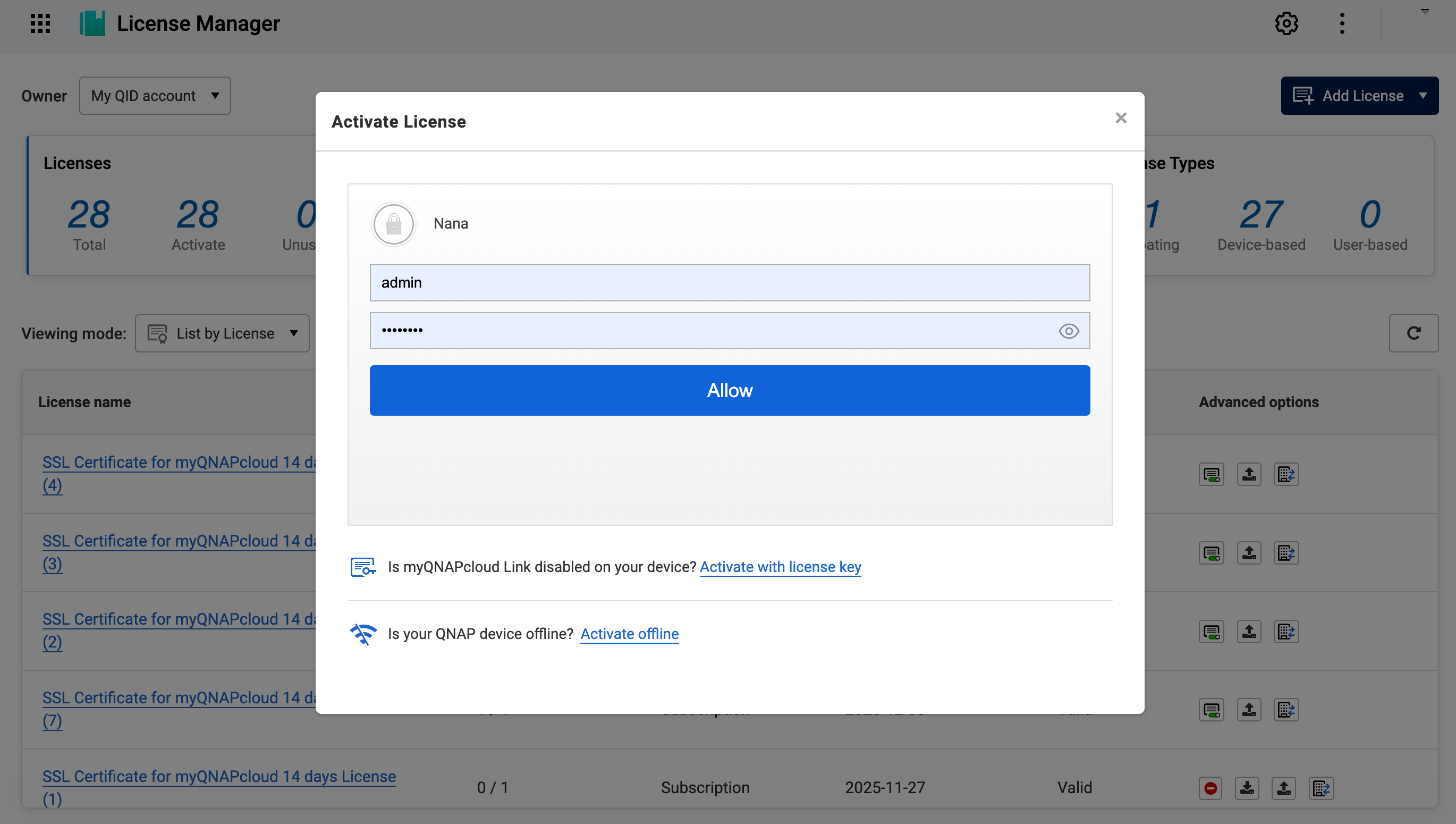
- Click Activateon the SSL certificate license that you want to activate.
- Enter your NAS username and password.
- Click Allow.
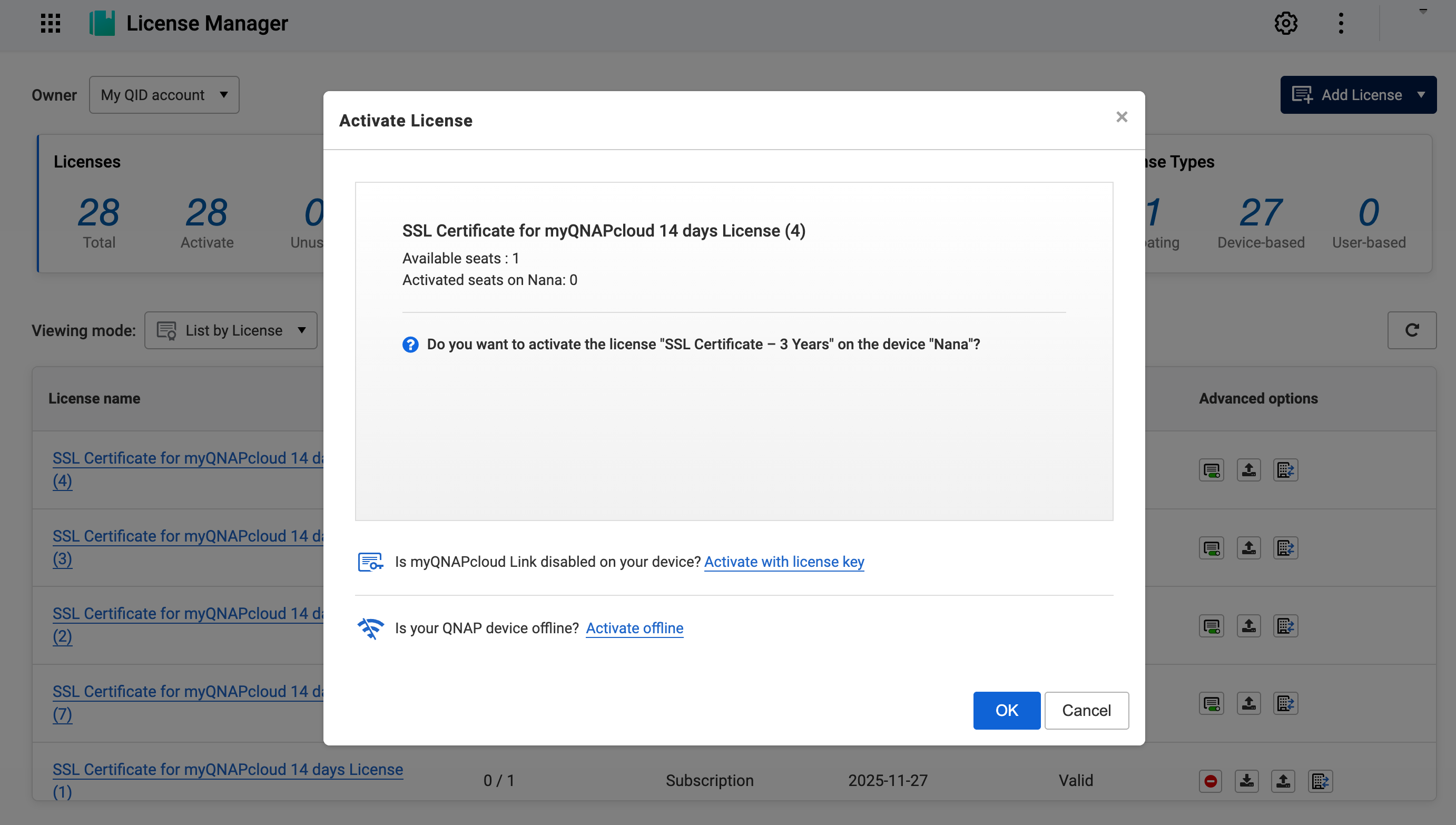
- Verify your license information. The system displays:
- License name
- Available seats
- Current activated seats on this NAS
- Click OKto continue.
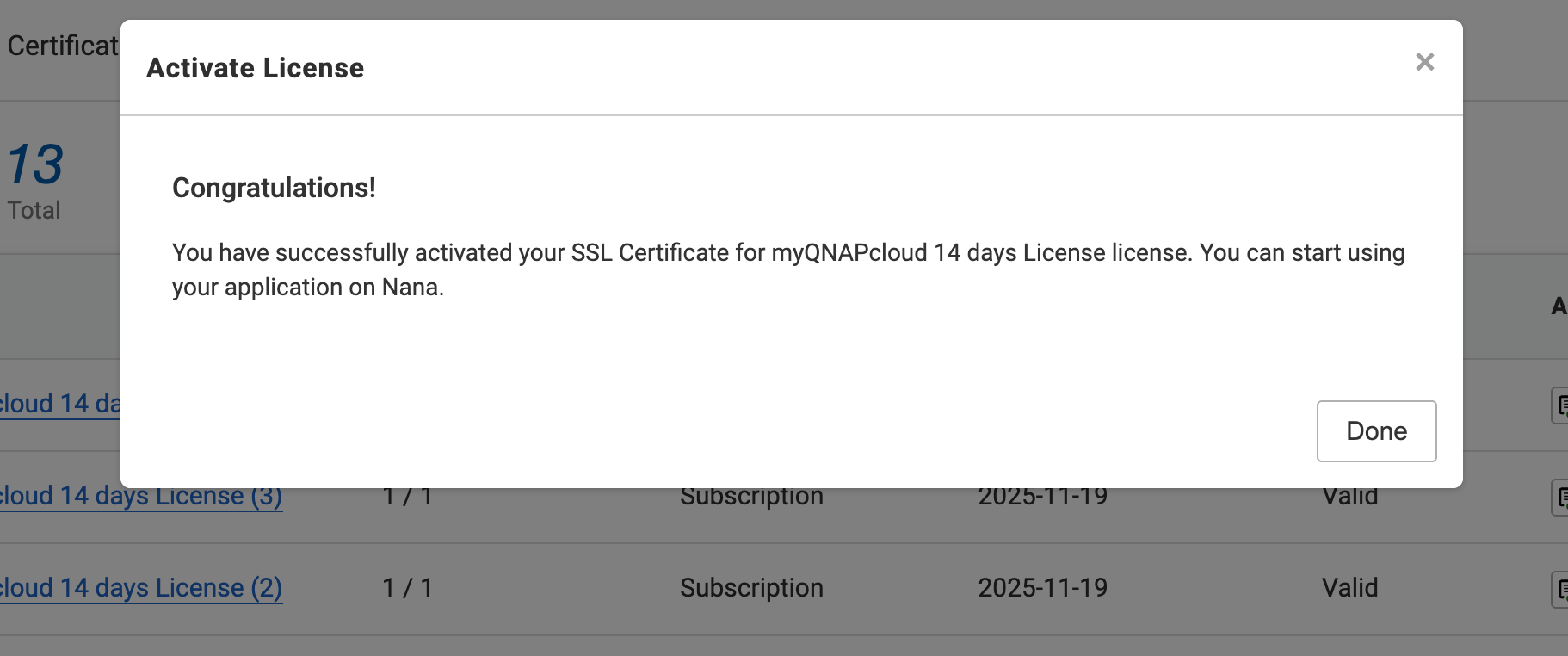
- After a successful activation, the system displays a confirmation message. Click Done.
Activate an SSL certificate in License Center
You can also activate your SSL certificate in License Center directly on your NAS. This activation method does not require myQNAPcloud Link.
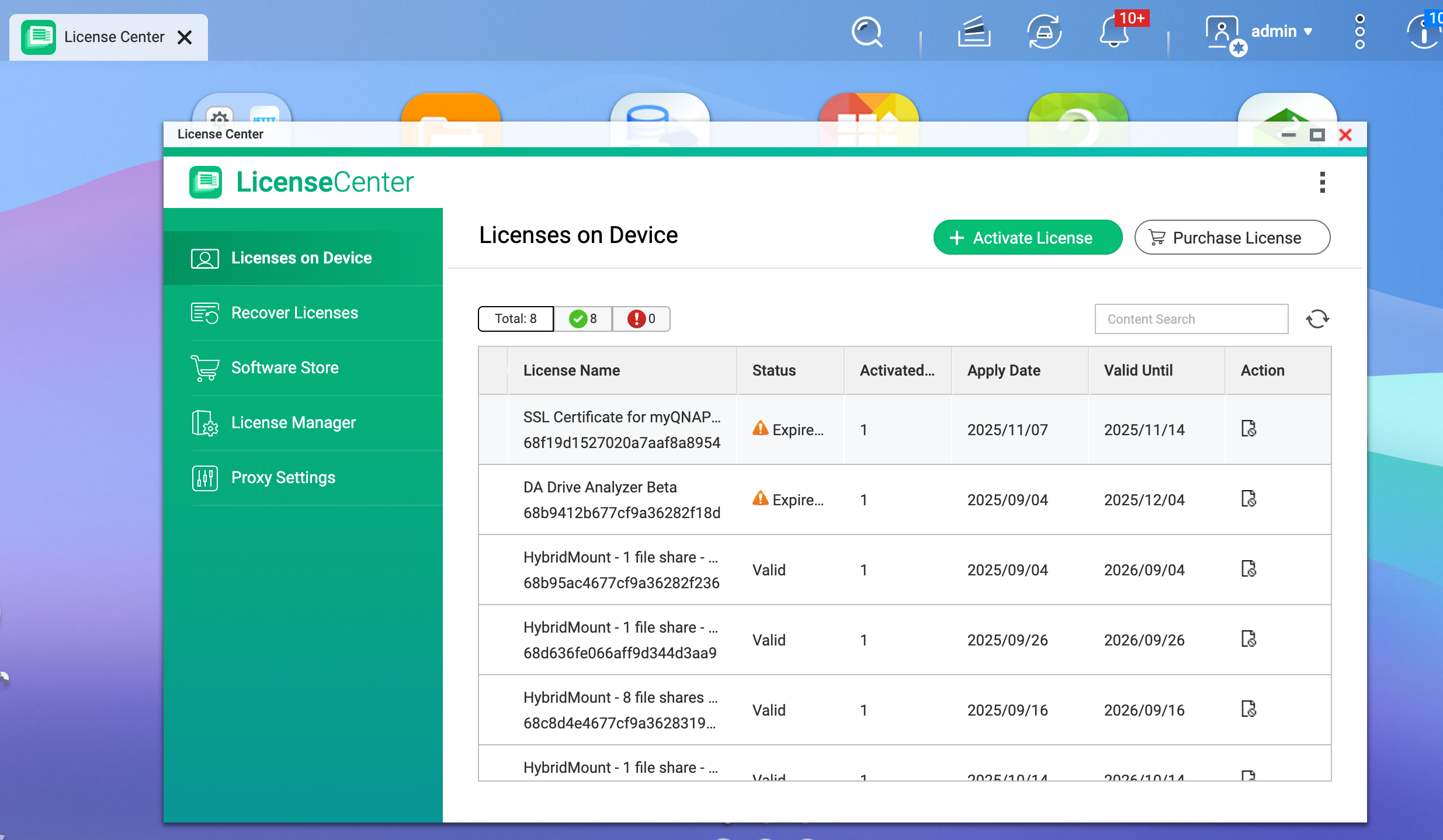
- On the NAS, go to License Center > Licenses on Device
- From the license list, locate your SSL certificate license.
- Click Activate License and follow the on-screen instructions.
Install a myQNAPcloud SSL certificate
After activating an SSL certificate license, you can now install this certificate. Note that your NAS must be connected to the same QNAP ID that was used for the purchase.
- On the NAS, go to myQNAPcloud > SSL Certificate.
- In the SSL Certificate section, click Install.
Tip
- If you have only one SSL certificate, the system automatically installs this certificate. If you multiple SSL certificates available under your account, the system displays a list. Select the license you want to install and click Install.
- If you do not see any available SSL certificates, verify that your purchase was successfully completed.
Once your installation is complete, the system displays the following certificate information:
- SSL Certificate Status: Active
- Applied to: yourname.myqnapcloud.com
- Issued by: myQNAPcloud
Release and re-apply an SSL certificate (optional)
If you want to transfer this SSL certificate to another NAS device:
- Click Release at the bottom of the SSL Certificate page.
- The certificate will be removed from the current device.
- Log in to another NAS, go to myQNAPcloud > SSL Certificate, and click Install for the same certificate.
If you purchase the certificate from the NAS
You can directly purchase an SSL certificate from the NAS. During the purchase process, myQNAPcloud will direct you to the QNAP Software Store to complete the transaction.
Prerequisites
- You are logged in to QTS with an administrator account.
- Your NAS is linked to your QNAP ID.
- Your NAS is running QTS 5.1.0 and later versions.
On the NAS, go to myQNAPcloud > SSL Certificate.
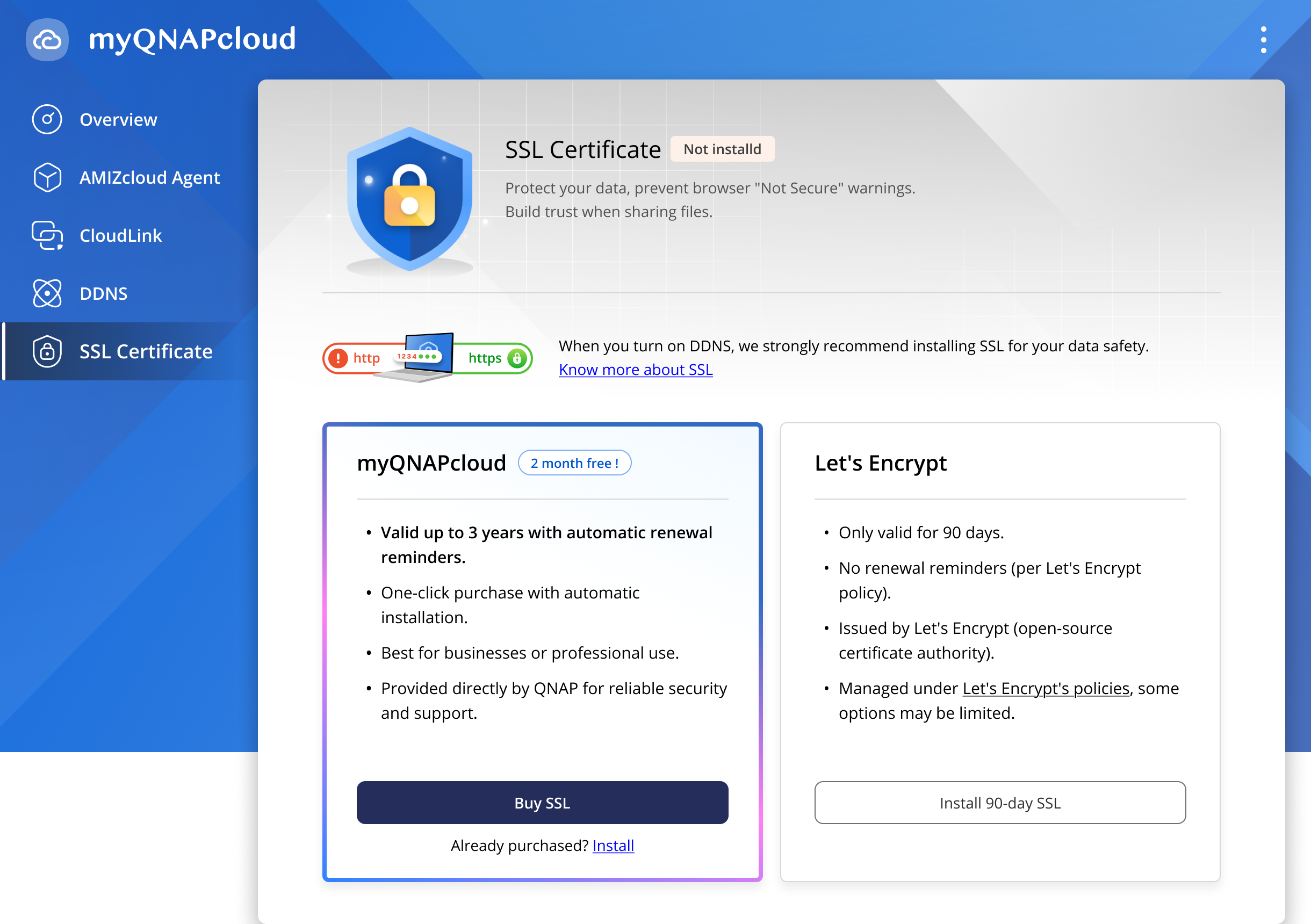
You will see two options:
- myQNAPcloud SSL : provided by QNAP. This certificate supports auto-renewal and benefits from long-term support from QNAP
- Let's Encrypt : third-party free license, valid only for 90 days
Install a myQNAPcloud SSL certificate you have already purchased
- On the NAS, go to myQNAPcloud > SSL Certificate.
- Click Install.
- The system checks the following:
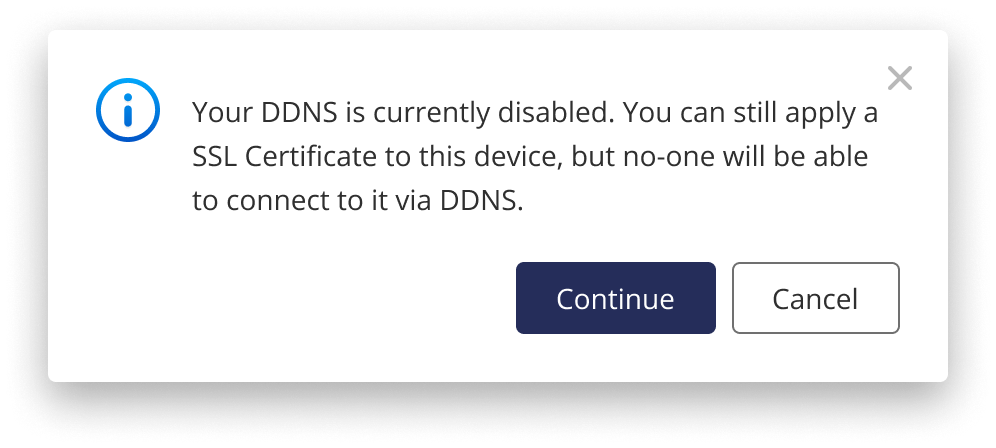
- DDNS status
- If your DDNS is disabled, you can still install an SSL certificate, though users will not be able to use it via DDNS. Click Continue or click Canceland go back to enable your DDNS.
- Existing SSL certificate licenses
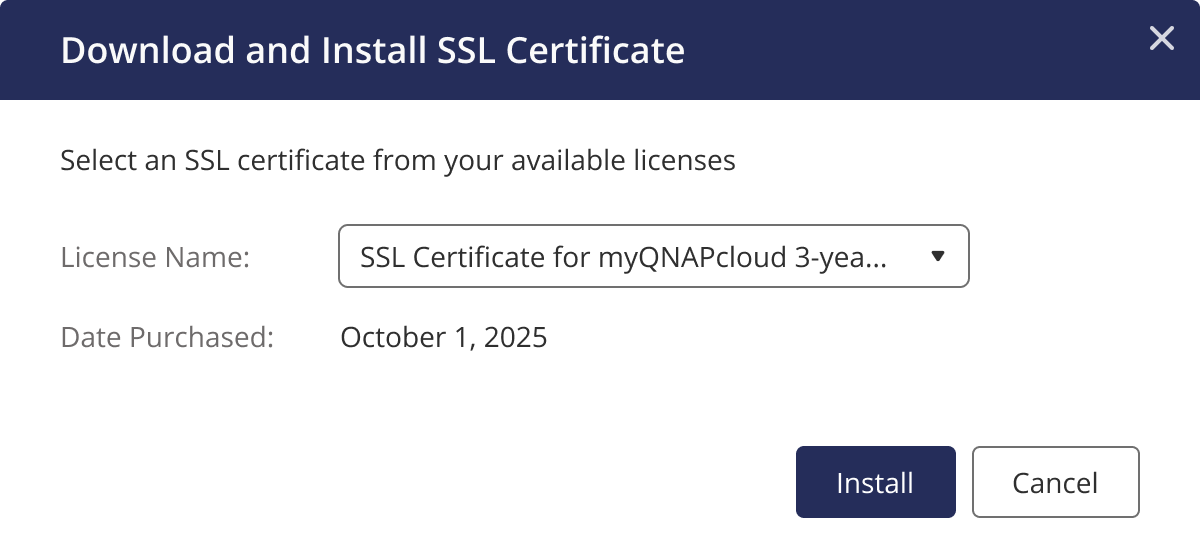
- If one or more valid SSL certificate exist under your QNAP ID, the system displays a list of licenses for you to choose.
- If no SSL certificate licenses exist, the system prompts you to purchase an SSL certificate. See the next section for details.
- Select an SSL certificate license
- Select the SSL certificate that you want to install.
- Click Install.
After successful installation, you can see the following screen and SSL certificate information.
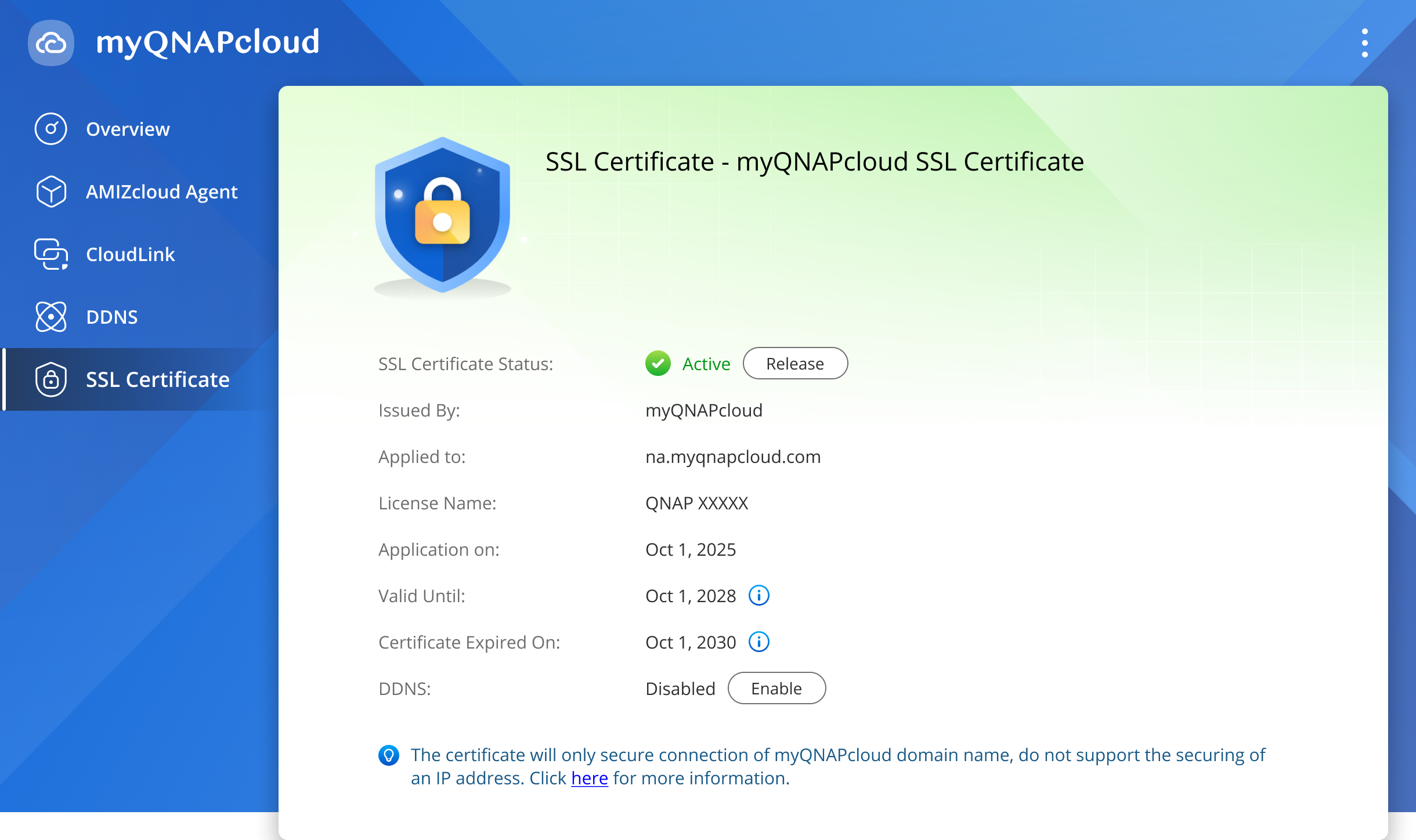
After installation, you can also choose to release this certificate from the current NAS if you want to install this certificate on another NAS.
Purchase and install a new myQNAPcloud SSL certificate
Prerequisites
- Your NAS is running QTS 5.1.0 or later.
- You are signed in to your QNAP ID.
- On the NAS, go to myQNAPcloud > SSL Certificate.
- Click Buy Now.
- The system checks the following:
- DDNS status
- If your DDNS is disabled, you can still install an SSL certificate, though users will not be able to use it via DDNS. Click Continue or click Canceland go back to enable your DDNS.
- Existing SSL certificate licenses
- If one or more valid SSL certificate exist under your QNAP ID, the system displays a list of licenses for you to choose.
- If no SSL certificate licenses exist, the system prompts you to purchase an SSL certificate. See the next section for details.
- The system automatically connects to the QNAP Software Store.
- Click Checkout Now.
- Following the on-screen instructions to complete the payment process.
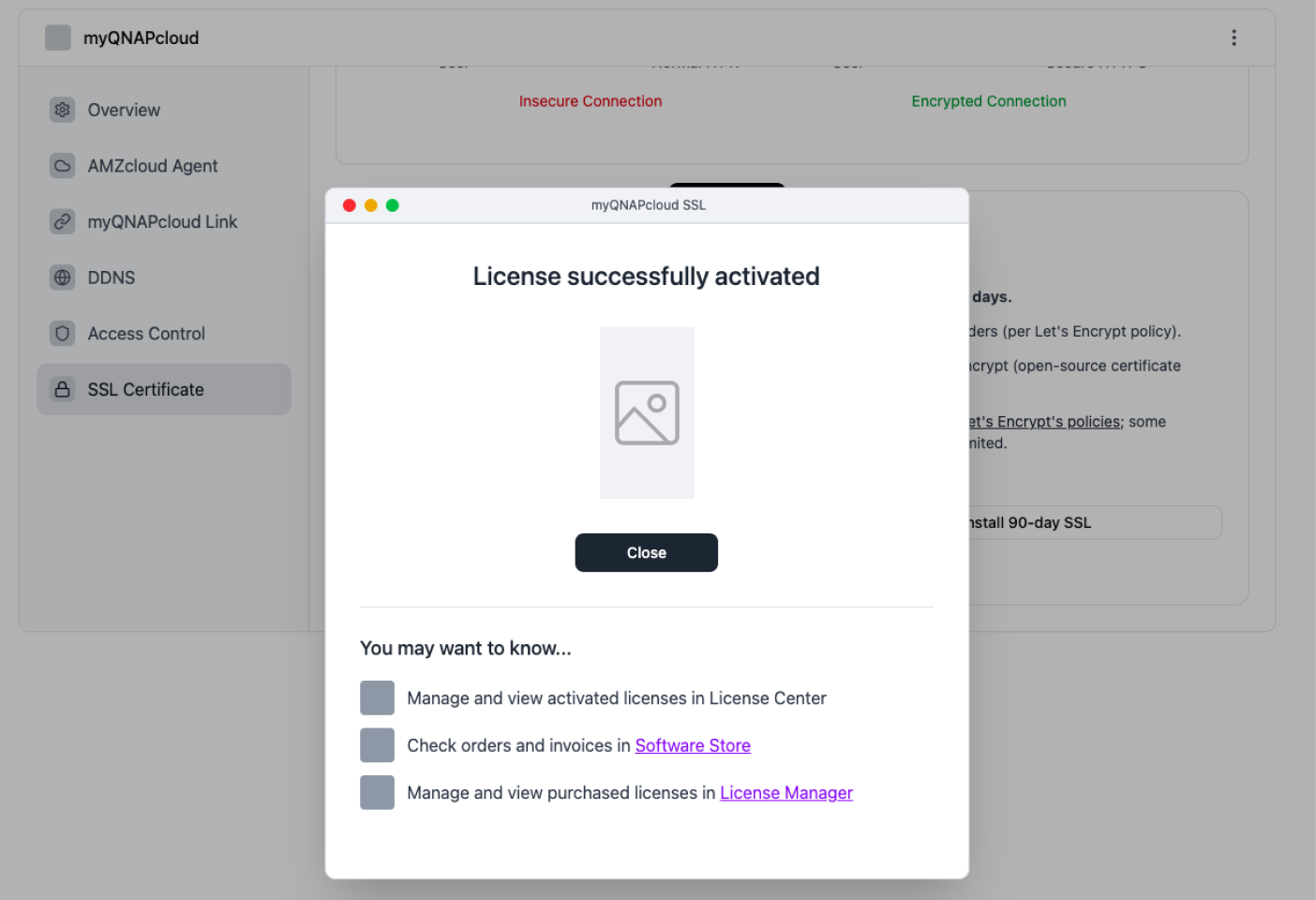
After a successful payment, the system verifies the transaction.
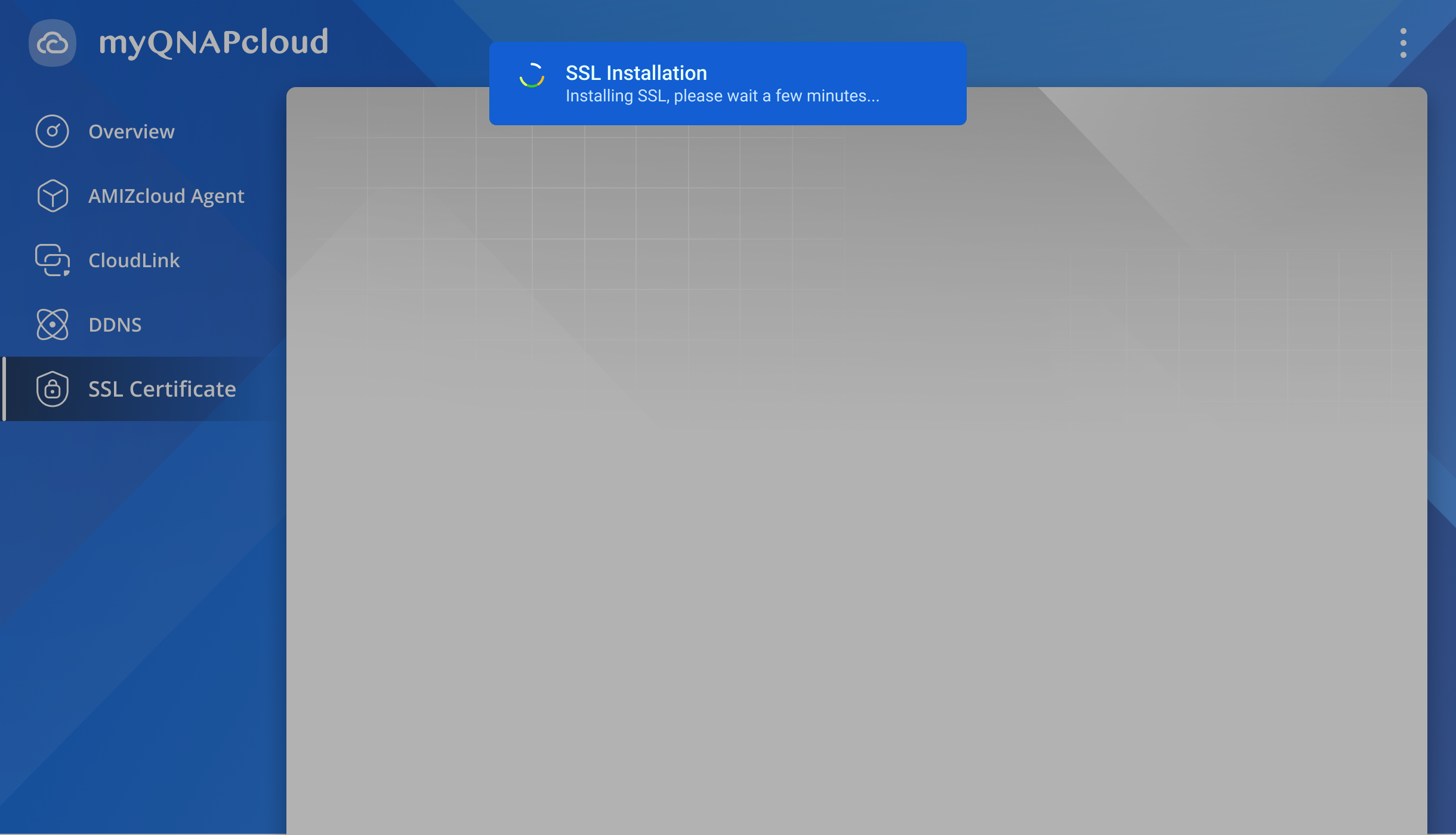
The system automatically activates this SSL license and starts installation on the NAS.
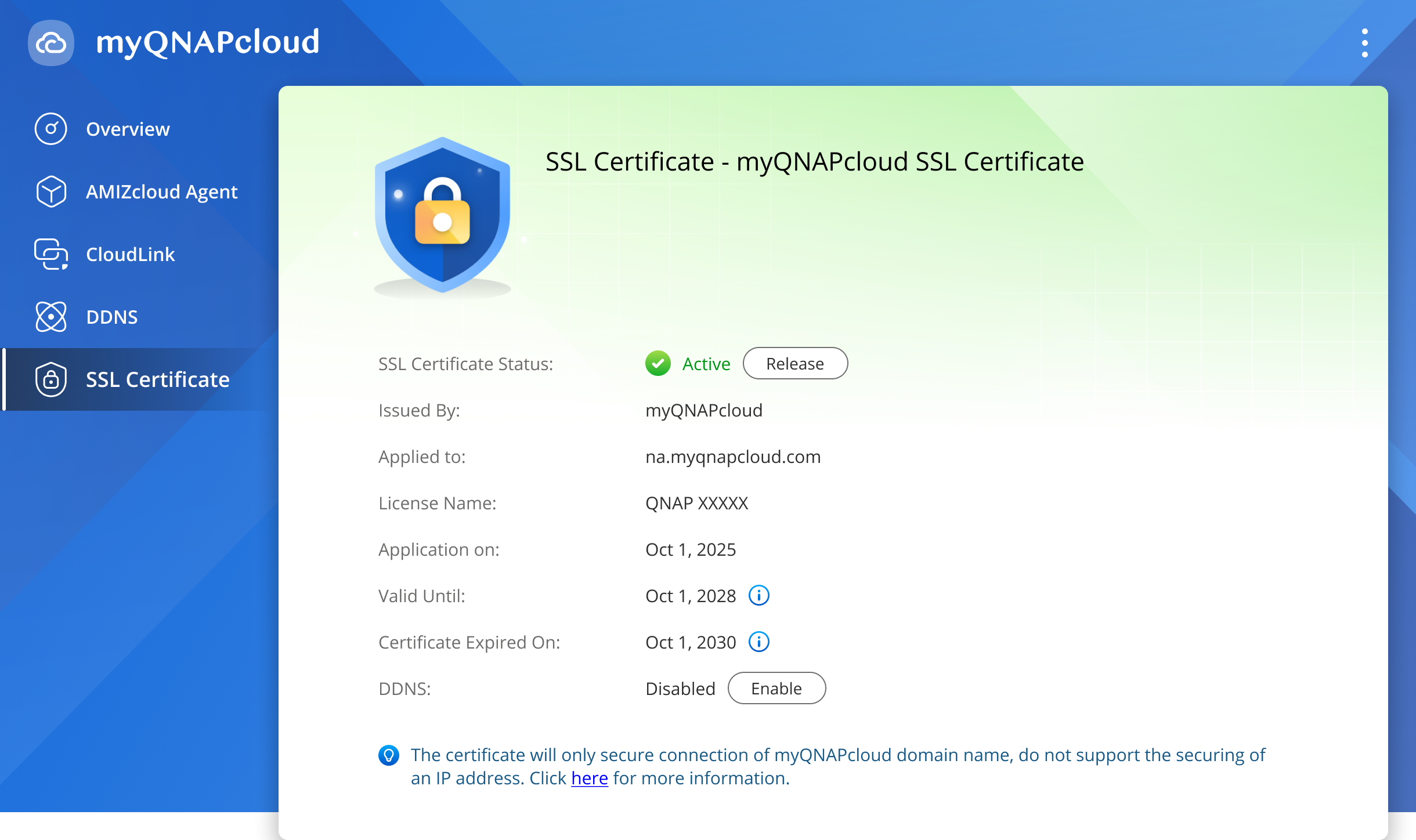
After installation, myQNAPcloud displays the information of your SSL certificate. You can also check your license information in License Center anytime.
Install a Let's Encrypt SSL certificate
You can install a Let's Encrypt SSL certificate. Note that this third-party certificate is only valid for 90 days. QNAP automatically renews a Let's Encrypt certificate, but renewal depends on the certificate authority and thus is less reliable.
- On the NAS, go to myQNAPcloud > SSL Certificate.
Under Let's Encrypt, click Install.
- The system checks DDNS settings.
- DDNS must be enabled before you install a Let's Encrypt SSL certificate.
- If your DDNS is disabled, you can click Enable DDNS and then proceed to the next step.
- Specify the following information.
- Domain name: yourname.myqnapcloud.com
- Email address
- Enable Automatically renew domain before expiration.
After installation, myQNAPcloud displays the information of your Let's Encrypt certificate.
适用产品
- myQNAPcloud 1.0.90, 1.1.90 and later
- SSL 2.2.71 and later
- License center 1.8.56, 1.9.56, 2.0.42 and later
概述
您可以使用 SSL 证书来保护您的 QNAP NAS 连接,防止浏览器出现“非安全”警告,并在远程访问时保护您的数据。本指南解释了如何购买和安装 SSL 证书。实际步骤取决于您的 NAS 固件版本和账户状态。
请注意,myQNAPcloud SSL 证书只能用于 myQNAPcloud DDNS 域名,包括:
myqnapcloud.com
mycloudnas.com
您的证书将与您当前登录的 QNAP 帐户关联,无法切换到其他账户。您可以为同一个 myQNAPcloud SSL 证书添加较多 3 个备用域名。例如:mycorp.mycloudnas.com, corpname.mycloudnas.com, company.mycloudnas.com
全球和中国站点
QNAP SSL 证书适用于全球或中国地区,不能互换。一旦为证书指定了地区,就不能更改为其他地区。系统将根据您的地区设置提供域名。
全球:
中国:
购买平台支持的 QTS 版本
| QTS 版本 | SSL 购买方式 | 描述 |
|---|
| QTS 4.1.9 或更早版本 | 不支持 | 不支持 SSL 证书。请更新您的 QTS 到更新版本以安装 SSL 证书。 |
| QTS 4.2 - 5.0.1 | myQNAPcloud | 您可以通过 myQNAPcloud 网站购买证书,然后将证书安装在 NAS 上。 |
| QTS 5.1.0 或更高版本 | myQNAPcloud
软件商店 | 您可以通过 myQNAPcloud 网站或在 QNAP 软件商店中购买证书。 |
购买平台之间的差异
从 myQNAPcloud 和软件商店购买的 SSL 证书均由 QNAP 直接提供和维护。然而,它们在续订机制上有所不同。只有从 QNAP 软件商店购买的 SSL 证书可以自动续订,这意味着当您当前的证书即将到期时,商店会自动续费。这可以确保您的安全连接不会因证书不可用而中断。
步骤
myQNAPcloud SSL 证书的购买和安装过程因您的购买方式和 QTS 版本而异。请先选择与您的购买方式对应的部分,然后选择与您的 QTS 版本对应的部分。
如果您从 myQNAPcloud 网站购买证书
访问 myQNAPcloud 网站
- 访问myQNAPcloud。
- 使用您的 QNAP ID 登录。
- 从导航菜单中选择 SSL 证书。
如果您还没有任何 SSL 证书,您将看到 SSL 证书介绍页面。
选择您的 NAS 设备
当您点击立即购买时,系统会检查与您的 QNAP ID 关联的 NAS 设备。
- 如果您没有任何设备:请查看设置说明并连接您的设备。
- 如果您只有一台设备:
- 如果您有多台设备:将出现一个列表。选择一个 NAS 设备,然后点击为此设备购买 以继续。
购买并安装 SSL 证书
适用于 QTS 4.1 或更早版本
早期固件版本不支持 SSL 证书。请考虑将您的固件更新到较新版本,以便您的 NAS 可以享受更安全的连接。
适用于 QTS 4.2 - QTS 5.0.1
- 地区和域名:系统检测您的地区和域名选项。
- 全球: myqnapcloud.com 或 mycloudnas.com
- 中国: mycloudnas.com
- 查看产品详情并完成付款。
同意条款和条件以及信息收集后继续。
然后点击结账以完成付款。
3. 付款和订单确认
完成购买并重新打开SSL 证书页面后,您现有的 SSL 许可证将出现在列表中。点击SSL 安装指南查看安装步骤。
请注意,此阶段您的 SSL 证书尚未安装在此设备上。请按照以下步骤在 NAS 上安装证书。
安装 myQNAPcloud SSL 证书
使用您的 myQNAPcloud 帐户购买 SSL 证书后,您可以直接在 NAS 上安装该证书。请注意,您的 NAS 必须与用于购买的 QNAP ID 关联。
在您的 NAS 上,前往myQNAPcloud > SSL 证书。
在SSL 证书部分,点击安装。
如果您只有一个 SSL 证书,系统将自动安装此证书。如果您的帐户下有多个 SSL 证书,系统将显示证书列表。
- 选择您想要安装的已购买的 SSL 证书。
- 再次点击安装以开始安装过程。
注意
如果您没有看到任何可用的 SSL 证书,请确认您的购买已成功完成。
如果您的 myQNAPcloud SSL 证书已成功安装,您将看到以下信息:
- SSL 证书状态:活跃
- 应用于: yourname.myqnapcloud.com
- 颁发者: myQNAPcloud
释放并重新申请 SSL 证书(可选)
如果您想将此 SSL 证书转移到另一台 NAS 设备:
- 在 SSL 证书页面底部点击释放。
- 证书将从当前设备中移除。
- 登录到另一台 NAS,进入myQNAPcloud > SSL 证书,然后点击安装相同的证书。
适用于 QTS 5.1.0 或更高版本
系统会自动连接到 QNAP 软件商店。
- 点击立即结账。
- 按照屏幕上的说明完成购买。
- 系统返回到 myQNAPcloud 并显示确认信息。
使用您的 QNAP ID 购买 SSL 证书后,您可以直接在 NAS 上安装该证书。
请注意,您可以在许可证管理器中查看您购买的证书和其他许可证。
激活 myQNAPcloud SSL 证书
在安装 SSL 证书之前,您必须先激活此证书。您可以在许可证管理器网站上(需要 myQNAPcloud Link)或在 NAS 上的许可证中心激活 SSL 证书。
- 安装:使用您的 myQNAPcloud 账户购买 SSL 证书并成功激活许可证后,您可以通过 myQNAPcloud 页面直接在 NAS 上安装它。
在 License Manager 中激活 SSL 证书
请注意,您必须在 License Manager 中激活 SSL 证书之前启用 myQNAPcloud Link:
- 在 NAS 上,进入myQNAPcloud > myQNAPcloud Link。
- 启用 myQNAPcloud Link。确保 myQNAPcloud Link 的状态正常。
在 License Manager 中激活 SSL 许可证
- 进入许可证管理器。
- 使用您的 QNAP ID 登录。
- 点击激活您想激活的 SSL 证书许可证。
- 输入您的 NAS 用户名和密码。
- 点击允许。
- 验证您的许可证信息。系统显示:
- 点击确定继续。
- 激活成功后,系统会显示确认信息。点击完成。
在许可证中心激活 SSL 证书
您还可以直接在 NAS 上的许可证中心激活您的 SSL 证书。这种激活方法不需要 myQNAPcloud Link。
- 在 NAS 上,进入许可证中心 > 设备上的许可证
- 从许可证列表中,找到您的 SSL 证书许可证。
- 点击激活许可证并按照屏幕上的说明进行操作。
安装 myQNAPcloud SSL 证书
激活 SSL 证书许可证后,您现在可以安装此证书。请注意,您的 NAS 必须连接到用于购买的相同 QNAP ID。
- 在 NAS 上,进入myQNAPcloud > SSL 证书。
- 在 SSL 证书部分,点击安装。
提示
- 如果您只有一个 SSL 证书,系统会自动安装此证书。如果您的账户下有多个 SSL 证书可用,系统会显示一个列表。选择您要安装的许可证并点击安装。
- 如果您没有看到任何可用的 SSL 证书,请确认您的购买已成功完成。
安装完成后,系统会显示以下证书信息:
- SSL 证书状态:活跃
- 应用于: yourname.myqnapcloud.com
- 颁发者: myQNAPcloud
释放并重新应用 SSL 证书(可选)
如果您想将此 SSL 证书转移到另一台 NAS 设备:
- 在 SSL 证书页面底部点击释放。
- 证书将从当前设备中移除。
- 登录到另一台 NAS,进入myQNAPcloud > SSL 证书,然后点击安装相同的证书。
如果您从 NAS 购买证书
您可以直接从 NAS 购买 SSL 证书。在购买过程中,myQNAPcloud 会引导您到 QNAP 软件商店完成交易。
先决条件
- 您已使用管理员账户登录 QTS。
- 您的 NAS 已链接到您的 QNAP ID。
- 您的 NAS 运行 QTS 5.1.0 及更高版本。
在 NAS 上,进入myQNAPcloud > SSL 证书。
您将看到两个选项:
- myQNAPcloud SSL:由 QNAP 提供。此证书支持自动续订,并享有 QNAP 的长期支持
- Let's Encrypt:第三方免费许可证,仅有效 90 天
安装您已购买的 myQNAPcloud SSL 证书
- 在 NAS 上,前往myQNAPcloud > SSL 证书。
- 点击安装。
- 系统检查以下内容:
- DDNS 状态
- 如果您的 DDNS 被禁用,您仍然可以安装 SSL 证书,但用户将无法通过 DDNS 使用它。点击继续或点击取消并返回以启用您的 DDNS。
- 现有 SSL 证书许可证
- 如果在您的 QNAP ID 下存在一个或多个有效的 SSL 证书,系统会显示一个许可证列表供您选择。
- 如果不存在 SSL 证书许可证,系统会提示您购买 SSL 证书。详情请参见下一节。
- 选择一个 SSL 证书许可证
- 选择您想要安装的 SSL 证书。
- 点击安装。
安装成功后,您可以看到以下屏幕和 SSL 证书信息。
安装后,您还可以选择从当前 NAS 释放此证书,以便在其他 NAS 上安装此证书。
购买并安装新的 myQNAPcloud SSL 证书
先决条件
- 您的 NAS 正在运行 QTS 5.1.0 或更高版本。
- 您已登录到您的 QNAP ID。
- 在 NAS 上,前往myQNAPcloud > SSL 证书。
- 点击立即购买。
- 系统检查以下内容:
- DDNS 状态
- 如果您的 DDNS 被禁用,您仍然可以安装 SSL 证书,但用户将无法通过 DDNS 使用它。点击继续或点击取消并返回以启用您的 DDNS。
- 现有 SSL 证书许可证
- 如果您的 QNAP ID 下存在一个或多个有效的 SSL 证书,系统会显示许可证列表供您选择。
- 如果不存在 SSL 证书许可证,系统会提示您购买 SSL 证书。详情请参见下一节。
- 系统自动连接到QNAP 软件商店。
- 点击立即结账。
- 按照屏幕上的说明完成支付过程。
支付成功后,系统会验证交易。
系统会自动激活此 SSL 许可证并开始在 NAS 上安装。
安装后,myQNAPcloud 会显示您的 SSL 证书信息。您也可以随时在许可证中心查看您的许可证信息。
安装 Let's Encrypt SSL 证书
您可以安装 Let's Encrypt SSL 证书。请注意,此第三方证书仅有效 90 天。QNAP 会自动续订 Let's Encrypt 证书,但续订取决于证书颁发机构,因此可靠性较低。
- 在 NAS 上,前往myQNAPcloud > SSL 证书。
在 Let's Encrypt 下,点击安装。
- 系统检查 DDNS 设置。
- 在安装 Let's Encrypt SSL 证书之前,必须启用 DDNS。
- 如果您的 DDNS 未启用,您可以点击启用 DDNS,然后继续下一步。
- 指定以下信息。
- 域名: yourname.myqnapcloud.com
- 电子邮件地址
- 启用在到期前自动续订域名。
安装后,myQNAPcloud 会显示您的 Let's Encrypt 证书信息。


