


How to Configure VyperVPN on QuRouter Using OpenVPN?
最后修订日期:
2023-10-19
This tutorial explains how to configure a VyperVPN client using OpenVPN on QuRouter.
- Downloading VyperVPN Server Information
- Creating an OpenVPN connection in QuRouter
- Enabling QVPN Client Service
Downloading VyperVPN Server Information
To connect to a VyperVPN server, you must first download the VyperVPN OpenVPN configuration file. The configuration file contains the settings and instructions required by the OpenVPN client (VyperVPN) to connect to the OpenVPN server.
- Click the following link to locate the OpenVPN configuration file: Where can I find the OpenVPN files?
- Locate the link to download the OpenVPN file.
- Download the compressed file.
- Locate the compressed file on your computer.
- Unzip the contents of the compressed file.NoteThe download contains 160-bit and 256-bit encrypted configuration files.
Creating an OpenVPN Connection in QuRouter
The next step is to create an OpenVPN connection profile in QuRouter using the VyperVPN configuration file you downloaded earlier.
Important
- When adding an OpenVPN connection, an OpenVPN configuration file is required to establish the connection.
- To enable QVPN client service, ensure that you disable QVPN server and QuWAN services.
- Log in to QuRouter.
- Go to QVPN Clients > QVPN Connection Profiles.
- Click Add Profile.
The Create an OpenVPN Connection window appears. - Configure the OpenVPN connection profile.
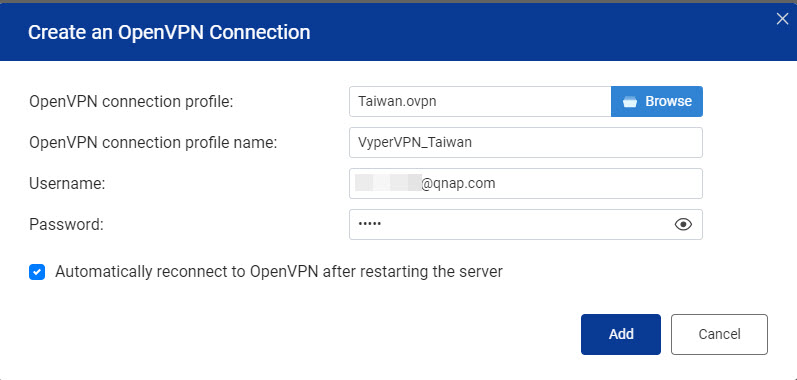
Setting User Action OpenVPN connection profile Add an OpenVPN configuration file.
- Click Browse.
The File Explorer window opens. - Locate the OpenVPN configuration file.
- Click Open.
OpenVPN connection profile name Specify a name to help identify this profile.
Username Specify the username to access the VPN server. Password Specify a password to access the VPN server. TipPassword requirements:- Length: 1–64 ASCII characters
- Valid characters: A–Z, a–z, 0–9
- Click Browse.
- Select Automatically reconnect to OpenVPN after restarting the server.
- Click Add.
QuRouter adds the QVPN connection profile.
Enabling the QVPN Client Service
- Log in to QuRouter.
- Go to QVPN Clients > QVPN Connection Profiles.
- Select an active VyperVPN profile.
- Next to Enable QVPN client service, click
 .
.
QuRouter enables the QVPN client service.
Tip
To view the QVPN connection logs, go to QVPN Clients > QVPN Connection Logs.


