阅读约 4 分钟


Why is your blazing fast NAS, but remote file transfer feels like it's crawling?
You spent a fortune upgrading to a 10GbE home network and bought a high-performance QNAP NAS, but when you try to access photos with Qfile Pro on your 5G phone outside, the speed is so slow it makes you question life? Usually, it's not the 5G's fault, but your “connection path” is wrong.
In QNAP's remote ecosystem, there are two distinctly different transmission routes: one is a survival path (Relay) that exists to ensure connectivity, and the other is an ultra-fast highway (Direct) designed for maximum bandwidth.
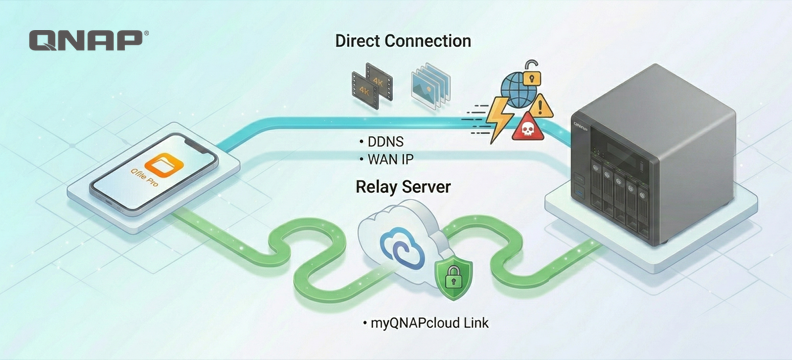
Diagram of QNAP secure connection mechanism: route determination explained
To optimize connection speed, let's first look at the physical limits of these two options:
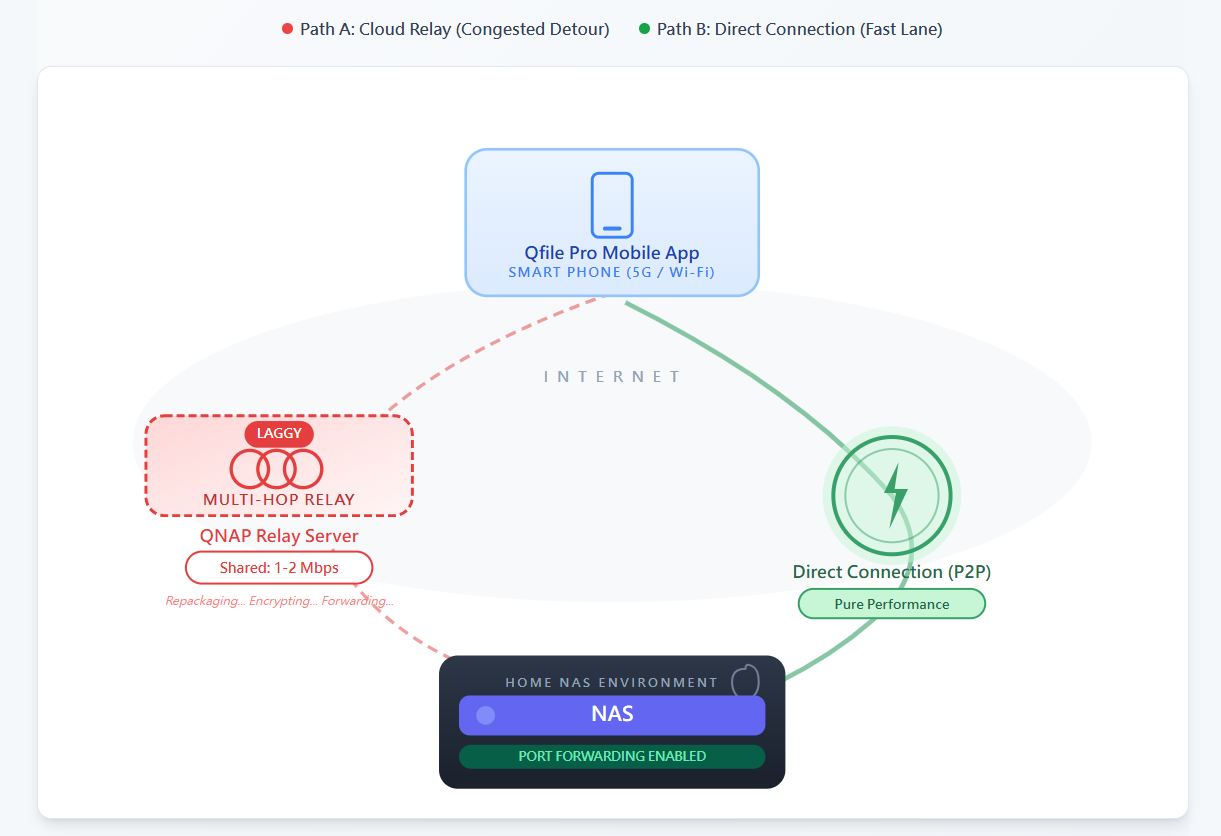
1. Relay Server (myQNAPcloud Link) — Indirect relay mode
When your Router firewall is as strict as a fortress and no port forwarding is enabled at all, the system will automatically activate this "Guaranteed Connectivity" rescue mechanism.
-
Transmission path: [Mobile Device] → [ISP Networking] → [QNAP Global Relay Server] → [Home NAS].
-
Effectiveness Reality: Since it is a "relay", data must go through a third-party server. In situations where global users share bandwidth, speeds are usually limited to 1-2 Mbps. Reading a PDF or changing a setting is still doable at this bandwidth, but syncing tens of thousands of photos? That's simply impossible.
2. Direct Connection (Port Forwarding) — Ultra-fast public route mode
Through simple port forwarding settings, allow your phone to establish a direct point-to-point (P2P) connection with NAS, bypassing all intermediaries.
-
Transmission route: [Phone] → [ISP Networking] → [Home Router] → [Home NAS].
-
Performance Reality: This is the only solution to unleash your true physical bandwidth. If your home has 500M fiber upload, your remote storage can run at the full 500M. This is what we call 'as fast as being next door,' letting you enjoy LAN-like storage speeds even at a café.
Dissecting the five connection paths of Qfile Pro: Which path is your data taking?
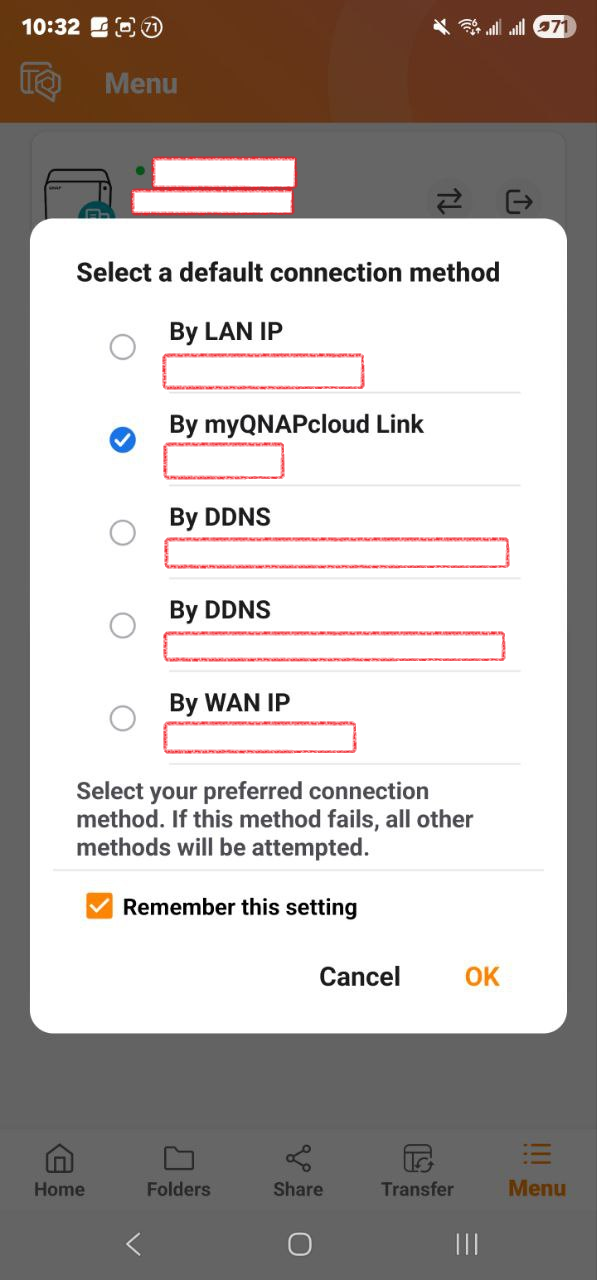
When we open the connection list in Qfile Pro, those five routes secretly hold the keys to speed and security. myQNAPcloud Smart URL will attempt the optimal solution, but manual intervention often achieves the ultimate result:
-
LAN IP: The dedicated "internal elevator" for the local network, with bandwidth typically limited to Router and Switch within the home.
-
myQNAPcloud Link (Relay Mode): This is the most common 'last resort' for beginners. Traffic must be relayed through the official server, and bandwidth is usually limited to 1-2 Mbps. If you find that transferring 4K video is extremely slow, it's usually because you've entered this route.
-
DDNS and WAN IP (Direct Connection Mode): This is the express ticket for external network access. Through xxxx.myQNAPcloud.com or a physical IP, you can bypass the relay server's limitations and directly access your home's full bandwidth.
The last line of defense and endpoint presentation
Although the Relay Server is slow, it is QNAP's "last resort" for you. When you are at an airport Wi-Fi or under a strictly controlled enterprise network where all direct connection ports are blocked, Relay ensures you can still connect back home to access data. However, regardless, please first make sure that muQNAPcloud on the NAS end has both myQNAPcloud Link and DDNS properly enabled to ensure Networking connection remains uninterrupted.
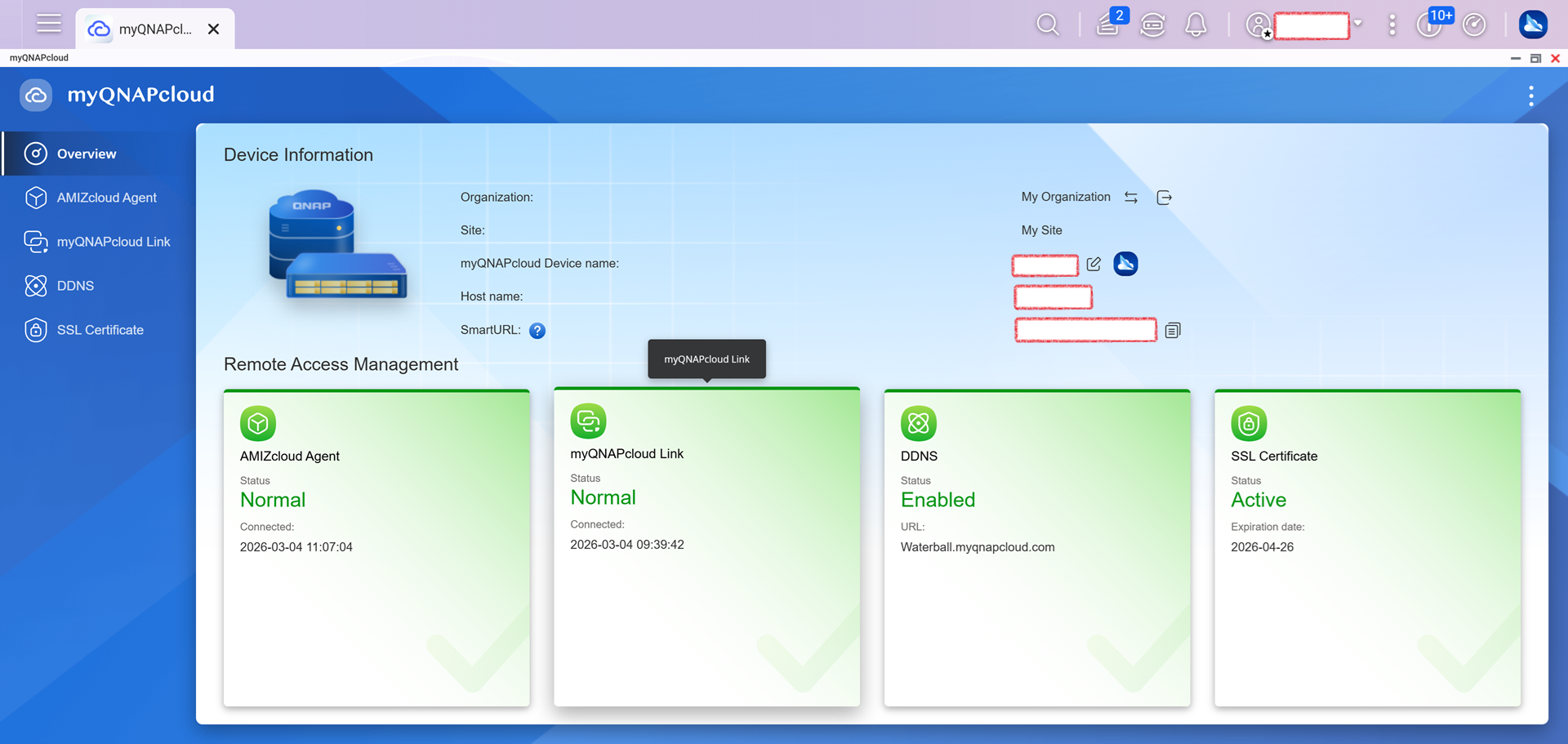
But if you’re after the ultimate experience—if you want to instantly stream 4K multimedia or transfer tens of thousands of photos in seconds during the mobile office boom of 2026—then configuring “Direct Connection Mode” is essential to unleash the full hardware performance of QNAP NAS. Don’t let the wrong path bury the true capabilities of your NAS.