Applicable Products
- QNAP NAS models that running with QTS / QuTS Hero 5.2.x and later
Scenario
After enabling Snapshots on my QNAP NAS, a folder named @Recently-Snapshot appears in the root directory of my shared folders when accessed via SMB or File Station.
How can I hide or remove the @Recently-Snapshot folder without disabling the Snapshot feature?
Solution
The @Recently-Snapshot folder is a default directory created by QTS / QuTS hero to allow users to browse and restore previous versions of files directly from the shared folder.
If you do not want this folder visible to SMB or File Station users, you can safely hide it without disabling your automatic snapshot schedule or deleting existing snapshots.
- Log in to QTS / QuTS hero as an Administrator.
- Open Storage & Snapshots.
- Go to Storage > Snapshots in the left menu.
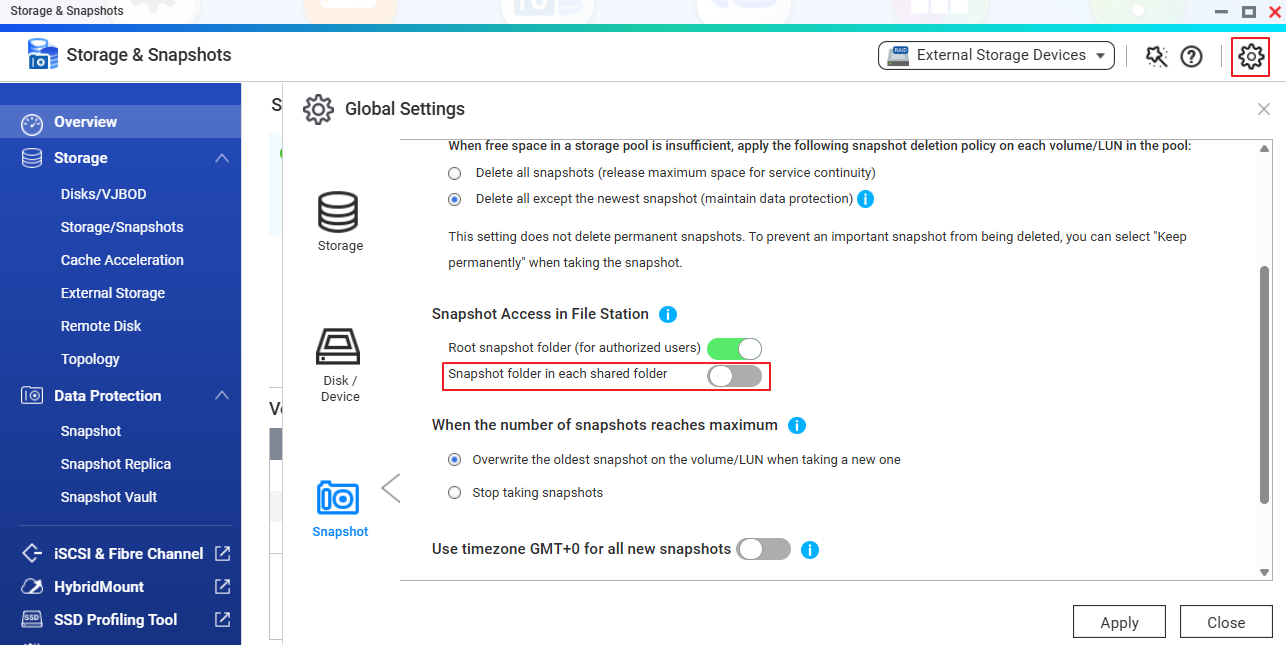
- Click Global Settings (gear icon) in the top right corner.
- Select the Snapshots tab.
- Under Snapshot Access in File Station, locate:
Snapshot folder in each shared folder
- Uncheck or Disable this option.
- Click Apply to save changes.
What Happens After Disabling This Option?
- SMB / File Station View: The
@Recently-Snapshot folder disappears from Windows Network Neighborhood, macOS Finder, and File Station.
- Snapshot Functionality: Automatic snapshots continue to run on schedule as usual.
- Data Safety: No existing snapshots are deleted.
- Restoration: Administrators can still manage and restore snapshots anytime via Storage & Snapshots > Snapshot Manager.
Retaining "Previous Versions" for Windows Users
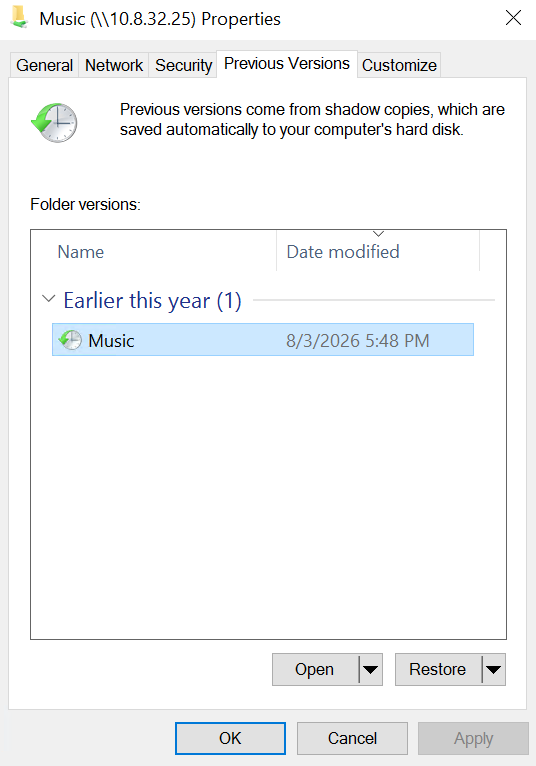
If you want to hide @Recently-Snapshot but still allow Windows SMB users to right-click a file and restore previous versions via the Windows native interface:
- Open Control Panel.
- Go to Privilege > Shared Folders.
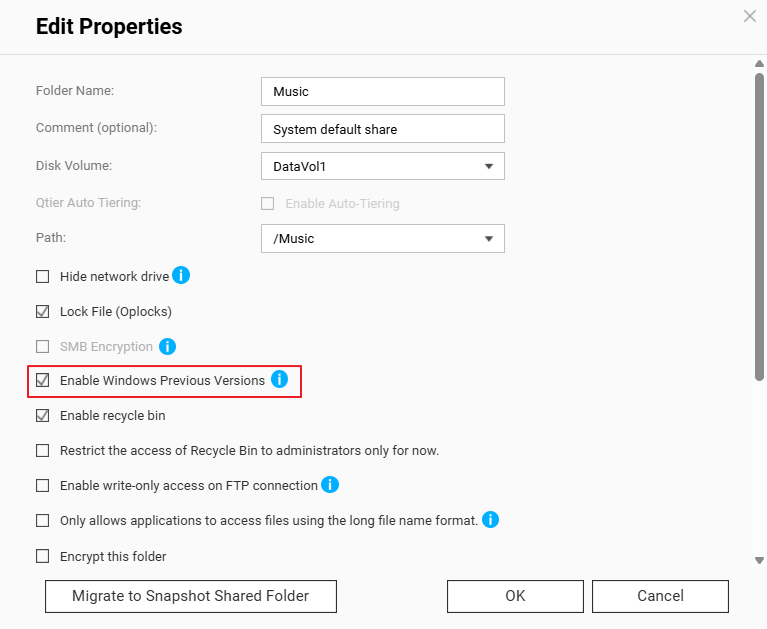
- Locate the target shared folder and click Edit Properties (pencil icon) under Action.
- Check
Enable Windows Previous Versions.
- Click OK to apply settings.
Further Reading
适用产品
- QNAP NAS models that running with QTS / QuTS Hero 5.2.x and later
场景
在我的 QNAP NAS 上启用快照后,通过 SMB 或 File Station 访问共享文件夹时,根目录中会出现一个名为@Recently-Snapshot的文件夹。
如何在不禁用快照功能的情况下隐藏或删除@Recently-Snapshot文件夹?
解决方案
@Recently-Snapshot文件夹是由 QTS / QuTS hero 创建的默认目录,允许用户直接从共享文件夹浏览和恢复文件的以前版本。
如果您不希望此文件夹对 SMB 或 File Station 用户可见,可以在不禁用自动快照计划或删除现有快照的情况下安全地隐藏它。
- 以管理员身份登录QTS / QuTS hero。
- 打开存储与快照总管。
- 在左侧菜单中,转到存储 > 快照。
- 点击右上角的全局设置(齿轮图标)。
- 选择快照选项卡。
- 在 File Station的快照访问下,找到:
Snapshot folder in each shared folder
- 取消选中或禁用此选项。
- 点击应用以保存更改。
禁用此选项后会发生什么?
- SMB / File Station 视图:
@Recently-Snapshot文件夹将从 Windows 网络邻居、MacOS Finder 和 File Station 中消失。
- 快照功能:自动快照将按计划继续运行。
- 数据安全:现有的快照不会被删除。
- 恢复:管理员仍然可以通过存储与快照总管 > 快照管理器随时管理和恢复快照。
为 Windows 用户保留“以前的版本”
如果您想隐藏@Recently-Snapshot但仍允许 Windows SMB 用户右键单击文件并通过 Windows 本机界面恢复以前的版本:
- 打开控制台。
- 转到权限 > 共享文件夹。
- 找到目标共享文件夹并点击编辑属性(铅笔图标)在操作下。
- 检查
Enable Windows Previous Versions。
- 点击确定以应用设置。
进一步阅读


