Applicable Products
- QNAP NAS models that running with QTS / QuTS Hero 5.2.x and later
Scenario
When I access my QNAP NAS shared folders via SMB (Windows Network Neighbor / macOS Finder) or File Station, a folder named @Recycle appears in the root directory.
How can I prevent the @Recycle folder from showing up for regular users, or completely disable it?
Solution
The @Recycle folder is created by the Network Recycle Bin feature on QTS / QuTS hero. Its purpose is to temporarily hold files deleted via SMB, AFP, or File Station to prevent accidental data loss.
@Recycle can't be hidden but we can set it accessible for administrators only. The regular users will not be able to access it in SMB, while preserving your ability as an administrator to recover accidentally deleted files.
Method 1: Restrict @Recycle Access to Administrators Only (Recommended)
- Log in to QTS / QuTS hero as an Administrator.
- Open Control Panel > Privilege > Shared Folders.
- Locate the target shared folder and click Edit Properties (pencil icon) under Action.
- Check
Enable Network Recycle Bin (if not already enabled).
- Check
Restrict the access of Network Recycle Bin to administrators only for now.
- Click OK.
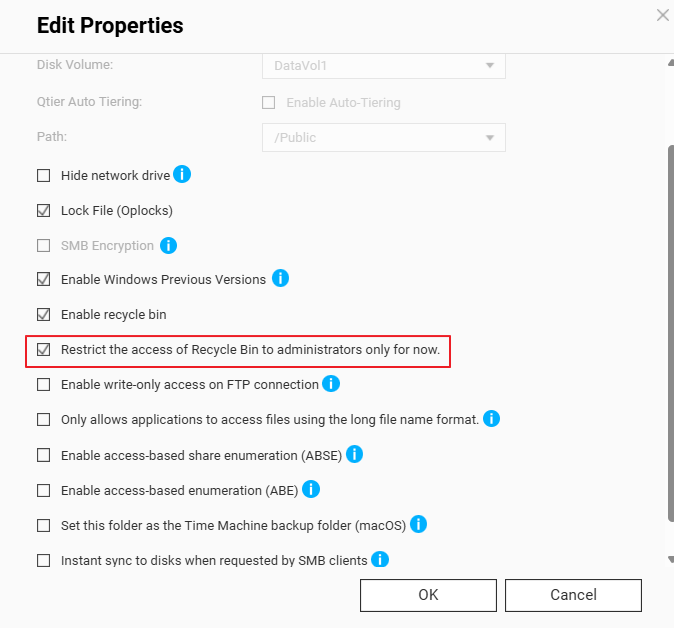
Note: Once enabled, non-admin users connecting via SMB will no longer see or have access to the @Recycle folder in their mapped network drives.
Method 2: Disable Network Recycle Bin Entirely
If you have Snapshots enabled and scheduled on your NAS, you may not need the Network Recycle Bin at all. You can turn it off globally or for specific shared folders.
Option A: Turn Off Globally
- Go to Control Panel > Privilege > Shared Folders.
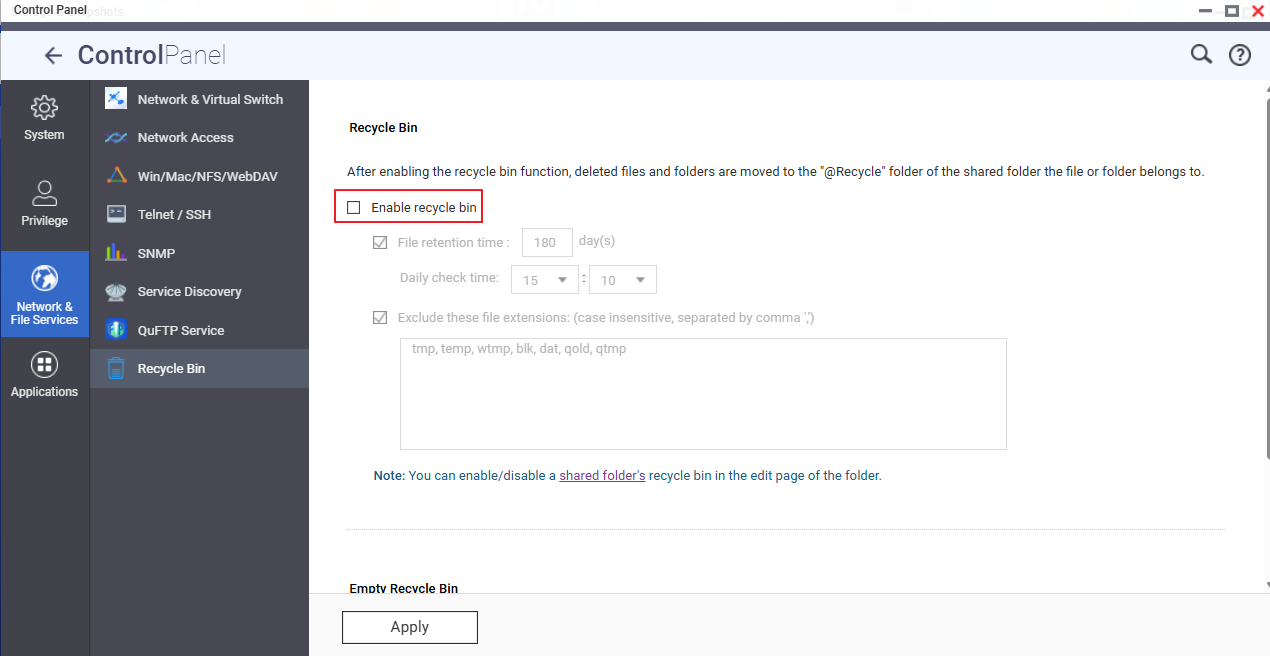
- Click Global Settings or open the Network Recycle Bin section.
- Uncheck
Enable recycle bin.
- Click Apply.
Option B: Turn Off for a Specific Shared Folder
- Go to Control Panel > Privilege > Shared Folders.
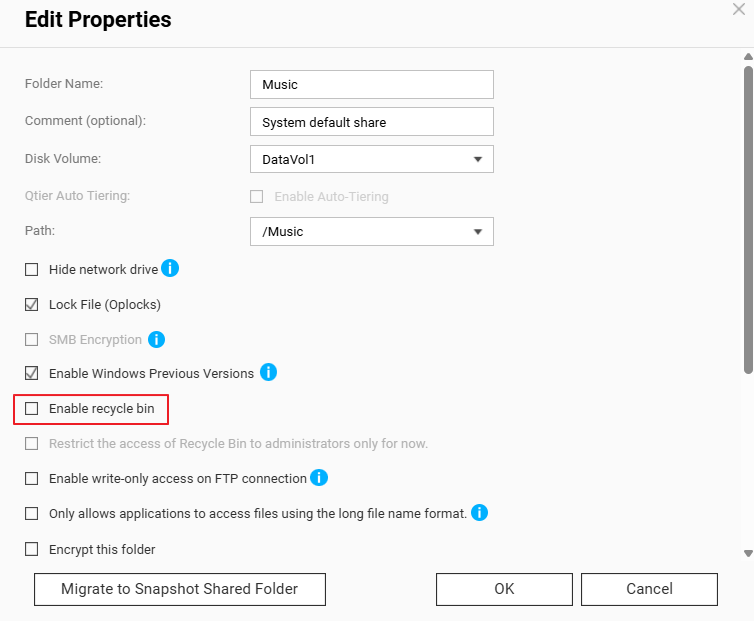
- Locate the shared folder you want to modify and click Edit Properties (pencil icon).
- Uncheck
Enable recycle bin.
- Click OK.
Further Reading
适用产品
- QNAP NAS models that running with QTS / QuTS Hero 5.2.x and later
场景
当我通过 SMB(Windows 网络邻居 / MacOS Finder)或 File Station 访问我的 QNAP NAS 共享文件夹时,根目录中会出现一个名为@Recycle的文件夹。
如何防止@Recycle文件夹对普通用户显示,或禁用它?
解决方案
@Recycle文件夹是由 QTS / QuTS hero 上的网络资源回收站功能创建的。其目的是临时保存通过 SMB、AFP 或 File Station 删除的文件,以防止意外数据丢失。
@Recycle无法隐藏,但我们可以设置仅管理员可以访问。普通用户将无法在 SMB 中访问它,同时保留您作为管理员恢复意外删除文件的能力。
方法 1:仅限管理员访问@Recycle(推荐)
- 以管理员身份登录QTS / QuTS hero。
- 打开控制台 > 权限 > 共享文件夹。
- 找到目标共享文件夹,并在操作下点击编辑属性(铅笔图标)。
- 勾选
Enable Network Recycle Bin(如果尚未启用)。
- 勾选
Restrict the access of Network Recycle Bin to administrators only for now。
- 点击确定。
注意:启用后,通过 SMB 连接的非管理员用户将不再能在其映射的网络驱动器中看到或访问@Recycle文件夹。
方法二:禁用网络资源回收站
如果您的 NAS 上启用了并计划使用快照,您可能不需要网络资源回收站。您可以全局或针对特定共享文件夹关闭它。
选项 A:全局关闭
- 前往控制台 > 权限 > 共享文件夹。
- 点击全局设置或打开网络资源回收站部分。
- 取消选中
Enable recycle bin。
- 点击应用。
选项 B:针对特定共享文件夹关闭
- 前往控制台 > 权限 > 共享文件夹。
- 找到您想修改的共享文件夹并点击编辑属性(铅笔图标)。
- 取消选中
Enable recycle bin。
- 点击确定。
进一步阅读


