Applicable Products
QTS, QuTS hero
Qsync Client for Windows v6.0.3 and later
Overview
In earlier versions of Qsync Client for Windows, files stored in Space-Saving mode appeared as placeholders in Windows File Explorer without thumbnail previews.
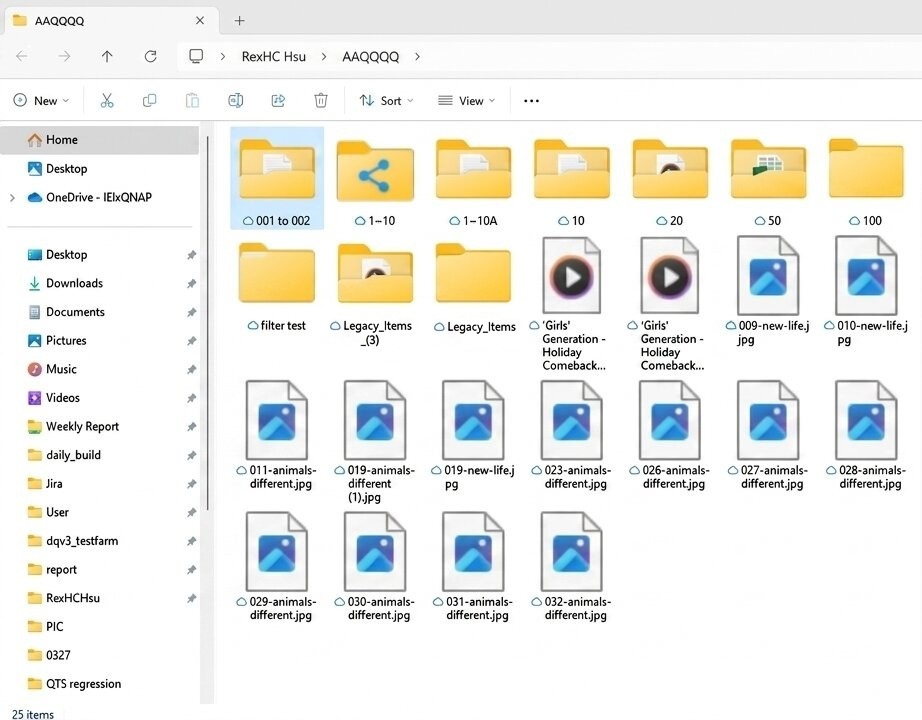
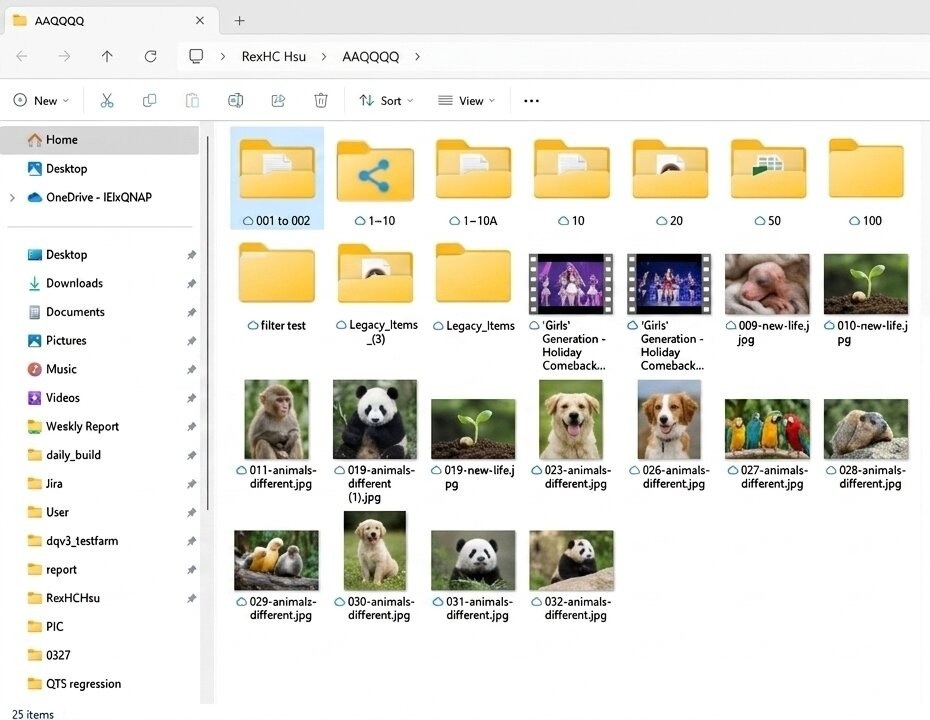
Starting from Qsync Client for Windows v6.0.3, thumbnail preview for cloud-only files is supported. Thumbnails are fetched in real time from your NAS, allowing you to visually identify files without downloading them.
Prerequisites
File Station thumbnail support must be enabled on your NAS. If you have not yet enabled thumbnails or want to know the details, see the following:
To enable thumbnail display, you must:
- Install and activate CAYIN Media Viewer
- Enable thumbnail generation in Multimedia Console
- Enable multimedia support in File Station
You need extra setup for displaying the thumbnails of certain file formats.
Installing and Activating CAYIN Media Viewer
- Go to App Center on your NAS.
- Search for CAYIN Media Viewer.
- Click Install.
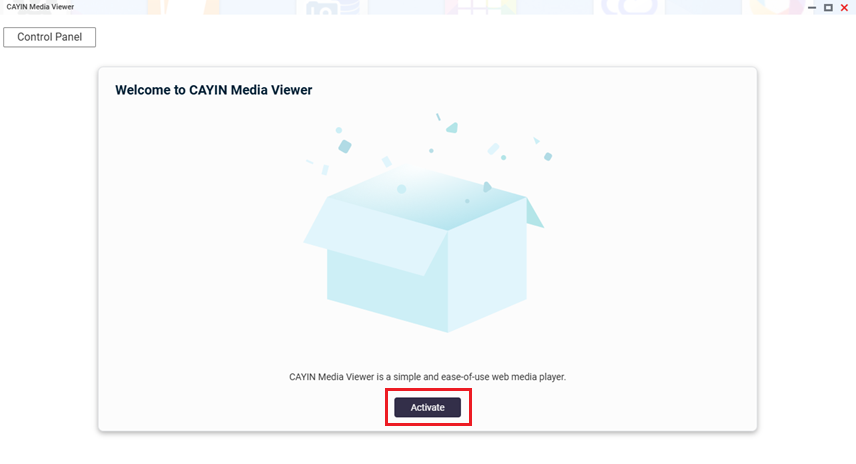
- After installation, open CAYIN Media Viewer.
- Click Activate.
Enabling thumbnail generation in Multimedia Console
- Install Multimedia Consoleif not already installed.
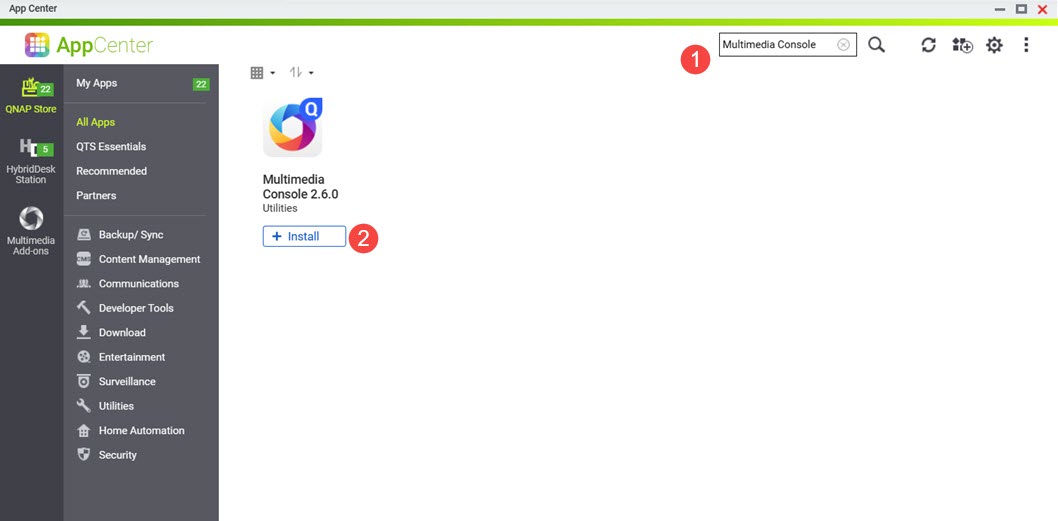
- Open App Center.
- Search for Multimedia Console.
The Multimedia Console app appears in the search results. - Click Install.
- Open Multimedia Console.
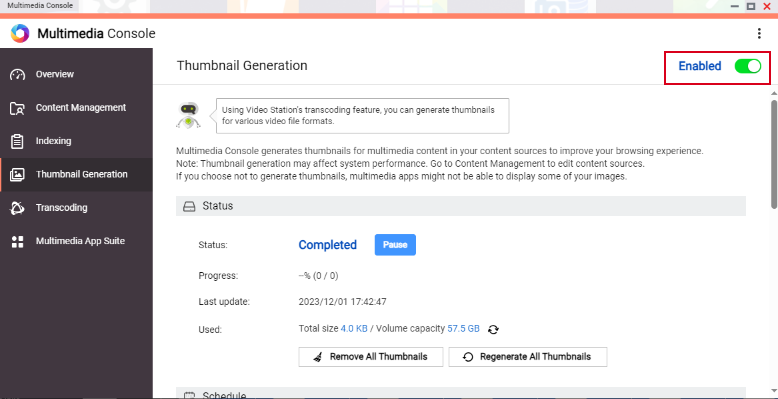
- Go to Thumbnail Generation.
- On the top right corner, click the toggle control.
Thumbnail generation is enabled and the toggle control label displays "Enabled".
- Check the status of thumbnail generation and ensure that you have configured a schedule.
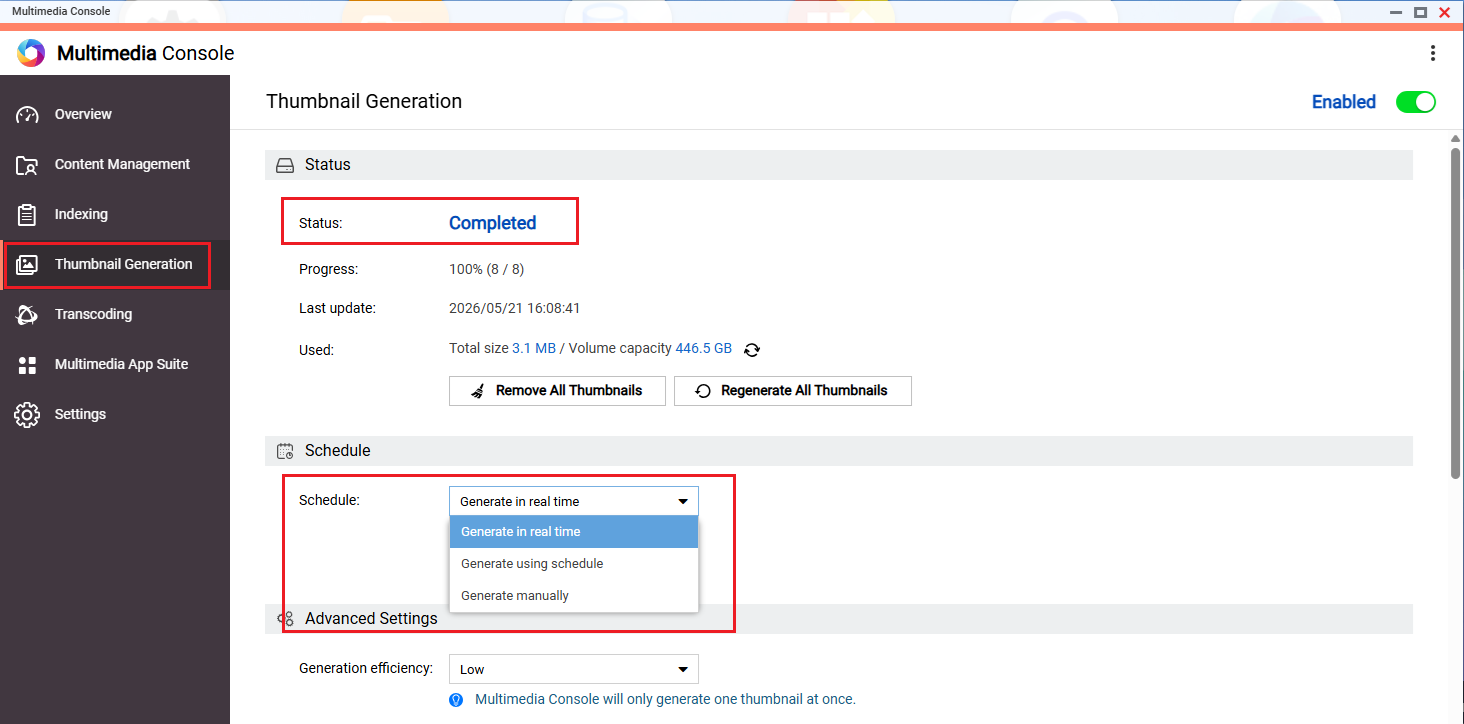
Important
Ensure that Multimedia Console is started and running normally on your system, otherwise thumbnails will not be generated for new files, and only previously generated thumbnails will be displayed.
Enable multimedia support in File Station
- Open File Station.
- On the top right corner click
 (more).
 - Click Settings.
The Options window appears. - Go to the Multimedia tab.
- Click Support multimedia playback, streaming, and thumbnail display.

- Click Close.
Tip
After configuring CAYIN Media Viewer, Multimedia Console, and File Station, you can restart your apps. Photo and video thumbnails on the NAS should now be displayed correctly.
Enabling thumbnails for HEVC videos (.mov) and HEIF images (.heic)
Thumbnail support for HEIF and HEVC files have the following requirements:
- QTS 4.4.3 or later
- Multimedia Console 1.1.3 or later
You also need a CAYIN Media Viewer license.
- To purchase the license, go to QNAP Software Store.
- After purchase, activate the the license.
For instructions on activating software licenses, see the License activation section of your system's User Guide (QTS4.5, QTS 5.1, QuTS hero 4.5, QuTS hero h5.1).
After activating the license, the system will automatically install CAYIN Media Viewer.Important
Do not uninstall CAYIN Media Viewer from your system. Otherwise, thumbnail generation or display may not function correctly.
Enabling thumbnails for documents
Your NAS device must meet the following requirements for supporting document thumbnails:
- 64-bit (x86) or ARM64 CPU architecture
- At least 2GB of memory
- Install Qsirch if not installed already.
- Open App Center.
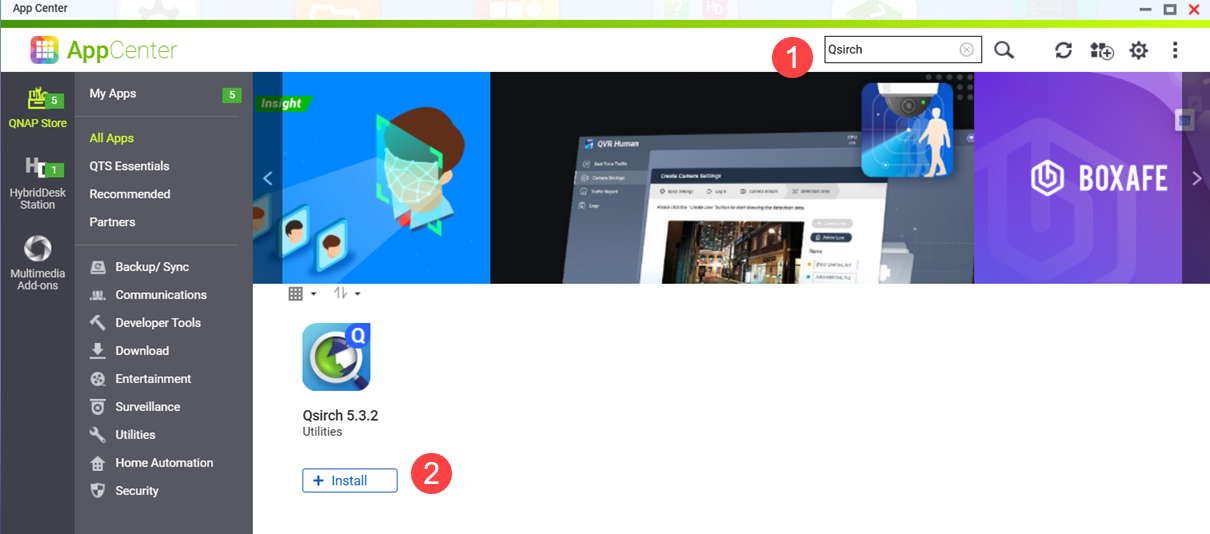
- Search for Qsirch.
- Click Install.
- Select an installation location.
- Click OK.
Qsirch is installed onto your system.
- Ensure that Qsirch is running.
Warning
If Qsirch is not installed or started, you will only see previously generated document thumbnails and cannot generate new ones.
- Open App Center.
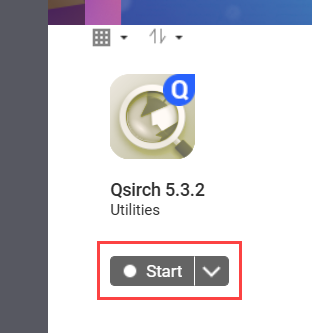
- Locate the Qsirch app.
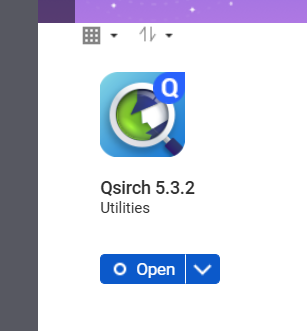
- If Qsirch is running normally, the Qsirch app icon will be displayed as following:
- If Qsirch is not running, click the Start button:
- Open File Station.
- On the top right corner (more).
- Click Settings.
The Options window appears.
- Go to the Documents tab.
- Select an option for Support Document Thumbnail Display:
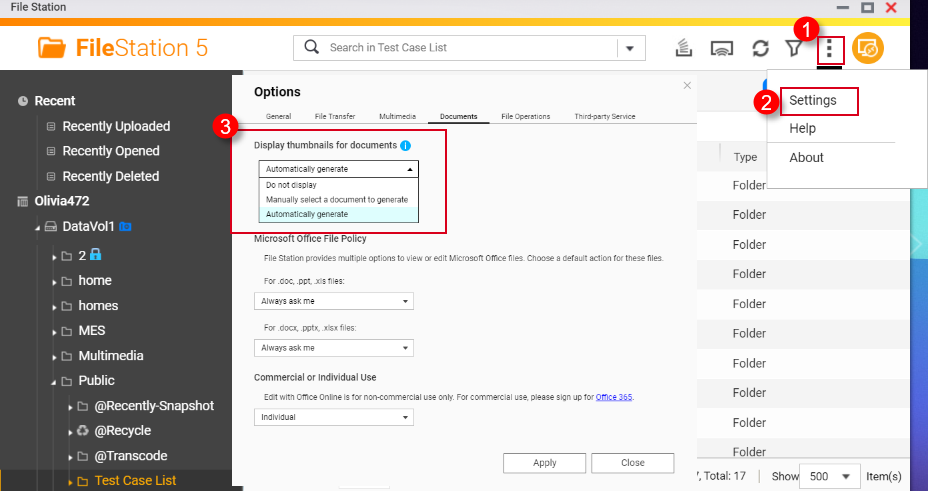
- Do not display: Thumbnails for documents will not be displayed.
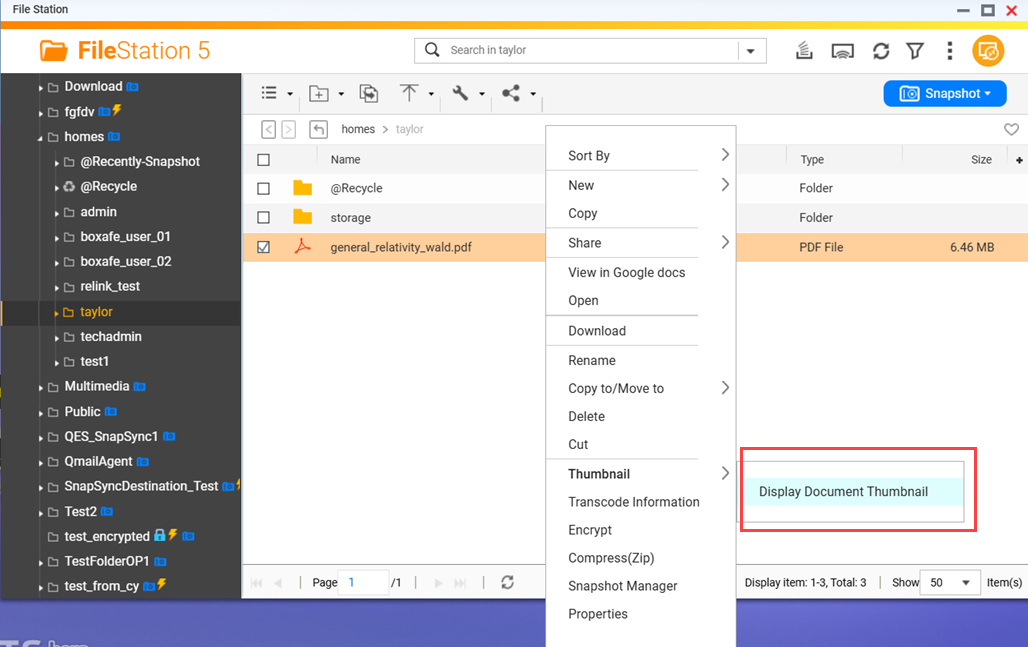
- Manually select a document to generate: Thumbnails for documents must be generated manually via the following steps.
- Open File Station.
- Locate a document file.
- Right click on the document.
- Click Thumbnail > Display Document Thumbnail.
- Automatically generate: Automatically generate thumbnails for document file formats selected from the list that appears below after selecting Automatically generate

Solution
Verify thumbnail display
- Verify that Qsync Client for Windows is updated to v6.0.3 or later.
- Open Windows File Explorer and navigate to your Qsync folder.
- Switch to a thumbnail view, such as Large icons or Extra large icons.
Cloud-only files (indicated by a cloud icon) should now display thumbnails fetched in real time from your NAS.
Note
- An active network connection to your QNAP NAS is required to display cloud file thumbnails.
- Thumbnail loading speeds may vary depending on your network conditions.
Troubleshooting
If File Station thumbnail support is enabled and Qsync Client has been upgraded to v6.0.3 or later, but thumbnails are still not visible in Windows File Explorer, try the following steps:
- Verify that Qsync Client is connected to your NAS.
Open Qsync Client for Windows and confirm that the connection status is shown as Connected. - Clear the Windows thumbnail cache.
- Press Win + R, type
cleanmgr, and click OK. - Select Thumbnails and click OK.
- Wait for Disk Cleanup to complete.
- Reopen Windows File Explorer and navigate to your Qsync folder to check whether thumbnails now display correctly.
Further reading
How do I enable thumbnails for File Station, Qfile Pro, and other apps?
适用产品
QTS,QuTS hero
适用于 Windows 的 Qsync Client v6.0.3 及更高版本
概述
在早期版本的适用于 Windows 的 Qsync Client 中,以节省空间模式存储的文件在 Windows 文件资源管理器中显示为占位符,没有缩略图预览。
从适用于 Windows 的 Qsync Client v6.0.3 开始,支持云端文件的缩略图预览。缩略图实时从您的 NAS 获取,使您无需下载即可直观识别文件。
先决条件
必须在您的 NAS 上启用 File Station 缩略图支持。如果您尚未启用缩略图或想了解详细信息,请参见以下内容:
要启用缩略图显示,您必须:
- 安装并激活 CAYIN Media Viewer
- 在 Multimedia Console 中启用缩略图生成
- 在 File Station 中启用多媒体支持
您需要额外设置以显示某些文件格式的缩略图。
安装和激活 CAYIN Media Viewer
- 在您的 NAS 上进入App Center。
- 搜索CAYIN Media Viewer。
- 点击安装。
- 安装后,打开 CAYIN Media Viewer。
- 点击激活。
在 Multimedia Console 中启用缩略图生成
- 如果尚未安装,请安装多媒体控制台。
- 打开App Center.
- 搜索Multimedia Console.
在搜索结果中会出现 Multimedia Console 应用程序。 - 点击安装.
- 打开Multimedia Console.
- 进入缩略图生成。
- 在右上角,点击切换控件。
缩略图生成已启用,切换控件标签显示“已启用”。
- 检查缩略图生成的状态,并确保您已配置计划。
重要提示
确保 Multimedia Console 在您的系统上已启动并正常运行,否则新文件将不会生成缩略图,只会显示先前生成的缩略图。
在 File Station 中启用多媒体支持
- 打开File Station。
- 在右上角点击(更多)。
- 点击设置。
会出现选项窗口。 - 进入多媒体选项卡。
- 点击支持多媒体播放、流媒体和缩略图显示。
- 点击关闭。
提示
配置 CAYIN Media Viewer、Multimedia Console 和 File Station 后,您可以重新启动应用程序。NAS 上的照片和视频缩略图现在应该能正确显示。
启用 HEVC 视频 (.mov) 和 HEIF 图像 (.heic) 的缩略图
HEIF 和 HEVC 文件的缩略图支持有以下要求:
- QTS 4.4.3 或更高版本
- Multimedia Console 1.1.3 或更高版本
您还需要一个 CAYIN Media Viewer 许可证。
启用文档缩略图
您的 NAS 设备必须满足以下要求才能支持文档缩略图:
- 64 位(x86)或 ARM64 CPU 架构
- 至少 2GB 内存
- 安装Qsirch (如果尚未安装)。
- 打开App Center。
- 搜索Qsirch。
- 点击安装。
- 选择安装位置。
- 点击确定。
Qsirch 已安装到您的系统中。
- 确保Qsirch 正在运行。
警告
如果Qsirch 未安装或未启动,您将只能看到先前生成的文档缩略图,无法生成新的缩略图。
- 打开App Center。
- 找到Qsirch应用程序。
- 如果 Qsirch 正常运行,Qsirch应用程序图标将显示如下:
- 如果 Qsirch 未运行,点击启动按钮:
- 打开File Station。
- 在右上角(更多)。
- 点击设置。
出现选项窗口。
- 转到文档选项卡。
- 选择支持文档缩略图显示的选项:
- 不显示:文档的缩略图将不显示。
- 手动选择文档生成:文档的缩略图必须通过以下步骤手动生成。
- 打开File Station。
- 找到一个文档文件。
- 右键点击文档。
- 点击缩略图> 显示文档缩略图。
- 自动生成:从下面列表中选择的文档文件格式将自动生成缩略图。选择自动生成
解决方案
验证缩略图显示
- 验证 Qsync Client for Windows 是否已更新到v6.0.3或更高版本。
- 打开Windows 文件资源管理器并导航到您的 Qsync 文件夹。
- 切换到缩略图视图,例如大图标或超大图标。
仅云文件(由云图标指示)现在应显示从您的 NAS 实时获取的缩略图。
注意
- 需要与您的 QNAP NAS 的活动网络连接才能显示云文件缩略图。
- 缩略图加载速度可能会因网络状况而异。
故障排除
如果启用了 File Station 缩略图支持,并且 Qsync Client 已升级到 v6.0.3 或更高版本,但在 Windows 文件资源管理器中仍然看不到缩略图,请尝试以下步骤:
- 验证 Qsync Client 是否已连接到您的 NAS。
打开 Windows 版 Qsync Client,并确认连接状态显示为Connected。 - 清除 Windows 缩略图缓存。
- 按Win + R,输入
cleanmgr,然后点击确定。 - 选择缩略图,然后点击确定。
- 等待磁盘清理完成。
- 重新打开Windows 文件资源管理器,并导航到您的 Qsync 文件夹,检查缩略图是否现在正确显示。
进一步阅读
如何为 File Station、Qfile Pro 和其他应用启用缩略图?


