Applicable Products
- All NAS models running QTS or QuTS hero
Scenario
On my QNAP NAS, I have only stored a few hundred gigabytes of data, but I received a warning that there is not enough space. My NAS has two 4 TB hard drives in a RAID 1 configuration, so I expected to still have plenty of free space.
Explanation
On QTS and QuTS hero, the total capacity of your disks is divided into storage pools and volumes. Even if your disks still have free capacity, your data volume can become full if it is smaller than the storage pool. If your data volume is a thick volume and there is free space available in the storage pool, you can resolve the low disk space warning by expanding the volume.
Solution
If your storage pool still has free space, follow these steps to expand your thick volume.
Note: You can only expand a thick volume if there is enough free space in the storage pool. After you expand a volume, you cannot shrink it.
- Go to Storage & Snapshots > Storage/Snapshots.
- Under Storage Pool, select the data volume that you want to resize.
- Click Manage. The Data Volume Management window appears.
- Click Action, and then select Resize Volume.
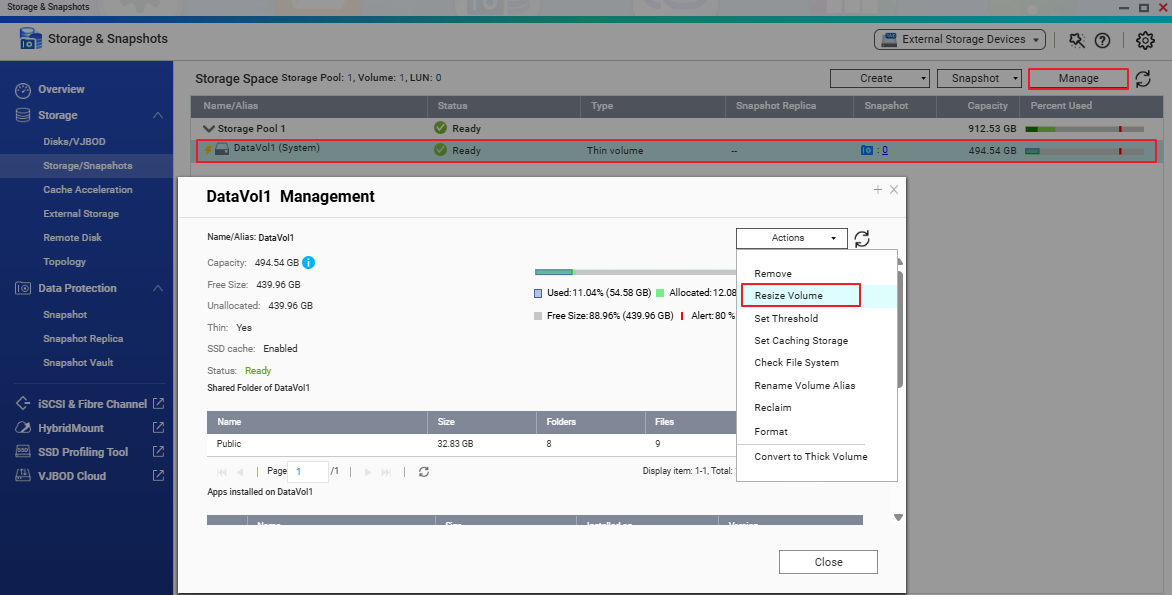
- Enter a larger size in the New Capacity field (up to the limit of the available free pool space).
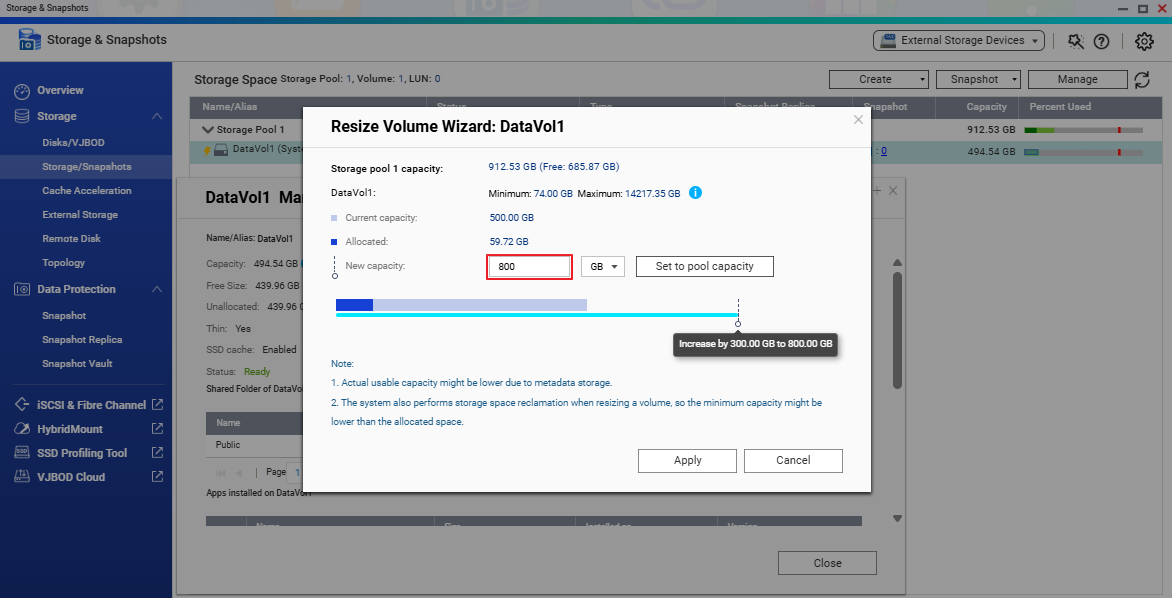
- Click Apply to start the online volume expansion.
- You can monitor the progress of the volume expansion in the Status field.
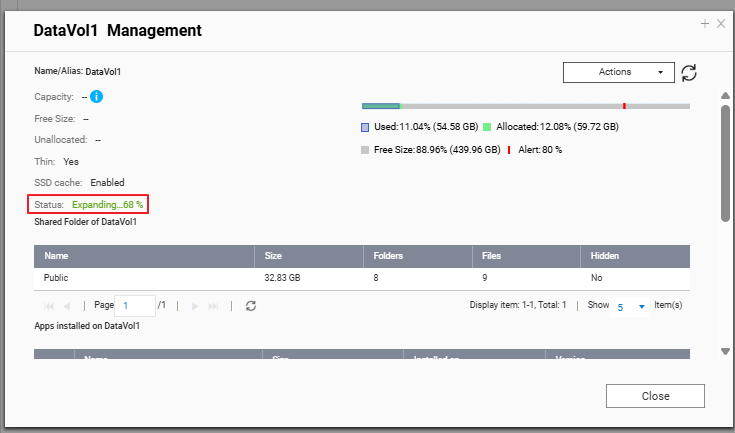
- After the task completes, confirm that the volume capacity has increased.

Further Reading
适用产品
- All NAS models running QTS or QuTS hero
场景
在我的 QNAP NAS 上,我只存储了几百 GB 的数据,但我收到了空间不足的警告。我的 NAS 配置了两个 4 TB 的硬盘,采用 RAID 1 配置,所以我预计应该还有很多可用空间。
解释
在 QTS 和 QuTS hero 上,您的磁盘总容量被划分为存储存储池和卷。即使您的磁盘仍有可用容量,如果数据卷小于存储存储池,数据卷也可能会满。如果您的数据卷是厚卷,并且存储存储池中有可用空间,您可以通过扩展卷来解决磁盘空间不足的警告。
解决方案
如果您的存储存储池仍有可用空间,请按照以下步骤扩展您的厚卷。
注意:只有在存储存储池中有足够的可用空间时,您才能扩展厚卷。扩展卷后,无法缩小。
- 前往存储与快照总管 > 存储 / 快照。
- 在存储池下,选择您想要调整大小的数据卷。
- 点击管理。数据磁盘管理窗口将出现。
- 点击操作,然后选择调整卷大小。
- 在新容量字段中输入更大的大小(不超过可用空闲池空间的限制)。
- 点击应用以开始在线卷扩展。
- 您可以在状态字段中监控卷扩展的进度。
- 任务完成后,确认卷容量已增加。
进一步阅读


