Applicable products
- myQNAPcloud Surveillance
- QVR Surveillance 3.0.0 or later version
Details
You can change the license of the channel by removing the license first, and then assign it to another license; or you can upgrade the license.
Method 1: Remove the Backup Channel & Type and Re-assign
1. Go to Recording Storage > Channel Management > myQNAPcloud Surveillance
2. Locate the Backup channel & type and click the trash bin icon.
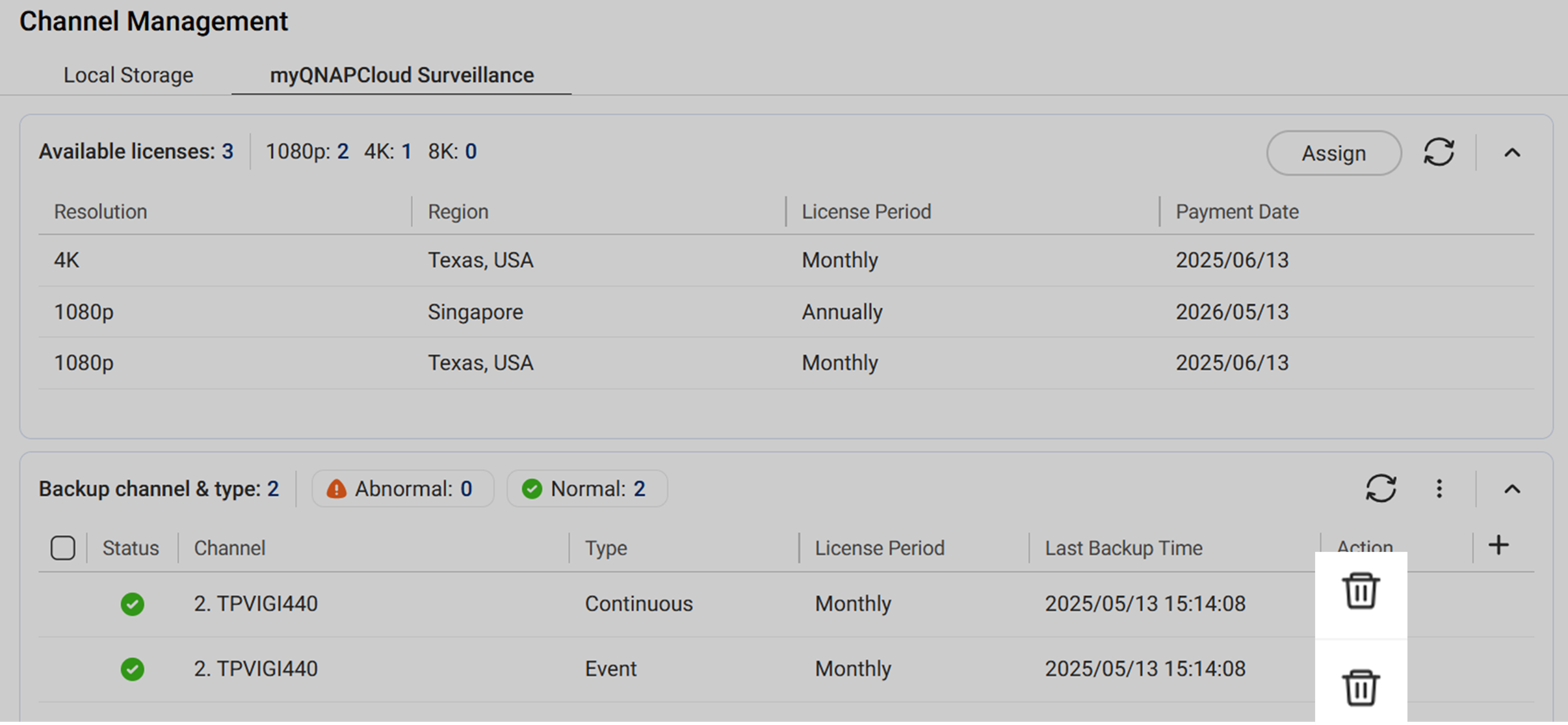
3. (Optional) Delete recordings in myQNAPcloud Surveillance.
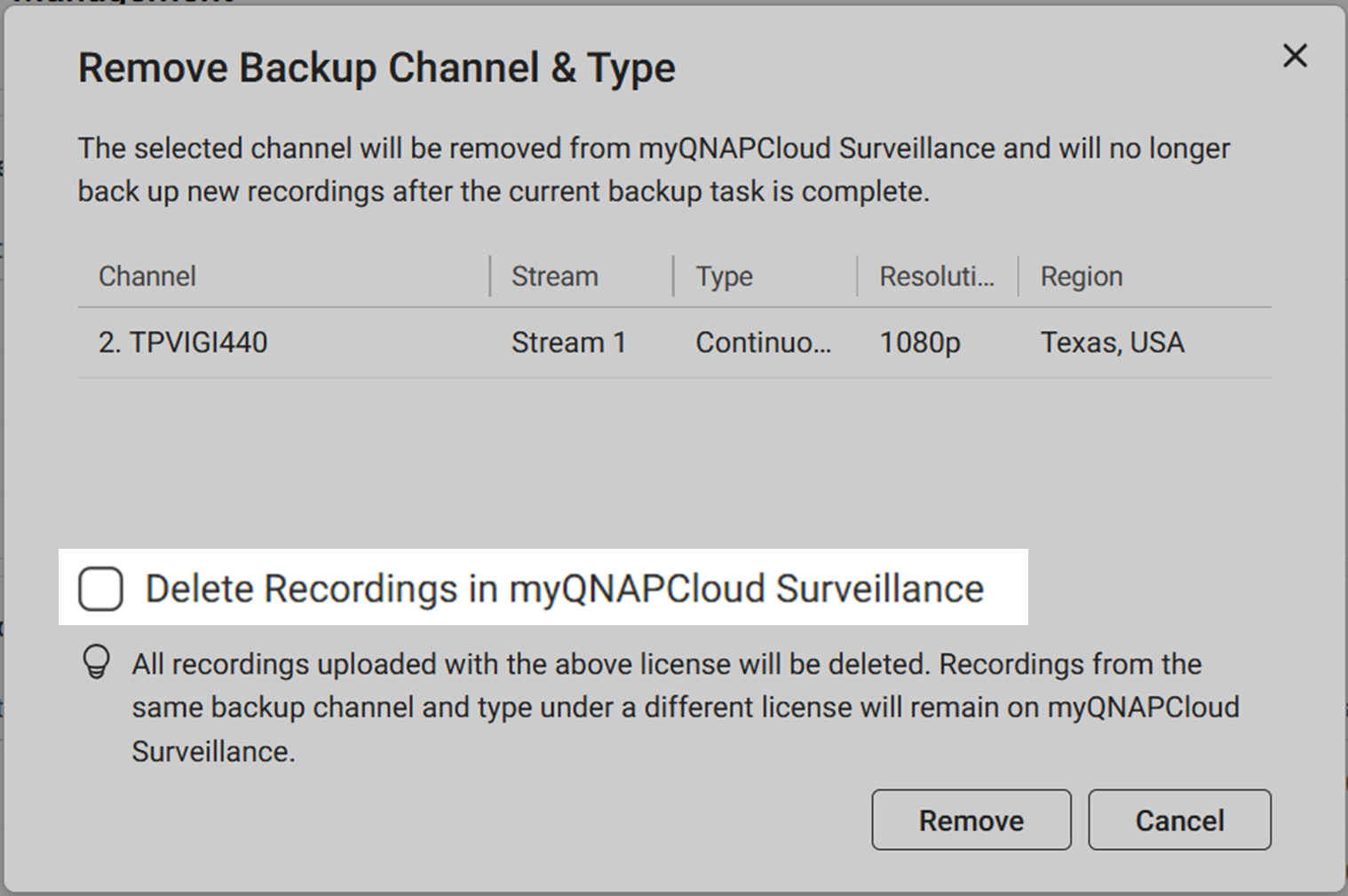
Note
Removing the backup channel & type from myQNAPcloud Surveillance without deleting the recording have the following implications:
- The recordings are related to the license. The recording can be viewed, downloaded, or deleted after removing the license to a channel.
- When the removed license is assigned to another channel and starts uploading recordings, the recordings related to the previous channel(s) will be deleted after the total backup days uploaded with the license has reached the license criteria (i.e. 30 days or 360 days)
4. Click Remove. The backup channel & type is removed from myQNAPcloud Surveillance and the license is now available for other channel. The recordings will be deleted from myQNAPcloud Surveillance if you check the "Delete Recordings in myQNAPcloud Surveillance" option.
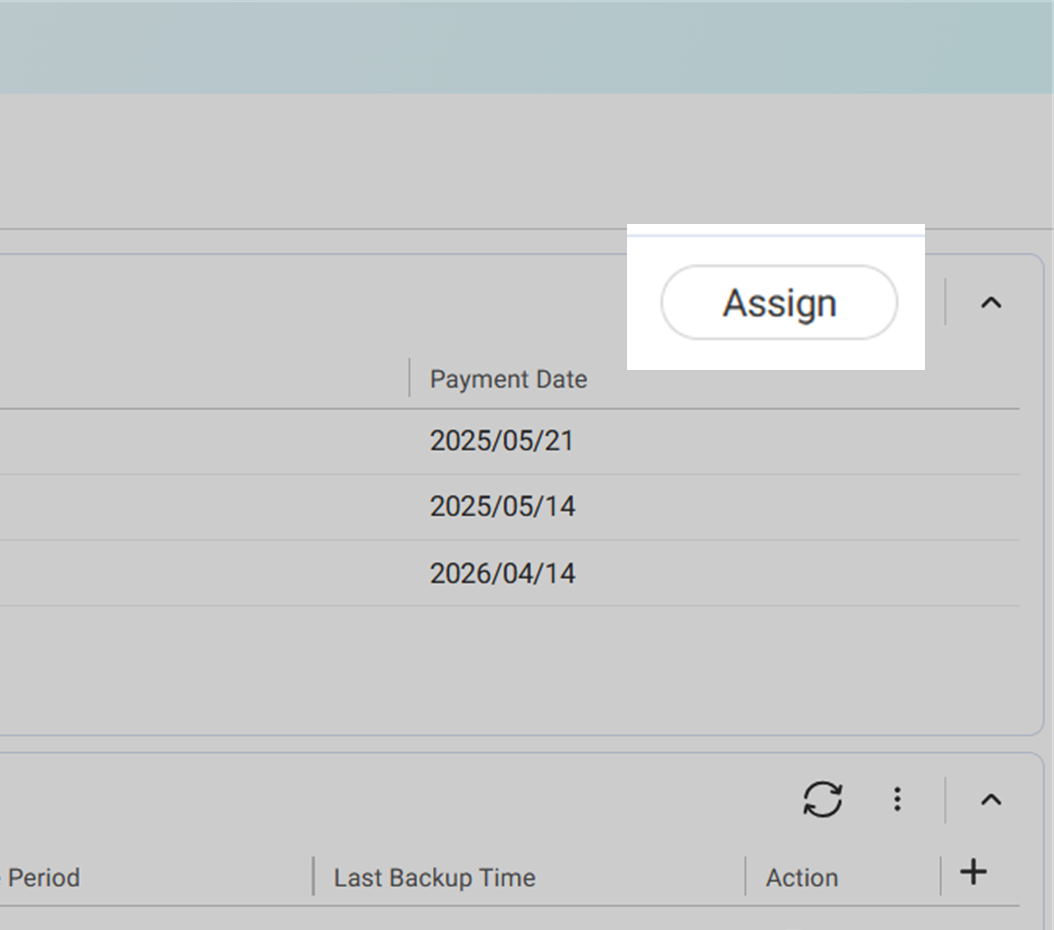
5. Click Assign on the top right corner.
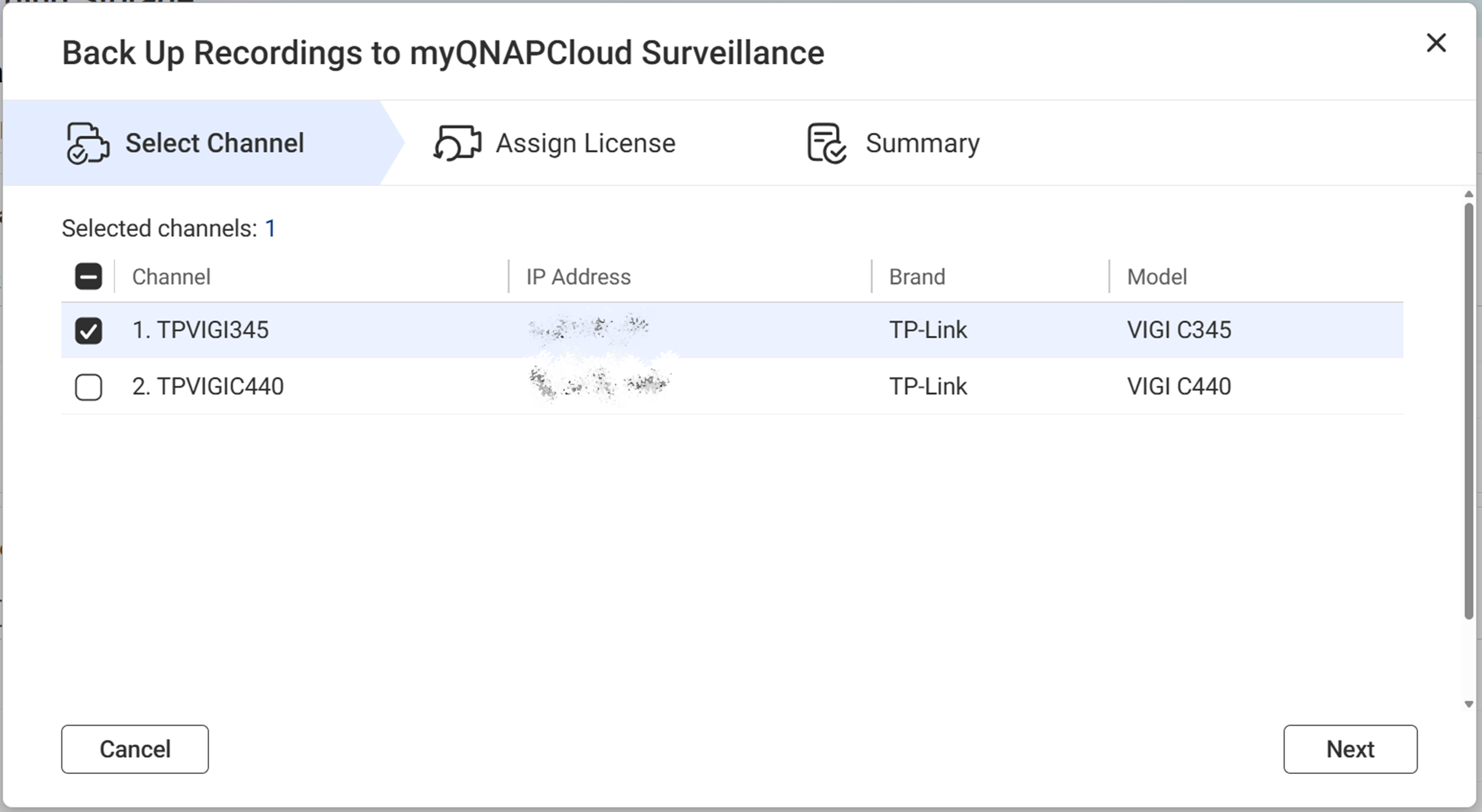
6. Select the channel from the list.
7. Confirm stream and the recording type, review the selected license, and then click Next.
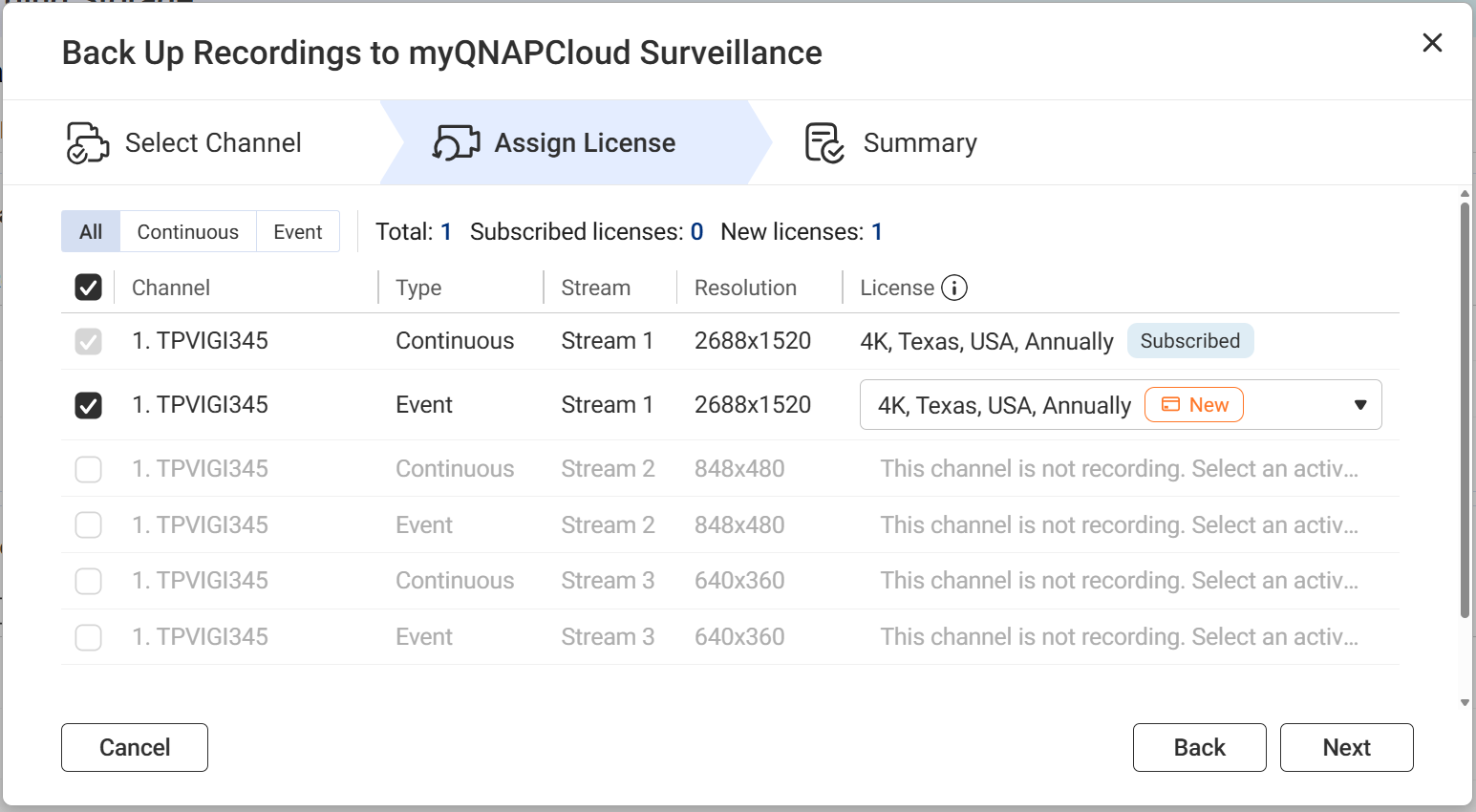
Note- Subscribed:
- This means you have already purchased this license.
- If you cannot select your purchased license, the stream's resolution may not meet the license criteria. Adjust your stream's settings to match the license resolution in Camera Settings, then restart the process.
- For more details, see What license should I prepare for myQNAPcloud Surveillance.
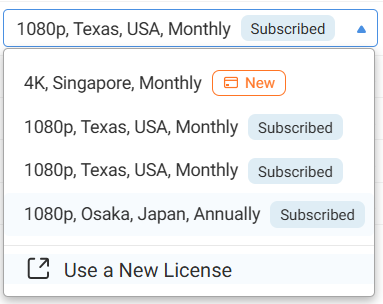
- New:
- This means you need to purchase the license after clicking Assign on the final step.
- You can change the resolution, region, or the subscription period of the pre-assigned license by selecting Use a New License from the drop-down menu.
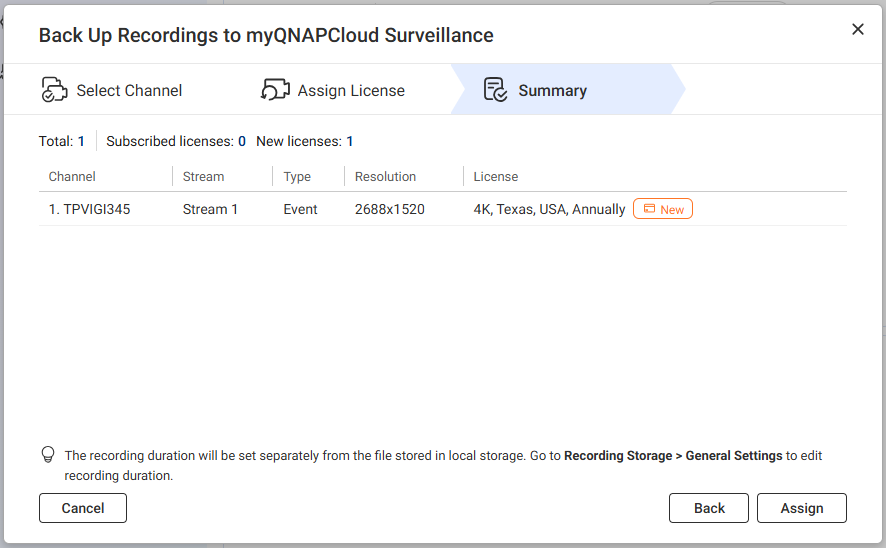
7. Review the summary, then click Assign.
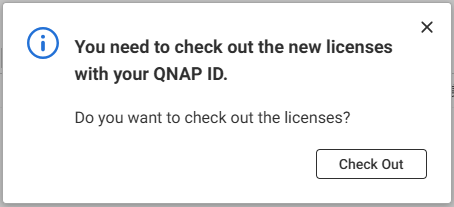
Important
If you select a new license, you will be asked to check out the license here with your QNAP ID.
8. (Optional) Click Check Out to start the checkout process for the new license(s) used in this assignment.
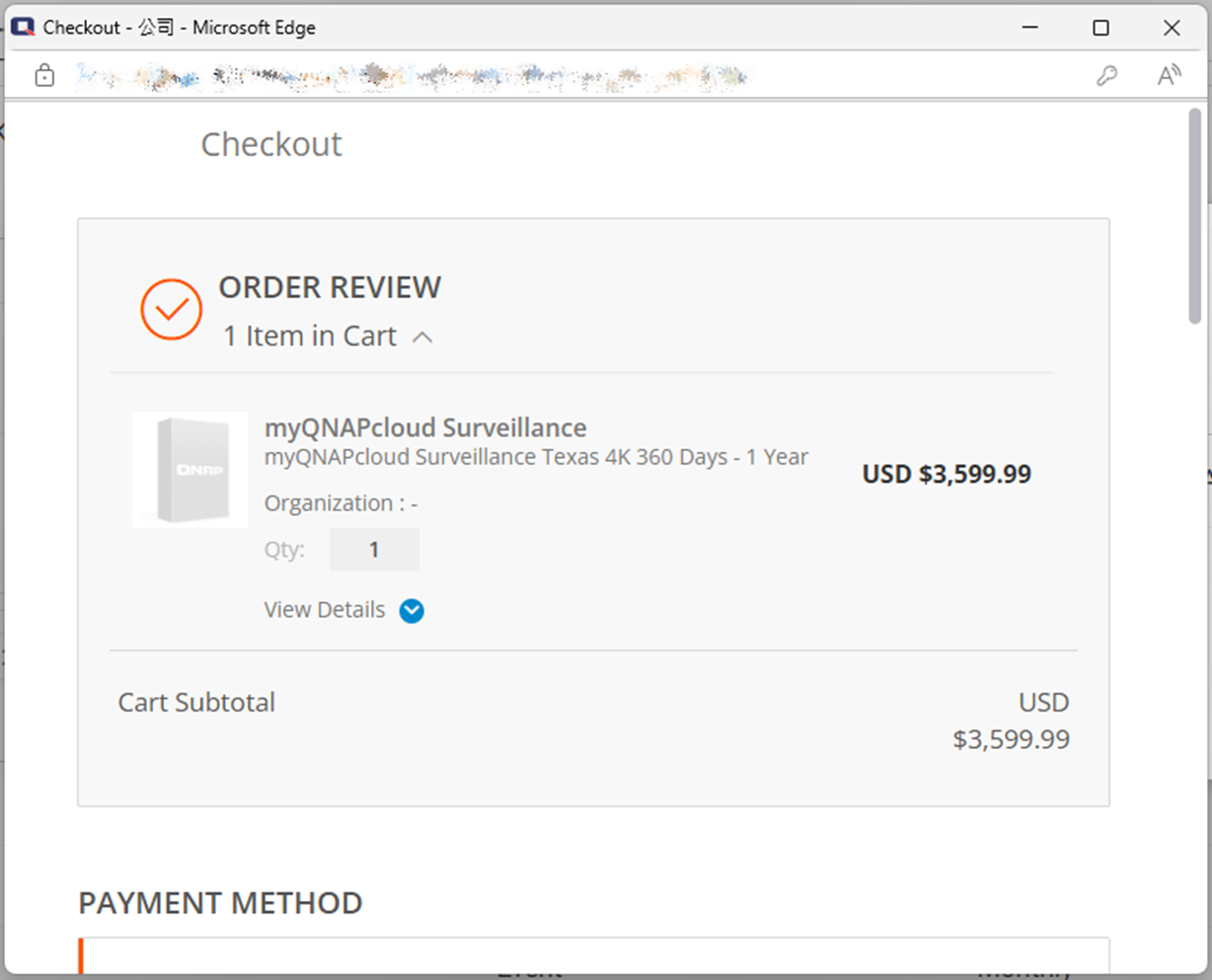
9. Confirm the assignment status.
Method 2: Upgrade license
1. Go to QNAP Software Store > My account > Upgrade Plans.
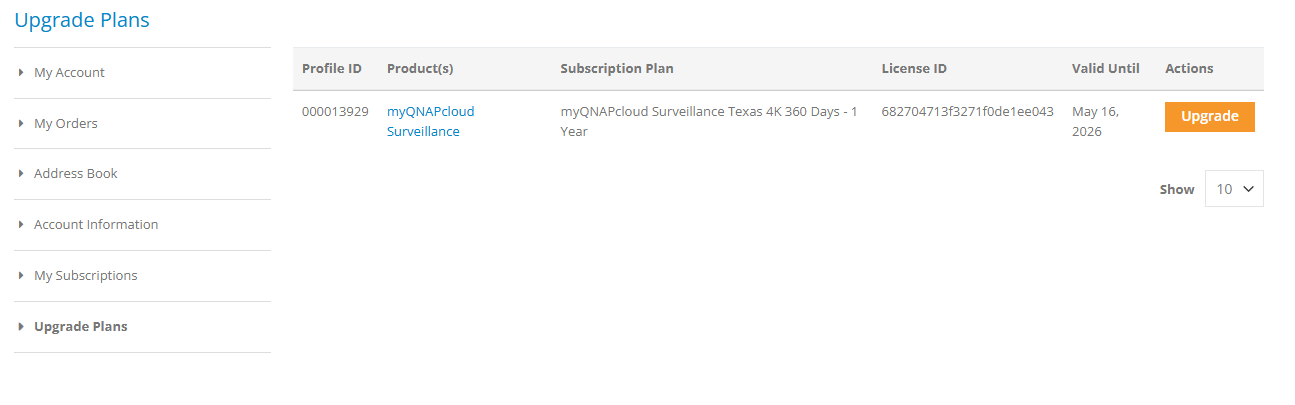
2. Locate the license to upgrade and click Upgrade.
Note
- myQNAPcloud Surveillance currently supports upgrading the license to a higher resolution. To upgrade subscription period/retention days, simply subscribe to a new license after your license expires.
- Subscribing to a new license, then assigning it to the same channel does not keep the recordings uploaded with the original license in myQNAPcloud Surveillance. The recordings will be erased after the grace period when original license expires.
Further reading
适用产品
- myQNAPcloud 监控
- QVR 监控 3.0.0 或更高版本
详情
您可以通过先移除许可证,然后将其分配给另一个许可证来更改频道的许可证;或者您可以升级许可证。
方法 1:移除备份频道和类型并重新分配
1. 前往 录制存储 > 频道管理 > myQNAPcloud 监控
2. 找到备份频道和类型并点击垃圾桶图标。
3. (可选)删除 myQNAPcloud 监控中的录制。
注意
从 myQNAPcloud 监控中移除备份频道和类型而不删除录制有以下影响:
- 这些录制与许可证相关。移除许可证到频道后,可以查看、下载或删除录制。
- 当移除的许可证被分配到另一个频道并开始上传录制时,与之前频道相关的录制将在许可证上传的总备份天数达到许可证标准(即 30 天或 360 天)后被删除。
4. 点击 移除。备份频道和类型已从 myQNAPcloud 监控中移除,许可证现在可用于其他频道。如果您勾选了“删除 myQNAPcloud 监控中的录制”选项,录制将从 myQNAPcloud 监控中删除。
5. 点击 分配 在右上角。
6. 从列表中选择频道。
7. 确认流和录制类型,查看选定的许可证,然后点击 下一步。
注意- 已订阅:
- 新:
- 这意味着您 需要购买 点击后许可证 分配 在较后一步。
- 您可以通过选择更改预分配的许可证的分辨率、区域或订阅期 使用新的许可证 从下拉菜单中。
7. 查看摘要,然后点击 分配。
重要
如果您选择新的许可证,系统会要求您使用 QNAP ID 在此处结账许可证。
8. (可选)点击 结账 以开始为此分配中使用的新许可证进行结账流程。
9. 确认分配状态。
方法 2:升级许可证
1. 前往QNAP 软件商店 > 我的账户 > 升级计划。
2. 找到要升级的许可证并点击 升级。
注意
- myQNAPcloud Surveillance 目前支持将许可证升级到更高分辨率。要升级订阅期 / 保留天数,只需在您的许可证到期后订阅新的许可证。
- 订阅新的许可证,然后将其分配到同一频道 不会保留使用原始许可证上传的录像在 myQNAPcloud Surveillance 中。录像将在原始许可证到期后的宽限期后被删除 。
进一步阅读


