Applicable Products
Scenario
My NAS file transfer is much slower than expected. What preliminary checks I can do to help expedite the problem solved.
Solution
You may perform the following three quick tests before opening a support case. These checks help confirm whether the bottleneck is in the NAS network path, NAS disks, or the client-side storage.
Test 1: Verify NAS network link speed
- Log in to the NAS web interface.
- Go to Control Panel > Network & Virtual Switch > Interfaces > Information > Hardware.
- Check the active LAN port link speed (for example, 1GbE, 2.5GbE, 10GbE).
- Confirm the negotiated speed matches your expected hardware capability.
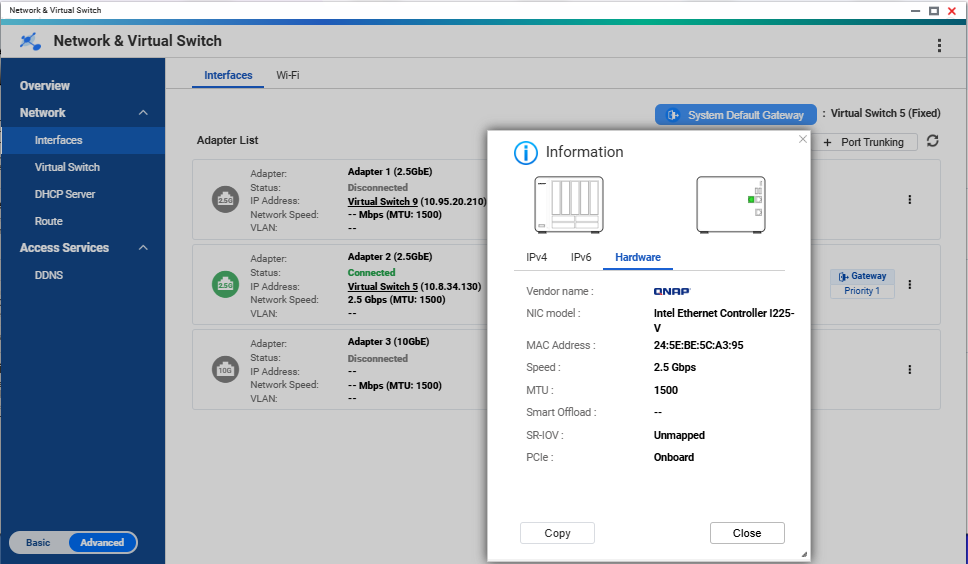
Speed: NAS interface page showing the active adapter and negotiated link speed.
If the link speed is lower than expected, check cable type, switch port capability, and NIC negotiation settings first.
Test 2: Test NAS disk speed (identify abnormally slow disk)
- Go to Storage & Snapshots.
- Open Disks/VJBOD.
- Run the disk performance/Sequential Read Test on all disks. .
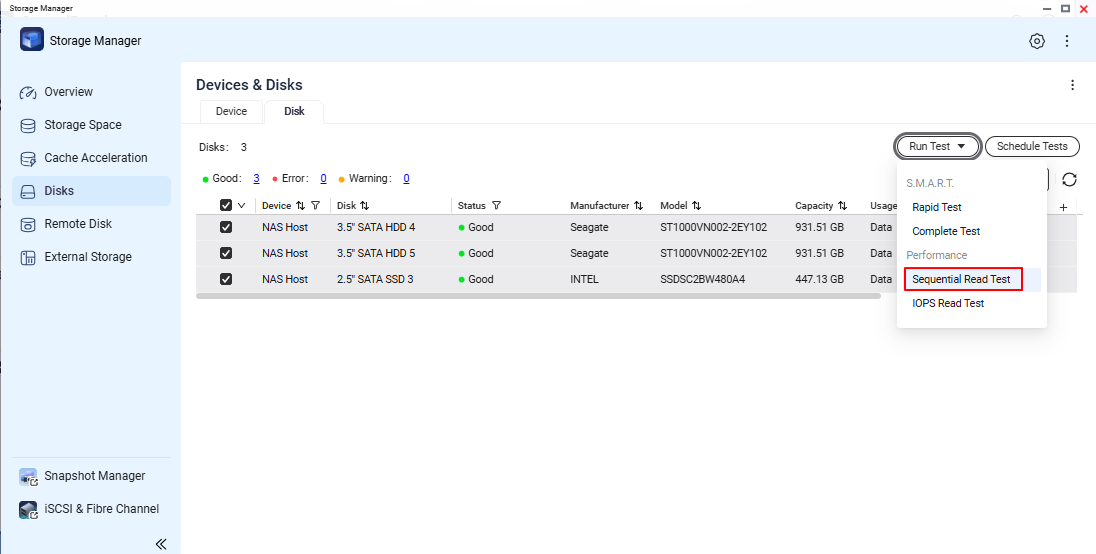
- Compare each disk result and verify there is no single disk with extremely low performance.
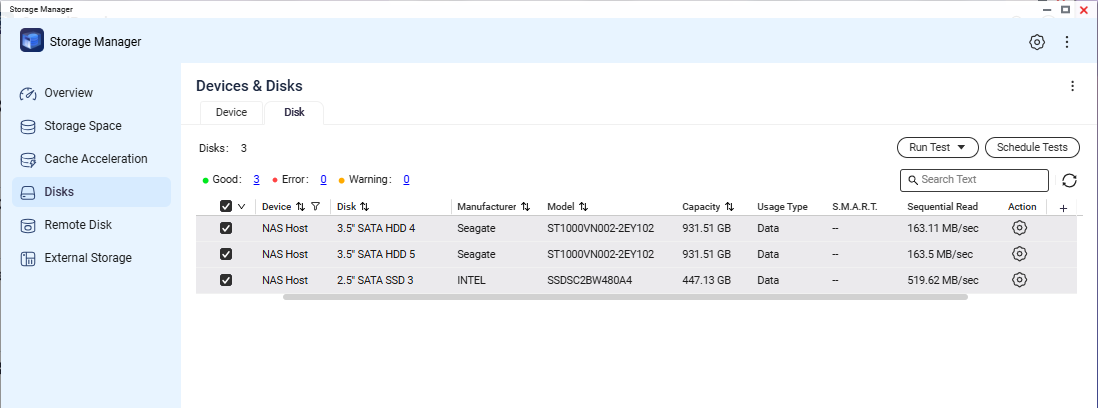
Screenshot needed 2: Disk list or test result screen showing per-disk status/performance values.
If one disk is significantly slower than others, record the slot number and disk model/serial for support analysis.
Test 3: Validate client machine disk performance with a USB external drive
- Connect a USB external drive to the client machine.
- On the client machine, run a local read/write test to that USB external drive.
- Verify the client-side disk path can deliver normal read/write speed for that system.
This step helps rule out local client storage bottlenecks that can be mistaken as NAS transfer issues.
Verification Checklist
- NAS link speed is confirmed and documented.
- NAS disk test confirms no specific disk with abnormally low speed.
- Client-side USB external drive read/write performance is confirmed to be normal.
After performing the above preliminary checks, if each item of checklist is normal but the problem is still not solved. You may conatct QNAP support for further assisitances.
While opening a support request, enclose the following information can help expedite the process:
- NAS model and firmware version.
- NAS system dump logs.
- Test 1 result (network link speed) with screenshot.
- Test 2 result (disk check) with screenshot.
- Test 3 result summary (client local USB read/write test).
- Brief topology note (client <-> switch <-> NAS).
Further Reading
适用产品
场景
我的 NAS 文件传输速度比预期慢得多。我可以进行哪些初步检查来帮助加快问题解决。
解决方案
在提交支持请求之前,您可以进行以下三个快速测试。这些检查有助于确认瓶颈是在 NAS 网络路径、NAS 磁盘还是客户端存储。
测试 1:验证 NAS 网络链接速度
- 登录到 NAS 网页界面。
- 进入控制台 > 网络与虚拟交换机 > 接口 > 信息 > 硬件。
- 检查活动 LAN 端口的链接速度(例如,1GbE,2.5GbE,10GbE)。
- 确认协商速度与您预期的硬件能力相符。
速度: NAS 接口页面显示活动适配器和协商的链接速度。
如果链接速度低于预期,首先检查电缆类型、交换机端口能力和 NIC 协商设置。
测试 2:测试 NAS 磁盘速度(识别异常缓慢的磁盘)
- 进入存储与快照总管。
- 打开磁盘/VJBOD。
- 在所有磁盘上运行磁盘性能 / 顺序读取测试。.
- 比较每个磁盘的结果,确认没有单个磁盘性能极低。
需要的截图 2:磁盘列表或测试结果屏幕显示每个磁盘的状态 / 性能值。
如果一个磁盘明显比其他磁盘慢,记录插槽号和磁盘型号 / 序列号以供支持分析。
测试 3:使用 USB 外置驱动器验证客户端机器磁盘性能
- 将 USB 外置驱动器连接到客户端机器。
- 在客户端计算机上,运行一个针对该 USB 外部驱动器的本地读 / 写测试。
- 验证客户端磁盘路径是否能够提供该系统的正常读 / 写速度。
此步骤有助于排除可能被误认为是 NAS 传输问题的本地客户端存储瓶颈。
验证清单
- NAS 链接速度已确认并记录。
- NAS 磁盘测试确认没有特定磁盘速度异常低。
- 客户端 USB 外部驱动器的读 / 写性能确认正常。
在执行上述初步检查后,如果清单中的每一项都正常但问题仍未解决,您可以联系QNAP 支持以获得进一步的帮助。
在提交支持请求时,附上以下信息可以帮助加快处理过程:
- NAS 型号和固件版本。
- NAS 系统转储日志。
- 测试 1 结果(网络链接速度)及截图。
- 测试 2 结果(磁盘检查)及截图。
- 测试 3 结果总结(客户端本地 USB 读 / 写测试)。
- 简要拓扑说明(客户端 <-> 交换机 <-> NAS)。
进一步阅读


