Applicable Products
Scenario 1: Regular User Forgot Password → Ask the Administrator to Reset It
Note
Regular users cannot reset their own passwords. You must contact the NAS administrator, who can update your password from the Control Panel without affecting any other account settings. You can log in with the new password once the reset is complete.
NAS administrator Change sthe Password for a Local User Account
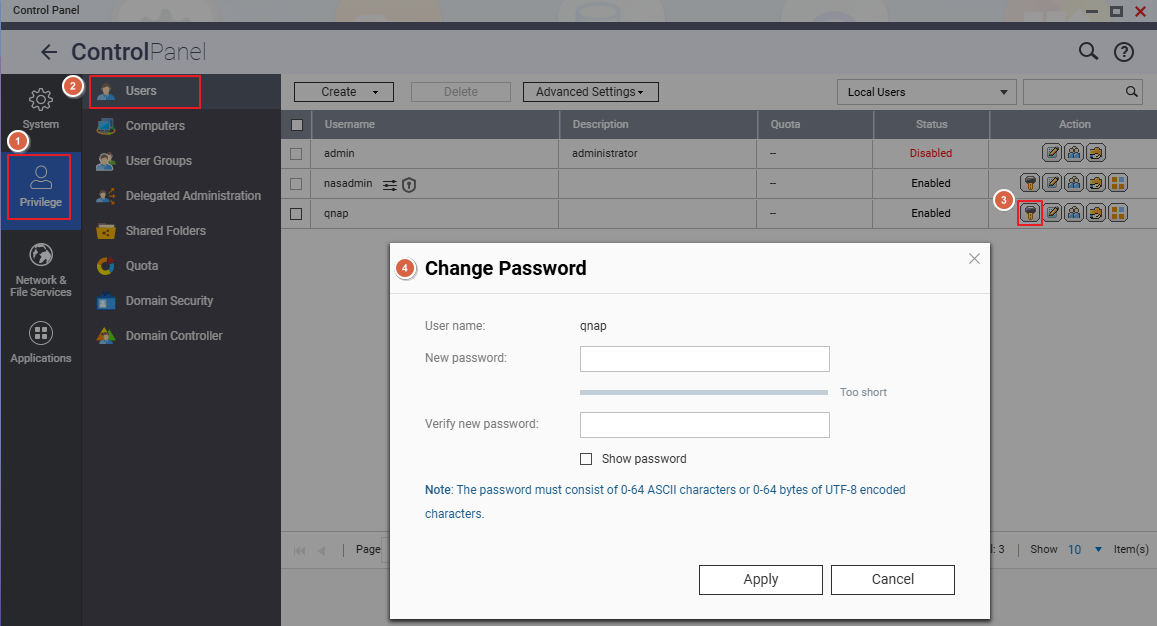
- Log in to QTS or QuTS hero as an administrator.
- Go to Control Panel > Privilege > Users.
- Locate the account that needs a password change.
- In the Action column, click Change Password.
- In the Change Password dialog:
- Enter the new password.
- Re-enter the password in the Verify New Password field.
- Click Apply to save the changes.
Important
Only an administrator can perform this action. The new password must meet the system's complexity requirements.
Scenario 2: Administrator Forgot the NAS Admin Password
Reset the Admin Password via the Reset Button
When to use: You have physical access to the back panel of the NAS.
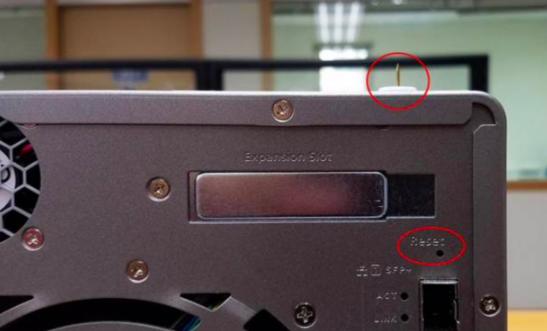
Insert a straightened paperclip or pin into the reset hole on the back of the NAS and press:
| Press Duration |
Beep Indicator |
Reset Effect |
| Short press (3 seconds) |
1 beep |
✅ All user data and shared folders preserved
• Admin password reset to default
• Security level reset to "Low" (allow all connections)
• Service binding and system ports restored to default
• Network (TCP/IP) settings: Switched to DHCP, disables Jumbo Frame and VLANs,Port Trunking set to Active Backup (on dual LAN models) |
| Long press (10 seconds) |
1 beep at 3 sec + 1 beep at 10 sec (2 beeps total) |
✅ User data on disks preserved
• All shared folder configurations are deleted. To restore, see here
• All system settings restored to default |
Warning
A 10-second long press deletes all shared folder configurations. To restore them, use the Backup/Restore function afterward.
After Reset — Log In with the Default Password
After completing a reset, log in using the default admin password. The default password depends on your firmware version:
| Firmware Version |
Default Admin Account |
Default Password |
| QTS/QuTS hero 5.2.0 and later |
admin |
The device's Cloud Key printed on the label (typically an 8-character alphanumeric string) |
| QTS/QuTS hero 4.4.2 – 5.1.x |
admin |
MAC address of the first network adapter (Adapter 1), colons removed, all uppercase |
| QTS/QuTS hero 4.4.1 and earlier |
admin |
admin |
Example (MAC address)
MAC address 00:08:9B:AA:BB:CC → password is 00089BAABBCC
Example (Cloud Key)
Cloud Key printed as Q1234-5678 → password is Q12345678 (uppercase letters, special characters removed)
Where to Find Your Cloud Key and MAC Address
Finding the Cloud Key
| Method |
Steps |
| ① Device label / Quick Installation Guide |
Check the sticker on the back or bottom of the NAS chassis for a field labeled "Cloud Key", or refer to the included Quick Installation Guide (QIG). |
| ② Qfinder Pro (when unable to log in to NAS) |
1. Power off the NAS
2. Remove all hard drives, M.2 SSDs, and QM2 PCIe expansion cards
3. Power on the NAS
4. Open Qfinder Pro, select the device in the list
5. Click Details → the Cloud Key is shown in the Device Details window |
| ③ Qfinder Pro (when able to log in normally) |
1. Open Qfinder Pro and select the device
2. Click Details, then enter your NAS credentials when prompted
3. The Cloud Key is shown in the Device Details window |
| ④ myQNAPcloud website |
1. Go to myQNAPcloud and log in with your QNAP ID
2. Go to Device Management and click your device
3. Click Device Details → the Cloud Key is shown in the details tab |
Note
If none of the above methods work, contact QNAP Customer Support for assistance.
Finding the MAC Address
| Method |
Steps |
| ① Device label |
The sticker on the NAS chassis lists the model name, serial number, and MAC address (format: XX:XX:XX:XX:XX:XX). |
| ② Qfinder Pro |
Open Qfinder Pro, locate your NAS in the list — the MAC Address field is shown directly in the device information. |
Note
When used as the default password, remove the colons from the MAC address and convert all letters to uppercase.
Example: 00:08:9B:AA:BB:CC → password is 00089BAABBCC
Related Articles
适用产品
场景 1:普通用户忘记密码 → 请求管理员重置密码
注意
普通用户无法自行重置密码。您必须联系 NAS 管理员,他们可以从控制台更新您的密码,而不会影响其他账户设置。重置完成后,您可以使用新密码登录。
NAS 管理员为本地用户账户更改密码
- 以管理员身份登录 QTS 或 QuTS hero。
- 转到控制台 > 权限 > 用户。
- 找到需要更改密码的账户。
- 在操作列中,点击更改密码。
- 在更改密码对话框中:
- 点击应用以保存更改。
重要
只有管理员可以执行此操作。新密码必须符合系统的复杂性要求。
场景 2:管理员忘记了 NAS admin 密码
通过重置按钮重置 admin 密码
使用时机:您可以实际接触到 NAS 的后面板。
将一根拉直的回形针或针插入 NAS 背面的重置孔并按下:
| 按压时长 |
蜂鸣器指示 |
重置效果 |
| 短按(3 秒) |
1 声蜂鸣 |
✅ 所有用户数据和共享文件夹保留
• admin 密码重置为默认
• 安全级别重置为“低”(允许所有连接)
• 服务绑定和系统端口恢复为默认
• 网络(TCP/IP)设置:切换为 DHCP,禁用巨型帧和 VLAN,端口中继设置为主动备份(在双 LAN 型号上) |
| 长按(10 秒) |
3 秒时 1 声蜂鸣 + 10 秒时 1 声蜂鸣(共 2 声) |
✅ 磁盘上的用户数据保留
• 所有共享文件夹配置被删除。要恢复,请参见这里
• 所有系统设置恢复为默认 |
警告
长按 10 秒会删除所有共享文件夹配置。要恢复它们,请之后使用备份 / 恢复功能。
重置后 — 使用默认密码登录
完成重置后,使用默认admin密码登录。默认密码取决于您的固件版本:
| 固件版本 |
默认 admin 账户 |
默认密码 |
| QTS/QuTS hero 5.2.0 及更高版本 |
admin |
设备的Cloud Key打印在标签上(通常是一个 8 字符的字母数字字符串) |
| QTS/QuTS hero 4.4.2 – 5.1.x |
admin |
较高个网络适配器(适配器 1)的MAC 地址,去掉冒号,全部大写 |
| QTS/QuTS hero 4.4.1 及更早版本 |
admin |
admin |
示例(MAC 地址)
MAC 地址00:08:9B:AA:BB:CC → 密码是00089BAABBCC
示例(Cloud Key)
Cloud Key 打印为Q1234-5678 → 密码是Q12345678(大写字母,去掉特殊字符)
在哪里找到您的 Cloud Key 和 MAC 地址
查找 Cloud Key
| 方法 |
步骤 |
| ① 设备标签 / 快速安装指南 |
检查 NAS 机箱背面或底部的标签,寻找标有“Cloud Key”的字段,或参考附带的快速安装指南(QIG)。 |
| ② Qfinder Pro(无法登录 NAS 时) |
1. 关闭 NAS 电源
2. 移除所有硬盘、M.2 SSD 和 QM2 PCIe 扩展卡
3. 打开 NAS 电源
4. 打开Qfinder Pro,在列表中选择设备
5. 点击详细信息 → 设备详细信息窗口中显示 Cloud Key |
| ③ Qfinder Pro(能够正常登录时) |
1. 打开Qfinder Pro并选择设备
2. 点击详细信息,然后在提示时输入您的 NAS 凭证
3. 设备详细信息窗口中显示 Cloud Key |
| ④ myQNAPcloud 网站 |
1. 前往myQNAPcloud并使用您的 QNAP ID 登录
2. 前往设备管理并点击您的设备
3. 点击设备详情 → 详情标签中显示 Cloud Key |
注意
如果上述方法均无效,请联系QNAP 客户支持以获得帮助。
查找 MAC 地址
| 方法 |
步骤 |
| ① 设备标签 |
NAS 机箱上的贴纸列出了型号名称、序列号和 MAC 地址(格式:XX:XX:XX:XX:XX:XX)。 |
| ② Qfinder Pro |
打开 Qfinder Pro,在列表中找到您的 NAS — 设备信息中直接显示MAC 地址字段。 |
注意
当用作默认密码时,请去掉 MAC 地址中的冒号并将所有字母转换为大写。
例如:00:08:9B:AA:BB:CC → 密码是00089BAABBCC
相关文章


